 United States
Computer Memory & RAM Performance
Engineered for high-performance computing, our premium computer memory and RAM solutions deliver superior speed, reliability, and scalability to address critical system demands, ensuring uncompromised efficiency for data-intensive tasks.
Talk to an expert
Hpe Memory & Ram
(32)HPE memory and RAM supports branch WAN edge services with DDR4 ECC RDIMMs, registered DIMM formats, and firmware-validated upgrades
Dell Memory & Ram
(11)Dell memory and RAM serves database server refresh cycles in campus data rooms, pairing DDR5 DIMMs, ECC protection, and RDIMM capacity planning
Lenovo Memory & Ram
(38)Lenovo memory and RAM supports CAD workstation pools in engineering floors with DDR5 SODIMM or DIMM modules and non-ECC compatibility choices
Intel Memory & Ram
(4)Intel memory and RAM targets dense compute nodes in private cloud pods with DDR4 ECC DIMMs, RDIMM support, and memory channel balance
Hpe Computer Memory & Ram
(1)HPE computer memory and RAM supports virtualization hosts in hospital equipment rooms with DDR5 ECC RDIMMs and registered DIMM upgrade paths
Synology Memory & Ram
(18)Synology memory and RAM suits NAS storage shelves in creative studios with DDR4 SODIMM modules, ECC options, and cache-heavy file workflows
Hp Memory & Ram
(43)HP memory and RAM covers office workstation refreshes for finance teams using DDR5 DIMMs, non-ECC modules, and dual-channel desktop configurations
147 Matching results
- BEST SELLING
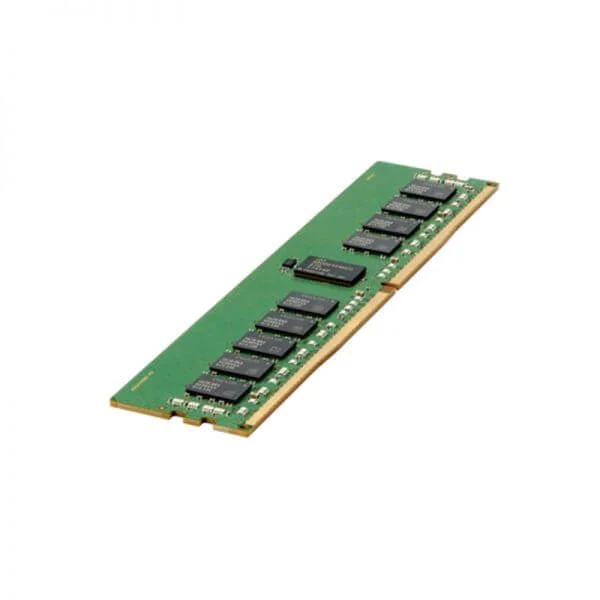
838089-B21 (HPE 16GB 2Rx8 PC4-2666V-R Smart Kit)
4.8 (5)- Computer Memory
- Hpe
- DDR4
- 16 GB
- Desktop
- UDIMM
Est Value $352.77
$255.65
27.5% offIn stockNewRefurbishedFirst-Time Buyer Discount – Get up to 2% additional off on your first order
ORM Rewards Earn $50 in Rewards + Free Expedited Delivery – Join Now!
Use eCoupon ORMSAVE10
eCoupon limited to 5 units
- BEST SELLING
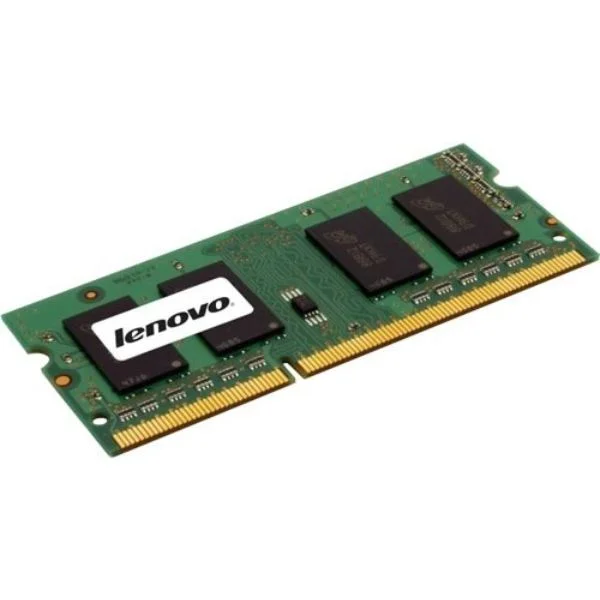
4X70G00095 (ThinkStation 8GB 2Rx8 PC3-14900R 1.5V 4Gbit DDR3-1866 RDIMM)
4.7 (7)- Computer Memory
- Lenovo
- DDR4
- 32 GB
- Desktop
- Workstation
- UDIMM
Est Value $207.67$177.28
14.6% offIn stockRefurbishedFirst-Time Buyer Discount – Get up to 2% additional off on your first order
ORM Rewards Earn $50 in Rewards + Free Expedited Delivery – Join Now!
Use eCoupon ORMSAVE10
eCoupon limited to 5 units
- BEST SELLING
4X70G00093 (ThinkStation 8GB 2Rx8 PC3-14900E 1.5V 4Gbit DDR3-1866 ECC-UDIMM)
4.7 (7)- Computer Memory
- Lenovo
- DDR4
- 16 GB
- Desktop
- Workstation
- UDIMM
Est Value $207.67$177.28
14.6% offIn stockRefurbishedFirst-Time Buyer Discount – Get up to 2% additional off on your first order
ORM Rewards Earn $50 in Rewards + Free Expedited Delivery – Join Now!
Use eCoupon ORMSAVE10
eCoupon limited to 5 units
- BEST SELLING
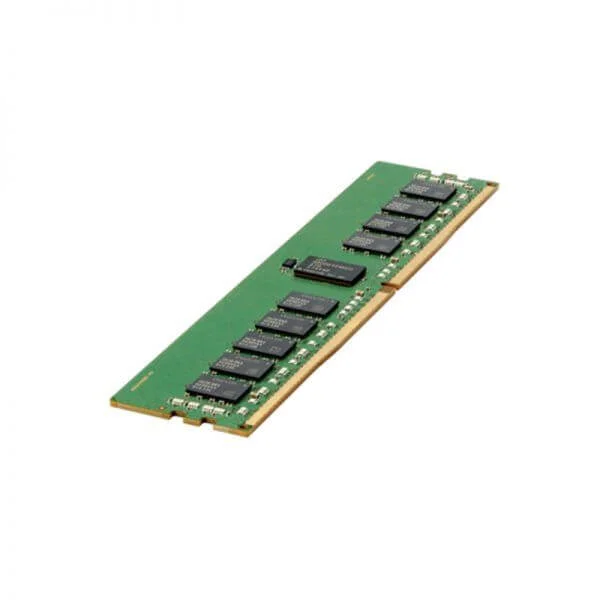
815098-B21 (HPE 16GB 1RX4 PC4-2666V-R SMART KIT NO DEAL REG)
4.6 (5)- Computer Memory
- Hpe
- DDR4
- 16 GB
- Desktop
- Workstation
- UDIMM
Est Value $862.00$210.00
75.6% offIn stockNewRefurbishedFirst-Time Buyer Discount – Get up to 2% additional off on your first order
ORM Rewards Earn $50 in Rewards + Free Expedited Delivery – Join Now!
Use eCoupon ORMSAVE10
eCoupon limited to 5 units
- BEST SELLING
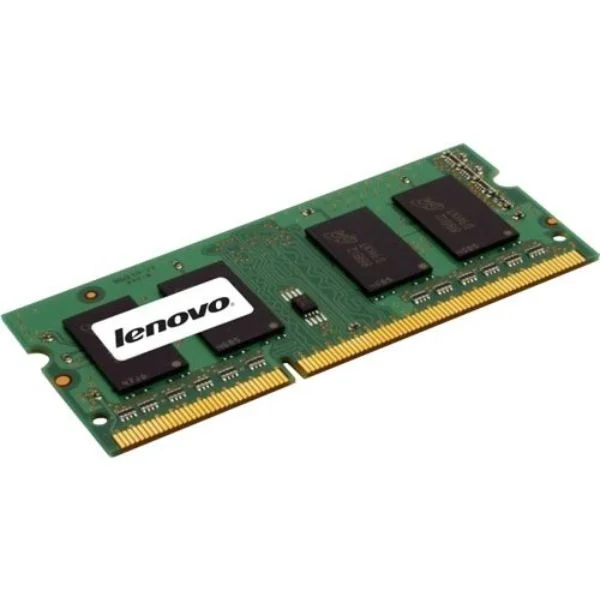
4X70G00094 (ThinkStation 4GB 1Rx8 PC3-14900R 1.5V 4Gbit DDR3-1866 RDIMM)
4.6 (7)- Computer Memory
- Lenovo
- DDR4
- 64 GB
- Desktop
- UDIMM
Est Value $314.80$268.73
14.6% offIn stockRefurbishedFirst-Time Buyer Discount – Get up to 2% additional off on your first order
ORM Rewards Earn $50 in Rewards + Free Expedited Delivery – Join Now!
Use eCoupon ORMSAVE10
eCoupon limited to 5 units
- BEST SELLING
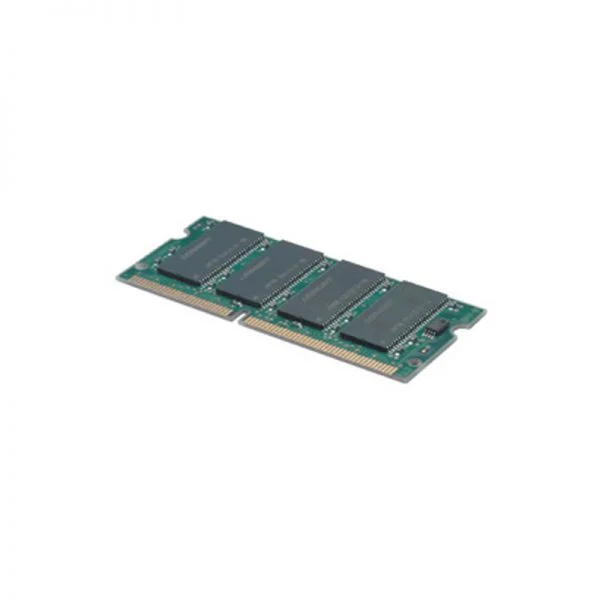
4X70G00092 (ThinkStation 4GB 1Rx8 PC3-14900E 1.5V 4Gbit DDR3-1866 ECC-UDIMM)
4.7 (7)- Computer Memory
- Lenovo
- DDR4
- 32 GB
- Desktop / Server
- Workstation
- UDIMM
Est Value $314.80$268.73
14.6% offIn stockRefurbishedFirst-Time Buyer Discount – Get up to 2% additional off on your first order
ORM Rewards Earn $50 in Rewards + Free Expedited Delivery – Join Now!
Use eCoupon ORMSAVE10
eCoupon limited to 5 units
- BEST SELLING
P00924-B21 (HPE 32GB (1x32GB) Dual Rank x4 DDR4-2933 CAS-21-21-21 Registered Smart Memory Kit)
4.6 (5)- Computer Memory
- Hpe
- DDR4
- 16 GB
- Desktop
- Workstation
- UDIMM
Est Value $1,763.30$372.75
78.9% offIn stockNewRefurbishedFirst-Time Buyer Discount – Get up to 2% additional off on your first order
ORM Rewards Earn $50 in Rewards + Free Expedited Delivery – Join Now!
Use eCoupon ORMSAVE10
eCoupon limited to 5 units
- BEST SELLING
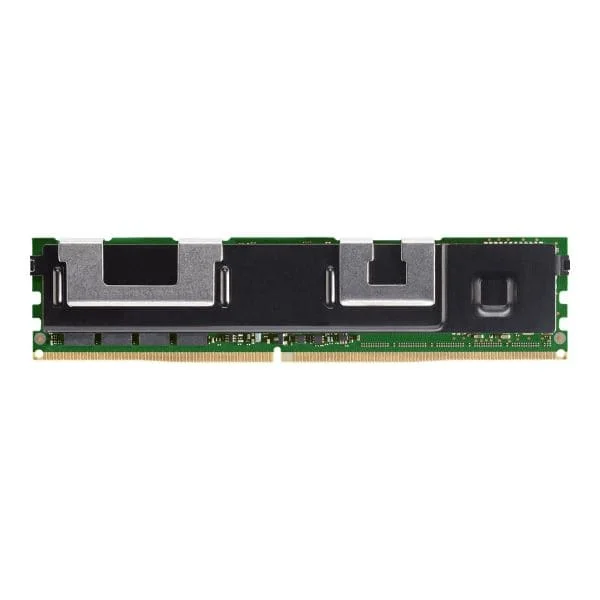
NMA1XXD128GPSU4 (Intel Optane DC Persistent - DDR-T - module - 128 GB - DIMM 288-pin - 2666 MHz / PC4-21300)
4.8 (5)- Computer Memory
- Intel
- DDR4
- 128 GB
- Desktop
- Workstation
- UDIMM
Est Value $1,700.22$1,451.42
14.6% offIn stockNewRefurbishedFirst-Time Buyer Discount – Get up to 2% additional off on your first order
ORM Rewards Earn $50 in Rewards + Free Expedited Delivery – Join Now!
Use eCoupon ORMSAVE10
eCoupon limited to 5 units
- BEST SELLING
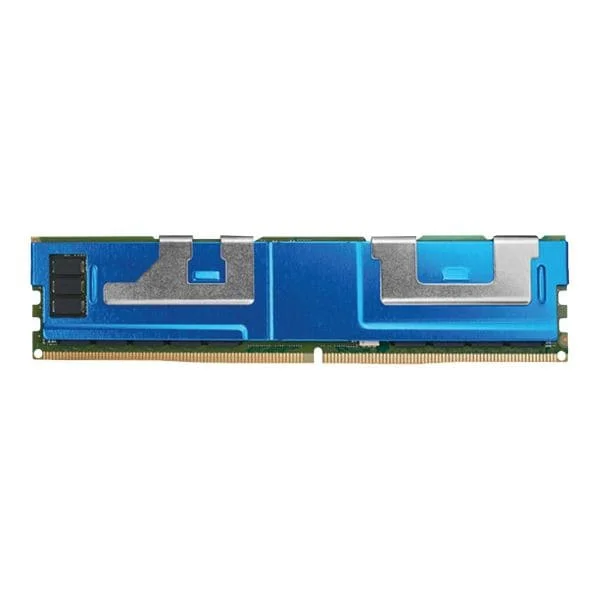
NMA1XXD256GPSU4 (Intel Optane DC Persistent - DDR-T - module - 256 GB - DIMM 288-pin - 2666 MHz / PC4-21300)
4.4 (5)- Computer Memory
- Intel
- DDR4
- 256 GB
- Desktop
- UDIMM
Est Value $5,181.60$4,423.31
14.6% offIn stockRefurbishedFirst-Time Buyer Discount – Get up to 2% additional off on your first order
ORM Rewards Earn $50 in Rewards + Free Expedited Delivery – Join Now!
Use eCoupon ORMSAVE10
eCoupon limited to 5 units
- BEST SELLING

NMA1XXD512GPSU4 (Intel Optane DC Persistent - DDR-T - module - 512 GB - DIMM 288-pin - 2666 MHz / PC4-21300)
5 (5)- Computer Memory
- Intel
- DDR4
- 16 GB
- Desktop
- Workstation
- UDIMM
Est Value $23,848.51$20,358.48
14.6% offIn stockRefurbishedFirst-Time Buyer Discount – Get up to 2% additional off on your first order
ORM Rewards Earn $50 in Rewards + Free Expedited Delivery – Join Now!
Use eCoupon ORMSAVE10
eCoupon limited to 5 units
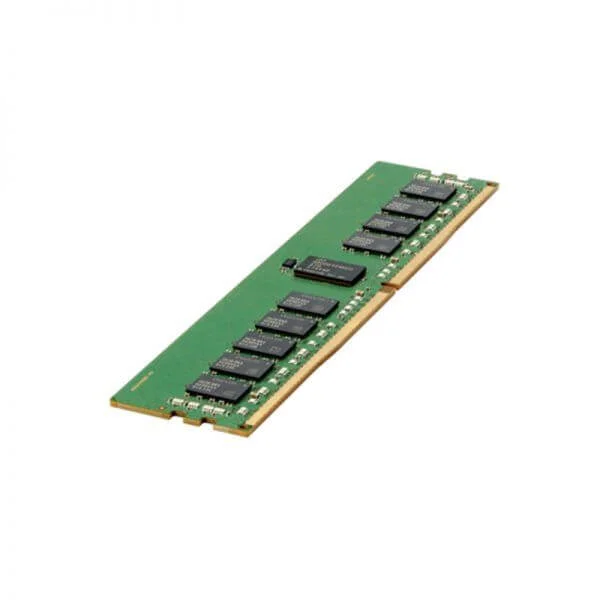
836220-B21 (HP 16GB 2RX4 PC4-2400T-R SMART 1YR IMS WARRANTY STANDARD)
4.4 (5)- Computer Memory
- Hpe
- DDR4
- 16 GB
- Desktop / Laptop / Server
- Workstation
- UDIMM
Est Value $1,052.11$131.25
87.5% offIn stockNewRefurbishedFirst-Time Buyer Discount – Get up to 2% additional off on your first order
ORM Rewards Earn $50 in Rewards + Free Expedited Delivery – Join Now!
Use eCoupon ORMSAVE10
eCoupon limited to 5 units
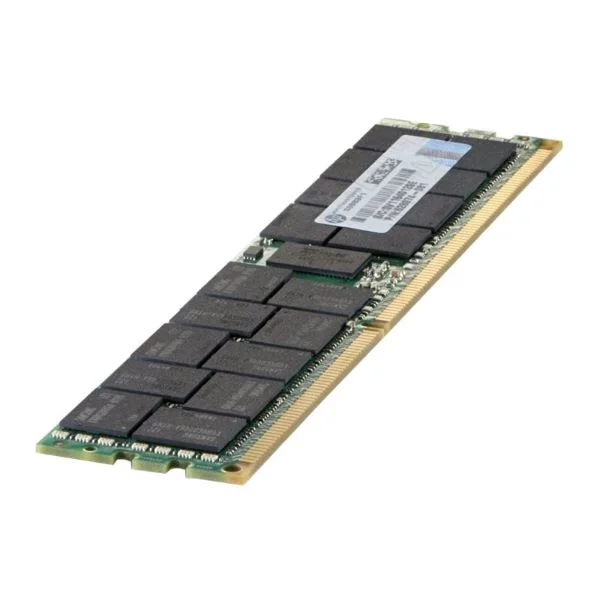
713985-B21 (HPE 16GB (1x16GB) Dual Rank x4 PC3L-12800R (DDR3-1600) Registered CAS-11 Low Voltage Memory Kit)
4.6 (5)- Computer Memory
- Hpe
- DDR4
- 8 GB
- Desktop
- Workstation
- UDIMM
Est Value $434.00$126.00
71% offIn stockNewRefurbishedFirst-Time Buyer Discount – Get up to 2% additional off on your first order
ORM Rewards Earn $50 in Rewards + Free Expedited Delivery – Join Now!
Use eCoupon ORMSAVE10
eCoupon limited to 5 units
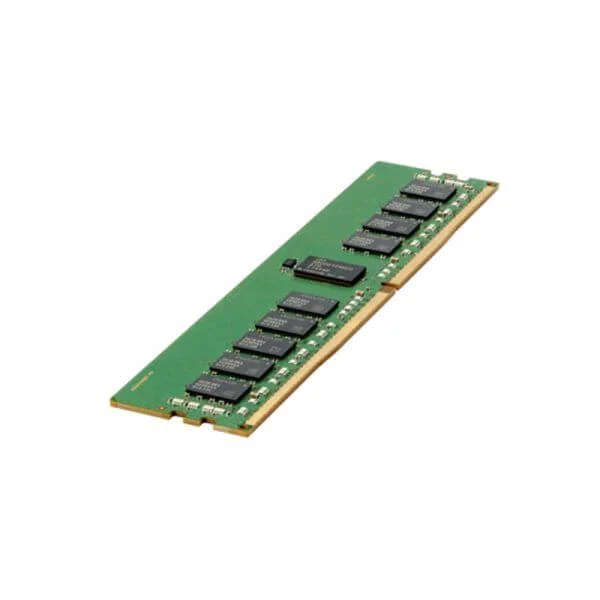
805349-B21 (HPE 16GB 1Rx4 PC4-2400T-R Kit:ProLiant Servers - Memory Gen 9)
4.6 (5)- Computer Memory
- Hpe
- DDR4
- 16 GB
- Desktop
- Workstation
- UDIMM
Est Value $627.23$126.00
79.9% offIn stockNewRefurbishedFirst-Time Buyer Discount – Get up to 2% additional off on your first order
ORM Rewards Earn $50 in Rewards + Free Expedited Delivery – Join Now!
Use eCoupon ORMSAVE10
eCoupon limited to 5 units
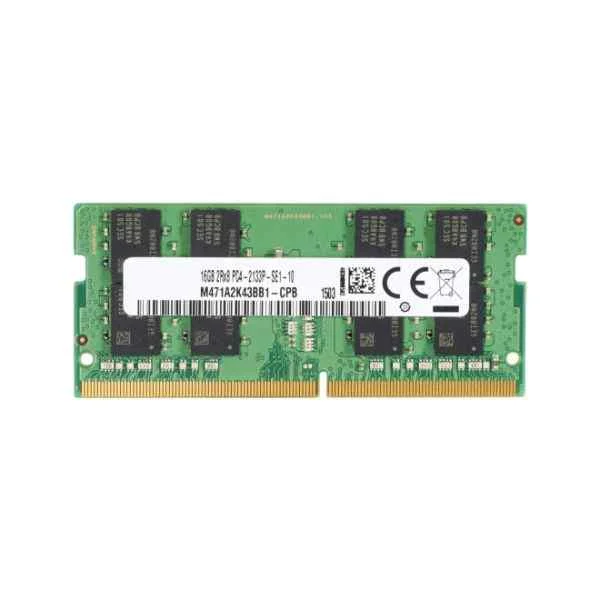
T9V39AA (8GB (1x8GB) DDR4-2400 ECC Reg RAM - 8 GB - 1 x 8 GB - DDR4 - 2400 MHz - 288-pin DIMM)
4.8 (5)- Computer Memory
- Hp
- DDR4
- 16 GB
- Desktop / Laptop / Server
- Workstation
- UDIMM
Est Value $379.82$128.14
66.3% offIn stockRefurbishedFirst-Time Buyer Discount – Get up to 2% additional off on your first order
ORM Rewards Earn $50 in Rewards + Free Expedited Delivery – Join Now!
Use eCoupon ORMSAVE10
eCoupon limited to 5 units
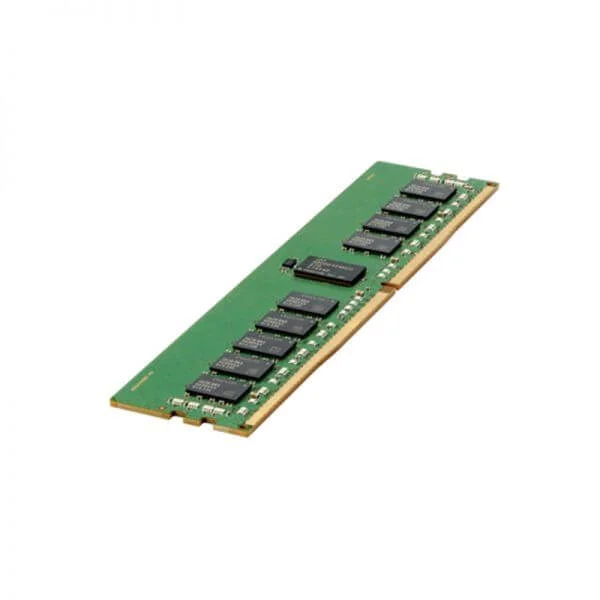
862974-B21 (HPE 8GB 1Rx8 PC4-2400T-E STND Kit)
4.8 (5)- Computer Memory
- Hpe
- DDR4
- 16 GB
- Desktop / Laptop / Server
- Workstation
- UDIMM
Est Value $693.10$591.68
14.6% offIn stockNewRefurbishedFirst-Time Buyer Discount – Get up to 2% additional off on your first order
ORM Rewards Earn $50 in Rewards + Free Expedited Delivery – Join Now!
Use eCoupon ORMSAVE10
eCoupon limited to 5 units
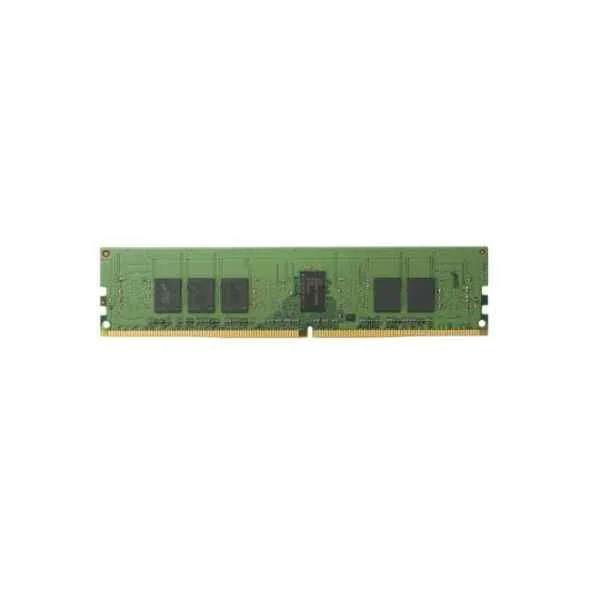
Y7B55AA (4GB (1x4GB) DDR4-2400 nECC SO-DIMM - 4 GB - 1 x 4 GB - DDR4 - 2400 MHz - Black - Green)
4.8 (5)- Computer Memory
- Hp
- DDR4
- 16 GB
- Desktop
- Workstation
- UDIMM
Est Value $185.98$158.76
14.6% offIn stockRefurbishedFirst-Time Buyer Discount – Get up to 2% additional off on your first order
ORM Rewards Earn $50 in Rewards + Free Expedited Delivery – Join Now!
Use eCoupon ORMSAVE10
eCoupon limited to 5 units
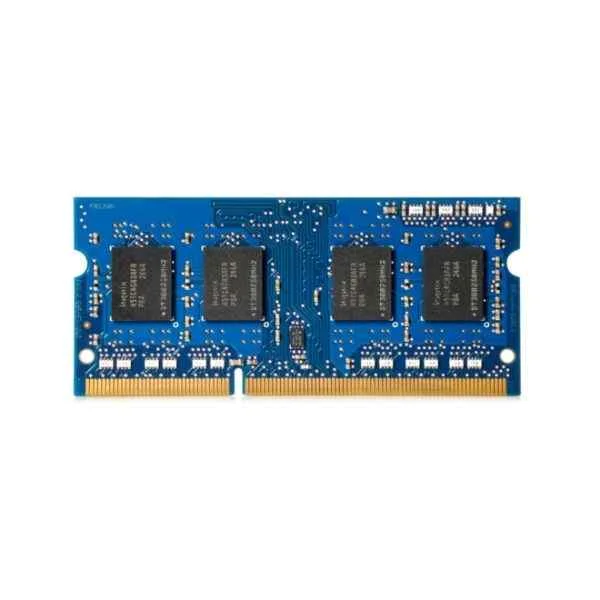
H6Y75AA (4GB DDR3L-1600 1.35V SODIMM - 4 GB - 1 x 4 GB - DDR3 - 1600 MHz - 204-pin SO-DIMM)
4.6 (5)- Computer Memory
- Hp
- DDR4
- 16 GB
- Desktop
- UDIMM
Est Value $192.52$164.35
14.6% offIn stockRefurbishedFirst-Time Buyer Discount – Get up to 2% additional off on your first order
ORM Rewards Earn $50 in Rewards + Free Expedited Delivery – Join Now!
Use eCoupon ORMSAVE10
eCoupon limited to 5 units
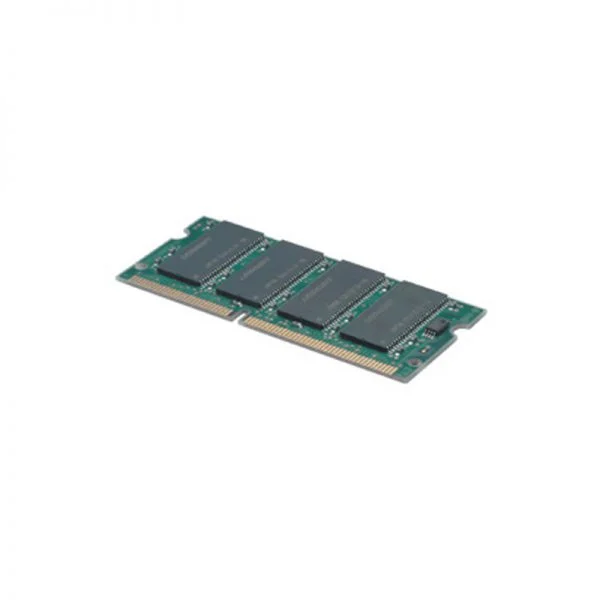
43R2033 (2GB PC3-10600 1333MHz DDR3 ECC UDIMM Memory)
4.7 (7)- Computer Memory
- Lenovo
- DDR4
- 8 GB
- Desktop
- UDIMM
Est Value $198.16$169.16
14.6% offIn stockRefurbishedFirst-Time Buyer Discount – Get up to 2% additional off on your first order
ORM Rewards Earn $50 in Rewards + Free Expedited Delivery – Join Now!
Use eCoupon ORMSAVE10
eCoupon limited to 5 units
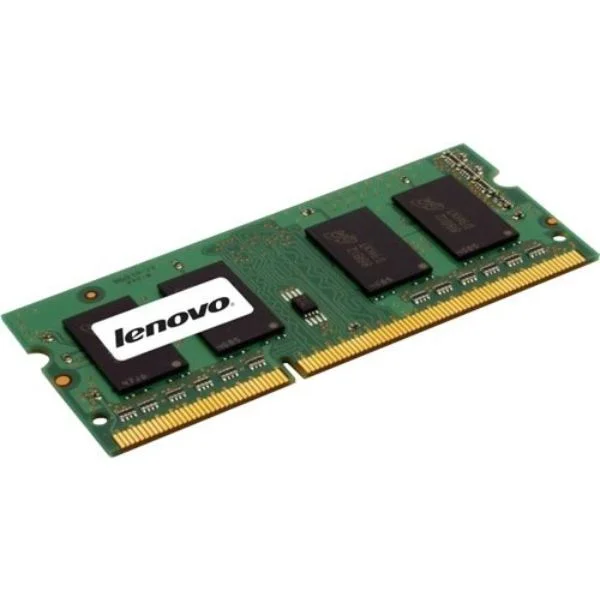
0A65722 (2GBPC3-12800DDR3-1600SoDIMM)
4.7 (7)- Computer Memory
- Lenovo
- DDR4
- 16 GB
- Desktop
- Workstation
- UDIMM
Est Value $198.75$169.66
14.6% offIn stockRefurbishedFirst-Time Buyer Discount – Get up to 2% additional off on your first order
ORM Rewards Earn $50 in Rewards + Free Expedited Delivery – Join Now!
Use eCoupon ORMSAVE10
eCoupon limited to 5 units
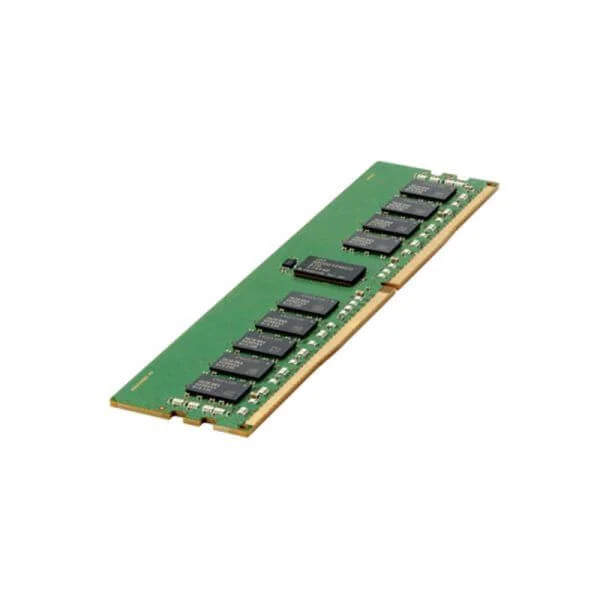
876181-B21 (HP 8GB DDR4 REG ECC 2666MHZ 2RX8 MEMORY)
4.6 (5)- Computer Memory
- Hpe
- DDR4
- 8 GB
- Laptop
- SODIMM
Est Value $531.11$337.18
36.5% offIn stockNewRefurbishedFirst-Time Buyer Discount – Get up to 2% additional off on your first order
ORM Rewards Earn $50 in Rewards + Free Expedited Delivery – Join Now!
Use eCoupon ORMSAVE10
eCoupon limited to 5 units

ORM Sales Advisors
Buying for your business? Get a personalised quote in under 2 hours. Talk to an expert
LEARNFilters (147) 
Questions & Answers
What is computer memory (RAM) and why is it important?
Random Access Memory (RAM) temporarily stores data and instructions your CPU needs right now. It enables fast application loading, smooth multitasking and overall system responsiveness.
What types of RAM are available for PCs?
Common desktop RAM types include DDR3, DDR4 and DDR5. Each generation offers higher data rates, lower voltage and improved efficiency—DDR5 being the latest with the fastest speeds and greatest capacity.
How much RAM do I need for my PC?
8 GB of RAM suffices for general use and web browsing, 16 GB is recommended for gaming and light content creation, while 32 GB or more benefits professional video editing, 3D rendering and heavy multitasking.
How can I check how much RAM is installed on my computer?
On Windows, open Task Manager > Performance > Memory. On macOS, open Apple menu > About This Mac > Overview. On Linux, run `free -h` in a terminal to view installed and available RAM.
Can I upgrade my RAM, and what should I consider?
Yes. Check your motherboard’s maximum supported capacity, module type (DDR generation), speed (MHz) and slot configuration (single/dual channel). Match voltage and timings to avoid compatibility issues.
What is the difference between DDR4 and DDR5 RAM?
DDR5 offers higher bandwidth (up to 6 400 MT/s+), lower voltage (1.1 V vs 1.2 V DDR4), improved power management and on-die ECC. DDR4 tops out around 3 200 MT/s and lacks integrated power features.
What is CAS latency and why does it matter?
CAS latency (CL) measures cycles between a memory request and data availability. Lower CL means faster response. When comparing modules at the same frequency, choose the lower latency for better performance.
What is dual-channel memory and how does it improve performance?
Dual-channel memory pairs two identical RAM modules to double data paths between RAM and CPU. This increases bandwidth, reduces bottlenecks and boosts overall system responsiveness in memory-intensive tasks.
How do I physically install RAM modules in my desktop PC?
Power off and unplug, open the case, locate the DDR slots, release the latches, align the module notch with the slot key, press down evenly until latches click, then close the case and boot up.
What causes RAM errors and how do I troubleshoot them?
Errors can stem from faulty modules, incorrect timings, overclocking or incompatible hardware. Run MemTest86, reseat modules, update BIOS, revert overclocks and test modules one by one to isolate issues.
What is virtual memory and how does it work?
Virtual memory uses a portion of your storage drive as temporary RAM when physical memory fills up. It prevents crashes but is slower than real RAM—adjust the swap/page file size in system settings if needed.
What is ECC RAM and who needs it?
Error-Correcting Code (ECC) RAM detects and corrects single-bit memory errors. It’s essential for servers, workstations and critical applications where data integrity and uptime are paramount.
What is the difference between RAM and storage?
RAM is volatile and stores active data for quick CPU access, wiping on power-off. Storage (HDD/SSD) is non-volatile, retaining files and programs long-term but with slower access speeds.
How do RAM speed and frequency impact system performance?
Higher RAM frequency (MHz) increases data transfer rates, and lower latency (CL) reduces wait times. Together they improve load times, frame rates and responsiveness in memory-sensitive applications.
How can I optimize my RAM usage on Windows?
Close unused apps, disable startup programs in Task Manager, use ReadyBoost with a USB drive, adjust virtual memory settings, and consider upgrading modules if usage stays above 80%.
Can mixing RAM modules of different speeds and sizes cause problems?
Yes. The system defaults to the lowest speed and may disable dual-channel mode. Always match module size, speed, voltage and timings for optimal compatibility and performance.