 United States
Hard Drives & SSDs Performance Unleashed
Experience unrivaled storage performance and data reliability using our advanced Hard Drives & SSDs solutions, carefully engineered for optimal speed, superior capacity, and unmatched enterprise-level efficiency.
Talk to an expert
Hpe Server Hard Drives
(395)HPE server hard drives support 12 Gb/s SAS and SATA capacity tiers for ProLiant rack server production storage bays
Lenovo Hard Drives & SSDs
(421)Lenovo hard drives and SSDs cover SATA, SAS, and NVMe options for ThinkSystem rack server lifecycle replacement programs
Seagate Hard Drives & Ssds
(123)Seagate hard drives and SSDs provide SATA, SAS, and NVMe media for NAS, DAS, and server replacement workloads
Hpe Hard Drives & Ssds
(33)HPE hard drives and SSDs span SAS, SATA, and NVMe interfaces for MSA arrays and ProLiant fleet maintenance
Hp Hard Drives & Ssds
(46)HP hard drives and SSDs support SATA, SAS, and NVMe replacements for legacy ProLiant servers in branch compute rooms
Uniview Hard Drives & Ssds
(2)Uniview hard drives and SSDs target SATA surveillance recording storage for NVR systems in retail and campus security rooms
Intel Hard Drives & Ssds
(95)Intel hard drives and SSDs focus on NVMe and SATA media for workstation scratch disks and server boot pools
Dell Hard Drives & Ssds
(26)Dell hard drives and SSDs include SAS, SATA, and NVMe media for PowerEdge server upgrades in colocation racks
Synology Hard Drives & SSDs
(10)Synology hard drives and SSDs support SATA NAS bays and NVMe cache slots for office file-sharing array upgrades
Fujitsu Hard Drives & Ssds
(52)Fujitsu hard drives and SSDs cover SAS and SATA replacements for PRIMERGY servers in manufacturing site compute rooms
1203 Matching results
- BEST SELLING
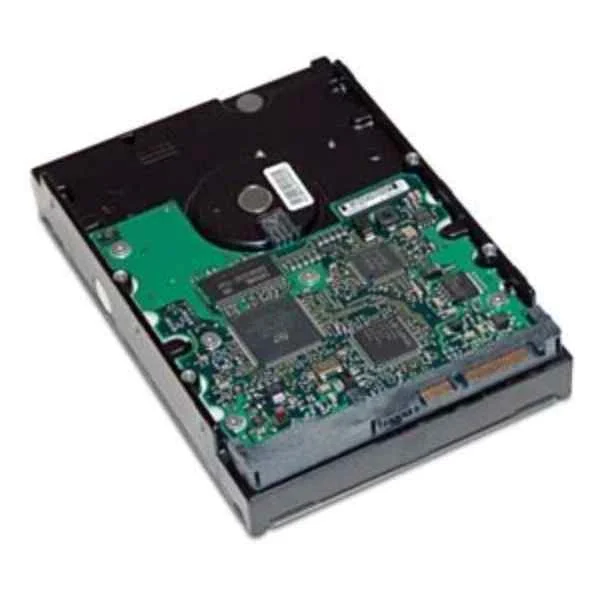
QB576AA (2TB SATA 6Gb/s 7200 Hard Drive - 3.5" - 2000 GB - 7200 RPM)
4.7 (7)- Hard Drive
- Hpe
- HDD
- Desktop / Server / NAS / Surveillance / Enterprise Storage
- SATA III
- 3.5-inch
- 4 TB
Est Value $203.10
$173.38
14.6% offIn stockRefurbishedFirst-Time Buyer Discount – Get up to 2% additional off on your first order
ORM Rewards Earn $50 in Rewards + Free Expedited Delivery – Join Now!
Use eCoupon ORMSAVE10
eCoupon limited to 5 units
- BEST SELLING
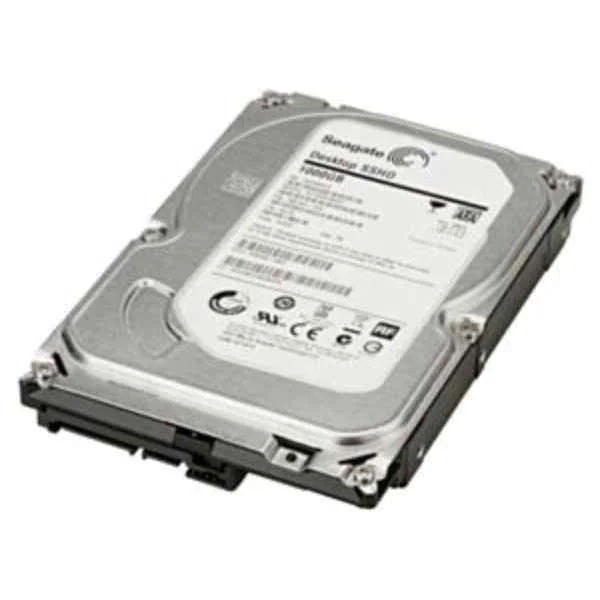
LQ037AA (1TB SATA 6GB/S 7200 RPM HDD)
4.6 (7)- Hard Drive
- Hpe
- HDD
- Desktop / Server / NAS / Surveillance / Enterprise Storage
- SATA III
- 3.5-inch
- 4 TB
Est Value $219.75$187.59
14.6% offIn stockRefurbishedFirst-Time Buyer Discount – Get up to 2% additional off on your first order
ORM Rewards Earn $50 in Rewards + Free Expedited Delivery – Join Now!
Use eCoupon ORMSAVE10
eCoupon limited to 5 units
- BEST SELLING
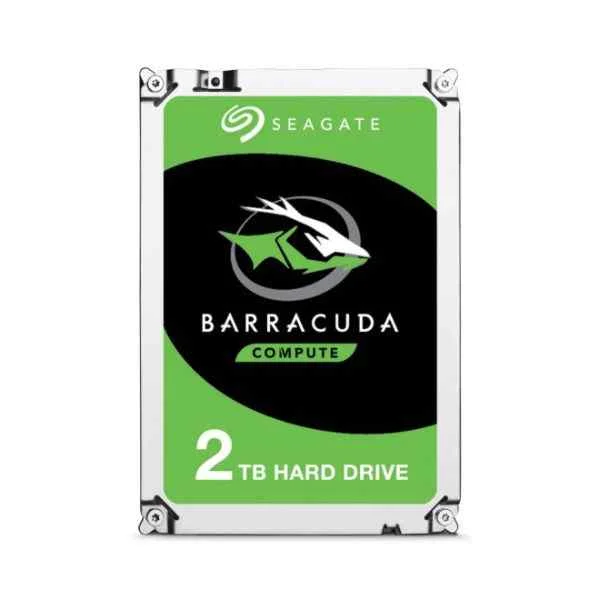
ST2000DM008 (2TB BARRACUDA SATA 7200 RPM 256MB 3.5IN)
4.6 (5)- Hard Drive
- Seagate
- HDD
- Desktop / Server / NAS / Surveillance / Enterprise Storage
- SATA III
- 3.5-inch
- 2 TB
Est Value $309.69$131.25
57.6% offIn stockNewRefurbishedFirst-Time Buyer Discount – Get up to 2% additional off on your first order
ORM Rewards Earn $50 in Rewards + Free Expedited Delivery – Join Now!
Use eCoupon ORMSAVE10
eCoupon limited to 5 units
- BEST SELLING
SSDSC2KG480G801 (SSD D3-S4610 SERIES 480GB 2.5IN SATA 6GBS 3D2 TLC)
4.4 (5)- Hard Drive
- Intel
- HDD
- Desktop / Server / NAS / Surveillance
- SATA III
- 2.5-inch
- 480 GB
Est Value $388.24$257.25
33.7% offIn stockRefurbishedFirst-Time Buyer Discount – Get up to 2% additional off on your first order
ORM Rewards Earn $50 in Rewards + Free Expedited Delivery – Join Now!
Use eCoupon ORMSAVE10
eCoupon limited to 5 units
- BEST SELLING
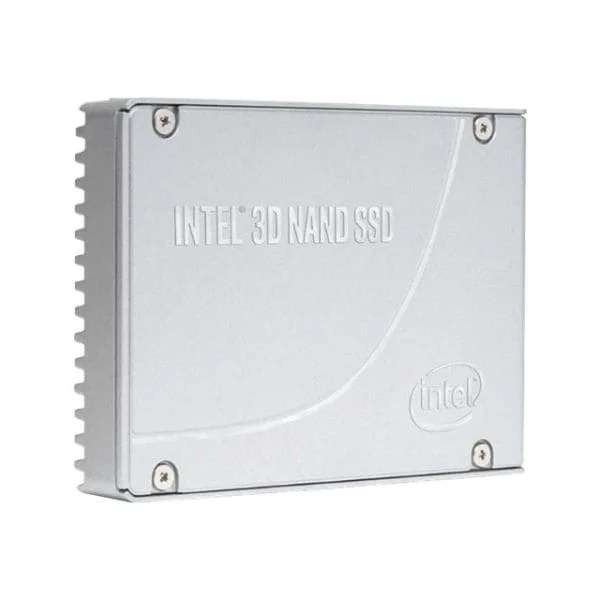
SSDSC2KG240G801 (Intel Solid-State Drive D3-S4610 Series - SSD - 240 GB - SATA 6Gb/s)
4.8 (5)- Hard Drive
- Intel
- HDD
- Desktop / Server / NAS / Surveillance
- SATA III
- 2.5-inch
- 240 GB
Est Value $396.45$292.95
26.1% offIn stockRefurbishedFirst-Time Buyer Discount – Get up to 2% additional off on your first order
ORM Rewards Earn $50 in Rewards + Free Expedited Delivery – Join Now!
Use eCoupon ORMSAVE10
eCoupon limited to 5 units
- BEST SELLING
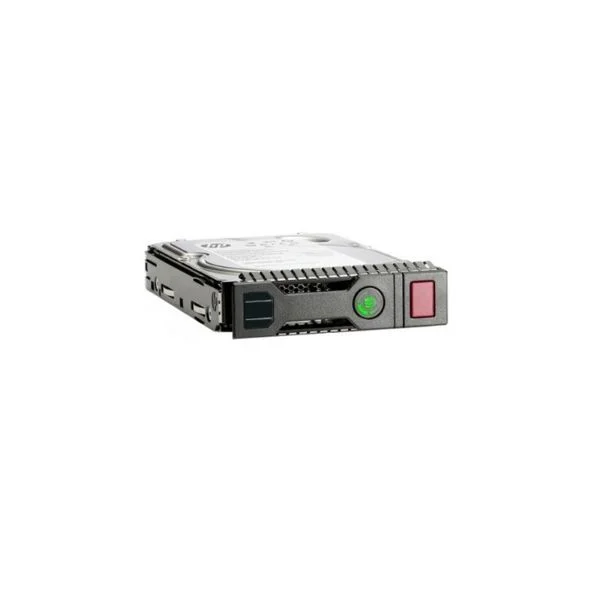
581311-001 (KIT HP 600GB 2.5-INCH SFF SAS 6GB/S 10K RPM_X000D_ DP ENT HOT-PLU)
4.4 (5)- Hard Drive
- Hpe
- HDD
- Desktop / Server / NAS / Surveillance / Enterprise Storage
- SATA III / SAS 12Gb/s
- 3.5-inch
- 4 TB
Est Value $384.75$49.33
87.2% offIn stockNewRefurbishedFirst-Time Buyer Discount – Get up to 2% additional off on your first order
ORM Rewards Earn $50 in Rewards + Free Expedited Delivery – Join Now!
Use eCoupon ORMSAVE10
eCoupon limited to 5 units
- BEST SELLING
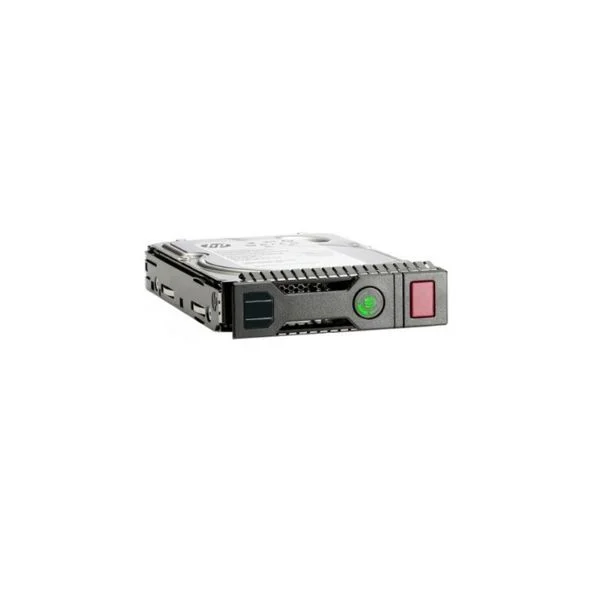
652611-B21 (HPE 300GB 2.5" SAS 15K 6Gb/s HS Enterprise Hard Drive for Gen9)
4.4 (5)- Hard Drive
- Hpe
- HDD
- Desktop / Server / NAS / Surveillance
- SATA III
- 3.5-inch
- 10 TB
Est Value $605.96$57.75
90.5% offIn stockNewRefurbishedFirst-Time Buyer Discount – Get up to 2% additional off on your first order
ORM Rewards Earn $50 in Rewards + Free Expedited Delivery – Join Now!
Use eCoupon ORMSAVE10
eCoupon limited to 5 units
- BEST SELLING
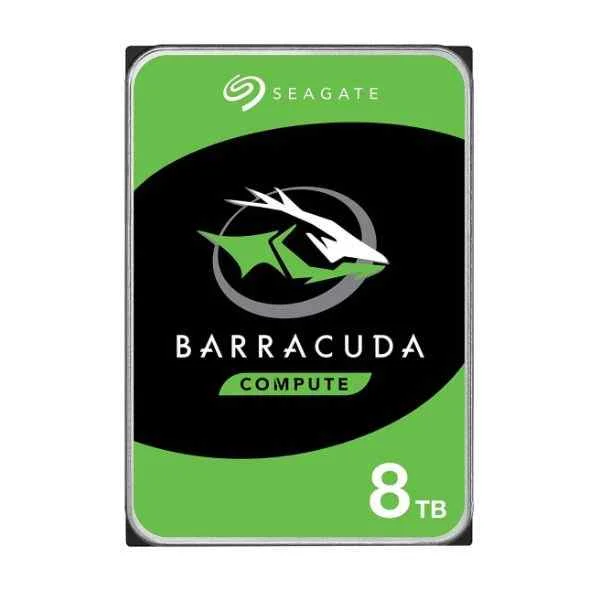
ST8000DM004 (8TB BARRACUDA SATA 5400 RPM 256MB 3.5IN)
4.8 (6)- Hard Drive
- Seagate
- HDD
- Desktop
- SATA III
- 3.5-inch
- 8 TB
Est Value $452.25$341.25
24.5% offIn stockNewRefurbishedFirst-Time Buyer Discount – Get up to 2% additional off on your first order
ORM Rewards Earn $50 in Rewards + Free Expedited Delivery – Join Now!
Use eCoupon ORMSAVE10
eCoupon limited to 5 units
- BEST SELLING
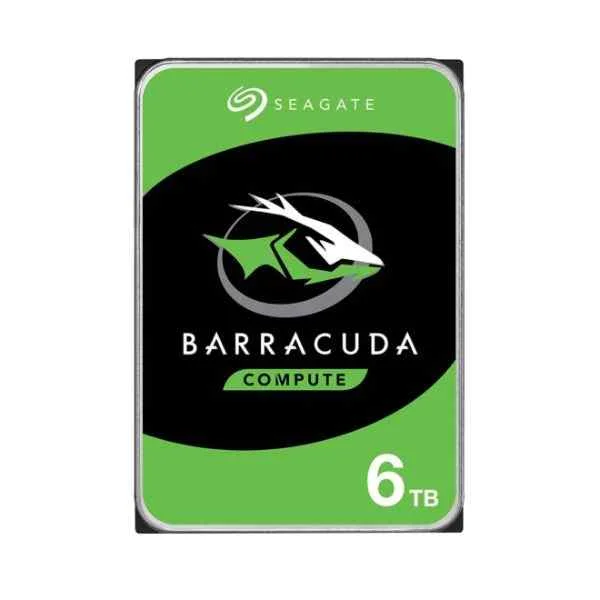
ST6000DM003 (6TB BARRACUDA SATA 5400 RPM 256MB 3.5IN)
4.7 (6)- Hard Drive
- Seagate
- HDD
- Desktop / Server / NAS / Surveillance / Enterprise Storage
- SATA III
- 3.5-inch
- 6 TB
Est Value $405.60$327.60
19.2% offIn stockRefurbishedFirst-Time Buyer Discount – Get up to 2% additional off on your first order
ORM Rewards Earn $50 in Rewards + Free Expedited Delivery – Join Now!
Use eCoupon ORMSAVE10
eCoupon limited to 5 units
- BEST SELLING
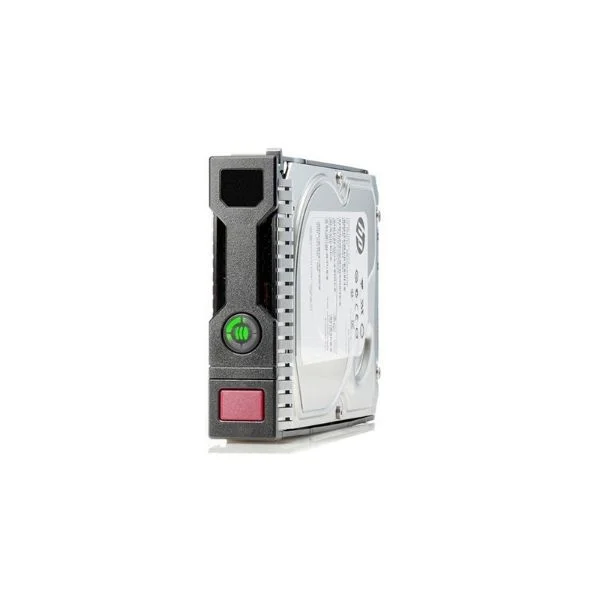
872491-B21 (4TB SATA 6G 7.2K LFF SC DS HDD PRICING PL-SI)
4.4 (5)- Hard Drive
- Hpe
- HDD
- Desktop / Server / NAS / Surveillance
- SATA III
- 3.5-inch
- 4 TB
Est Value $738.00$228.90
69% offIn stockNewRefurbishedFirst-Time Buyer Discount – Get up to 2% additional off on your first order
ORM Rewards Earn $50 in Rewards + Free Expedited Delivery – Join Now!
Use eCoupon ORMSAVE10
eCoupon limited to 5 units
- BEST SELLING
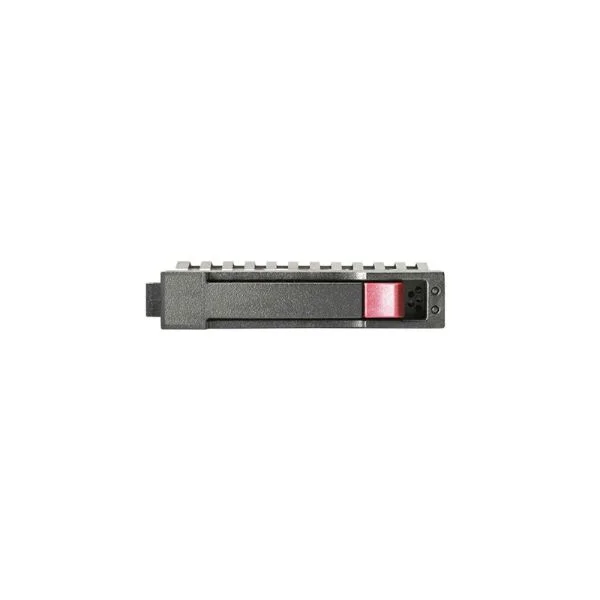
J9F48A (HPE MSA 1.2TB 12G SAS 10K 2.5in ENT HDD)
5 (5)- Hard Drive
- Hpe
- HDD
- Desktop / Server / NAS / Surveillance / Enterprise Storage
- SATA III
- 3.5-inch
- 10 TB
Est Value $1,025.00$126.00
87.7% offIn stockNewRefurbishedFirst-Time Buyer Discount – Get up to 2% additional off on your first order
ORM Rewards Earn $50 in Rewards + Free Expedited Delivery – Join Now!
Use eCoupon ORMSAVE10
eCoupon limited to 5 units
- BEST SELLING
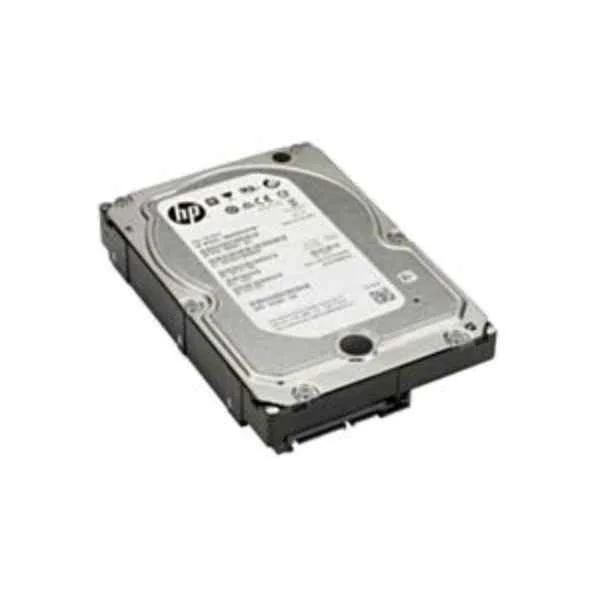
K4T76AA (4TB SATA 7200 RPM HDD)
4.6 (7)- Hard Drive
- Hpe
- HDD
- Desktop / Server / NAS / Surveillance / Enterprise Storage
- SATA III
- 3.5-inch
- 4 TB
Est Value $1,085.96$334.78
69.2% offIn stockNewRefurbishedFirst-Time Buyer Discount – Get up to 2% additional off on your first order
ORM Rewards Earn $50 in Rewards + Free Expedited Delivery – Join Now!
Use eCoupon ORMSAVE10
eCoupon limited to 5 units
- BEST SELLING
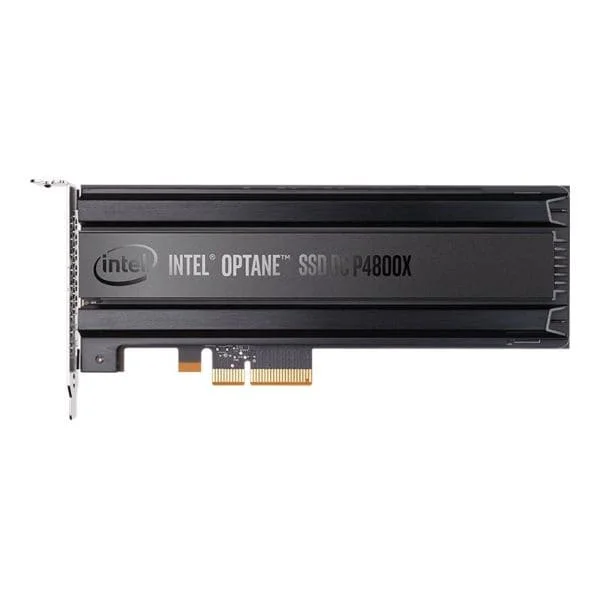
SSDSC2KB480G801 (INTEL 480GB D3-S4510 SSD SATA INTEL 480GB D3-S4510 SSD SATA)
4.6 (8)- Hard Drive
- Intel
- HDD
- Desktop / Server / NAS / Surveillance
- SATA III
- 2.5-inch
- 480 GB
Est Value $639.90$228.90
64.2% offIn stockNewRefurbishedFirst-Time Buyer Discount – Get up to 2% additional off on your first order
ORM Rewards Earn $50 in Rewards + Free Expedited Delivery – Join Now!
Use eCoupon ORMSAVE10
eCoupon limited to 5 units
- BEST SELLING
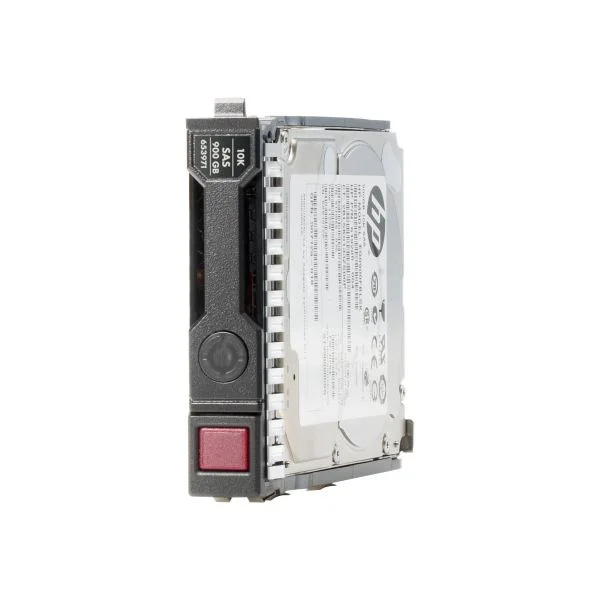
N9X95A (HP 400GB MU SFF 12G SAS MSA SDD)
4.6 (5)- Hard Drive
- Hpe
- HDD
- Desktop / Server / NAS / Surveillance / Enterprise Storage
- SATA III
- 3.5-inch
- 8 TB
Est Value $2,245.86$320.62
85.7% offIn stockNewRefurbishedFirst-Time Buyer Discount – Get up to 2% additional off on your first order
ORM Rewards Earn $50 in Rewards + Free Expedited Delivery – Join Now!
Use eCoupon ORMSAVE10
eCoupon limited to 5 units
- BEST SELLING
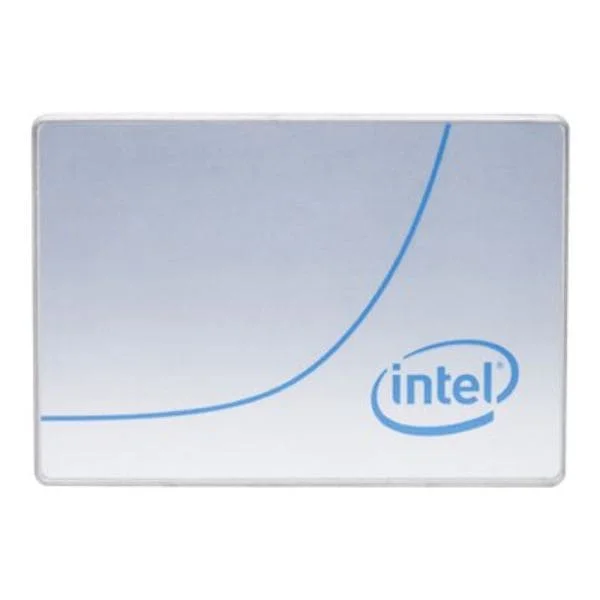
SSDSC2KB038T801 (Intel Solid-State Drive D3-S4510 Series - SSD - 3.84 TB - SATA 6Gb/s)
4.7 (7)- Hard Drive
- Intel
- HDD
- Desktop / Server / NAS / Surveillance
- SATA III
- 3.5-inch
- 8 TB
Est Value $1,944.00$701.66
63.9% offIn stockRefurbishedFirst-Time Buyer Discount – Get up to 2% additional off on your first order
ORM Rewards Earn $50 in Rewards + Free Expedited Delivery – Join Now!
Use eCoupon ORMSAVE10
eCoupon limited to 5 units
- BEST SELLING
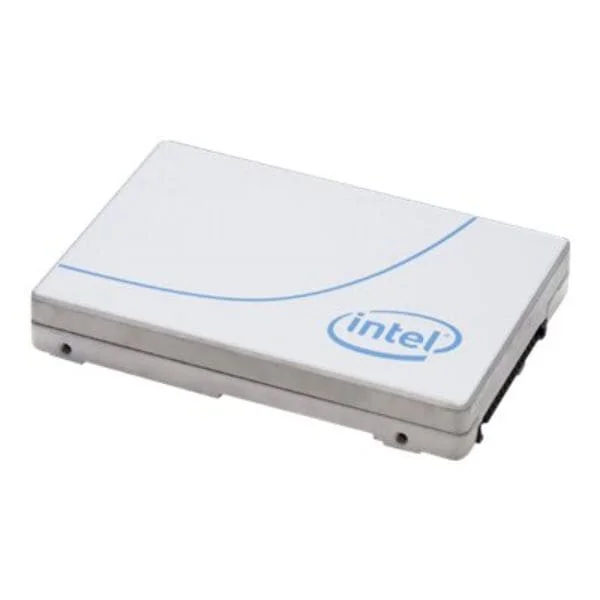
SSDPEK1A118GA01 (Intel Optane SSD P1600X Series - SSD - 118 GB - PCIe 3.0 x4 (NVMe))
4.1 (7)- Hard Drive
- Intel
- HDD
- Desktop / Server / NAS / Surveillance / Enterprise Storage
- SATA III
- 2.5-inch / 3.5-inch
- 1 TB
Est Value $1,466.18$733.09
50% offIn stockRefurbishedFirst-Time Buyer Discount – Get up to 2% additional off on your first order
ORM Rewards Earn $50 in Rewards + Free Expedited Delivery – Join Now!
Use eCoupon ORMSAVE10
eCoupon limited to 5 units
- BEST SELLING
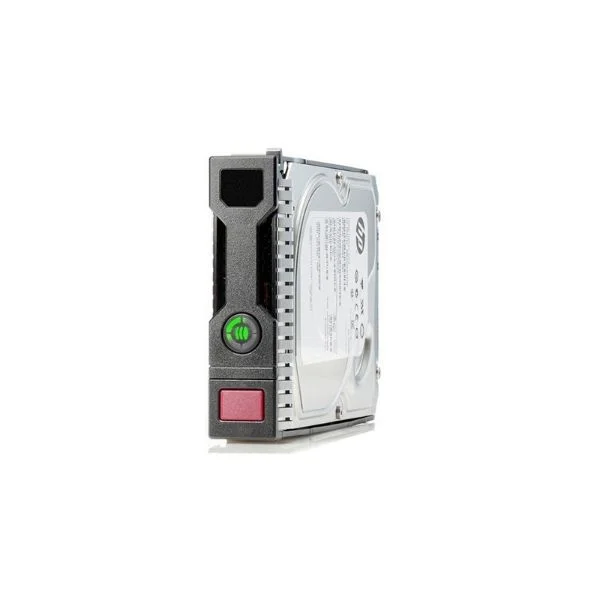
857644-B21 (HPE 10TB SAS 12G Midline 7.2K LFF (3.5in) SC 1yr Wty Helium 512e Digitally Signed Firmware HDD For Use with Gen8/Gen9 or Newer)
4.6 (5)- Hard Drive
- Hpe
- HDD
- Desktop / Server / NAS / Surveillance / Enterprise Storage
- SATA III
- 3.5-inch
- 4 TB
Est Value $1,947.00$315.00
83.8% offIn stockNewRefurbishedFirst-Time Buyer Discount – Get up to 2% additional off on your first order
ORM Rewards Earn $50 in Rewards + Free Expedited Delivery – Join Now!
Use eCoupon ORMSAVE10
eCoupon limited to 5 units
- BEST SELLING
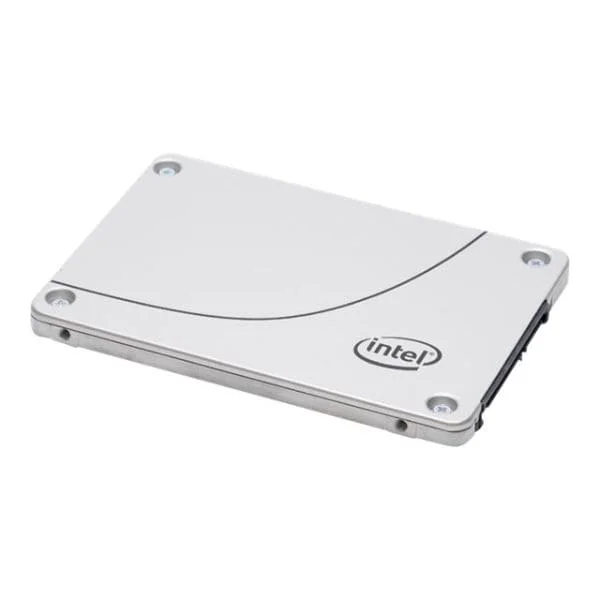
SSDSC2KB960G801 (Intel Solid-State Drive D3-S4510 Series - SSD - 960 GB - SATA 6Gb/s)
4.6 (5)- Hard Drive
- Intel
- HDD
- Enterprise Storage
- SATA III
- 3.5-inch
- 1 TB
Est Value $897.75$346.50
61.4% offIn stockNewRefurbishedFirst-Time Buyer Discount – Get up to 2% additional off on your first order
ORM Rewards Earn $50 in Rewards + Free Expedited Delivery – Join Now!
Use eCoupon ORMSAVE10
eCoupon limited to 5 units
- BEST SELLING
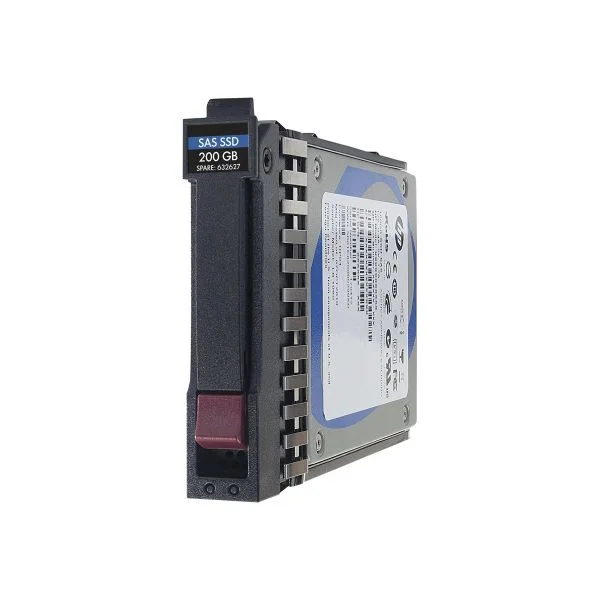
N9X96A (HPE MSA 800GB 12G SAS MU 2.5in SSD)
4.6 (5)- Hard Drive
- Hpe
- HDD
- Enterprise Storage
- SAS 12Gb/s
- 3.5-inch
- 10 TB
Est Value $4,219.00$504.00
88.1% offIn stockNewRefurbishedFirst-Time Buyer Discount – Get up to 2% additional off on your first order
ORM Rewards Earn $50 in Rewards + Free Expedited Delivery – Join Now!
Use eCoupon ORMSAVE10
eCoupon limited to 5 units
- BEST SELLING
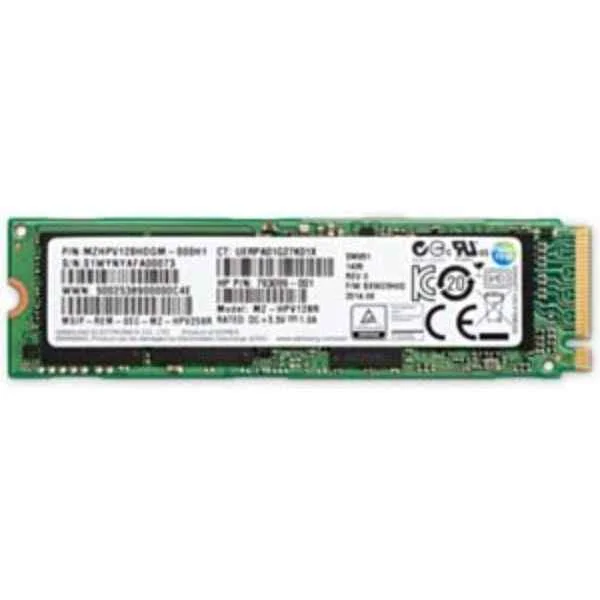
1PD60AA (Z Turbo Drive - 512 GB - M.2)
4.6 (7)- Hard Drive
- Hpe
- HDD
- Desktop / Server / NAS / Surveillance
- SATA III
- 3.5-inch
- 6 TB
Est Value $1,617.08$808.54
50% offIn stockRefurbishedFirst-Time Buyer Discount – Get up to 2% additional off on your first order
ORM Rewards Earn $50 in Rewards + Free Expedited Delivery – Join Now!
Use eCoupon ORMSAVE10
eCoupon limited to 5 units

ORM Sales Advisors
Buying for your business? Get a personalised quote in under 2 hours. Talk to an expert
LEARNFilters (1203) 
Questions & Answers
What is the difference between an HDD and an SSD?
An HDD (hard disk drive) stores data on spinning magnetic platters, while an SSD (solid state drive) uses flash memory chips for significantly faster read/write speeds, lower latency, and greater shock resistance.
How do I choose between a hard drive and an SSD?
Select an SSD if you need fast boot times, application loading, and durability; choose an HDD for larger storage capacity at a lower cost per gigabyte.
What are the advantages of NVMe SSDs over SATA SSDs?
NVMe SSDs leverage PCIe lanes to deliver up to 5× higher sequential read/write speeds and lower latency than SATA SSDs, making them ideal for high-performance computing and gaming.
How much storage capacity do I need in a hard drive or SSD?
For basic use and document storage, 256–512 GB is sufficient; 1–2 TB works well for gaming, multimedia libraries, and professional workloads requiring large files.
How do I install a hard drive or SSD in my computer?
Mount the drive in an available 3.5″ or 2.5″ bay (or M.2 slot for SSDs), connect it to the motherboard via SATA or PCIe, then secure power and data cables before powering on.
Can I upgrade from an HDD to an SSD without reinstalling Windows?
Yes, you can clone your HDD to an SSD using disk-imaging software that copies partitions and boot data, then swap drives to retain your existing Windows installation.
What is the typical lifespan of an SSD?
Modern SSDs are rated for 150–600 TBW (terabytes written) and can last 5–10 years under normal consumer workloads, thanks to wear-leveling and error-correction technologies.
How reliable are hard drives compared to SSDs?
SSDs generally offer higher reliability due to no moving parts and built-in wear management, while HDDs are more prone to mechanical failure but can handle greater total rewrite volumes.
What does RPM mean on a hard drive, and why is it important?
RPM (revolutions per minute) measures platter spin speed; higher RPM (e.g., 7200 vs. 5400) yields faster data access and improved overall drive performance.
What is TRIM and why is it important for SSD performance?
TRIM is a command that informs the SSD which data blocks are no longer in use, enabling the drive to perform efficient garbage collection and maintain peak write speeds over time.
How do I format a new hard drive or SSD for Windows or macOS?
Use Disk Management on Windows or Disk Utility on macOS to initialize the drive, create partitions, and select NTFS/exFAT (Windows) or APFS/HFS+ (macOS) file systems.
Is an external SSD faster than an external HDD?
Yes, external SSDs connected via USB 3.1 Gen 2 or Thunderbolt deliver sustained transfer rates of 500–2,800 MB/s, far exceeding the 100–200 MB/s range of external HDDs.
Can I use an SSD and HDD together in the same system?
Absolutely—combine an SSD for your operating system and applications with an HDD for bulk data storage to balance speed and cost-effective capacity.
How do I clone my hard drive to an SSD safely?
Connect both drives, run reliable cloning software that copies all partitions and the bootloader, verify the clone’s integrity, and then switch the boot priority to the SSD in BIOS/UEFI.
What form factors are available for SSDs?
Common SSD form factors include 2.5″ SATA, M.2 2280/2230 (SATA or NVMe), and U.2, each offering different interfaces and physical sizes to suit desktops, laptops, and servers.
What factors influence the price of hard drives and SSDs?
Price is driven by storage capacity, interface type (SATA vs. NVMe), performance (sequential I/O speeds), endurance rating (TBW), and brand warranty coverage.