 United States
Server Expansion Cards Synology
Explore Synology’s cutting-edge server expansion cards engineered to maximize storage performance, boost operational efficiency, and deliver enterprise-grade reliability for scalable, future-proof data center solutions.
Talk to an expert
8 Matching results
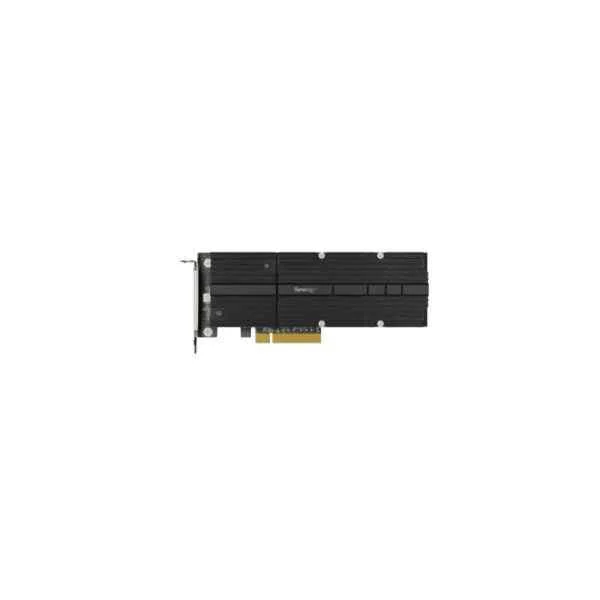
M2D20 (M.2 ADAPT CARD)
4.7 (7)- Expansion Card
- Synology
- Other
- PCIe x4
- PCIe 3.0
Est Value $356.17
$304.05
14.6% offIn stockNewRefurbishedFirst-Time Buyer Discount – Get up to 2% additional off on your first order
ORM Rewards Earn $50 in Rewards + Free Expedited Delivery – Join Now!
Use eCoupon ORMSAVE10
eCoupon limited to 5 units
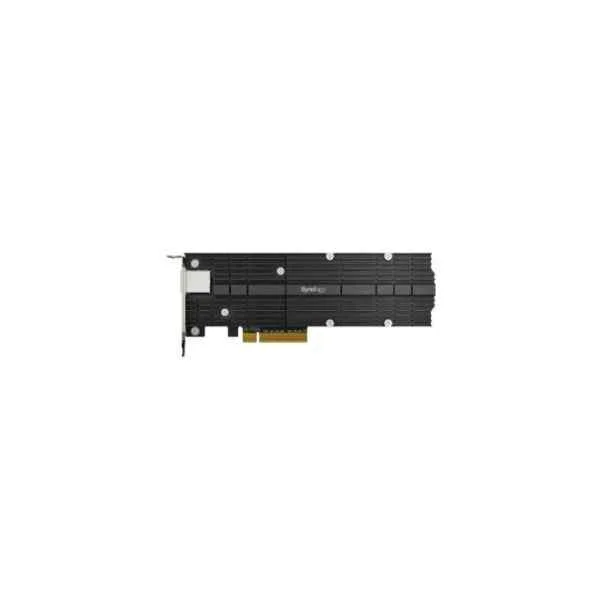
E10M20-T1 (M.2 ADAPT AND 10GB ENET CARD)
4.6 (7)- Expansion Card
- Synology
- Network Interface Card
- M.2
- PCIe 3.0
- Intel X550-T1
- RJ-45
Est Value $455.04$388.45
14.6% offIn stockNewRefurbishedFirst-Time Buyer Discount – Get up to 2% additional off on your first order
ORM Rewards Earn $50 in Rewards + Free Expedited Delivery – Join Now!
Use eCoupon ORMSAVE10
eCoupon limited to 5 units
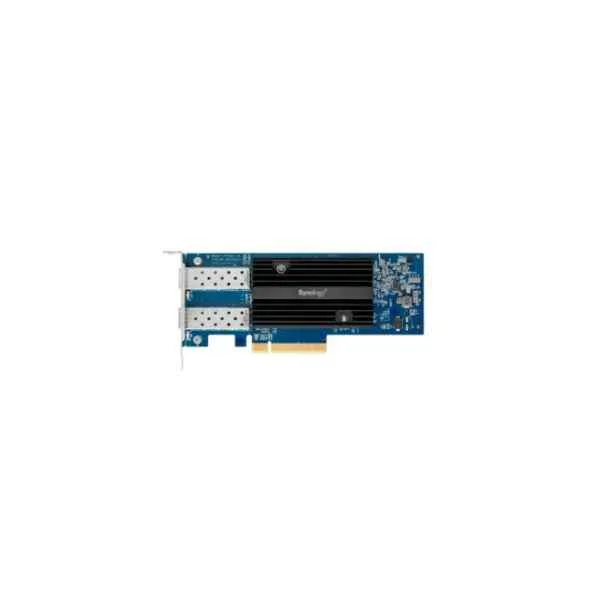
E10G21-F2 (DUAL-PORT 10GBE SFP+ ADD-IN CARD FOR SYNOLOGY SERVERS)
4.6 (7)- Expansion Card
- Synology
- Network Interface Card
- PCIe x4
- PCIe 3.0
- Intel X520
- SFP+
Est Value $488.99$417.43
14.6% offIn stockRefurbishedFirst-Time Buyer Discount – Get up to 2% additional off on your first order
ORM Rewards Earn $50 in Rewards + Free Expedited Delivery – Join Now!
Use eCoupon ORMSAVE10
eCoupon limited to 5 units
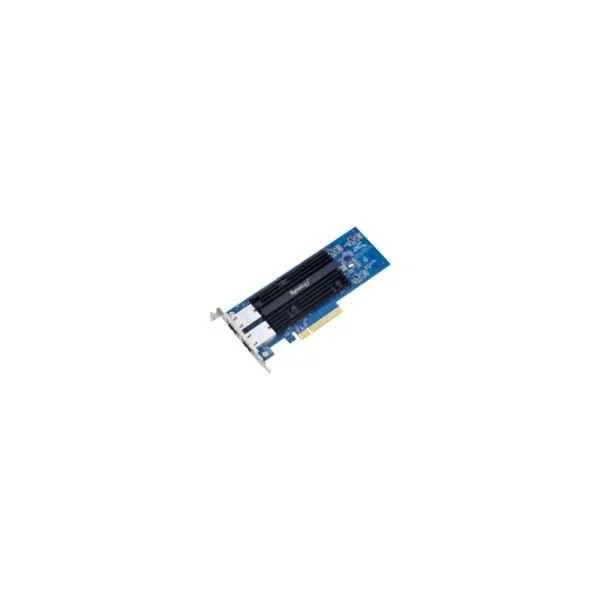
E10G18-T2 (E10G18-T2 - Internal - Wired - PCI Express - Ethernet - 10000 Mbit/s - Black,Blue)
4.7 (7)- Expansion Card
- Synology
- Network Interface Card
- PCIe x4
- PCIe 3.0
- Intel X710
- RJ-45
Est Value $491.34$419.43
14.6% offIn stockRefurbishedFirst-Time Buyer Discount – Get up to 2% additional off on your first order
ORM Rewards Earn $50 in Rewards + Free Expedited Delivery – Join Now!
Use eCoupon ORMSAVE10
eCoupon limited to 5 units
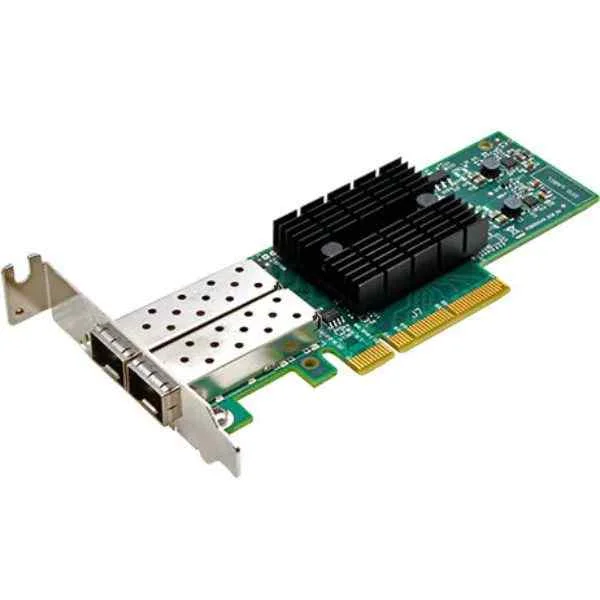
E10G17-F2 (E10G17-F2 - Internal - Wired - PCI Express - Ethernet - 10000 Mbit/s)
4.9 (7)- Expansion Card
- Synology
- Network Interface Card
- PCIe x4
- PCIe 3.0
- Intel X710
- RJ-45
Est Value $580.15$495.25
14.6% offIn stockRefurbishedFirst-Time Buyer Discount – Get up to 2% additional off on your first order
ORM Rewards Earn $50 in Rewards + Free Expedited Delivery – Join Now!
Use eCoupon ORMSAVE10
eCoupon limited to 5 units
M2D18 (M.2 ADAPTER CARD)
4.6 (7)Est Value $384.75$299.25
22.2% offIn stockNewRefurbishedFirst-Time Buyer Discount – Get up to 2% additional off on your first order
ORM Rewards Earn $50 in Rewards + Free Expedited Delivery – Join Now!
Use eCoupon ORMSAVE10
eCoupon limited to 5 units
E10G18-T1 (10GB ENET ADAPTER 1 RJ45PORT E10G18-T1)
4.9 (7)Est Value $492.75$238.14
51.7% offIn stockNewRefurbishedFirst-Time Buyer Discount – Get up to 2% additional off on your first order
ORM Rewards Earn $50 in Rewards + Free Expedited Delivery – Join Now!
Use eCoupon ORMSAVE10
eCoupon limited to 5 units
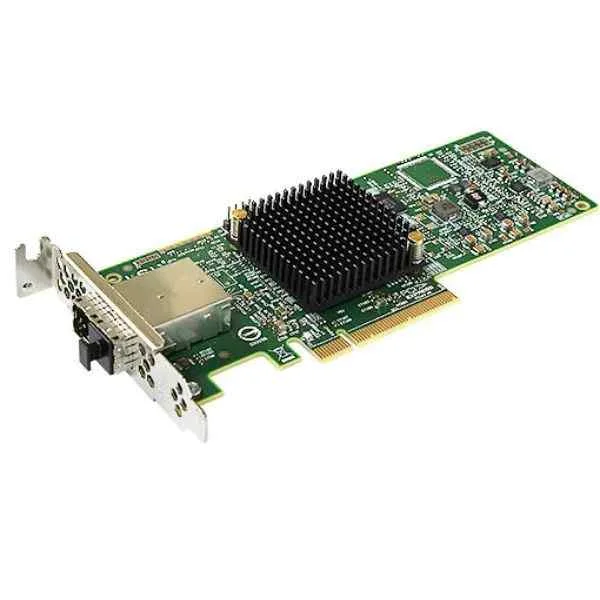
FXC17 (FXC17 - PCIe - Mini-SAS - PCIe 3.0 - NAS / Storage server - 12 Gbit/s - 5 - 35 °C)
4.6 (5)- Expansion Card
- Synology
- Storage Controller
- PCIe x8
- PCIe 3.0
Est Value In stockFirst-Time Buyer Discount – Get up to 2% additional off on your first order
ORM Rewards Earn $50 in Rewards + Free Expedited Delivery – Join Now!
Use eCoupon ORMSAVE10
eCoupon limited to 5 units

ORM Sales Advisors
Buying for your business? Get a personalised quote in under 2 hours. Talk to an expert
LEARNFilters (8) 
Questions & Answers
What are Synology Server Expansion Cards?
Synology Server Expansion Cards are proprietary PCIe-based interface modules that extend the connectivity and performance of Synology NAS systems by adding SAS, eSATA, or M.2 NVMe ports.
Which Synology NAS models support expansion cards?
Most RackStation and certain high-end DiskStation models support Synology expansion cards; consult the Synology Compatibility List to verify compatibility with your specific NAS series and firmware version.
How do I install a Synology Expansion Card?
Power down your Synology NAS, open the chassis, insert the expansion card into an available PCIe slot, secure it with a screw, then close the case and reboot to enable the new interfaces.
What performance improvements do Synology Expansion Cards provide?
By adding high-speed SAS, eSATA, or M.2 NVMe ports, Synology Expansion Cards can increase throughput by up to 12 Gbps per port and lower latency for demanding storage workloads.
Can Synology Expansion Cards increase storage capacity?
Yes, pairing a Synology Expansion Card with a compatible DX or RX expansion unit lets you scale raw storage by adding up to 180 additional drives depending on the NAS platform.
Are Synology Expansion Cards hot-swappable?
No, Synology Expansion Cards are not hot-swappable and require the NAS to be powered off before installation or removal to prevent hardware damage.
What interface types are available on Synology Expansion Cards?
Synology offers expansion cards with SAS 12Gbps, eSATA 6Gbps, and M.2 NVMe PCIe Gen3 x2/x4 interfaces to support various external enclosures and SSD caching applications.
How many expansion cards can be installed per Synology NAS?
The maximum number varies by model; most RackStation units support up to two expansion cards while high-end models may accommodate three or more—refer to the product specifications.
Do I need additional drivers to use Synology Expansion Cards?
No external drivers are required; Synology’s DSM operating system natively recognizes and manages Synology-branded expansion cards upon reboot.
What warranty covers Synology Expansion Cards?
Synology Expansion Cards are covered under a two-year limited warranty, with the option to extend via Synology’s warranty extension service for additional coverage.
Can I use third-party expansion cards with Synology NAS?
Synology only guarantees compatibility and support for official Synology Expansion Cards; third-party cards may lack driver support and could void your warranty.
How do I update the firmware on a Synology Expansion Card?
Firmware updates for Synology Expansion Cards are delivered through DSM’s Package Center under 'Hardware & Power' → 'PCIe Card' → 'Update Firmware'; follow the prompts to complete installation.
Does installing a Synology Expansion Card require NAS downtime?
Yes, installation requires powering off the NAS to safely insert the expansion card and ensure proper hardware detection upon restart.
What is the power consumption of Synology Expansion Cards?
Power consumption varies by model but typically ranges from 5W to 15W; consult the technical specifications of your chosen expansion card for exact figures.
How do I troubleshoot Synology Expansion Card errors?
Use DSM’s Resource Monitor and Hardware & Power logs to identify errors, ensure the card is properly seated, verify DSM firmware compatibility, and reboot the NAS to clear temporary faults.
Where can I purchase genuine Synology Expansion Cards?
Genuine Synology Expansion Cards are available through Synology’s official resellers, authorized partners, and the Synology Online Store to ensure full warranty and support.