 United States
SSD Drives High-Speed Reliable Storage
Experience unrivaled system efficiency with advanced SSD drives engineered for optimal performance, reliability, and speed. Our cutting-edge storage solutions empower critical applications and data-intensive operations for enhanced productivity.
Talk to an expert
34 Matching results
- BEST SELLING
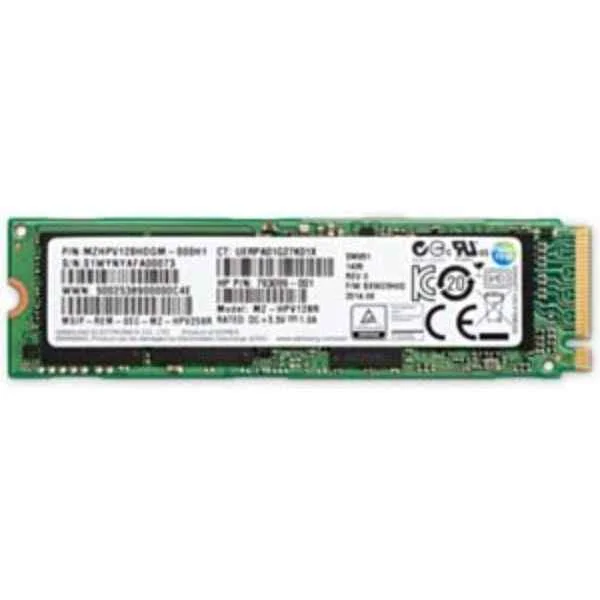
1PD60AA (Z Turbo Drive - 512 GB - M.2)
4.6 (7)- Hard Drive
- Hpe
- HDD
- Desktop / Server / NAS / Surveillance
- SATA III
- 3.5-inch
- 6 TB
Est Value $1,617.08
$808.54
50% offIn stockRefurbishedFirst-Time Buyer Discount – Get up to 2% additional off on your first order
ORM Rewards Earn $50 in Rewards + Free Expedited Delivery – Join Now!
Use eCoupon ORMSAVE10
eCoupon limited to 5 units
- BEST SELLING
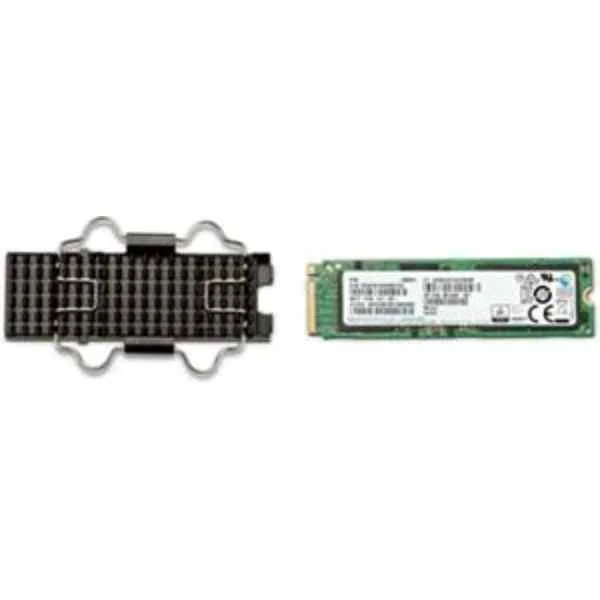
1PD61AA (HP Z Turbo Drive 1TB TLC (Z4/Z6 G4) SSD Kit - 1000 GB - M.2 - 3000 MB/s (1PD61AA))
4.6 (7)- Hard Drive
- Hpe
- HDD
- Desktop / Server / NAS / Surveillance
- SATA III
- 3.5-inch
- 10 TB
Est Value $3,047.56$1,523.78
50% offIn stockRefurbishedFirst-Time Buyer Discount – Get up to 2% additional off on your first order
ORM Rewards Earn $50 in Rewards + Free Expedited Delivery – Join Now!
Use eCoupon ORMSAVE10
eCoupon limited to 5 units
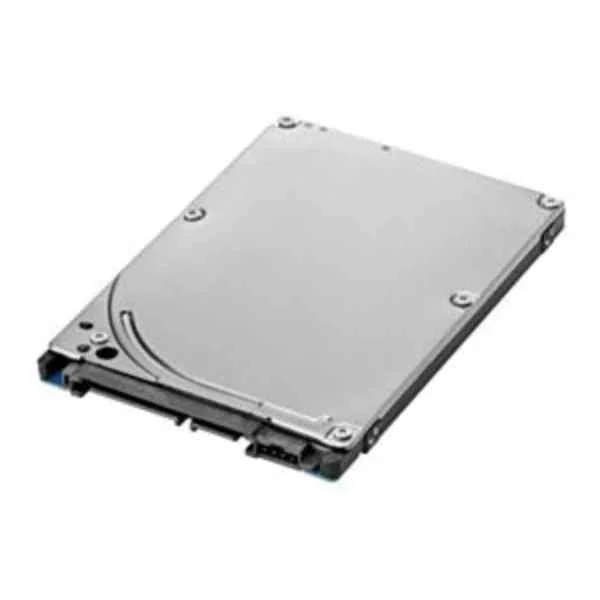
E1C62AA (500GB Solid State Hybrid Drive (SSHD) - 2.5" - 500 GB)
4.4 (5)- Hard Drive
- Hpe
- HDD
- Desktop / Server / NAS / Surveillance / Enterprise Storage
- SATA III
- 3.5-inch
- 10 TB
Est Value $176.32$165.12
6.4% offIn stockRefurbishedFirst-Time Buyer Discount – Get up to 2% additional off on your first order
ORM Rewards Earn $50 in Rewards + Free Expedited Delivery – Join Now!
Use eCoupon ORMSAVE10
eCoupon limited to 5 units
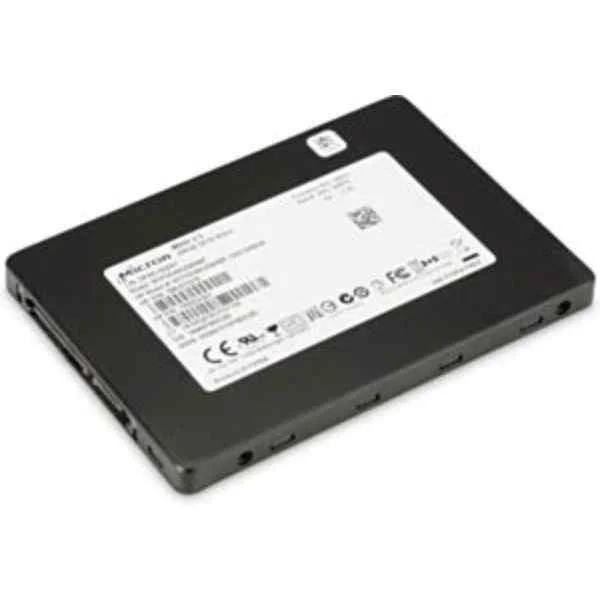
M0F34AA (256GB SSD 2.5 SATA TLC - 256 GB - 2.5")
4.8 (5)- Hard Drive
- Hpe
- HDD
- Desktop / Server / NAS / Surveillance
- SATA III / SAS 12Gb/s
- 2.5-inch / 3.5-inch
- 8 TB
Est Value $203.77$173.95
14.6% offIn stockRefurbishedFirst-Time Buyer Discount – Get up to 2% additional off on your first order
ORM Rewards Earn $50 in Rewards + Free Expedited Delivery – Join Now!
Use eCoupon ORMSAVE10
eCoupon limited to 5 units
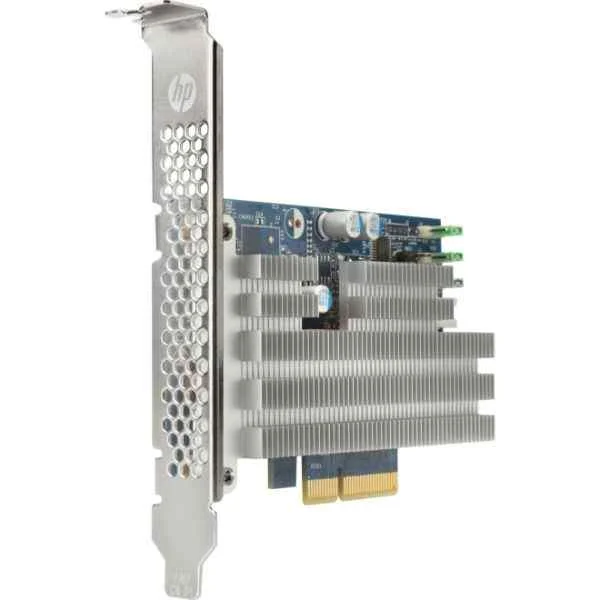
T6U42AA (Z Turbo Drive G2 256GB PCIe Solid State Drive (Z2 MB) - 256 GB - Half-Height/Half-Length (HH/HL) - 2100 MB/s)
4.8 (6)- Hard Drive
- Hpe
- HDD
- Desktop / Server / NAS / Surveillance / Enterprise Storage
- SATA III
- 3.5-inch
- 4 TB
Est Value $203.92$174.08
14.6% offIn stockRefurbishedFirst-Time Buyer Discount – Get up to 2% additional off on your first order
ORM Rewards Earn $50 in Rewards + Free Expedited Delivery – Join Now!
Use eCoupon ORMSAVE10
eCoupon limited to 5 units
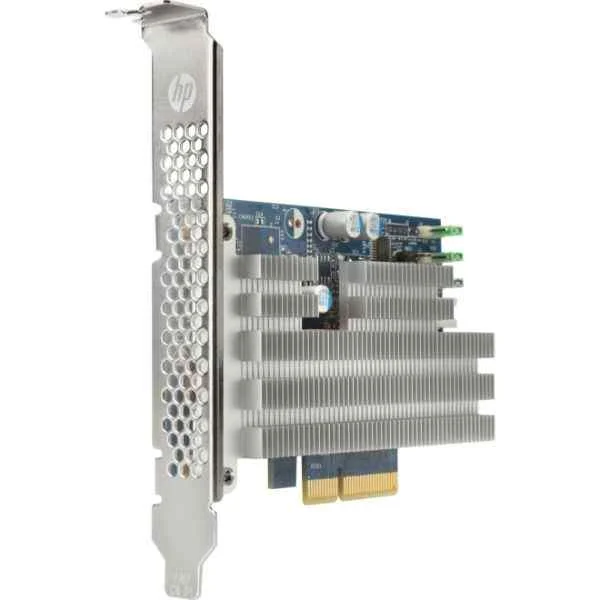
Y7B60AA (Z Turbo Drive G2 256GB TLC - 256 GB - Half-Height/Half-Length (HH/HL))
4.3 (6)- Hard Drive
- Hpe
- HDD
- Desktop / Server / NAS / Surveillance
- SATA III
- 3.5-inch
- 4 TB
Est Value $230.23$196.54
14.6% offIn stockRefurbishedFirst-Time Buyer Discount – Get up to 2% additional off on your first order
ORM Rewards Earn $50 in Rewards + Free Expedited Delivery – Join Now!
Use eCoupon ORMSAVE10
eCoupon limited to 5 units
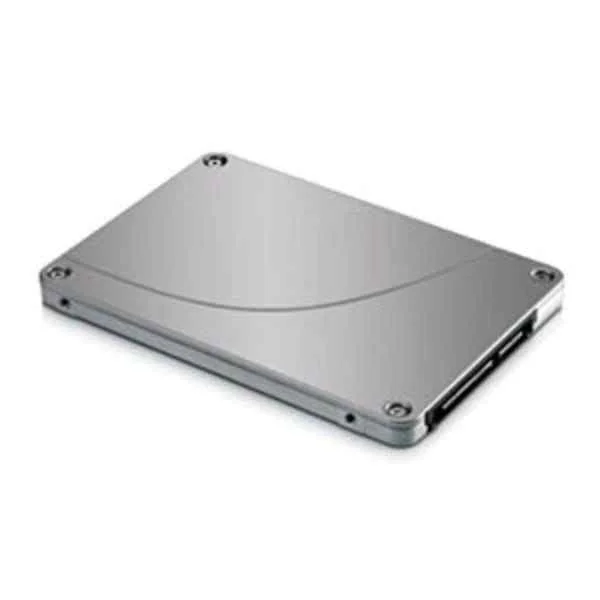
A3D26AA (256GB SATA Solid State Drive - 256 GB)
4.8 (5)- Hard Drive
- Hpe
- HDD
- Desktop / Server / NAS / Surveillance / Enterprise Storage
- SATA III
- 3.5-inch
- 4 TB
Est Value $270.53$230.94
14.6% offIn stockRefurbishedFirst-Time Buyer Discount – Get up to 2% additional off on your first order
ORM Rewards Earn $50 in Rewards + Free Expedited Delivery – Join Now!
Use eCoupon ORMSAVE10
eCoupon limited to 5 units
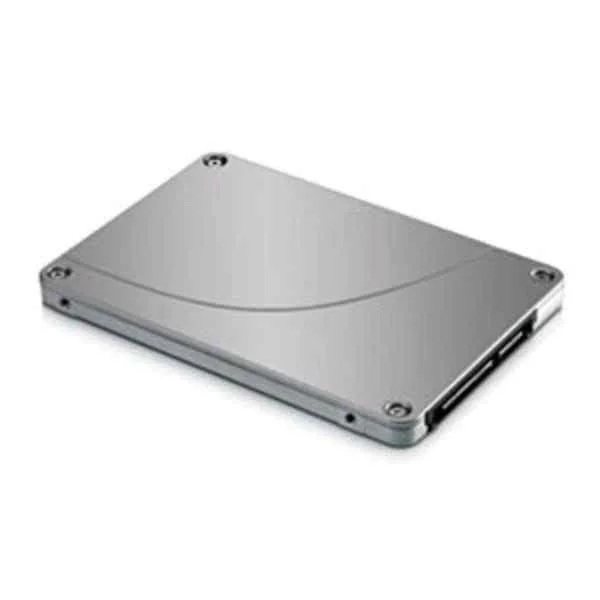
D8F30AA (512GB SATA Solid State Drive - 512 GB - 6 Gbit/s)
4.8 (6)- Hard Drive
- Hpe
- HDD
- Desktop / Server / NAS / Surveillance / Enterprise Storage
- SATA III
- 3.5-inch
- 4 TB
Est Value $301.90$257.72
14.6% offIn stockRefurbishedFirst-Time Buyer Discount – Get up to 2% additional off on your first order
ORM Rewards Earn $50 in Rewards + Free Expedited Delivery – Join Now!
Use eCoupon ORMSAVE10
eCoupon limited to 5 units
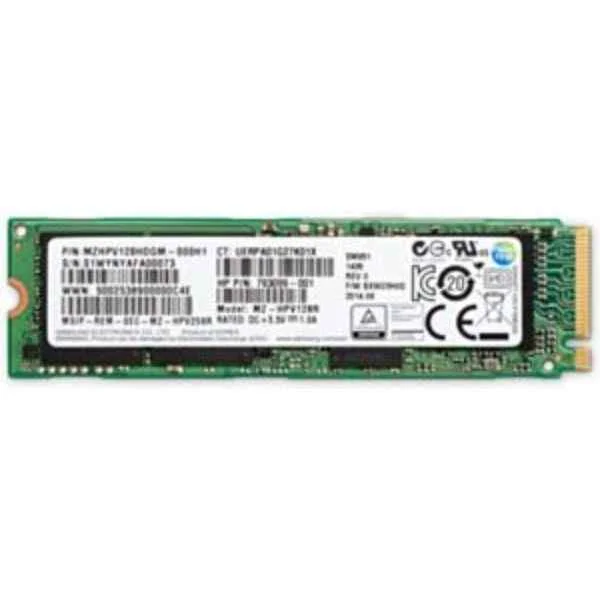
N2N01AA (Z Turbo Drive Quad Pro 512GB SSD module - 512 GB - M.2 - 2150 MB/s)
5 (5)- Hard Drive
- Hpe
- HDD
- Desktop / NAS
- SATA III
- 3.5-inch
- 4 TB
Est Value $526.54$263.27
50% offIn stockRefurbishedFirst-Time Buyer Discount – Get up to 2% additional off on your first order
ORM Rewards Earn $50 in Rewards + Free Expedited Delivery – Join Now!
Use eCoupon ORMSAVE10
eCoupon limited to 5 units
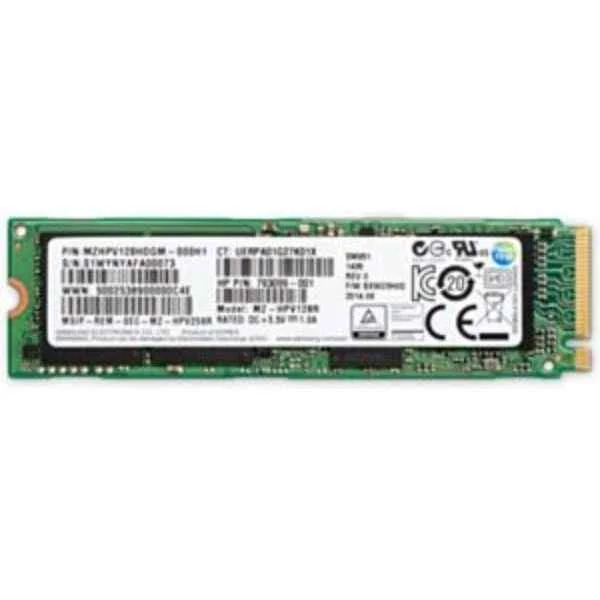
M1F74AA (Z Turbo Drive G2 512GB PCIe Solid State Drive - 512 GB - 2150 MB/s)
4.2 (5)- Hard Drive
- Hpe
- HDD
- Desktop / Server / NAS / Surveillance / Enterprise Storage
- SATA III
- 3.5-inch
- 4 TB
Est Value $354.87$302.94
14.6% offIn stockRefurbishedFirst-Time Buyer Discount – Get up to 2% additional off on your first order
ORM Rewards Earn $50 in Rewards + Free Expedited Delivery – Join Now!
Use eCoupon ORMSAVE10
eCoupon limited to 5 units
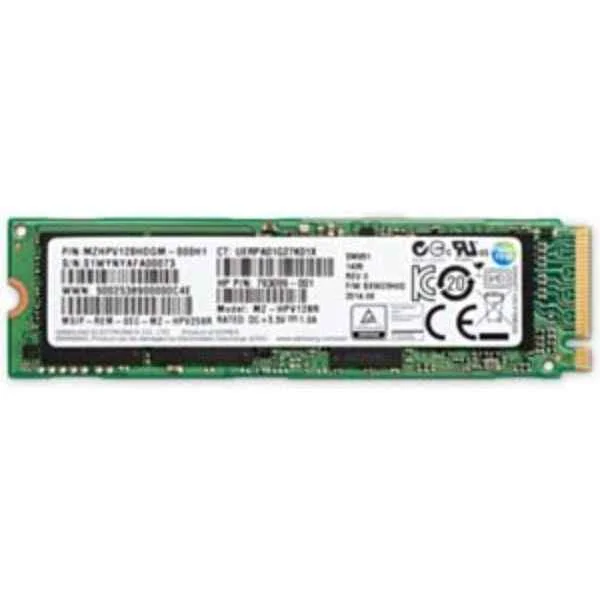
N2N00AA (Z Turbo Drive Quad Pro 256GB SSD module - 256 GB - 2150 MB/s)
4.6 (5)- Hard Drive
- Hpe
- HDD
- Desktop / Server / NAS / Surveillance / Enterprise Storage
- SATA III
- 3.5-inch
- 12 TB
Est Value $486.58$415.38
14.6% offIn stockRefurbishedFirst-Time Buyer Discount – Get up to 2% additional off on your first order
ORM Rewards Earn $50 in Rewards + Free Expedited Delivery – Join Now!
Use eCoupon ORMSAVE10
eCoupon limited to 5 units
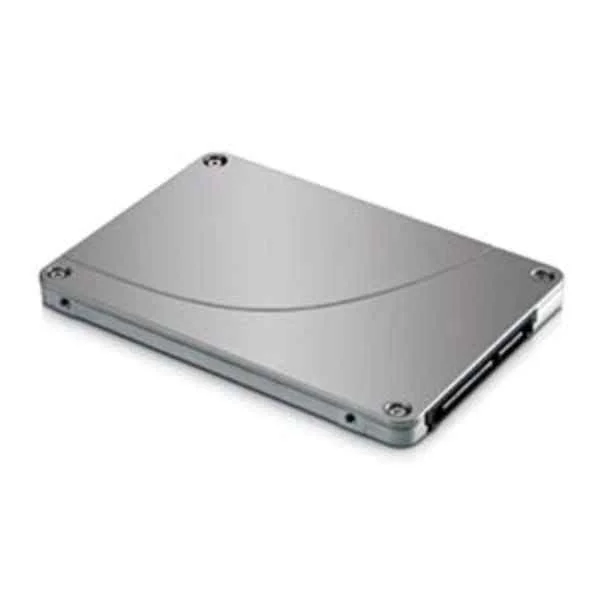
1DE48AA (256 GB TLC M.2 SATA-3 Solid State Drive - 256 GB - M.2)
4.2 (5)- Hard Drive
- Hpe
- HDD
- Desktop / Server / NAS / Surveillance / Enterprise Storage
- SATA III / SAS 12Gb/s
- 3.5-inch / 2.5-inch
- 4 TB
Est Value $510.50$435.79
14.6% offIn stockRefurbishedFirst-Time Buyer Discount – Get up to 2% additional off on your first order
ORM Rewards Earn $50 in Rewards + Free Expedited Delivery – Join Now!
Use eCoupon ORMSAVE10
eCoupon limited to 5 units
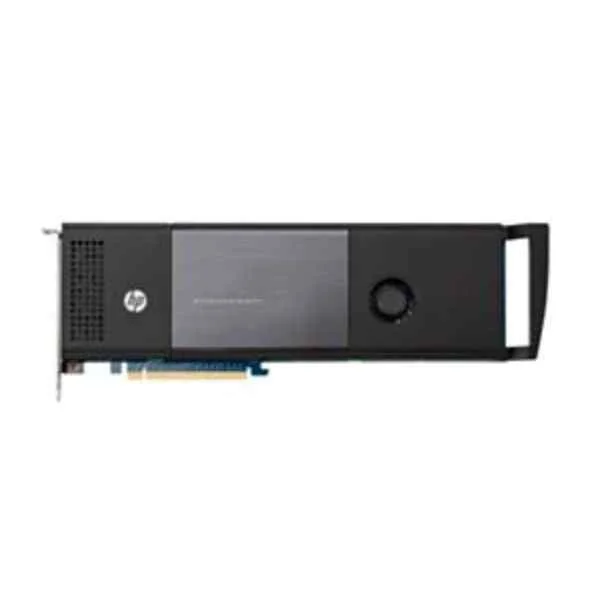
N2M99AA (Z Turbo Drive Quad Pro 2x512GB PCIe SSD - 1024 GB - M.2 - 2150 MB/s - 9 Gbit/s)
4.2 (5)- Hard Drive
- Hpe
- HDD
- Server
- SATA III
- 3.5-inch
- 4 TB
Est Value $1,204.36$602.18
50% offIn stockRefurbishedFirst-Time Buyer Discount – Get up to 2% additional off on your first order
ORM Rewards Earn $50 in Rewards + Free Expedited Delivery – Join Now!
Use eCoupon ORMSAVE10
eCoupon limited to 5 units
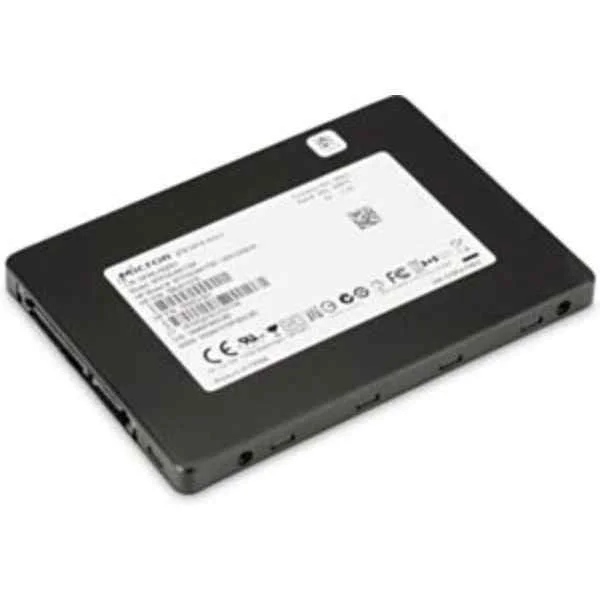
Y6P08AA (2TB SATA SSD - 2000 GB)
4.5 (6)- Hard Drive
- Hpe
- HDD
- Desktop / Server / NAS / Surveillance / Enterprise Storage
- SATA III
- 3.5-inch
- 8 TB
Est Value $769.52$656.91
14.6% offIn stockRefurbishedFirst-Time Buyer Discount – Get up to 2% additional off on your first order
ORM Rewards Earn $50 in Rewards + Free Expedited Delivery – Join Now!
Use eCoupon ORMSAVE10
eCoupon limited to 5 units
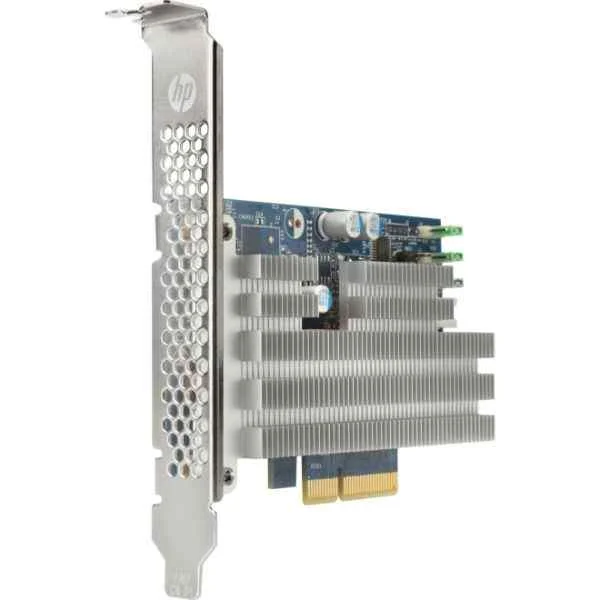
Y7B59AA (Z Turbo Drive G2 512GB MLC - 512 GB - Half-Height/Half-Length (HH/HL))
4.8 (6)- Hard Drive
- Hpe
- HDD
- Desktop / Server / NAS / Surveillance / Enterprise Storage
- SATA III
- 3.5-inch
- 4 TB
Est Value $1,381.00$690.50
50% offIn stockRefurbishedFirst-Time Buyer Discount – Get up to 2% additional off on your first order
ORM Rewards Earn $50 in Rewards + Free Expedited Delivery – Join Now!
Use eCoupon ORMSAVE10
eCoupon limited to 5 units
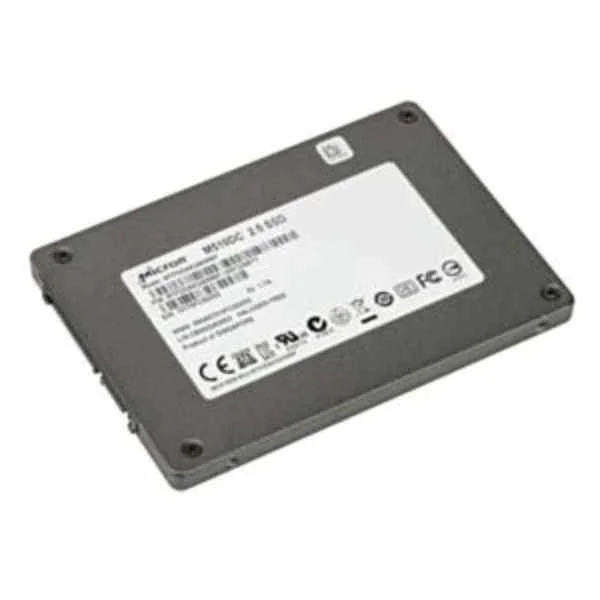
T3U08AA (Enterprise Class 480GB SATA SSD - 480 GB - 2.5" - 420 MB/s - 6 Gbit/s)
4.6 (5)- Hard Drive
- Hpe
- HDD
- Desktop / Server / NAS / Surveillance / Enterprise Storage
- SATA III
- 3.5-inch
- 8 TB
Est Value $974.06$870.51
10.6% offIn stockRefurbishedFirst-Time Buyer Discount – Get up to 2% additional off on your first order
ORM Rewards Earn $50 in Rewards + Free Expedited Delivery – Join Now!
Use eCoupon ORMSAVE10
eCoupon limited to 5 units
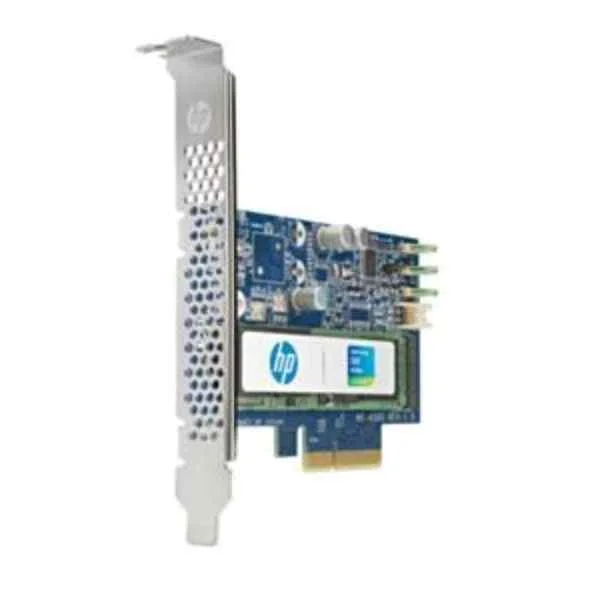
W6C19AA (Z Turbo Drv G2 1TB PCIe SSD - 1000 GB - M.2 - 2500 MB/s)
4.6 (5)- Hard Drive
- Hpe
- HDD
- Desktop / Server / NAS / Surveillance / Enterprise Storage
- SATA III
- 3.5-inch
- 6 TB
Est Value $1,044.61$891.74
14.6% offIn stockRefurbishedFirst-Time Buyer Discount – Get up to 2% additional off on your first order
ORM Rewards Earn $50 in Rewards + Free Expedited Delivery – Join Now!
Use eCoupon ORMSAVE10
eCoupon limited to 5 units
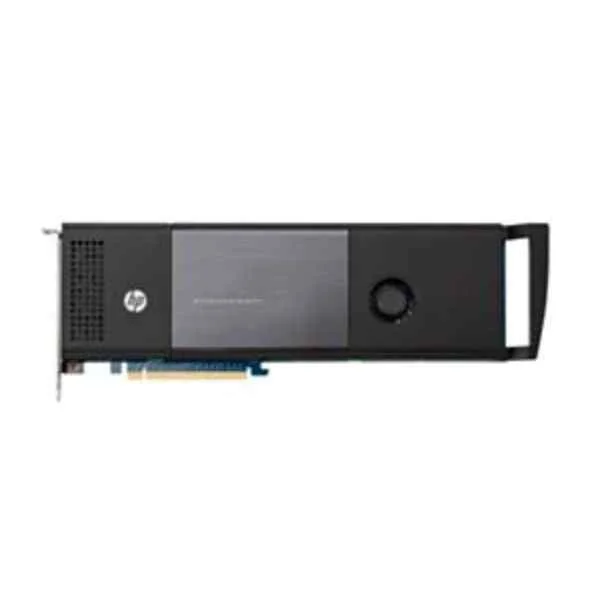
N2M98AA (Z Turbo Drive Quad Pro 2x256GB PCIe SSD - 512 GB - 2150 MB/s - 9 Gbit/s)
4.7 (6)- Hard Drive
- Hpe
- HDD
- Desktop / Server / NAS / Surveillance / Enterprise Storage
- SATA III
- 3.5-inch
- 8 TB
Est Value $1,112.85$950.00
14.6% offIn stockRefurbishedFirst-Time Buyer Discount – Get up to 2% additional off on your first order
ORM Rewards Earn $50 in Rewards + Free Expedited Delivery – Join Now!
Use eCoupon ORMSAVE10
eCoupon limited to 5 units
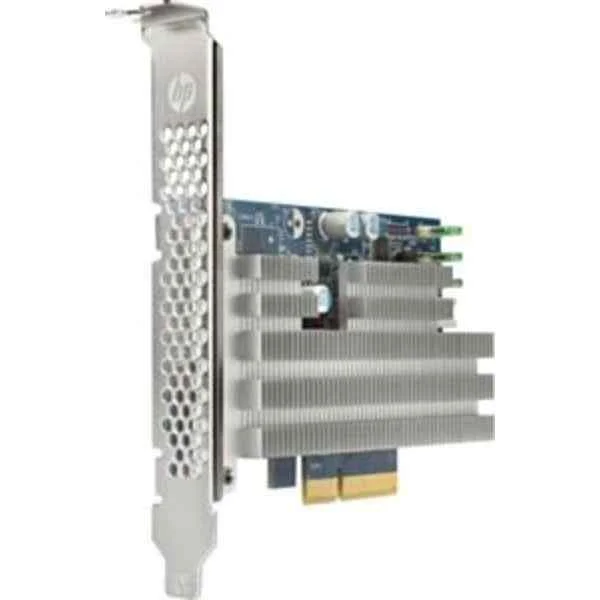
T9H99AA (Z Turbo Drv Quad Pro 2x1TB PCIe SSD - 2000 GB - Half-Height/Half-Length (HH/HL) - 3200 MB/s - 9 Gbit/s)
4.6 (5)- Hard Drive
- Hpe
- HDD
- Desktop / Server / NAS / Surveillance / Enterprise Storage
- SATA III
- 3.5-inch
- 8 TB
Est Value $5,036.85$4,299.75
14.6% offIn stockRefurbishedFirst-Time Buyer Discount – Get up to 2% additional off on your first order
ORM Rewards Earn $50 in Rewards + Free Expedited Delivery – Join Now!
Use eCoupon ORMSAVE10
eCoupon limited to 5 units
- FEARURED
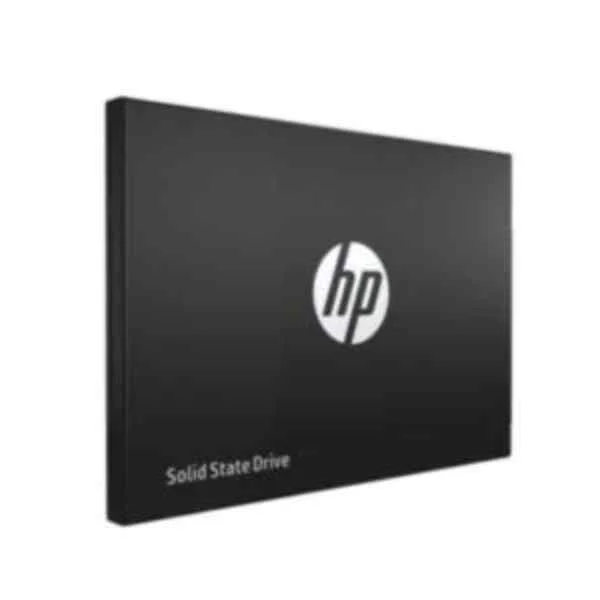
2AP99AA#ABB (S700 Pro - 512 GB - 2.5" - 564 MB/s)
4.6 (7)- Hard Drive
- Hpe
- HDD
- Server
- SATA III
- 3.5-inch
- 4 TB
Est Value In stockFirst-Time Buyer Discount – Get up to 2% additional off on your first order
ORM Rewards Earn $50 in Rewards + Free Expedited Delivery – Join Now!
Use eCoupon ORMSAVE10
eCoupon limited to 5 units

ORM Sales Advisors
Buying for your business? Get a personalised quote in under 2 hours. Talk to an expert
LEARNFilters (34) 
Questions & Answers
What is an SSD?
A solid-state drive (SSD) is a storage device that uses flash memory chips instead of spinning disks to deliver faster data access, lower latency, and improved durability.
How does an SSD differ from an HDD?
An SSD stores data on flash memory, providing faster read/write speeds, lower power consumption, silence, and shock resistance compared to a mechanical hard disk drive (HDD).
What are the differences between SATA SSD and NVMe SSD?
SATA SSDs connect via the SATA interface with up to 550 MB/s bandwidth, while NVMe SSDs use the PCIe bus to achieve speeds exceeding 3 000 MB/s and lower latency.
What are the main benefits of upgrading to an SSD?
Upgrading to an SSD delivers faster OS boot times, quicker application loading, improved system responsiveness, lower power draw, and enhanced reliability over HDDs.
How do I choose the right SSD capacity?
Select capacity based on your usage: 256 GB for basic tasks, 512 GB for multimedia and moderate gaming, and 1 TB or more for large media projects or extensive game libraries.
What determines an SSD’s lifespan and endurance?
SSD lifespan is rated by total bytes written (TBW) or drive writes per day (DWPD); typical consumer SSDs range from 100 TBW to 600 TBW or 0.3–0.5 DWPD over the warranty period.
Is TRIM support necessary for SSD performance?
Yes. TRIM informs the SSD which blocks are no longer in use, preventing performance degradation by enabling efficient garbage collection.
How can I maintain optimal SSD performance over time?
Enable TRIM, keep at least 20 % free space, install the latest firmware, avoid disk defragmentation, and use manufacturer utilities for health monitoring.
Can I install an SSD in any desktop or laptop?
Most desktops support 2.5″ SATA and M.2 slots; laptops may require a specific form factor (2.5″, M.2 SATA, or M.2 NVMe). Verify your system’s interface before purchase.
How do I migrate my OS from an HDD to an SSD?
Use reputable cloning software to copy partitions, ensure alignment for SSD, enable TRIM post-cloning, then set the SSD as the primary boot device in BIOS/UEFI.
Are SSDs compatible with all operating systems?
Yes. Modern Windows, macOS, and Linux distributions include native drivers and TRIM support for SSDs, ensuring plug-and-play compatibility.
How reliable are SSDs compared to HDDs?
SSDs have no moving parts, resulting in better shock resistance and lower failure rates; typical MTBF exceeds 1.5 million hours under normal operating conditions.
What should I know about SSD warranties?
Consumer SSDs usually offer 3–5 year warranties or a specified TBW rating. Register your drive on the manufacturer’s website to confirm coverage and track usage.
How can I securely erase data on an SSD?
Use the drive’s built-in secure erase feature or manufacturer software to perform an ATA Secure Erase, which resets all memory cells to factory state.
Do SSDs improve gaming performance?
SSDs significantly reduce game load times and texture streaming delays—often by 50–80%—but they do not increase in-game frame rates.