 United States
Hard Drives Reliable Data Storage
Enhance your data management with our premium hard drives engineered for high-speed performance and durability. Enjoy robust compatibility, cutting-edge technology, and optimal security for enterprise and personal solutions.
Talk to an expert
95 Matching results
- BEST SELLING
SSDSC2KG480G801 (SSD D3-S4610 SERIES 480GB 2.5IN SATA 6GBS 3D2 TLC)
4.4 (5)- Hard Drive
- Intel
- HDD
- Desktop / Server / NAS / Surveillance
- SATA III
- 2.5-inch
- 480 GB
Est Value $388.24
$257.25
33.7% offIn stockRefurbishedFirst-Time Buyer Discount – Get up to 2% additional off on your first order
ORM Rewards Earn $50 in Rewards + Free Expedited Delivery – Join Now!
Use eCoupon ORMSAVE10
eCoupon limited to 5 units
- BEST SELLING
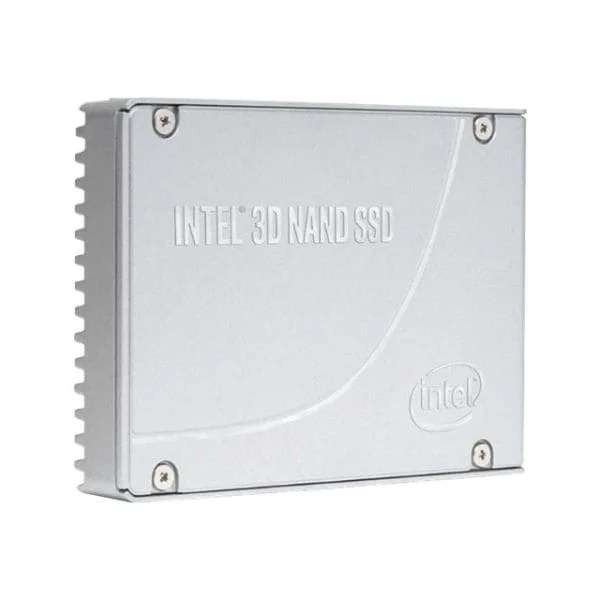
SSDSC2KG240G801 (Intel Solid-State Drive D3-S4610 Series - SSD - 240 GB - SATA 6Gb/s)
4.8 (5)- Hard Drive
- Intel
- HDD
- Desktop / Server / NAS / Surveillance
- SATA III
- 2.5-inch
- 240 GB
Est Value $396.45$292.95
26.1% offIn stockRefurbishedFirst-Time Buyer Discount – Get up to 2% additional off on your first order
ORM Rewards Earn $50 in Rewards + Free Expedited Delivery – Join Now!
Use eCoupon ORMSAVE10
eCoupon limited to 5 units
- BEST SELLING
SSDSC2KB480G801 (INTEL 480GB D3-S4510 SSD SATA INTEL 480GB D3-S4510 SSD SATA)
4.6 (8)- Hard Drive
- Intel
- HDD
- Desktop / Server / NAS / Surveillance
- SATA III
- 2.5-inch
- 480 GB
Est Value $639.90$228.90
64.2% offIn stockNewRefurbishedFirst-Time Buyer Discount – Get up to 2% additional off on your first order
ORM Rewards Earn $50 in Rewards + Free Expedited Delivery – Join Now!
Use eCoupon ORMSAVE10
eCoupon limited to 5 units
- BEST SELLING
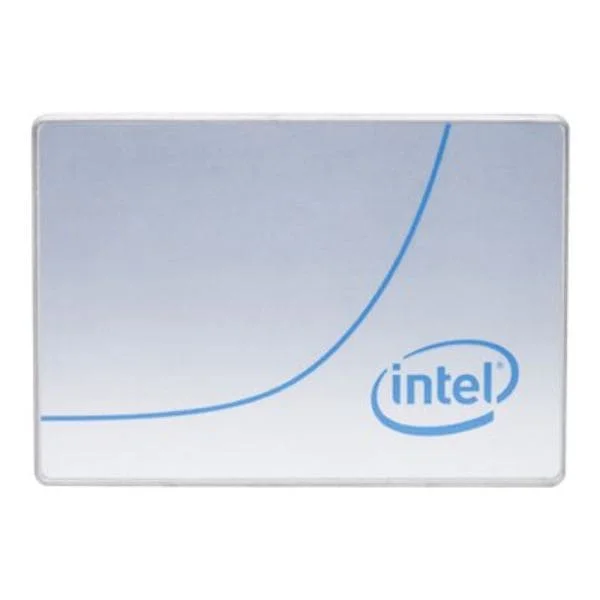
SSDSC2KB038T801 (Intel Solid-State Drive D3-S4510 Series - SSD - 3.84 TB - SATA 6Gb/s)
4.7 (7)- Hard Drive
- Intel
- HDD
- Desktop / Server / NAS / Surveillance
- SATA III
- 3.5-inch
- 8 TB
Est Value $1,944.00$701.66
63.9% offIn stockRefurbishedFirst-Time Buyer Discount – Get up to 2% additional off on your first order
ORM Rewards Earn $50 in Rewards + Free Expedited Delivery – Join Now!
Use eCoupon ORMSAVE10
eCoupon limited to 5 units
- BEST SELLING
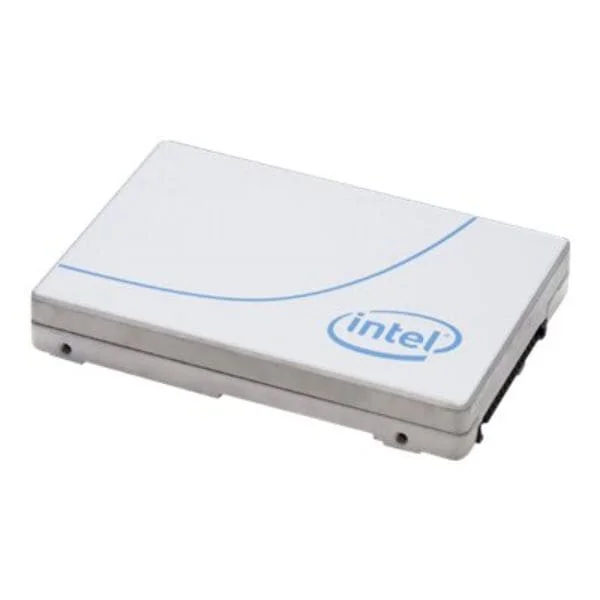
SSDPEK1A118GA01 (Intel Optane SSD P1600X Series - SSD - 118 GB - PCIe 3.0 x4 (NVMe))
4.1 (7)- Hard Drive
- Intel
- HDD
- Desktop / Server / NAS / Surveillance / Enterprise Storage
- SATA III
- 2.5-inch / 3.5-inch
- 1 TB
Est Value $1,466.18$733.09
50% offIn stockRefurbishedFirst-Time Buyer Discount – Get up to 2% additional off on your first order
ORM Rewards Earn $50 in Rewards + Free Expedited Delivery – Join Now!
Use eCoupon ORMSAVE10
eCoupon limited to 5 units
- BEST SELLING
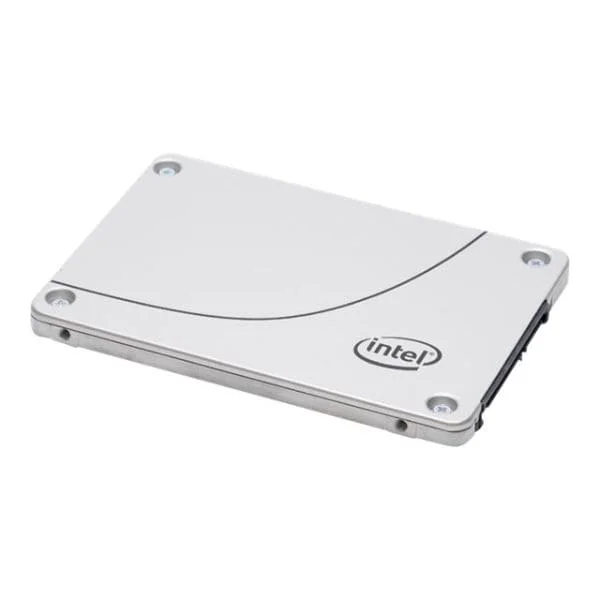
SSDSC2KB960G801 (Intel Solid-State Drive D3-S4510 Series - SSD - 960 GB - SATA 6Gb/s)
4.6 (5)- Hard Drive
- Intel
- HDD
- Enterprise Storage
- SATA III
- 3.5-inch
- 1 TB
Est Value $897.75$346.50
61.4% offIn stockNewRefurbishedFirst-Time Buyer Discount – Get up to 2% additional off on your first order
ORM Rewards Earn $50 in Rewards + Free Expedited Delivery – Join Now!
Use eCoupon ORMSAVE10
eCoupon limited to 5 units
- FEARURED
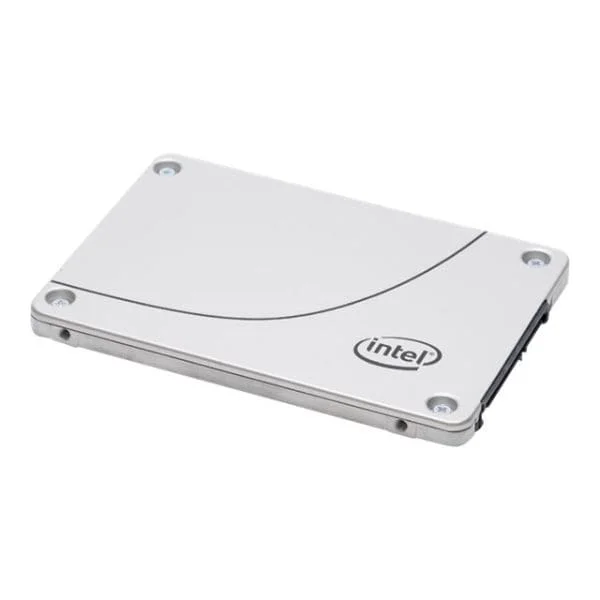
SSDSC2KG038T801 (SSD D3-S4610 SERIES 3.8TB 2.5IN SATA 6GBS 3D2 TLC)
4.4 (5)- Hard Drive
- Intel
- HDD
- Desktop / Server / NAS / Surveillance / Enterprise Storage
- SATA III
- 3.5-inch
- 8 TB
Est Value $1,104.76$883.58
20% offIn stockNewRefurbishedFirst-Time Buyer Discount – Get up to 2% additional off on your first order
ORM Rewards Earn $50 in Rewards + Free Expedited Delivery – Join Now!
Use eCoupon ORMSAVE10
eCoupon limited to 5 units
SSDSCKKW180H6X1 (Intel Solid-State Drive 540S Series - SSD - 180 GB - SATA 6Gb/s)
4.7 (7)- Hard Drive
- Intel
- HDD
- Enterprise Storage
- SAS 12Gb/s
- 3.5-inch
- 8 TB
Est Value $119.76$102.23
14.6% offIn stockRefurbishedFirst-Time Buyer Discount – Get up to 2% additional off on your first order
ORM Rewards Earn $50 in Rewards + Free Expedited Delivery – Join Now!
Use eCoupon ORMSAVE10
eCoupon limited to 5 units
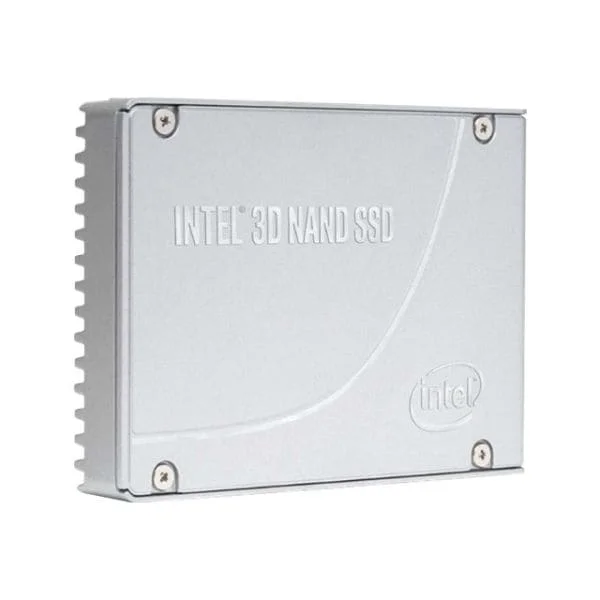
HBRPEKNX0202A01 (Intel Optane Memory H10 with Solid State Storage - SSD - 512 GB - PCIe 3.0 x4 (NVMe))
4.8 (8)- Hard Drive
- Intel
- HDD
- Desktop / Server / NAS / Surveillance / Enterprise Storage
- SATA III
- 3.5-inch
- 4 TB
Est Value $207.90$103.95
50% offIn stockRefurbishedFirst-Time Buyer Discount – Get up to 2% additional off on your first order
ORM Rewards Earn $50 in Rewards + Free Expedited Delivery – Join Now!
Use eCoupon ORMSAVE10
eCoupon limited to 5 units
SSDPEKNW512G8X1 (Intel Solid-State Drive 660p Series - SSD - 512 GB - PCIe 3.0 x4 (NVMe))
4.7 (6)- Hard Drive
- Intel
- HDD
- Desktop / Server / NAS / Surveillance / Enterprise Storage
- SATA III
- 3.5-inch
- 500 GB
Est Value $205.75$181.78
11.7% offIn stockNewRefurbishedFirst-Time Buyer Discount – Get up to 2% additional off on your first order
ORM Rewards Earn $50 in Rewards + Free Expedited Delivery – Join Now!
Use eCoupon ORMSAVE10
eCoupon limited to 5 units
SSDPEKNW010T8X1 (Intel Solid-State Drive 660p Series - SSD - 1 TB - PCIe 3.0 x4 (NVMe))
4.7 (7)- Hard Drive
- Intel
- HDD
- Desktop / Server / NAS / Surveillance / Enterprise Storage
- SAS 12Gb/s
- 3.5-inch
- 10 TB
Est Value $162.75$138.94
14.6% offIn stockRefurbishedFirst-Time Buyer Discount – Get up to 2% additional off on your first order
ORM Rewards Earn $50 in Rewards + Free Expedited Delivery – Join Now!
Use eCoupon ORMSAVE10
eCoupon limited to 5 units
SSDSC2BA400G3 (Intel Solid-State Drive 330 Series - solid state drive - 400 GB - SATA 6Gb/s)
4.7 (7)- Hard Drive
- Intel
- HDD
- Desktop / NAS
- SATA III
- 3.5-inch
- 400 GB
Est Value $304.50$152.25
50% offIn stockRefurbishedFirst-Time Buyer Discount – Get up to 2% additional off on your first order
ORM Rewards Earn $50 in Rewards + Free Expedited Delivery – Join Now!
Use eCoupon ORMSAVE10
eCoupon limited to 5 units
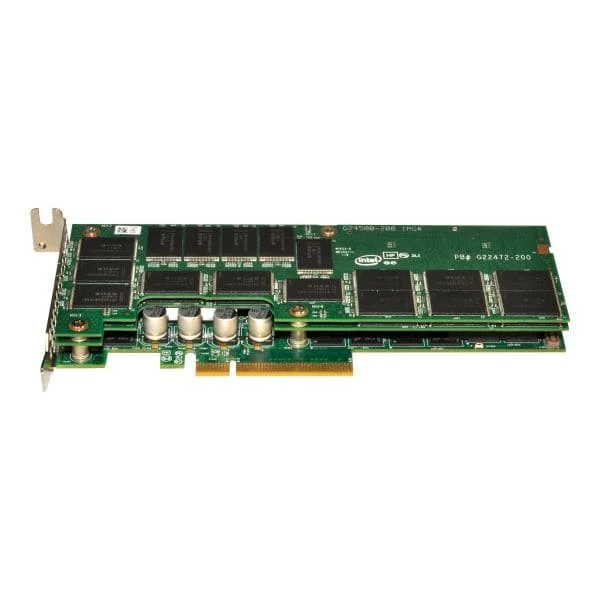
SSDPEKNU512GZX1 (Intel Solid-State Drive 670p Series - SSD - 512 GB - PCIe 3.0 x4 (NVMe))
4.6 (5)- Hard Drive
- Intel
- HDD
- Desktop / Server / NAS / Surveillance / Enterprise Storage
- SATA III
- 3.5-inch
- 500 GB
Est Value $540.54$270.27
50% offIn stockNewRefurbishedFirst-Time Buyer Discount – Get up to 2% additional off on your first order
ORM Rewards Earn $50 in Rewards + Free Expedited Delivery – Join Now!
Use eCoupon ORMSAVE10
eCoupon limited to 5 units
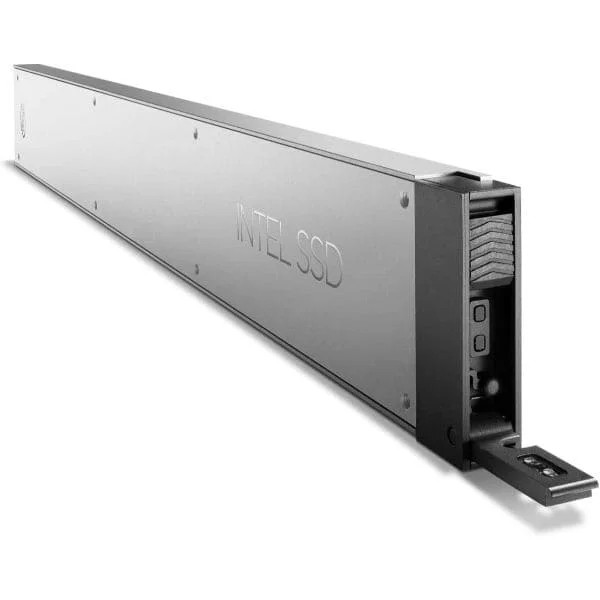
SSDSC2BB120G401 (Intel Solid-State Drive DC S3500 Series - SSD - 120 GB - SATA 6Gb/s)
4.9 (8)- Hard Drive
- Intel
- HDD
- Server
- SATA III
- 3.5-inch
- 1 TB
Est Value $467.46$233.73
50% offIn stockRefurbishedFirst-Time Buyer Discount – Get up to 2% additional off on your first order
ORM Rewards Earn $50 in Rewards + Free Expedited Delivery – Join Now!
Use eCoupon ORMSAVE10
eCoupon limited to 5 units
SSDPEL1K100GA01 (Intel Optane SSD DC P4801X Series - SSD - 100 GB - PCIe 3.0 x4 (NVMe))
4.8 (5)- Hard Drive
- Intel
- HDD
- Desktop / Server / NAS / Surveillance / Enterprise Storage
- SATA III
- 3.5-inch
- 1 TB
Est Value $604.80$302.40
50% offIn stockRefurbishedFirst-Time Buyer Discount – Get up to 2% additional off on your first order
ORM Rewards Earn $50 in Rewards + Free Expedited Delivery – Join Now!
Use eCoupon ORMSAVE10
eCoupon limited to 5 units
SSDPELKX010T801 (Intel Solid-State Drive DC P4511 Series - SSD - 1 TB - PCIe 3.1 x4 (NVMe))
4.9 (8)- Hard Drive
- Intel
- HDD
- Desktop / Server / NAS / Surveillance / Enterprise Storage
- SAS 12Gb/s
- 3.5-inch
- 10 TB
Est Value $360.57$307.81
14.6% offIn stockRefurbishedFirst-Time Buyer Discount – Get up to 2% additional off on your first order
ORM Rewards Earn $50 in Rewards + Free Expedited Delivery – Join Now!
Use eCoupon ORMSAVE10
eCoupon limited to 5 units
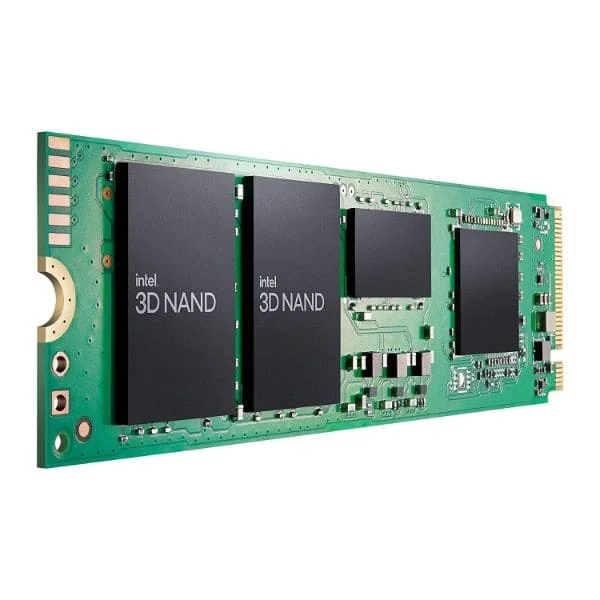
SSDSC2KB240G801 (INTEL 240GB D3-S4510 SSD SATA INTEL 240GB D3-S4510 SSD SATA)
4.8 (8)- Hard Drive
- Intel
- HDD
- Desktop / Server / NAS / Surveillance
- SATA III
- 3.5-inch / 2.5-inch
- 500 GB
Est Value $812.00$406.00
50% offIn stockNewRefurbishedFirst-Time Buyer Discount – Get up to 2% additional off on your first order
ORM Rewards Earn $50 in Rewards + Free Expedited Delivery – Join Now!
Use eCoupon ORMSAVE10
eCoupon limited to 5 units
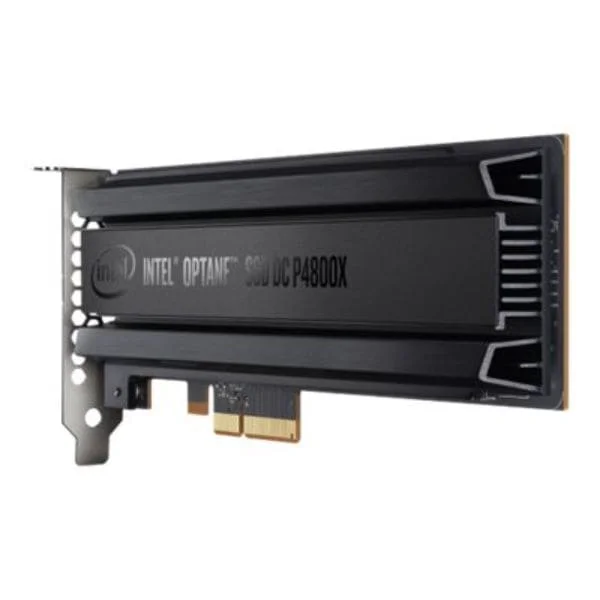
SSDSC2BR480G7XA (Intel Solid-State Drive E 7000s Series - SSD - 480 GB - SATA 6Gb/s)
4.7 (7)- Hard Drive
- Intel
- HDD
- Desktop / Server / NAS / Surveillance
- SATA III
- 2.5-inch
- 480 GB
Est Value $373.61$318.93
14.6% offIn stockRefurbishedFirst-Time Buyer Discount – Get up to 2% additional off on your first order
ORM Rewards Earn $50 in Rewards + Free Expedited Delivery – Join Now!
Use eCoupon ORMSAVE10
eCoupon limited to 5 units
SSDPEKNW020T801 (Intel Solid-State Drive 660p Series - SSD - 2 TB - PCIe 3.0 x4 (NVMe))
4.7 (6)- Hard Drive
- Intel
- HDD
- Desktop / Server / NAS / Surveillance / Enterprise Storage
- SAS 12Gb/s
- 3.5-inch
- 4 TB
Est Value $389.82$332.78
14.6% offIn stockRefurbishedFirst-Time Buyer Discount – Get up to 2% additional off on your first order
ORM Rewards Earn $50 in Rewards + Free Expedited Delivery – Join Now!
Use eCoupon ORMSAVE10
eCoupon limited to 5 units
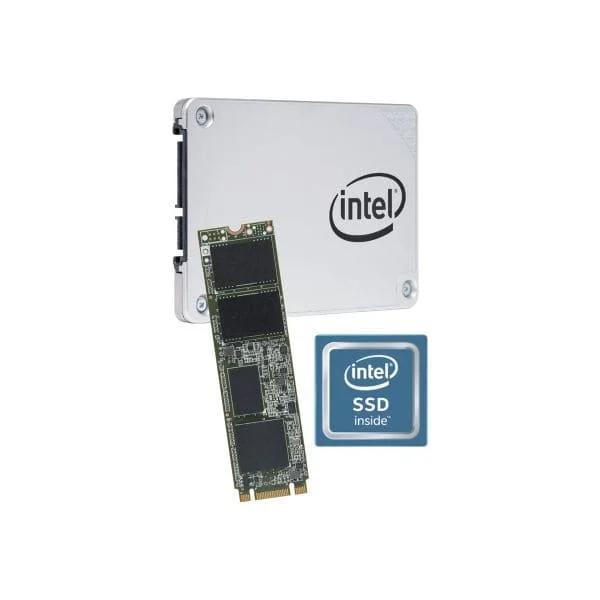
SSDPE7KX020T701 (Intel Solid-State Drive DC P4501 Series - SSD - 2 TB - PCIe 3.1 x4 (NVMe))
4.6 (7)- Hard Drive
- Intel
- HDD
- Enterprise Storage
- SATA III
- 3.5-inch
- 20 TB
Est Value $395.04$337.23
14.6% offIn stockRefurbishedFirst-Time Buyer Discount – Get up to 2% additional off on your first order
ORM Rewards Earn $50 in Rewards + Free Expedited Delivery – Join Now!
Use eCoupon ORMSAVE10
eCoupon limited to 5 units

ORM Sales Advisors
Buying for your business? Get a personalised quote in under 2 hours. Talk to an expert
LEARNFilters (95) 
Questions & Answers
What is a hard drive?
A hard drive is a non-volatile storage device that uses magnetic disks (platters) to store and retrieve digital data, providing long-term capacity for operating systems, applications and files.
What’s the difference between an HDD and an SSD?
An HDD (Hard Disk Drive) uses spinning magnetic platters and moving heads for storage, while an SSD (Solid State Drive) relies on flash memory. SSDs deliver faster read/write speeds, lower latency and improved durability at a higher cost per gigabyte.
How do I choose the right hard drive capacity?
Select capacity based on your usage: 500 GB–1 TB for basic OS and documents, 2 TB–4 TB for multimedia libraries, and 8 TB+ for backups and large video projects. Factor in growth and backup requirements.
What interface should I look for: SATA, NVMe or USB?
For internal drives, SATA III delivers up to 600 MB/s, whereas NVMe (via M.2 or U.2) offers up to several GB/s. For external drives, USB 3.2 Gen 2 and Thunderbolt 3/4 provide optimal speed and compatibility.
Are external hard drives compatible with Windows and Mac?
Most external drives work on both systems when formatted in exFAT. NTFS is native to Windows, HFS+/APFS to macOS; reformat or install drivers to ensure full read/write compatibility.
How do I install an internal hard drive?
Power down your PC, open the case, mount the drive in a 3.5″ or 2.5″ bay, connect a SATA data cable to the motherboard and a power cable from the PSU, then secure the drive and power on to format in your OS.
How do I format a new hard drive?
Open Disk Management (Windows) or Disk Utility (macOS), select the unallocated drive, choose your file system (NTFS/exFAT for Windows, APFS/exFAT for Mac), assign a partition label, then click Format.
How can I check my hard drive’s health?
Use S.M.A.R.T. monitoring tools (CrystalDiskInfo for Windows, DriveDx for macOS) to review attributes like reallocated sectors, spin-up time and error rates, and replace the drive if critical warnings appear.
What affects hard drive performance?
Performance depends on interface bandwidth (SATA vs NVMe vs USB), rotational speed (HDD RPM), cache size, and file fragmentation. SSDs are inherently faster due to no moving parts.
How long do hard drives typically last?
Under normal desktop use, HDDs last 3–5 years and SSDs 5–10 years. Lifespan varies with workload, temperature, power cycles and manufacturer quality. Regular backups mitigate data loss.
How do I back up data on a hard drive?
Use built-in OS tools (File History in Windows, Time Machine on macOS) or third-party software to schedule full and incremental backups to an external drive, NAS or cloud service for redundancy.
Can I recover data from a failed hard drive?
If the drive is accessible, use recovery software (Recuva, Disk Drill) to restore deleted files. For mechanical failures, consult a professional data-recovery service to avoid further damage.
What maintenance does a hard drive require?
Keep firmware updated, defragment HDDs monthly (not SSDs), monitor temperatures (ideally 35–45 °C), ensure stable power and back up regularly to extend drive life and performance.
Is it safe to defragment my hard drive?
Defragmenting HDDs consolidates fragmented files to improve access times and is recommended monthly. Do not defragment SSDs, as it offers no benefit and accelerates wear.
How much does a hard drive cost per gigabyte?
As of 2024, HDDs average $0.02–$0.05 per GB, while SATA SSDs range from $0.08–$0.12 per GB and NVMe SSDs from $0.10–$0.25 per GB, depending on capacity and performance tier.
What is the difference between 5400 RPM and 7200 RPM drives?
7200 RPM drives spin faster than 5400 RPM models, delivering 10–20% better sequential and random performance. They consume slightly more power and generate more heat and noise.
Should I choose an external HDD or SSD for backup?
External SSDs offer faster transfer speeds and greater shock resistance but at a higher cost. External HDDs provide more capacity per dollar, making them ideal for large, infrequently accessed backups.