 United States
HP PC Components for Peak Performance
Discover premium HP PC components engineered for superior reliability and advanced performance. Optimize your computing experience with industry-leading features and innovative design, ensuring maximum efficiency and durability.
Talk to an expert
2 Matching results
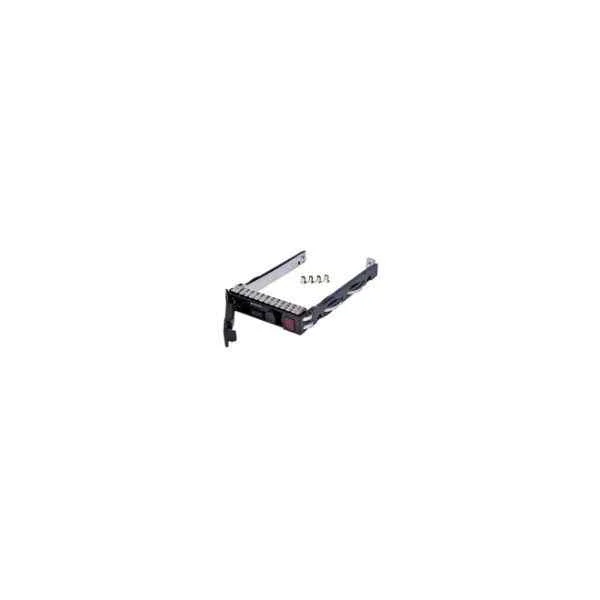
651687-001 (HP SOURCING G8/G9 2.5 SAS/SATA HDD TRAY)
4.2 (5)Est Value $67.50
$42.00
37.8% offIn stockNewRefurbishedFirst-Time Buyer Discount – Get up to 2% additional off on your first order
ORM Rewards Earn $50 in Rewards + Free Expedited Delivery – Join Now!
Use eCoupon ORMSAVE10
eCoupon limited to 5 units
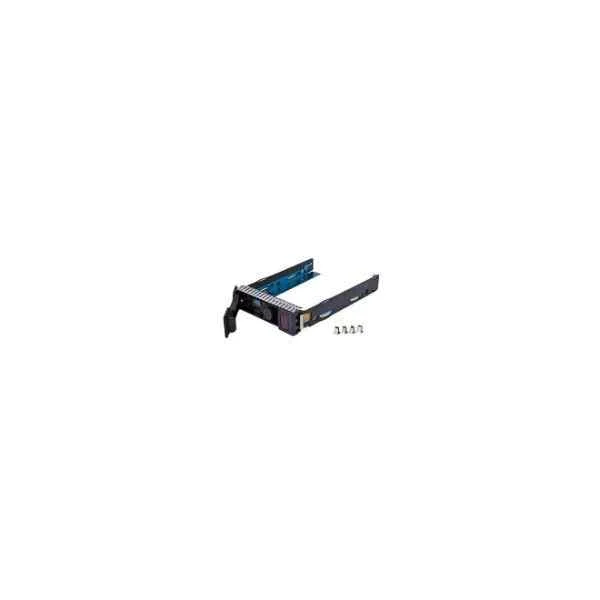
651314-001 (651314-001 - 8.89 cm (3.5") - Bezel panel - Serial Attached SCSI (SAS) - Black)
4.6 (5)Est Value $94.50$42.00
55.6% offIn stockNewRefurbishedFirst-Time Buyer Discount – Get up to 2% additional off on your first order
ORM Rewards Earn $50 in Rewards + Free Expedited Delivery – Join Now!
Use eCoupon ORMSAVE10
eCoupon limited to 5 units

ORM Sales Advisors
Buying for your business? Get a personalised quote in under 2 hours. Talk to an expert
LEARNFilters (2) 
Questions & Answers
What are the primary components of an HP desktop PC?
An HP desktop PC typically includes a motherboard, CPU, RAM, storage drive (HDD or SSD), graphics card, power supply unit, cooling system, and I/O ports. These core components ensure optimal performance for everyday computing, gaming, and professional applications.
How do I identify the model number of my HP laptop?
You can find your HP laptop model number on a label underneath the device or inside the battery compartment. Alternatively, open HP Support Assistant or type “msinfo32” in Windows Run to view the System Model field.
Can I upgrade RAM on my HP PC, and how much can it support?
Most HP desktops and laptops allow RAM upgrades. Check your system’s specifications via HP Support or the user manual to confirm maximum capacity and compatible DDR generation. Power down and install modules into the designated memory slots.
What types of storage drives are compatible with HP PCs?
HP PCs support SATA HDDs, SATA SSDs, and NVMe PCIe M.2 SSDs. Ensure your motherboard has the proper connector: a 2.5-inch bay for SATA drives or an M.2 slot for NVMe modules. Reference your user guide for slot availability.
How can I update the graphics card drivers on my HP computer?
Download the latest graphics drivers from HP’s official support website by entering your product model. Alternatively, use the graphics adapter manufacturer’s utility (NVIDIA GeForce Experience or AMD Radeon Software) for automatic updates.
Is it possible to upgrade the CPU in an HP desktop tower?
CPU upgrades depend on socket compatibility and BIOS support. Check your HP desktop’s motherboard socket type (Intel LGA or AMD AM4) and review HP’s CPU support list. Always update your BIOS before installing a new processor.
What warranty coverage do HP PC components have?
HP standard warranties cover hardware defects for one year from purchase. Extended Care Packs are available for up to three years and include onsite repair, accidental damage protection, and priority support.
How do I troubleshoot overheating issues in my HP PC?
Clean dust from vents and fans, update BIOS and drivers, and ensure proper airflow. Use HP Support Assistant to run hardware diagnostics. If temperatures remain high, consider high-performance thermal paste or additional case fans.
Where can I download BIOS updates for my HP motherboard?
Visit HP’s official support site, enter your model number, and navigate to the BIOS category. Download and run the HP BIOS Update Utility in Windows or create a USB recovery drive for a firmware flash.
How do I replace the power supply unit in an HP desktop?
Power down, unplug all cables, and open the chassis. Remove the existing PSU by unscrewing its mounting bracket. Install a compatible ATX power supply of equal or higher wattage, reconnect cables, and secure the unit.
Can I install an aftermarket cooling solution in my HP desktop?
Yes, if your chassis supports standard air or liquid coolers. Verify CPU socket compatibility and clearance under the side panel. Follow manufacturer guidelines to mount the cooler, apply thermal paste, and connect fan headers.
What is the difference between DDR4 and DDR5 RAM in HP PCs?
DDR5 RAM offers higher bandwidth and improved power efficiency compared to DDR4. HP systems designed for DDR5 will not accept DDR4 modules. Confirm motherboard memory type before purchasing or installing new RAM.
How do I replace a failing hard drive in my HP laptop?
Power down, remove the battery (if removable) and open the drive bay cover. Unscrew and slide out the failing drive. Insert a compatible 2.5-inch HDD or SSD, secure it with screws, and reconnect data and power cables.
What steps ensure proper static safety when servicing HP PC components?
Wear an anti-static wrist strap or discharge static by touching a grounded metal surface. Work on a non-conductive surface, handle components by edges, and avoid carpeted areas to prevent electrostatic discharge damage.
How can I check component compatibility before upgrading my HP PC?
Use HP’s PartSurfer tool or consult the Maintenance and Service Guide for your model. Verify socket types, form factors, power requirements, and supported firmware revisions to ensure seamless hardware upgrades.
What should I do if my HP PC’s fans are unusually noisy?
Clean dust buildup from fans and heat sinks. Update BIOS and drivers to optimize fan curves. If noise persists, consider replacing worn bearings or installing higher-quality, low-noise fan models rated for your chassis.