 United States
Network Cards TP-Link Performance
Experience secure, high-speed connectivity with TP-Link network cards, engineered for reliable performance and optimized infrastructure. Enhance your IT environment with advanced, proven technology for superior network operations.
Talk to an expert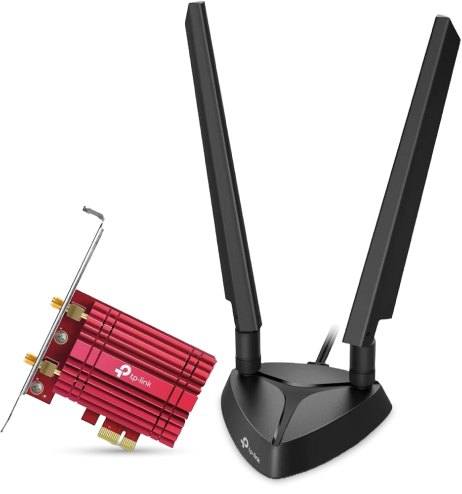
3 Matching results
- BEST SELLING
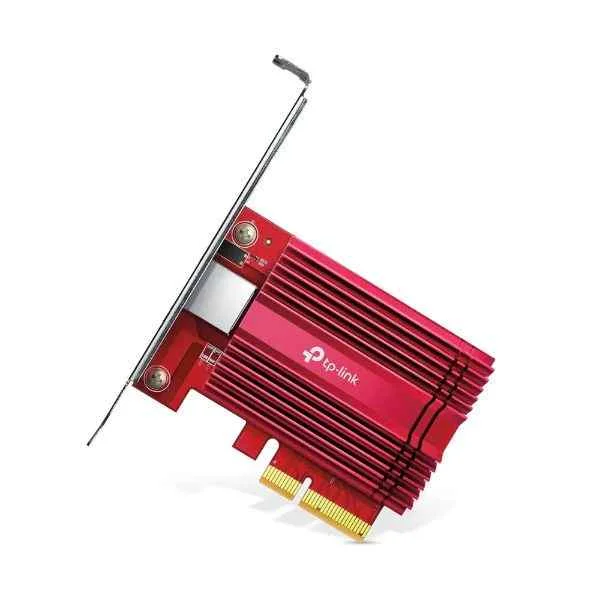
TX401 (TP-LINK TX401 network card Internal Ethernet 10000 Mbit/s (TX401))
4.8 (5)- Network Card
- Tp-Link
- Ethernet
- 10G
- SFP+
- TCP/IP / iSCSI
- PCIe
Est Value $298.89
$255.15
14.6% offIn stockNewRefurbishedFirst-Time Buyer Discount – Get up to 2% additional off on your first order
ORM Rewards Earn $50 in Rewards + Free Expedited Delivery – Join Now!
Use eCoupon ORMSAVE10
eCoupon limited to 5 units
- BEST SELLING
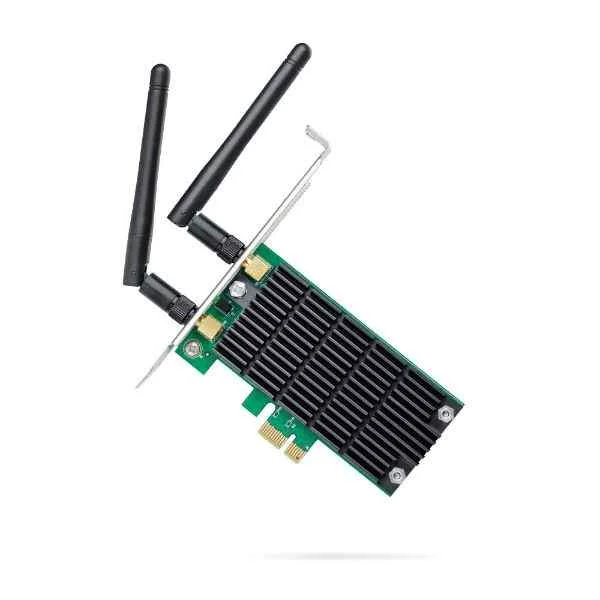
ARCHER T4E (Archer T4E - Internal - Wireless - PCI Express - WLAN - 867 Mbit/s - Black,Green)
4.6 (5)- Network Card
- Tp-Link
- Wi-Fi
- 802.11ac (Up to 1300Mbps)
- PCIe
- 802.11ac/802.11n/802.11g/TCP/IP
- PCIe
Est Value $60.90$30.45
50% offIn stockRefurbishedFirst-Time Buyer Discount – Get up to 2% additional off on your first order
ORM Rewards Earn $50 in Rewards + Free Expedited Delivery – Join Now!
Use eCoupon ORMSAVE10
eCoupon limited to 5 units
- BEST SELLING
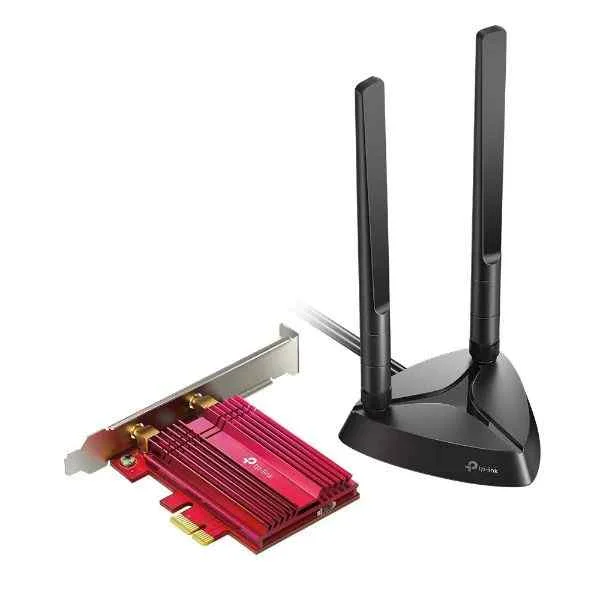
ARCHER TX3000E (Archer TX3000E - Internal - Wireless - PCI Express - WLAN / Bluetooth - 2402 Mbit/s - Black,Red)
4.4 (5)- Network Module / Network Card
- Tp-Link
- Ethernet
- 10Gbps
- RJ-45
- TCP/IP
- PCIe
Est Value $101.48$86.63
14.6% offIn stockRefurbishedFirst-Time Buyer Discount – Get up to 2% additional off on your first order
ORM Rewards Earn $50 in Rewards + Free Expedited Delivery – Join Now!
Use eCoupon ORMSAVE10
eCoupon limited to 5 units

ORM Sales Advisors
Buying for your business? Get a personalised quote in under 2 hours. Talk to an expert
LEARNFilters (3) 
Questions & Answers
What is a TP-Link network card?
A TP-Link network card is an internal or external adapter that enables wired or wireless connectivity by adding Ethernet or Wi-Fi functionality to desktop PCs and laptops.
How do I install a TP-Link PCIe network card in my desktop?
Power down your PC, insert the PCIe card into an available slot, secure it with a screw, boot your system, and install the latest drivers from the TP-Link support website.
How do I set up a TP-Link USB Wi-Fi adapter on Windows?
Plug the adapter into a USB port, allow Windows to detect it automatically or install drivers from the included CD/TP-Link website, then connect to your Wi-Fi network via the network icon.
Which TP-Link network card is best for gaming?
For gaming, the TP-Link Archer TX3000E PCIe Wi-Fi 6 card delivers low latency, MU-MIMO support, and speeds up to 2.4 Gbps for a smooth online experience.
Are TP-Link network cards compatible with macOS and Linux?
Many TP-Link network cards support macOS and Linux, but compatibility varies by model; always check the product specifications and download the appropriate drivers from TP-Link.
How do I update drivers for my TP-Link network card?
Visit the TP-Link support page, locate your network card model, download the latest driver package, and follow the on-screen installation instructions.
Why is my TP-Link network card not detected by Windows?
Ensure the card is firmly seated, check Device Manager for unknown devices, install the correct driver, and update your motherboard BIOS if necessary.
What speeds can I expect from TP-Link Ethernet network cards?
TP-Link Gigabit Ethernet cards support up to 1 Gbps, while multi-gig models can reach 2.5 Gbps or 10 Gbps depending on the specific adapter.
Should I choose a PCIe or a USB TP-Link network card?
Choose PCIe for maximum performance and stability in desktops; opt for USB adapters for portable, plug-and-play Wi-Fi connectivity on laptops.
How do I optimize Wi-Fi performance with my TP-Link network card?
Place your PC in an open area, update drivers, select the less congested 5 GHz band, and enable features like MU-MIMO and beamforming in the card’s utility.
Do TP-Link Wi-Fi cards support WPA3 encryption?
Yes, many TP-Link Wi-Fi 6 and newer cards support WPA3 for enhanced network security; verify support in the product’s specifications.
How can I extend my Wi-Fi range using a TP-Link network card?
Use cards with external adjustable antennas, position them for optimal signal, and enable high-gain mode in the driver settings to maximize coverage.
What does MU-MIMO mean on TP-Link network cards?
MU-MIMO (Multi-User Multiple Input Multiple Output) allows the card to communicate with multiple devices simultaneously for faster aggregate throughput.
How do I secure my wireless connection with a TP-Link network card?
Enable WPA2/WPA3 encryption, set a strong passphrase, update to the latest firmware and drivers, and turn on the built-in firewall in your router for maximum protection.
Can I disable power management on my TP-Link network card?
Yes, open Device Manager, right-click the card, choose Properties → Power Management, and uncheck 'Allow the computer to turn off this device to save power.'
What warranty does TP-Link offer on network cards?
TP-Link network cards typically include a limited lifetime or two-year warranty; exact terms vary by region and model, so consult the warranty statement in your product packaging.