 United States
Dell KVM Switches Optimized Performance
Experience robust enterprise connectivity with Dell KVM switches. Engineered for reliability, our advanced solutions streamline IT management, enhance operational efficiency, and empower secure remote system control.
Talk to an expert
4 Matching results
- BEST SELLING
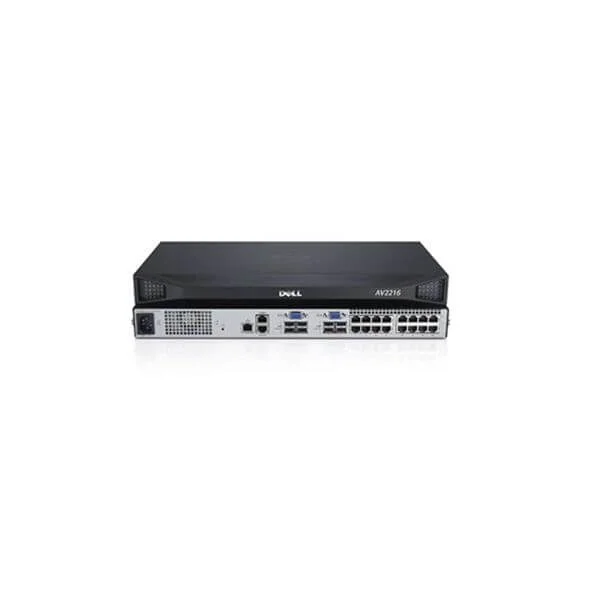
DELL ANALOG KVM SWITCH DAV2216 (Dell Analog KVM Switch DAV2216 - TAA Compliant)
0 (0)- KVM Switch
- Dell
- AC Power Supply
- Desktop
Est Value In stock
First-Time Buyer Discount – Get up to 2% additional off on your first order
ORM Rewards Earn $50 in Rewards + Free Expedited Delivery – Join Now!
Use eCoupon ORMSAVE10
eCoupon limited to 5 units
- BEST SELLING
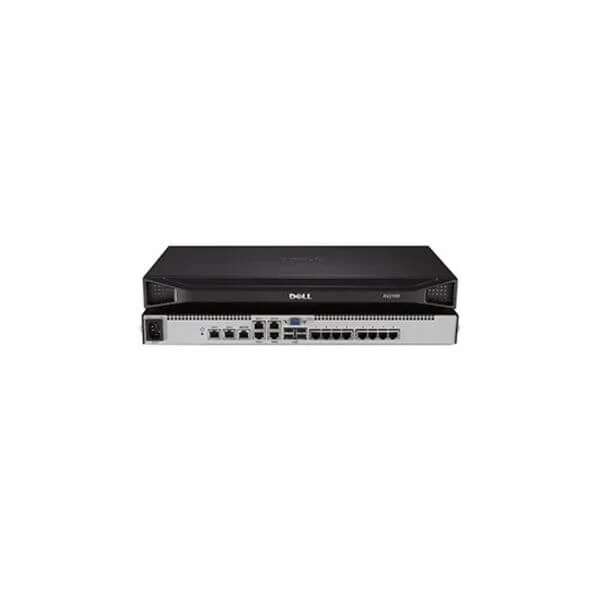
DELL ANALOG KVM SWITCH DAV2108 (Dell Analog KVM Switch DAV2108 - TAA Compliant)
0 (0)- KVM Switch
- Dell
- AC Power Supply
- Desktop
Est Value In stockFirst-Time Buyer Discount – Get up to 2% additional off on your first order
ORM Rewards Earn $50 in Rewards + Free Expedited Delivery – Join Now!
Use eCoupon ORMSAVE10
eCoupon limited to 5 units
- BEST SELLING
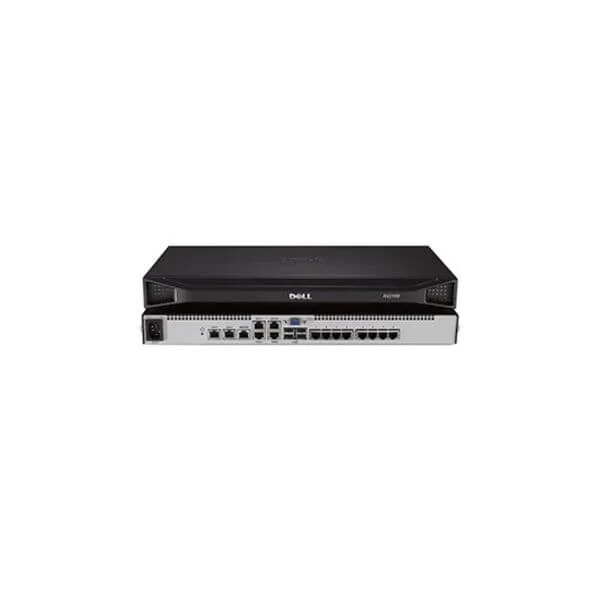
DELL DIGITAL KVM SWITCH DMPU108E (Dell Digital KVM Switch DMPU108e - TAA Compliant)
0 (0)- KVM Switch
- Dell
- AC Power Supply
- Rack-mount
Est Value In stockFirst-Time Buyer Discount – Get up to 2% additional off on your first order
ORM Rewards Earn $50 in Rewards + Free Expedited Delivery – Join Now!
Use eCoupon ORMSAVE10
eCoupon limited to 5 units
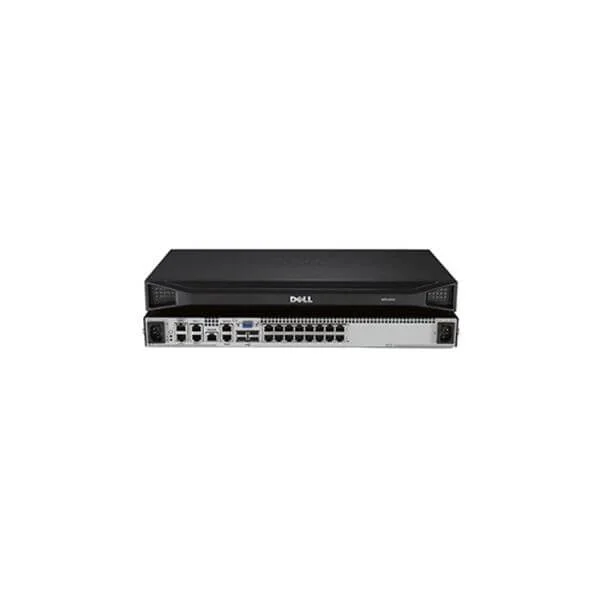
DELL DIGITAL KVM SWITCH DMPU2016 (Dell Digital KVM Switch DMPU2016 - TAA Compliant)
0 (0)- KVM Switch
- Dell
- AC Power Supply
- Rack-mount
- 15 W
Est Value In stockFirst-Time Buyer Discount – Get up to 2% additional off on your first order
ORM Rewards Earn $50 in Rewards + Free Expedited Delivery – Join Now!
Use eCoupon ORMSAVE10
eCoupon limited to 5 units

ORM Sales Advisors
Buying for your business? Get a personalised quote in under 2 hours. Talk to an expert
LEARNFilters (4) 
Questions & Answers
What is a Dell KVM switch?
A Dell KVM switch is a hardware device that lets you control multiple computers or servers from a single keyboard, video monitor, and mouse, improving workspace efficiency.
How does a Dell KVM switch work?
A Dell KVM switch works by routing keyboard, video, and mouse signals through internal switching circuitry, allowing you to select and control any connected computer via hotkeys, a push button, or on-screen display.
What are the benefits of using a Dell KVM switch?
Key benefits include reduced desk clutter, centralized management of multiple systems, lower hardware costs, quick system switching, and improved data-center security.
How many ports do Dell KVM switches support?
Dell KVM switches are available in multiple configurations—commonly 2, 4, 8, 16, and 32 ports—allowing scalable management of up to 32 computers with a single console.
Which Dell KVM switch model is best for small businesses?
For small businesses, the Dell KVM Switch (2-Port USB DisplayPort) is ideal, offering compact design, easy installation, 4K video support, and USB 3.0 peripheral sharing.
Are Dell KVM switches compatible with Mac and Linux?
Yes. Dell KVM switches support major operating systems, including Windows, macOS, and Linux, ensuring cross-platform compatibility via standard USB and DisplayPort or HDMI connections.
Can I daisy-chain Dell KVM switches?
Many Dell KVM models support daisy-chaining, allowing you to link multiple switches to expand beyond the built-in port count without compromising video resolution or USB performance.
What video resolutions do Dell KVM switches support?
Dell KVM switches support up to 4K UHD at 60 Hz on compatible DisplayPort or HDMI models, and 1920×1200 at 60 Hz on DVI-based units, ensuring crisp high-definition display.
How do I set up a Dell KVM switch?
To set up, connect each computer’s video, USB keyboard, and mouse cables to the switch’s labeled ports, attach your console, power on all devices, and use the switch’s hotkey or button to cycle between systems.
Do Dell KVM switches require external power?
Most Dell KVM switches include an external power adapter to ensure stable operation and USB peripheral support; some low-port models may be bus-powered via USB.
What security features do Dell KVM switches offer?
Dell KVM switches include hardware-level port isolation, password protection, and secure firmware to prevent unauthorized access and maintain data integrity across connected systems.
Can I share USB peripherals over a Dell KVM switch?
Yes. Dell KVM switches typically feature USB 2.0 or USB 3.0 ports for sharing keyboards, mice, flash drives, and other USB peripherals among all connected computers.
How do I update firmware on a Dell KVM switch?
Update firmware by downloading the latest package from Dell Support, connecting a USB flash drive to the switch’s firmware port, and following the on-screen instructions in the switch’s OSD menu.
What warranty does Dell offer for KVM switches?
Dell provides a one-year limited hardware warranty on its commercial KVM switches, with optional ProSupport for extended coverage, next-business-day on-site repair, and 24×7 support.
Where can I buy Dell KVM switches?
Dell KVM switches are available through Dell’s official online store, authorized resellers, and leading IT distributors, often bundled with volume discounts for enterprise customers.
How do I troubleshoot video issues on a Dell KVM switch?
First, verify cable connections, confirm resolution settings on each computer, update switch firmware, and test with known-good cables; contact Dell Support if the issue persists.