United States
Best NAS Storage for Home in 2026: Top Devices for Backup and Media
Prefer listening?
Hear the full blog in audio format
Looking for the best NAS storage for home in 2026?
Cloud storage starts off cheap… until you realize you’re paying monthly just to keep old photos and random phone backups. External hard drives aren’t much better either. They work fine right up until the moment they don’t.
Demand for NAS storage is growing as more users store photos, videos, backups, and media libraries locally. Mordor Intelligence estimates the NAS market will grow from USD 46.32 billion in 2026 to USD 101.24 billion by 2031.
That’s a big reason why NAS devices are becoming so popular in 2026.
And honestly, modern NAS systems are way more exciting than they used to be. There’s now a NAS setup for everyone, from casual users to full home lab enthusiasts.
Best NAS Storage for Home in 2026 (Quick Picks)
- Best for beginners → Synology DS225+
- Best budget NAS → QNAP TS-216G
- Best for media servers → Synology DS425+
- Best for power users → Synology DS1621+
Best NAS Storage for Home: What Should You Buy in 2026?
The best NAS storage for home depends on how you actually plan to use it. If you only want automatic backups and private cloud storage, a compact 2-bay NAS is usually enough.
But if you plan to run a Plex media server, store large photo libraries, edit videos directly from your NAS, or build a home lab, it’s smarter to look at a 4-bay or higher-performance NAS setup.
For most home users, the ideal NAS should include:
- RAID protection for data safety
- Fast remote access
- Quiet operation
- Low power consumption
- SSD or NVMe caching support
- Easy backup tools
- Reliable app ecosystem
Modern NAS devices also support features that used to feel enterprise-only. Things like Docker containers, virtualization, AI NAS storage tools, and advanced remote access are now common even in home NAS environments.
What Is a NAS Device and How Does It Work?
A NAS, or network attached storage device, is essentially a storage system connected directly to your home or office network. Instead of plugging a hard drive into one computer, a NAS allows multiple devices to access the same storage at the same time.
Think of it as your own private cloud storage system inside your house.
One of the biggest advantages of NAS storage is convenience. Rather than manually moving files between devices, your NAS automatically keeps everything centralized and accessible.
Modern NAS devices do much more than simple storage. Depending on the model, they can support:
- Plex media streaming
- Docker containers
- Virtual machines
- Automatic backups
- AI-powered photo organization
- Surveillance camera storage
- Multi-user collaboration
That’s why the best network attached storage systems today feel closer to mini servers than traditional hard drives.
NAS vs External Hard Drive
A lot of people start with external hard drives because they’re cheap and simple. But once storage needs grow, the limitations become obvious.
Here’s a quick comparison:
Feature | NAS Storage | External Hard Drive |
Remote Access | Yes | No |
Multi-Device Access | Yes | Limited |
RAID Protection | Yes | Usually No |
Media Streaming | Yes | Limited |
Automatic Backup | Yes | Basic |
Expandability | High | Low |
Private Cloud Storage | Yes | No |
An external drive works well for quick storage, but a NAS backup solution is designed for long-term organization, redundancy, and accessibility.
Is NAS Better Than Cloud Storage?
For many users, yes.
Cloud platforms are convenient, but subscription costs add up over time. There’s also the issue of privacy, upload speeds, and depending entirely on internet access to reach your files.
A NAS gives you:
- More control over your data
- One-time hardware investment
- Faster local access
- Better storage scalability
- Personal cloud functionality without monthly fees
That’s why many people now prefer a hybrid setup. Important files stay on local NAS storage, while cloud platforms are used only for secondary backup or sharing.
For users with large photo libraries, Plex media collections, or video editing workflows, NAS storage is often faster and more practical than relying entirely on cloud services.
What to Look for in the Best Network Attached Storage
Buying the best NAS server for home use is not just about picking the model with the most drive bays. The right choice depends on performance, scalability, noise levels, storage flexibility, and how you actually plan to use the system every day.
Best 2-Bay NAS for Home vs Best 4-Bay NAS for Home
This is usually the first major decision buyers face.
A 2-bay NAS is ideal for:
- Personal backups
- Photo storage
- Basic Plex streaming
- Home office documents
- Low-power NAS setups
They’re quieter, cheaper, and easier for beginners to manage.
A 4-bay NAS gives you more flexibility and better long-term scalability. These systems are better for:
- RAID 5 storage
- Larger media libraries
- NAS for video editing
- Multiple users
- Home labs
- Docker environments
If you expect your storage needs to grow over the next few years, a 4-bay NAS is usually the smarter investment.
RAID 1 vs RAID 5: Which RAID Storage System Is Better?
RAID is one of the biggest reasons people move from external drives to a proper NAS setup. It adds protection if a drive fails, which becomes extremely important once your NAS starts storing family photos, Plex libraries, backups, and work files.
RAID Type | Minimum Drives | Main Benefit | Best For |
RAID 1 | 2 | Simple redundancy | Beginners and home backup |
RAID 5 | 3 | Better storage efficiency | 4-bay NAS users and larger storage setups |
RAID 1 mirrors your data across two drives. If one drive fails, your files still exist on the second drive. It’s simple, reliable, and perfect for users starting with a 2-bay NAS.
RAID 5 spreads data across multiple drives while storing parity information for protection. It gives better storage efficiency and is more popular among users with larger media libraries or home lab setups.
Quick Tip
If this is your first NAS, RAID 1 is usually the easiest and safest starting point.
Best For
- RAID 1 → Family backups and beginner NAS setups
- RAID 5 → Plex servers, larger media libraries, and growing storage environments
Avoid This
Do not treat RAID as a backup solution. RAID protects against drive failure, not accidental deletion, ransomware, or corruption.
Best NAS Storage for Home in 2026: Top NAS Devices Compared
The best NAS storage for home depends entirely on your workload. A user backing up family photos does not need the same NAS as someone running Plex, Docker containers, video editing workflows, or a full home lab setup.
That’s why choosing a NAS based only on drive bays can become expensive later. A smaller NAS may feel cheaper upfront, but upgrading too soon often costs more long term.
For most users:
- A 2-bay NAS is enough for backups and private cloud storage
- A 4-bay NAS is better for Plex, media libraries, and long-term storage growth
- A 6-bay NAS makes more sense for power users, virtualization, and home labs
Here are some of the strongest NAS options to consider in 2026.
Use Case | Recommended NAS | Bays | Best For |
Family backups and private cloud storage | Synology DiskStation DS225+ | 2-bay | Beginners who want easy setup and reliable backups |
Budget NAS and home storage | QNAP TS-216G | 2-bay | Affordable NAS users who want more flexibility |
Plex and growing media libraries | Synology DiskStation DS425+ | 4-bay | Media streaming, RAID 5, and long-term storage expansion |
Home office and creators | Synology DS425+ | 4-bay | Multi-device backups, file syncing, and larger workloads |
Power users and home labs | Synology DS1621+ | 6-bay | Docker, virtualization, AI NAS storage, and scalability |
Business continuity and uptime | Synology SA3200D | 12-bay | Shared storage, backup infrastructure, and critical workloads |
Best NAS for Home Media Server
If you’re building a Plex NAS server, performance matters more than just storage size. A good media NAS should handle:
- 4K streaming
- Multiple users
- Large media libraries
- Fast indexing
- Remote streaming
Plex Feature | Why It Matters |
Direct Play Support | If your TV or streaming device can play the file format directly, your NAS does much less work. |
Transcoding Performance | If Plex needs to convert video formats or reduce quality for remote streaming, CPU power becomes very important. |
4K Streaming Capability | Some entry-level NAS devices struggle with multiple 4K streams or heavy transcoding workloads. |
CPU Performance | Stronger CPUs handle Plex transcoding, media indexing, and multitasking much more smoothly. |
Plex Pass Support | Hardware-accelerated transcoding on Plex usually requires an active Plex Pass subscription. |
2.5GbE or Faster Networking | Faster networking improves large media transfers and smoother multi-device streaming. |
If your TV, streaming box, or media player can direct play your files, even a modest NAS can work well for Plex. But once transcoding enters the picture, especially with 4K video, subtitles, unsupported codecs, or remote streaming, weaker NAS hardware can struggle quickly.
That’s why CPU performance matters far more than many buyers realize. A NAS with enough storage but weak transcoding capability can become frustrating for larger Plex libraries or multi-user streaming setups.
- For basic Plex streaming and home media use, the Synology DS225+ is a great starting point.
- For larger libraries, multiple users, and long-term scalability, the Synology DS425+ is the better choice.
Best NAS for Power Users and Home Labs
The Synology DS1621+ is the best NAS for power users who need high performance, Docker support, and long-term scalability.
It supports:
- NVMe SSD caching
- Docker containers
- Virtualization
- Large RAID storage setups
- High-performance multitasking
NVMe caching can make a noticeable difference in NAS responsiveness, especially for larger media libraries, Docker environments, and multitasking workloads.
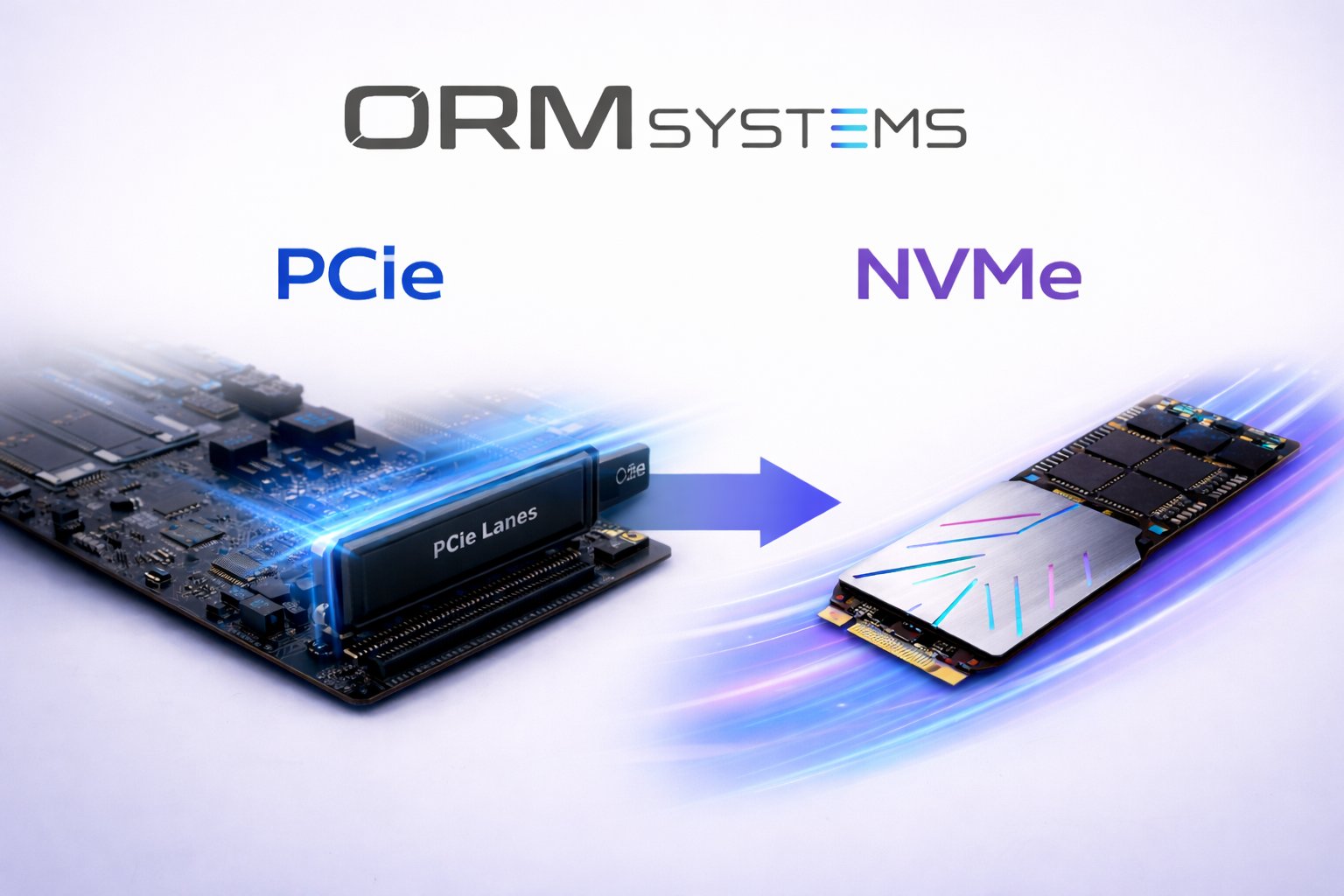
If you’re still confused about the difference between PCIe SSD and NVMe storage, this guide breaks it down in a much simpler way.
This makes it ideal for:
- NAS for video editing
- Home server storage
- NAS Docker support
- AI NAS storage setups
- Large Plex servers
- Home lab environments
The DS1621+ is a strong long-term NAS for users expecting their storage needs to grow over time.
Synology vs QNAP NAS: Which Is Better?
This comparison comes up constantly because Synology and QNAP are easily two of the biggest names in the NAS market right now. And honestly, both brands make excellent NAS devices. The better choice usually depends on the type of user you are.
Synology Advantages
- Easier interface
- Better beginner experience
- Excellent backup ecosystem
- Cleaner software design
- Strong app support
Synology is usually the safer recommendation for most home users. The DSM operating system feels polished, simple, and less overwhelming, especially if this is your first NAS setup. T
Things like backups, remote access, media streaming, and user management are easier to configure without spending hours watching tutorials.
That’s one of the biggest reasons Synology NAS devices are so popular for home office storage, Plex servers, and private cloud storage setups. They simply feel more user-friendly.
QNAP Advantages
- More hardware flexibility
- Advanced networking options
- Better customization for enthusiasts
- Stronger experimentation potential
QNAP is often preferred by advanced users who enjoy tweaking settings and experimenting with more complex configurations. A lot of home lab users and networking enthusiasts like QNAP because the systems usually offer stronger hardware flexibility and deeper customization options.
If you enjoy building advanced Docker environments, testing virtualization setups, or pushing networking performance, QNAP can feel more open and powerful.
Our Opinion
For most people building their first NAS, we’d lean toward Synology. The overall experience is smoother, cleaner, and easier to manage long-term. You spend less time troubleshooting and more time actually using the NAS.
That said, if you’re the kind of user who enjoys experimenting, optimizing performance, and diving deeper into networking or virtualization, QNAP becomes much more attractive.
In simple terms:
- Synology feels more refined
- QNAP feels more flexible
Neither choice is wrong. It really comes down to whether you value simplicity or customization more.
How to Set Up a NAS at Home (Quick Setup Guide)
1. Install Your Drives
Insert your HDDs or SSDs into the NAS bays. Most modern NAS systems use tool-less trays, so this part is quick and beginner-friendly.
2. Connect to Your Network
Plug the NAS into your router using an Ethernet cable. This ensures faster speeds and stable performance for backups and media streaming.
3. Configure Storage (RAID Setup)
During setup, choose your RAID type.
- RAID 1 → simple protection (best for beginners)
- RAID 5 → better storage efficiency (for 4-bay systems)
4. Create Folders and Users
Set up shared folders for photos, backups, and media. If multiple users will access the NAS, create separate accounts and permissions.
5. Enable Backups and Remote Access
Turn on automatic backups and configure remote access so you can safely access your files from anywhere.
Common NAS Mistakes Home Users Make
Most NAS mistakes happen because people focus too much on storage size and not enough on how they’ll actually use the system long term.
We’ve seen a lot of users rush into buying a NAS, only to realize a few months later that they either bought too little storage, ignored backups, or spent far more than they needed to.
Buying Too Little Storage
This is probably the most common mistake. A lot of people assume a few terabytes will last for years, but once automatic phone backups, 4K videos, Plex libraries, and family photo collections start growing, storage disappears surprisingly fast.
Users usually fill their NAS much earlier than expected simply because they underestimated how quickly media files grow over time.
Ignoring RAID Protection
Some users skip RAID entirely because they want maximum storage capacity. It feels fine until a drive fails.
We’ve seen people lose years of photos, videos, and backups because they treated a NAS like a basic external hard drive instead of a proper RAID storage system. Even a simple RAID 1 setup can save you from a very painful situation.
Using Weak Passwords
A NAS connected to the internet without proper security can become a serious risk. Weak passwords, outdated software, and exposed remote access settings are still surprisingly common.
Most modern NAS systems make security setup easy now, so there’s really no reason to ignore things like strong passwords and two-factor authentication.
Skipping Backups Completely
This one catches a lot of beginners off guard.
RAID is not a backup solution. It protects against drive failure, not accidental deletion, ransomware, or corrupted files. We’ve seen users assume RAID alone was enough protection until something unexpected happened.
Important files should always exist in more than one location.
Choosing Slow or Cheap Drives
Not every hard drive is designed for NAS workloads. Some cheaper desktop drives struggle with 24/7 usage, multi-user access, and constant read/write operations.
We’ve seen unstable performance, overheating, and early failures simply because users picked the cheapest drives available instead of NAS-optimized models.
Quick Tip
Buy a NAS based on your actual workflow, not just the biggest specs you can afford.
Best For
- 2-bay NAS → Beginners and family backups
- 4-bay NAS → Growing media libraries and home offices
- 6-bay NAS → Power users and home labs
Avoid This
Don’t buy enterprise-grade NAS hardware just because it looks impressive. Most home users will never fully utilize it.
Conclusion
The best NAS storage for home is one of those upgrades people usually wish they had made earlier. What starts as “I just need extra storage” quickly turns into running your own private cloud storage, streaming movies through Plex, backing up every device automatically, and finally stopping the constant “storage full” notifications.
And honestly, once you get used to having everything centralized and accessible from anywhere, it’s hard to go back to random external drives and scattered cloud subscriptions.
ORM Systems helps users choose NAS storage based on real workloads, whether you need a simple home backup setup, a Plex media server, or scalable storage for long-term growth. Choosing the right NAS early can save you from expensive upgrades, storage limitations, and painful data loss later.
Frequently Asked Questions
What is The Best NAS Storage For Home Users Who Want Plex and Private Cloud Storage?
A 2-bay NAS like the DS225+ works well for basic Plex streaming, but larger media libraries are better suited to a 4-bay NAS like the DS425+.
Is NAS Better Than Cloud Storage For Home Backups?
For many users, yes. A NAS gives you more control, faster local access, and no monthly subscription fees, which makes it ideal for home server storage and photo backups.
Should I Buy a 2-Bay or 4-Bay NAS For Home Use?
A 2-bay NAS is best for basic backups and media streaming. A 4-bay NAS offers better RAID flexibility and more storage growth for Plex servers, video editing, and home office storage.