 United States
Synology Memory & Ram Solutions
Unlock superior performance with Synology Memory & Ram. Our advanced memory modules deliver optimized capacity and reliability, ensuring seamless multi-tasking, robust data integrity, and virtualization for demanding applications.
Talk to an expert
18 Matching results
D3NS1866L-4G (SYNOLOGY 4GB RAM MODULE DDR3L RAM COMPATIBLE WITH DS620SLIM)
5 (5)- Computer Memory
- Synology
- DDR3
- 4 GB
- Desktop
- UDIMM
Est Value $409.02
$204.51
50% offIn stockRefurbishedFirst-Time Buyer Discount – Get up to 2% additional off on your first order
ORM Rewards Earn $50 in Rewards + Free Expedited Delivery – Join Now!
Use eCoupon ORMSAVE10
eCoupon limited to 5 units
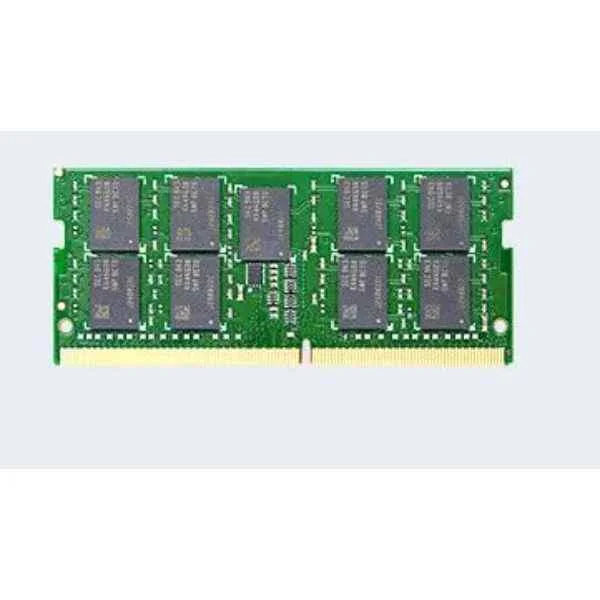
D4ES01-4G (4GB RAM DDR4 ECC SODIMM)
4.6 (5)- Computer Memory
- Synology
- DDR4
- 4 GB
- Desktop
- UDIMM
Est Value $451.51$385.43
14.6% offIn stockNewRefurbishedFirst-Time Buyer Discount – Get up to 2% additional off on your first order
ORM Rewards Earn $50 in Rewards + Free Expedited Delivery – Join Now!
Use eCoupon ORMSAVE10
eCoupon limited to 5 units
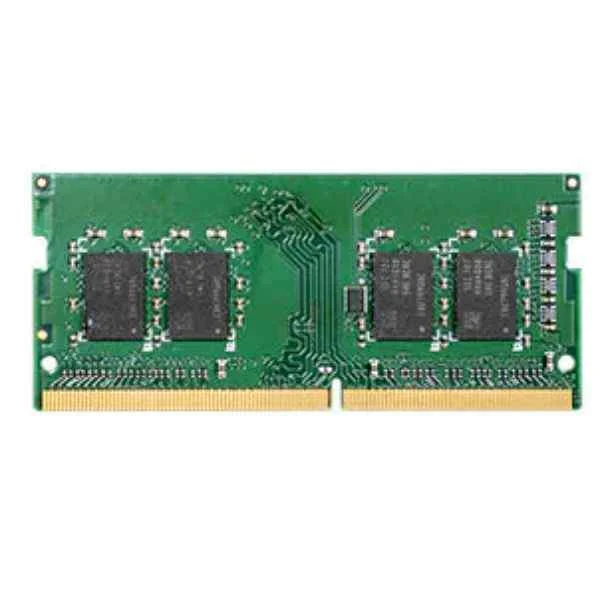
D4NESO-2666-4G (D4NESO-2666-4G - 4 GB - 1 x 4 GB - DDR4 - 2666 MHz - 260-pin SO-DIMM)
4.9 (7)- Computer Memory
- Synology
- DDR4
- 4 GB
- Desktop
- UDIMM
Est Value $608.50$241.04
60.4% offIn stockNewRefurbishedFirst-Time Buyer Discount – Get up to 2% additional off on your first order
ORM Rewards Earn $50 in Rewards + Free Expedited Delivery – Join Now!
Use eCoupon ORMSAVE10
eCoupon limited to 5 units
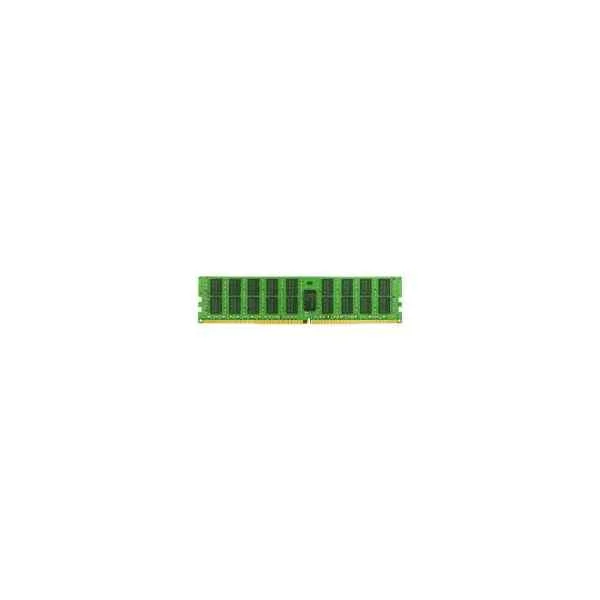
D4RD-2666-32G (32GB RDIMM ECC RAM DDR4-2666)
4.6 (5)- Computer Memory
- Synology
- DDR4
- 32 GB
- Desktop / Laptop / Server
- Rack Server
- RDIMM
Est Value $765.23$653.25
14.6% offIn stockNewRefurbishedFirst-Time Buyer Discount – Get up to 2% additional off on your first order
ORM Rewards Earn $50 in Rewards + Free Expedited Delivery – Join Now!
Use eCoupon ORMSAVE10
eCoupon limited to 5 units
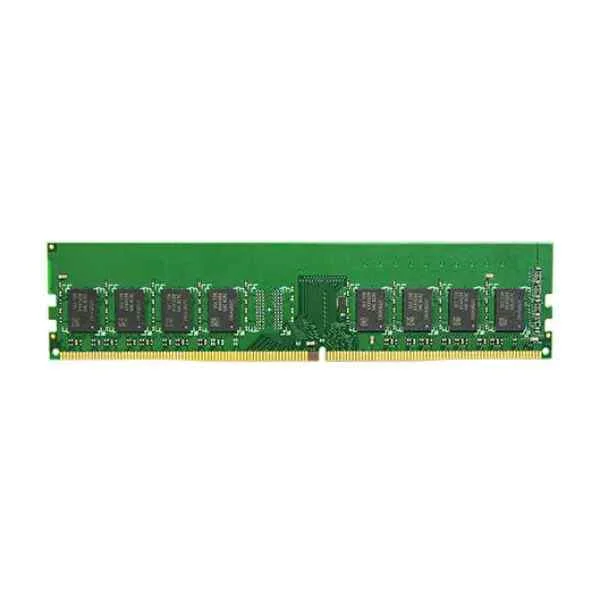
D4NE-2666-4G (D4NE-2666-4G - 4 GB - 1 x 4 GB - DDR4 - 2666 MHz - 288-pin DIMM)
4.8 (5)- Computer Memory
- Synology
- DDR4
- 4 GB
- Desktop / Laptop / Server
- Workstation
- UDIMM
Est Value $488.74$417.22
14.6% offIn stockRefurbishedFirst-Time Buyer Discount – Get up to 2% additional off on your first order
ORM Rewards Earn $50 in Rewards + Free Expedited Delivery – Join Now!
Use eCoupon ORMSAVE10
eCoupon limited to 5 units
D4ES01-8G (8GB DDR4 ECC UNBUFFERED SODIMM)
4.8 (5)- Computer Memory
- Synology
- DDR4
- 8 GB
- Desktop / Laptop / Server
- Workstation
- UDIMM
Est Value $673.54$574.97
14.6% offIn stockNewRefurbishedFirst-Time Buyer Discount – Get up to 2% additional off on your first order
ORM Rewards Earn $50 in Rewards + Free Expedited Delivery – Join Now!
Use eCoupon ORMSAVE10
eCoupon limited to 5 units
RAM1600DDR3-4GB (4GB DDR3-1600 - 4 GB - 1 x 4 GB - DDR3 - 1600 MHz - 204-pin SO-DIMM)
4.6 (5)- Computer Memory
- Synology
- DDR3
- 4 GB
- Desktop
- Workstation
- UDIMM
Est Value $706.18$602.84
14.6% offIn stockRefurbishedFirst-Time Buyer Discount – Get up to 2% additional off on your first order
ORM Rewards Earn $50 in Rewards + Free Expedited Delivery – Join Now!
Use eCoupon ORMSAVE10
eCoupon limited to 5 units
RAM1600DDR3L-4GBX2 (RAM1600DDR3L-4GBX2 - 8 GB - 2 x 4 GB - DDR3L - 1600 MHz - 204-pin SO-DIMM)
4.4 (5)- Computer Memory
- Synology
- DDR3
- 8 GB
- Desktop
- Workstation
- UDIMM
Est Value $776.11$662.53
14.6% offIn stockRefurbishedFirst-Time Buyer Discount – Get up to 2% additional off on your first order
ORM Rewards Earn $50 in Rewards + Free Expedited Delivery – Join Now!
Use eCoupon ORMSAVE10
eCoupon limited to 5 units
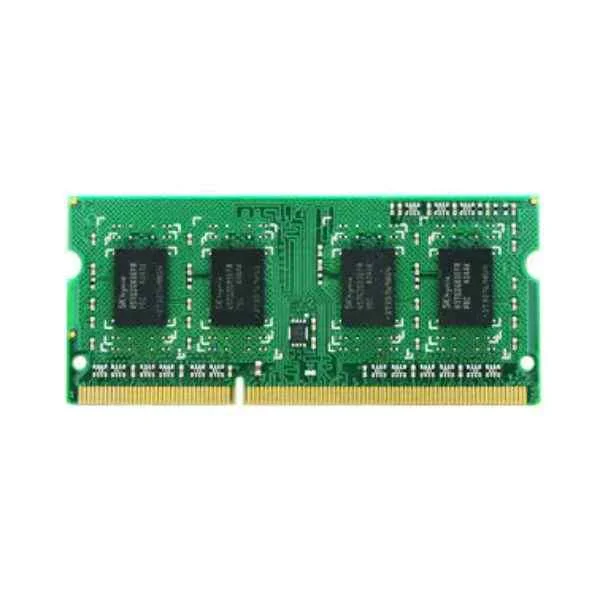
RAM1600DDR3L-8GBX2 (RAM1600DDR3L-8GBX2 - 16 GB - 2 x 8 GB - DDR3L - 1600 MHz - 204-pin SO-DIMM)
4.4 (5)- Computer Memory
- Synology
- DDR3
- 8 GB
- Desktop
- UDIMM
Est Value $844.52$720.93
14.6% offIn stockRefurbishedFirst-Time Buyer Discount – Get up to 2% additional off on your first order
ORM Rewards Earn $50 in Rewards + Free Expedited Delivery – Join Now!
Use eCoupon ORMSAVE10
eCoupon limited to 5 units
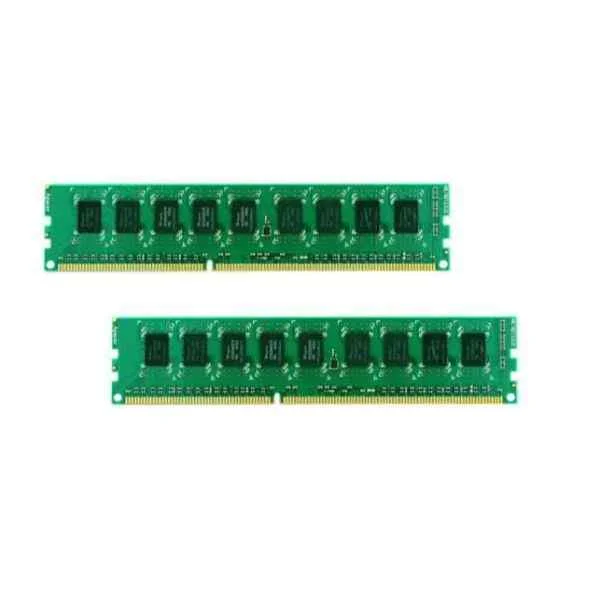
RAMEC1600DDR3-2GBX2 (Synology memory DDR3-1600 unbuffered ECC DIMM CL=11 Single Rank 240pin per Rack Station : RS3614xs+, RS3614xs/RS3614RPxs, RS10613xs+, RS3413xs+)
4.3 (7)- Computer Memory
- Synology
- DDR3
- 4 GB
- Desktop
- Workstation
- UDIMM
Est Value $882.18$753.08
14.6% offIn stockRefurbishedFirst-Time Buyer Discount – Get up to 2% additional off on your first order
ORM Rewards Earn $50 in Rewards + Free Expedited Delivery – Join Now!
Use eCoupon ORMSAVE10
eCoupon limited to 5 units
D4RD-2666-16G (16GB RDIMM ECC RAM DDR4-2666)
5 (5)- Computer Memory
- Synology
- DDR4
- 16 GB
- Server
- Rack Server
- RDIMM
Est Value $1,137.71$971.22
14.6% offIn stockNewRefurbishedFirst-Time Buyer Discount – Get up to 2% additional off on your first order
ORM Rewards Earn $50 in Rewards + Free Expedited Delivery – Join Now!
Use eCoupon ORMSAVE10
eCoupon limited to 5 units
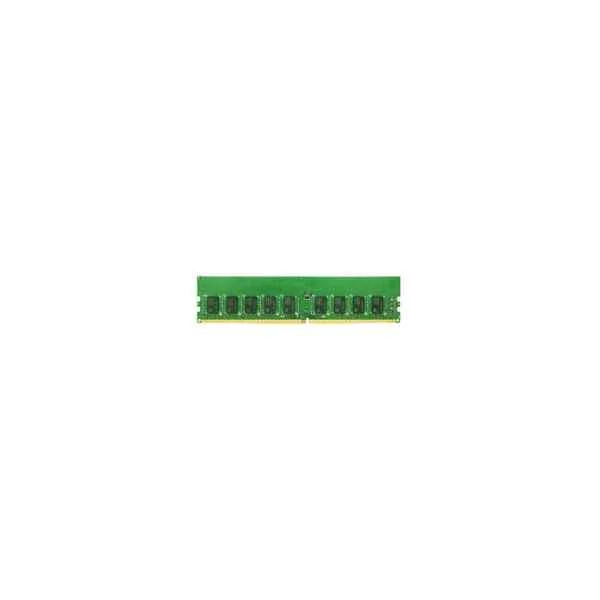
D4EC-2666-8G (D4EC-2666-8G - 4 GB - 1 x 4 GB - DDR4 - 2666 MHz - 288-pin DIMM)
4.3 (11)- Computer Memory
- Synology
- DDR4
- 8 GB
- Desktop / Laptop / Server
- Rack Server / Tower Server
- UDIMM
Est Value $1,127.98$962.91
14.6% offIn stockNewRefurbishedFirst-Time Buyer Discount – Get up to 2% additional off on your first order
ORM Rewards Earn $50 in Rewards + Free Expedited Delivery – Join Now!
Use eCoupon ORMSAVE10
eCoupon limited to 5 units
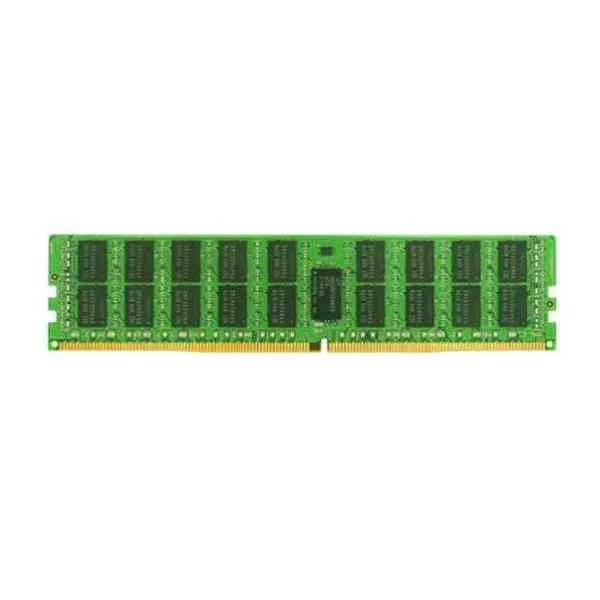
RAMRG2133DDR4-16GB (RAMRG2133DDR4-16G - 16 GB - 1 x 16 GB - DDR4 - 2133 MHz - 288-pin DIMM)
4.5 (6)- Computer Memory
- Synology
- DDR4
- 16 GB
- Desktop
- UDIMM
Est Value $1,036.88$885.14
14.6% offIn stockRefurbishedFirst-Time Buyer Discount – Get up to 2% additional off on your first order
ORM Rewards Earn $50 in Rewards + Free Expedited Delivery – Join Now!
Use eCoupon ORMSAVE10
eCoupon limited to 5 units
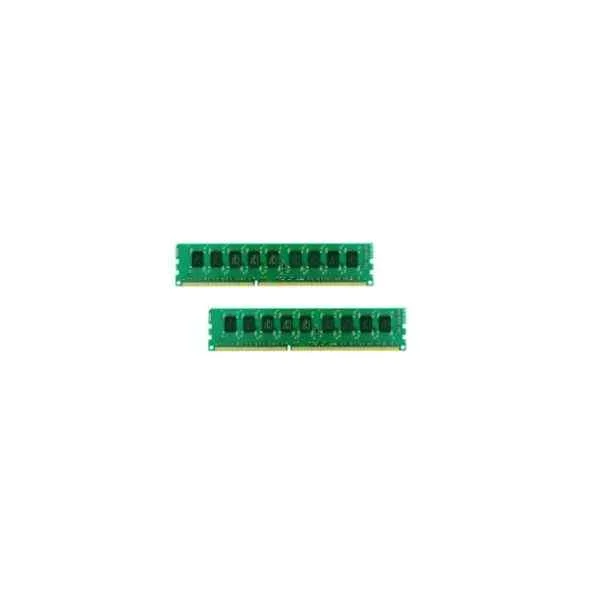
RAMEC1600DDR3-8GBX2 (RAMEC1600DDR3-8GBX2 - 16 GB - 2 x 8 GB - DDR3 - 1600 MHz - 240-pin DIMM - Green)
4.4 (5)- Computer Memory
- Synology
- DDR3
- 16 GB
- Desktop
- UDIMM
Est Value $1,363.89$1,164.29
14.6% offIn stockRefurbishedFirst-Time Buyer Discount – Get up to 2% additional off on your first order
ORM Rewards Earn $50 in Rewards + Free Expedited Delivery – Join Now!
Use eCoupon ORMSAVE10
eCoupon limited to 5 units
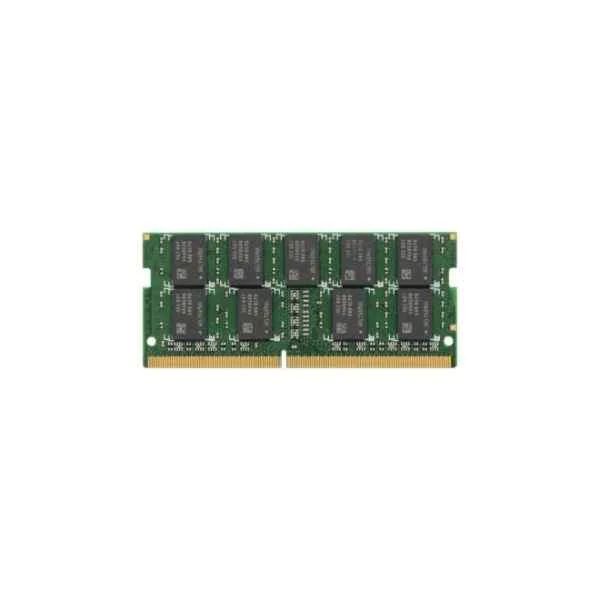
D4ECSO-2666-16G (RAM DDR4 2466 ECC 16G ECC UNBUFFERED SODIMM 260PIN 1.2V)
4.6 (5)- Computer Memory
- Synology
- DDR4
- 16 GB
- Desktop / Server
- Rack Server / Tower Server
- UDIMM
Est Value $1,745.53$1,490.09
14.6% offIn stockNewRefurbishedFirst-Time Buyer Discount – Get up to 2% additional off on your first order
ORM Rewards Earn $50 in Rewards + Free Expedited Delivery – Join Now!
Use eCoupon ORMSAVE10
eCoupon limited to 5 units
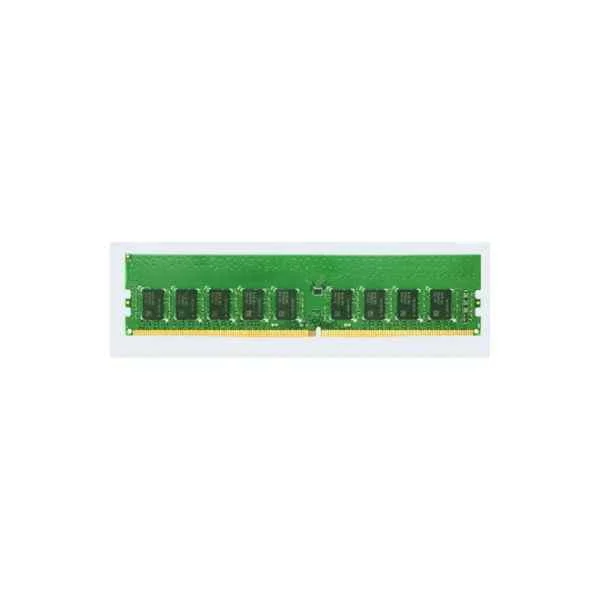
D4EC-2666-16G (16GB RAM UNBUFF ECC ECC DIMM DDR4-2666 260PIN 1.2V)
4.2 (5)- Computer Memory
- Synology
- DDR4
- 16 GB
- Desktop / Server
- Rack Server
- UDIMM
Est Value $2,636.65$2,250.80
14.6% offIn stockNewRefurbishedFirst-Time Buyer Discount – Get up to 2% additional off on your first order
ORM Rewards Earn $50 in Rewards + Free Expedited Delivery – Join Now!
Use eCoupon ORMSAVE10
eCoupon limited to 5 units
RAMEC1600DDR3-4GBX2 (DDR3-1600 2x 4GB - 8 GB - 2 x 4 GB - DDR3 - 1600 MHz - 240-pin DIMM)
4.6 (5)- Computer Memory
- Synology
- DDR3
- 8 GB
- Desktop
- UDIMM
Est Value In stockFirst-Time Buyer Discount – Get up to 2% additional off on your first order
ORM Rewards Earn $50 in Rewards + Free Expedited Delivery – Join Now!
Use eCoupon ORMSAVE10
eCoupon limited to 5 units
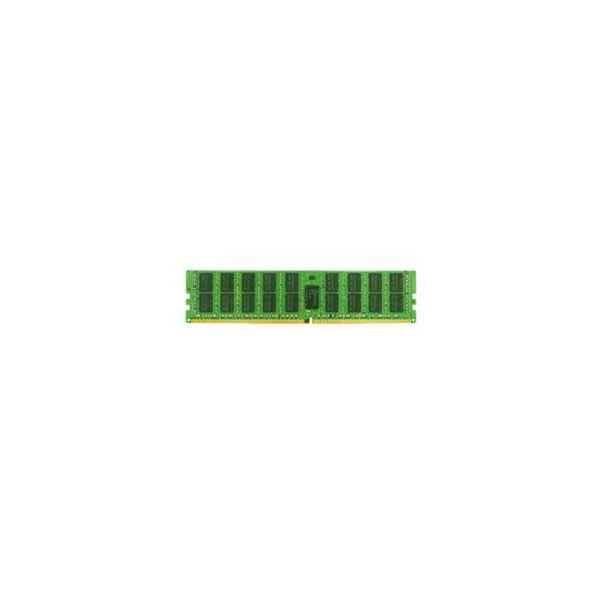
RAMRG2133DDR4-32GB (RAMRG2133DDR4-32G - 32 GB - 1 x 32 GB - DDR4 - 2133 MHz - 288-pin DIMM)
4.5 (6)- Computer Memory
- Synology
- DDR4
- 32 GB
- Desktop
- UDIMM
Est Value In stockFirst-Time Buyer Discount – Get up to 2% additional off on your first order
ORM Rewards Earn $50 in Rewards + Free Expedited Delivery – Join Now!
Use eCoupon ORMSAVE10
eCoupon limited to 5 units

ORM Sales Advisors
Buying for your business? Get a personalised quote in under 2 hours. Talk to an expert
LEARNFilters (18) 
Questions & Answers
What is Synology Memory & RAM?
Synology Memory & RAM are certified modules designed to enhance the performance and stability of your Synology NAS by increasing multitasking capabilities and reducing data processing latency.
Which Synology NAS models support memory upgrades?
Most Synology Plus and XS series NAS devices support memory upgrades; refer to your model’s specifications page on Synology’s official website to confirm maximum capacity and compatible module types.
How do I check the current RAM installed in my Synology NAS?
Log into DiskStation Manager, navigate to Control Panel > Info Center > General, and review the System Memory section to see installed and available RAM.
What are the benefits of upgrading RAM in my Synology NAS?
Upgrading RAM improves file transfer speeds, enhances virtual machine performance, accelerates database queries, and boosts caching efficiency for smoother multitasking.
Can I mix Synology RAM modules with third-party memory?
For optimal stability and full warranty coverage, Synology recommends using only Synology-certified memory modules; mixing third-party modules may cause compatibility issues.
What is ECC RAM, and does my Synology NAS require it?
ECC (Error-Correcting Code) RAM automatically detects and corrects memory errors. Synology RackStation and FlashStation models often require ECC modules for enterprise-grade data integrity.
How many memory slots does my Synology NAS have?
The number of memory slots varies by model. Check your NAS’s hardware installation guide or Synology’s specifications page to identify how many DIMM slots are available.
What is the maximum memory capacity for my Synology NAS?
Maximum RAM capacity depends on the model; typical Plus series NAS support up to 32 GB, while XS and RackStation models can handle up to 128 GB or more—verify on Synology’s website.
How do I install new RAM modules in my Synology NAS?
Power off and unplug the NAS, open the chassis, align the module notch with the slot key, press firmly until it clicks, then close the chassis and reboot your device.
Will upgrading RAM void my Synology warranty?
Upgrading with Synology-certified memory modules does not void your warranty. Using non-certified modules may void warranty coverage, so always choose official Synology RAM.
How can I verify that newly installed RAM is recognized?
After rebooting, open DiskStation Manager and go to Control Panel > Info Center > General to confirm that the total memory reflects the newly installed capacity.
Does Synology offer a warranty on memory modules?
Yes, Synology provides a limited lifetime warranty on its certified memory modules. Refer to your region’s warranty policy for specific terms and coverage details.
Will additional RAM improve my Plex or Docker performance?
Yes, increasing RAM allocates more resources to applications like Plex and Docker, resulting in faster media transcoding and smoother container operations.
How do I troubleshoot memory-related errors on my Synology NAS?
Check the Resource Monitor for unusual RAM spikes, reseat modules, update DSM firmware, and run memory diagnostics in Package Center to identify faulty modules.
Are memory speed and latency important for Synology NAS?
Yes, faster memory speeds and lower latency improve data access times; always choose modules that match or exceed your NAS’s specified frequency for peak performance.
Where can I purchase Synology-certified memory modules?
You can buy Synology-certified RAM directly from Synology’s online store, authorized resellers, or certified e-commerce partners listed on Synology’s official website.