 United States
Dell Hard Drives & SSDs
Dell Hard Drives & SSDs offer unmatched reliability and advanced performance for optimizing data integrity, ensuring seamless integration with Dell systems, robust security, and scalable storage solutions.
Talk to an expert
26 Matching results
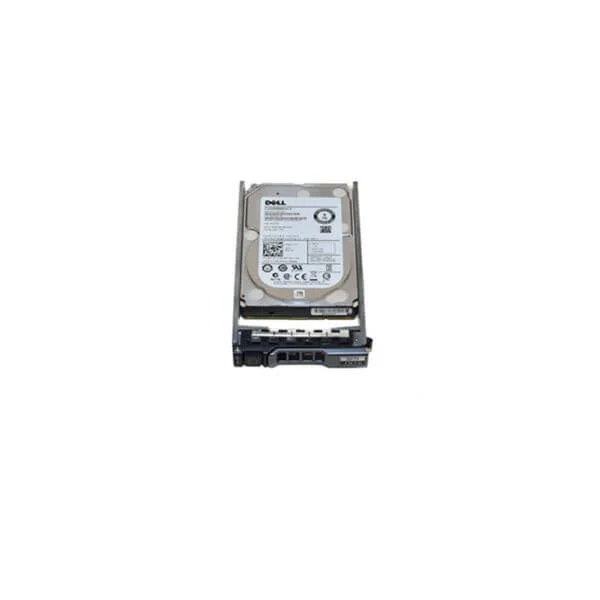
400-ASHT (2TB 7.2K RPM SATA 6Gbps 512n 2.5 Inches Hot-plug Hard Drive)
4.6 (5)- Hard Drive
- Dell
- HDD
- Desktop / Server / NAS / Surveillance
- SATA III
- 3.5-inch
- 4 TB
Est Value $313.73
$126.00
59.8% offIn stockRefurbishedFirst-Time Buyer Discount – Get up to 2% additional off on your first order
ORM Rewards Earn $50 in Rewards + Free Expedited Delivery – Join Now!
Use eCoupon ORMSAVE10
eCoupon limited to 5 units
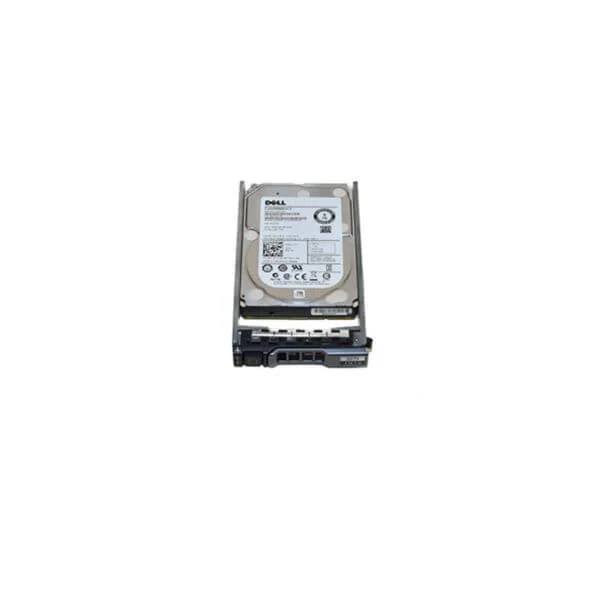
400-ASHF (1TB 7.2K RPM SATA 6Gbps 512n 2.5 Inches Hot-plug Hard Drive)
4.8 (5)- Hard Drive
- Dell
- HDD
- Desktop / Server / NAS / Surveillance
- SATA III
- 3.5-inch
- 4 TB
Est Value $388.63$331.76
14.6% offIn stockNewRefurbishedFirst-Time Buyer Discount – Get up to 2% additional off on your first order
ORM Rewards Earn $50 in Rewards + Free Expedited Delivery – Join Now!
Use eCoupon ORMSAVE10
eCoupon limited to 5 units
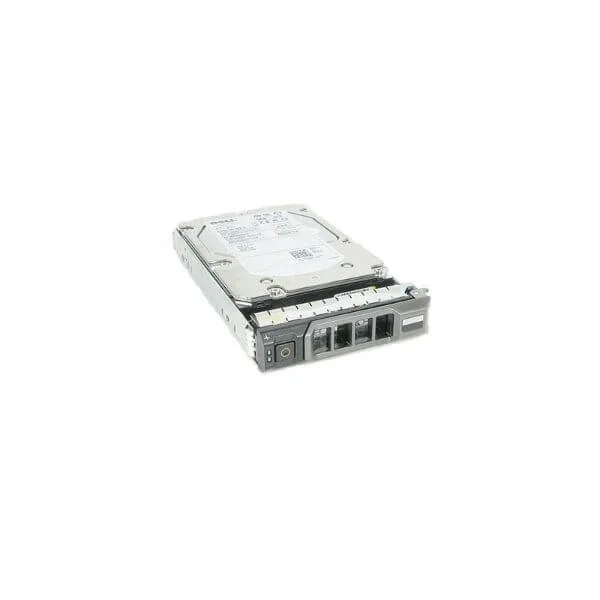
400-ASHS (2TB 7.2K RPM NLSAS 12Gbps 512n 3.5 Inches Hot-plug Hard Drive)
4.4 (5)- Hard Drive
- Dell
- HDD
- Desktop / Server / NAS / Surveillance / Enterprise Storage
- SATA III
- 3.5-inch
- 4 TB
Est Value $212.68$162.96
23.4% offIn stockRefurbishedFirst-Time Buyer Discount – Get up to 2% additional off on your first order
ORM Rewards Earn $50 in Rewards + Free Expedited Delivery – Join Now!
Use eCoupon ORMSAVE10
eCoupon limited to 5 units
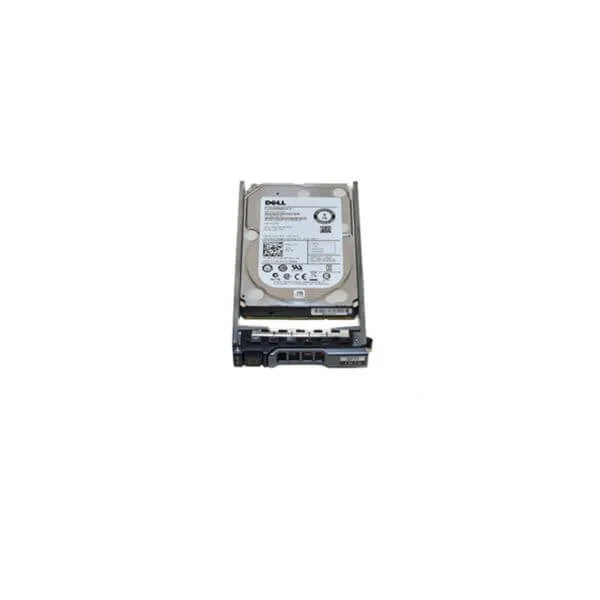
400-ASGS (600GB 10K RPM SAS 12Gbps 512n 2.5 Inches Hot-plug Hard Drive)
4.8 (5)- Hard Drive
- Dell
- HDD
- Desktop / Server / NAS / Surveillance / Enterprise Storage
- SATA III
- 3.5-inch
- 4 TB
Est Value $256.50$136.62
46.7% offIn stockNewRefurbishedFirst-Time Buyer Discount – Get up to 2% additional off on your first order
ORM Rewards Earn $50 in Rewards + Free Expedited Delivery – Join Now!
Use eCoupon ORMSAVE10
eCoupon limited to 5 units
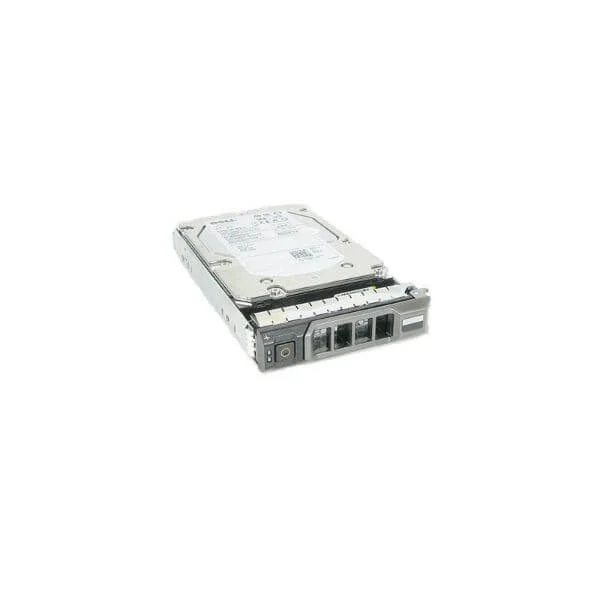
400-ASTS (2TB 7.2K RPM SATA 6Gbps 512n 3.5 Inches Hot-plug Hard Drive)
4.6 (5)- Hard Drive
- Dell
- HDD
- Desktop / Server / NAS / Surveillance / Enterprise Storage
- SATA III / SAS 12Gb/s
- 3.5-inch / 2.5-inch
- 8 TB
Est Value $293.24$250.33
14.6% offIn stockRefurbishedFirst-Time Buyer Discount – Get up to 2% additional off on your first order
ORM Rewards Earn $50 in Rewards + Free Expedited Delivery – Join Now!
Use eCoupon ORMSAVE10
eCoupon limited to 5 units
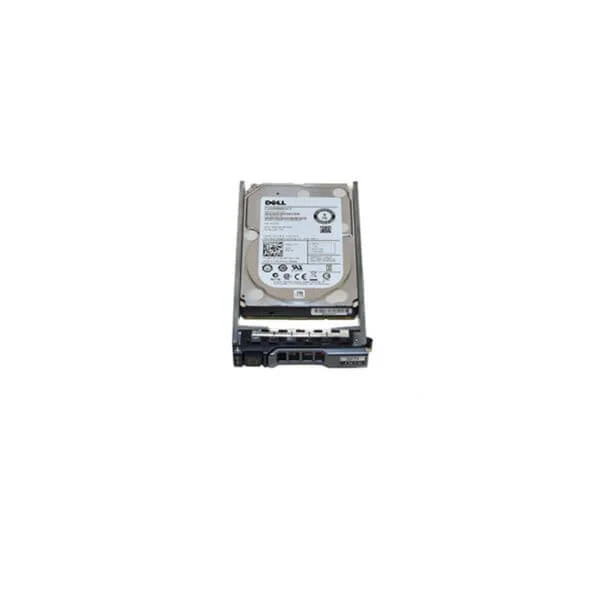
400-ASGQ (DELL 300GB 15K SAS 2.5 12GB/S HDD 14G 128MB)
5 (5)- Hard Drive
- Dell
- HDD
- Desktop / Server / NAS / Surveillance / Enterprise Storage
- SATA III / SAS 12Gb/s
- 3.5-inch
- 8 TB
Est Value $525.00$91.35
82.6% offIn stockNewRefurbishedFirst-Time Buyer Discount – Get up to 2% additional off on your first order
ORM Rewards Earn $50 in Rewards + Free Expedited Delivery – Join Now!
Use eCoupon ORMSAVE10
eCoupon limited to 5 units
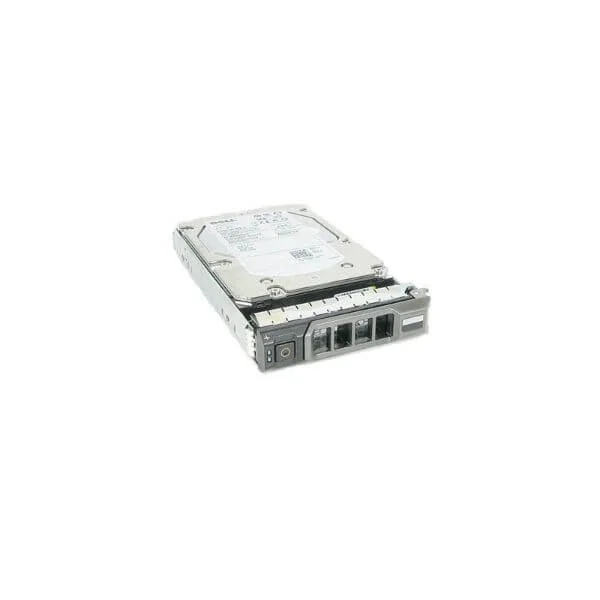
400-ASHH (1TB 7.2K RPM SATA 6Gbps 512n 3.5 Inches Hot-plug Hard Drive)
4.8 (5)- Hard Drive
- Dell
- HDD
- Server
- SATA III
- 3.5-inch
- 8 TB
Est Value $525.00$155.27
70.4% offIn stockNewRefurbishedFirst-Time Buyer Discount – Get up to 2% additional off on your first order
ORM Rewards Earn $50 in Rewards + Free Expedited Delivery – Join Now!
Use eCoupon ORMSAVE10
eCoupon limited to 5 units
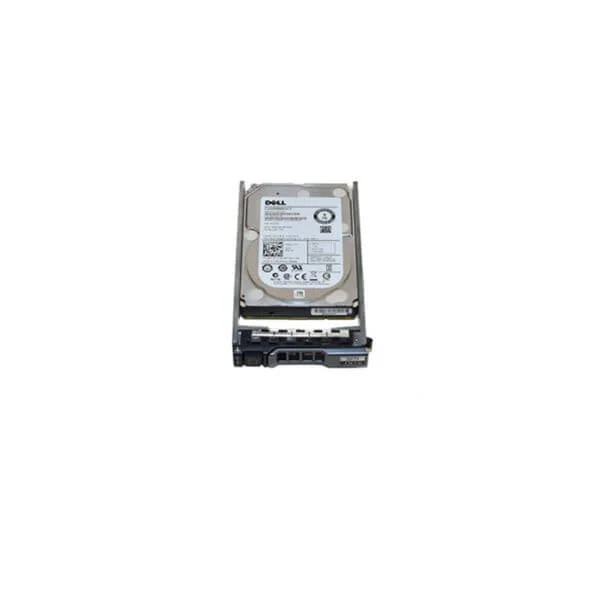
400-ASHI (DELL GEN14-16 1.2TB 10K 12GBS 512N 2.5-IN SFF SAS H-P HDD)
4.6 (5)- Hard Drive
- Dell
- HDD
- Desktop / Server / NAS / Surveillance / Enterprise Storage
- SATA III
- 3.5-inch
- 4 TB
Est Value $384.75$100.80
73.8% offIn stockNewRefurbishedFirst-Time Buyer Discount – Get up to 2% additional off on your first order
ORM Rewards Earn $50 in Rewards + Free Expedited Delivery – Join Now!
Use eCoupon ORMSAVE10
eCoupon limited to 5 units
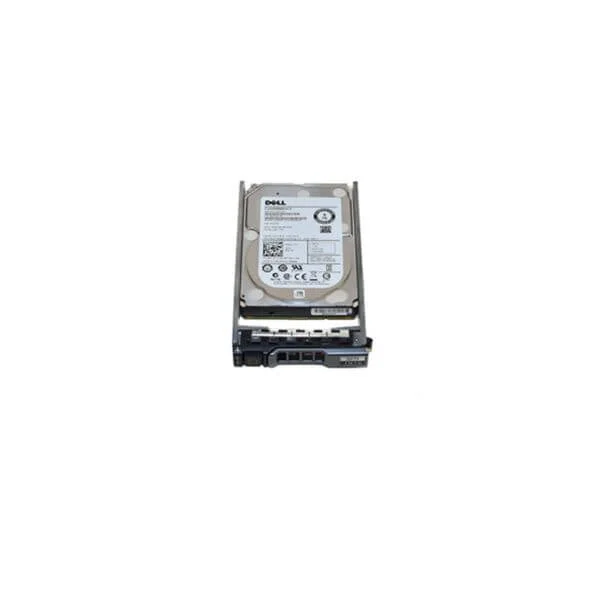
400-ARXC (1.8TB 10K RPM SAS 12Gbps 512e 2.5 Inches Hot-plug Hard Drive)
4.8 (5)- Hard Drive
- Dell
- HDD
- Desktop / Server / NAS / Surveillance / Enterprise Storage
- SATA III
- 3.5-inch
- 4 TB
Est Value $448.20$234.79
47.6% offIn stockNewRefurbishedFirst-Time Buyer Discount – Get up to 2% additional off on your first order
ORM Rewards Earn $50 in Rewards + Free Expedited Delivery – Join Now!
Use eCoupon ORMSAVE10
eCoupon limited to 5 units
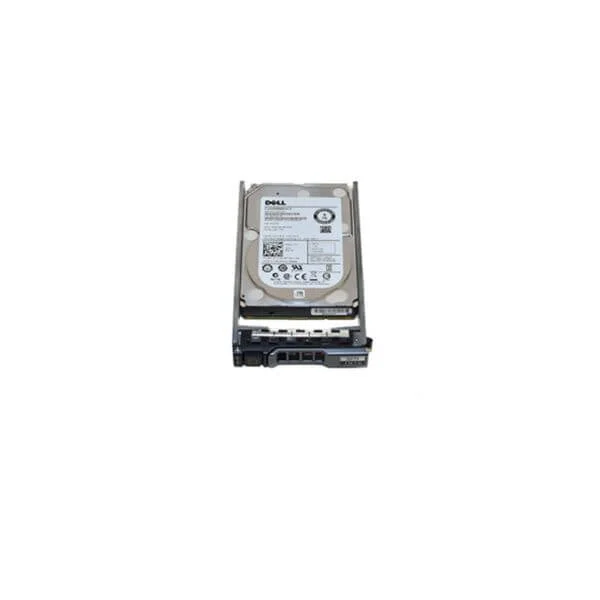
400-ARWN (600GB 15K RPM SAS 12Gbps 512n 2.5 Inches Hot-plug Hard Drive)
4.4 (5)- Hard Drive
- Dell
- HDD
- NAS
- SATA III
- 3.5-inch
- 4 TB
Est Value $449.55$158.22
64.8% offIn stockNewRefurbishedFirst-Time Buyer Discount – Get up to 2% additional off on your first order
ORM Rewards Earn $50 in Rewards + Free Expedited Delivery – Join Now!
Use eCoupon ORMSAVE10
eCoupon limited to 5 units
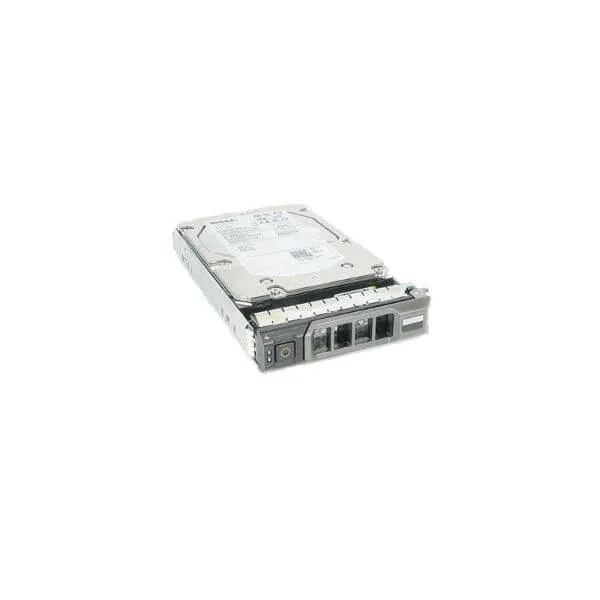
400-ASHY (4TB 7.2K RPM NLSAS 12Gbps 512n 3.5 Inches Hot-plug Hard Drive)
4.2 (5)- 2.5 lbs
- Dell
- 3.5-inch
- 4.00 inches
- Hard Drive
- HDD
- Desktop / Server / NAS / Surveillance / Enterprise Storage
Est Value $459.00$141.12
69.3% offIn stockNewRefurbishedFirst-Time Buyer Discount – Get up to 2% additional off on your first order
ORM Rewards Earn $50 in Rewards + Free Expedited Delivery – Join Now!
Use eCoupon ORMSAVE10
eCoupon limited to 5 units
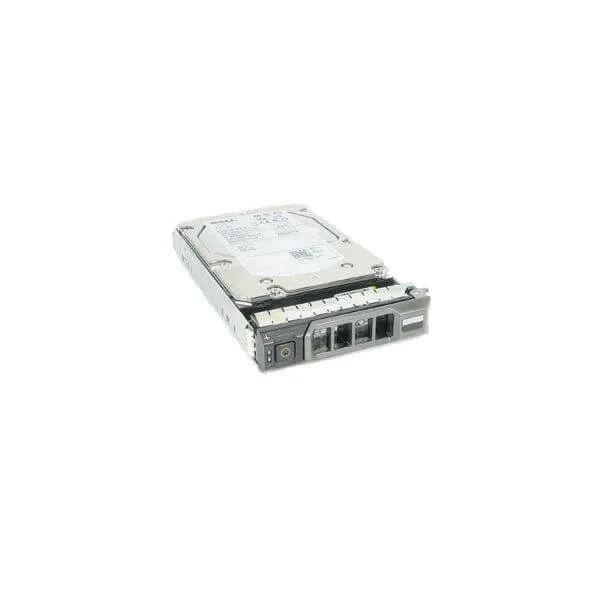
400-ASUG (8TB 7.2K RPM NLSAS 12Gbps 512e 3.5 Inches Hot-plug Hard Drive)
4.8 (5)- Hard Drive
- Dell
- HDD
- Desktop / Server / NAS / Surveillance / Enterprise Storage
- SATA III / SAS 12Gb/s
- 3.5-inch / 2.5-inch
- 10 TB
Est Value $519.06$443.10
14.6% offIn stockRefurbishedFirst-Time Buyer Discount – Get up to 2% additional off on your first order
ORM Rewards Earn $50 in Rewards + Free Expedited Delivery – Join Now!
Use eCoupon ORMSAVE10
eCoupon limited to 5 units
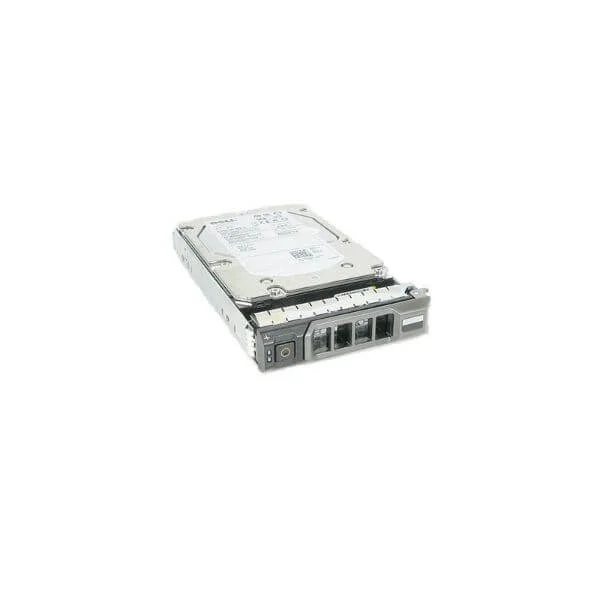
400-ASIE (4TB 7.2K RPM SATA 6Gbps 512n 3.5 Inches Hot-plug Hard Drive)
4.8 (5)- Hard Drive
- Dell
- HDD
- Desktop / Server / NAS / Surveillance / Enterprise Storage
- SATA III
- 3.5-inch
- 4 TB
Est Value $641.25$196.56
69.3% offIn stockNewRefurbishedFirst-Time Buyer Discount – Get up to 2% additional off on your first order
ORM Rewards Earn $50 in Rewards + Free Expedited Delivery – Join Now!
Use eCoupon ORMSAVE10
eCoupon limited to 5 units
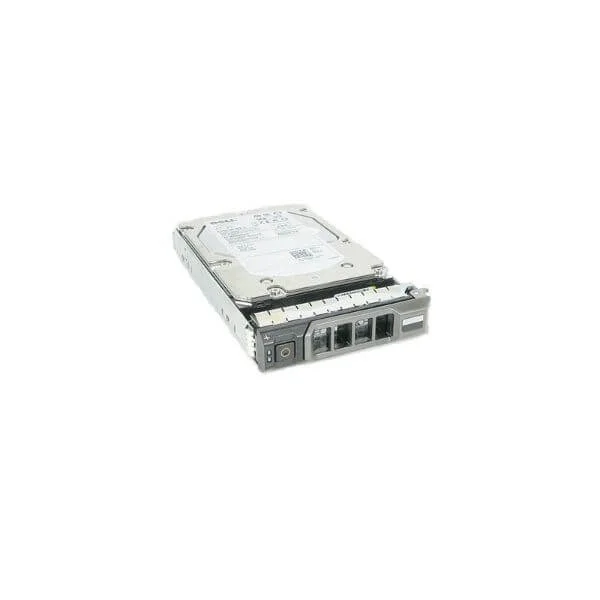
400-ASTQ (8TB 7.2K RPM SATA 6Gbps 512e 3.5 Inches Hot-plug Hard Drive)
4.2 (5)- Hard Drive
- Dell
- HDD
- Desktop / Server / NAS / Surveillance / Enterprise Storage
- SATA III / SAS 12Gb/s
- 3.5-inch / 2.5-inch
- 10 TB
Est Value $702.00$448.72
36.1% offIn stockNewRefurbishedFirst-Time Buyer Discount – Get up to 2% additional off on your first order
ORM Rewards Earn $50 in Rewards + Free Expedited Delivery – Join Now!
Use eCoupon ORMSAVE10
eCoupon limited to 5 units
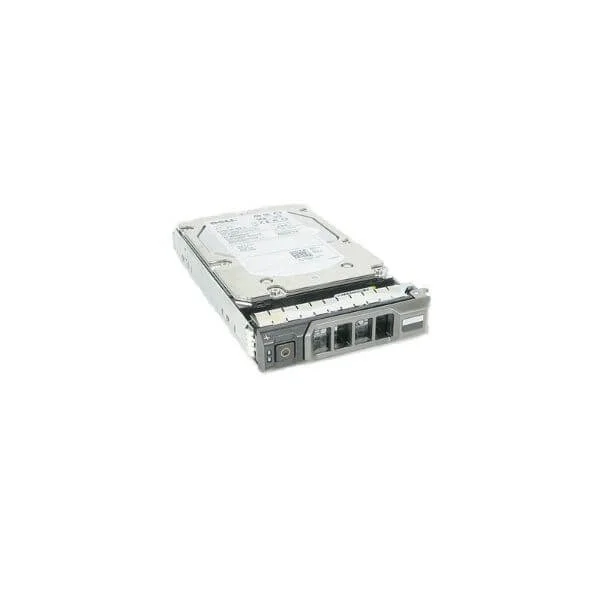
400-AWIP (DELL 12TB 12G 7.2K SAS 3.5 1YR IMS WARRANTY STANDARD)
4.8 (5)- Hard Drive
- Dell
- HDD
- Desktop / Server / NAS / Surveillance / Enterprise Storage
- SATA III / SAS 12Gb/s
- 3.5-inch
- 4 TB
Est Value $712.80$483.00
32.2% offIn stockNewRefurbishedFirst-Time Buyer Discount – Get up to 2% additional off on your first order
ORM Rewards Earn $50 in Rewards + Free Expedited Delivery – Join Now!
Use eCoupon ORMSAVE10
eCoupon limited to 5 units
400-AVEZ (2.4TB 10K RPM SAS 12Gbps 512e 2.5 Inches Hot-plug Hard Drive)
4.2 (5)- Hard Drive
- Dell
- HDD
- Desktop / Server / NAS / Surveillance / Enterprise Storage
- SATA III
- 3.5-inch
- 4 TB
Est Value $962.55$546.00
43.3% offIn stockNewRefurbishedFirst-Time Buyer Discount – Get up to 2% additional off on your first order
ORM Rewards Earn $50 in Rewards + Free Expedited Delivery – Join Now!
Use eCoupon ORMSAVE10
eCoupon limited to 5 units
400-BEIB (14TB 7K RPM SAS 12Gbps 512e 3.5 Inches Hot-plug Hard Drive)
5 (5)- Hard Drive
- Dell
- HDD
- Desktop / Server / NAS / Surveillance / Enterprise Storage
- SATA III
- 3.5-inch
- 8 TB
Est Value $1,140.75$701.76
38.5% offIn stockNewRefurbishedFirst-Time Buyer Discount – Get up to 2% additional off on your first order
ORM Rewards Earn $50 in Rewards + Free Expedited Delivery – Join Now!
Use eCoupon ORMSAVE10
eCoupon limited to 5 units
![400-BDMU | 480GB SSD SATA Read-intensive 6Gbps 512e 2.5 Inches Hot-plug, 3.5 Inches HYB CARR S4510 Hard Drive , 1 DWPD, 876 TBW [SKU: 400-BDMU]](https://backend.ormsystems.com/storage/products/thumbnails/400-bdmu-price.webp "400-BDMU | 480GB SSD SATA Read-intensive 6Gbps 512e 2.5 Inches Hot-plug, 3.5 Inches HYB CARR S4510 Hard Drive , 1 DWPD, 876 TBW [SKU: 400-BDMU]")
400-BDMU (480GB SSD SATA Read-intensive 6Gbps 512e 2.5 Inches Hot-plug, 3.5 Inches HYB CARR S4510 Hard Drive , 1 DWPD, 876 TBW [SKU: 400-BDMU])
4.6 (5)- Hard Drive
- Dell
- HDD
- Desktop / Server / NAS / Surveillance / Enterprise Storage
- SAS 12Gb/s
- 3.5-inch
- 10 TB
Est Value $896.40$558.48
37.7% offIn stockNewRefurbishedFirst-Time Buyer Discount – Get up to 2% additional off on your first order
ORM Rewards Earn $50 in Rewards + Free Expedited Delivery – Join Now!
Use eCoupon ORMSAVE10
eCoupon limited to 5 units
![400-BDSV | 480GB SSD SATA Mixed Use 6Gbps 512e 2.5 Inches Hot-plug, 3.5 Inches HYB CARR S4610 Hard Drive , [SKU: 400-BDSV]](https://backend.ormsystems.com/storage/products/thumbnails/400-bdsv-price.webp "400-BDSV | 480GB SSD SATA Mixed Use 6Gbps 512e 2.5 Inches Hot-plug, 3.5 Inches HYB CARR S4610 Hard Drive , [SKU: 400-BDSV]")
400-BDSV (480GB SSD SATA Mixed Use 6Gbps 512e 2.5 Inches Hot-plug, 3.5 Inches HYB CARR S4610 Hard Drive , [SKU: 400-BDSV])
4.8 (5)- Hard Drive
- Dell
- HDD
- Desktop / Server / NAS / Surveillance
- SATA III
- 3.5-inch
- 4 TB
Est Value $1,282.50$564.18
56% offIn stockNewRefurbishedFirst-Time Buyer Discount – Get up to 2% additional off on your first order
ORM Rewards Earn $50 in Rewards + Free Expedited Delivery – Join Now!
Use eCoupon ORMSAVE10
eCoupon limited to 5 units
![400-BDOG | 960GB SSD SATA Read-intensive 6Gbps 512e 2.5 Inches Hot-plug, 3.5 Inches HYB CARR S4510 Hard Drive , 1 DWPD, 1752 TBW [SKU: 400-BDOG]](https://backend.ormsystems.com/storage/products/thumbnails/400-bdog-price.webp "400-BDOG | 960GB SSD SATA Read-intensive 6Gbps 512e 2.5 Inches Hot-plug, 3.5 Inches HYB CARR S4510 Hard Drive , 1 DWPD, 1752 TBW [SKU: 400-BDOG]")
400-BDOG (960GB SSD SATA Read-intensive 6Gbps 512e 2.5 Inches Hot-plug, 3.5 Inches HYB CARR S4510 Hard Drive , 1 DWPD, 1752 TBW [SKU: 400-BDOG])
4.6 (5)- Hard Drive
- Dell
- HDD
- Desktop / Server / NAS / Surveillance / Enterprise Storage
- SATA III
- 3.5-inch
- 4 TB
Est Value $1,282.50$791.99
38.2% offIn stockNewRefurbishedFirst-Time Buyer Discount – Get up to 2% additional off on your first order
ORM Rewards Earn $50 in Rewards + Free Expedited Delivery – Join Now!
Use eCoupon ORMSAVE10
eCoupon limited to 5 units

ORM Sales Advisors
Buying for your business? Get a personalised quote in under 2 hours. Talk to an expert
LEARNFilters (26) 
Questions & Answers
What are the key differences between Dell HDDs and SSDs?
Dell SSDs use NAND flash for faster boot times, lower latency, and greater shock resistance, while HDDs use spinning platters to deliver higher capacity at a lower cost per gigabyte.
Are Dell SSDs compatible with my existing Dell laptop or desktop?
Most Dell SSDs support standard SATA, M.2 NVMe, and U.2 interfaces; verify your system’s drive bay and interface in Dell’s service manual or via the Dell SupportAssist tool.
How do I upgrade my Dell laptop or desktop to a Dell SSD?
Power off your system, remove the old drive, install the Dell SSD in the correct drive bay or M.2 slot, secure it, and then restore your OS and data using Dell’s data migration software or a third-party cloning tool.
What warranty covers Dell Hard Drives & SSDs?
Dell HDDs and SSDs come with a limited three-year or five-year warranty (depending on model) covering manufacturing defects, with optional ProSupport upgrades for extended coverage and on-site service.
How can I check the health and status of my Dell Hard Drive or SSD?
Use Dell SupportAssist or the Dell Command | Monitor utility to view SMART data, drive temperature, remaining life, and predictive failure alerts in real time.
Can I clone my existing drive to a new Dell SSD?
Yes. Use Dell’s included or recommended cloning software (e.g., Acronis True Image) to create an exact image of your source drive and transfer it to the new Dell SSD before installation.
What form factors do Dell SSDs come in?
Dell offers SSDs in 2.5\
What read/write speeds can I expect from Dell SSDs?
Dell NVMe SSDs deliver sequential read speeds up to 3,500 MB/s and write speeds up to 3,200 MB/s, while SATA SSDs typically achieve up to 550 MB/s read and 520 MB/s write.
How do I choose the right Dell SSD capacity for my needs?
Assess your workload: 256 GB–512 GB for OS and applications, 1 TB–2 TB for gaming and multimedia, and 4 TB+ for large-scale data storage or professional editing.
Are Dell SSDs suitable for gaming and heavy workloads?
Yes. Dell NVMe SSDs offer high IOPS, low latency, and sustained throughput—ideal for gaming, 4K video editing, virtualization, and data-intensive applications.
What is the endurance rating (TBW) of Dell SSDs?
Dell SSD endurance ranges from 200 TBW for entry-level SATA drives up to 3,000 TBW or more for enterprise-grade NVMe models, ensuring reliable write cycles over the drive’s lifespan.
Do Dell SSDs support hardware encryption?
Many Dell SSDs feature AES 256-bit hardware encryption and TCG Opal 2.0 compliance, providing built-in data security without impacting performance.
Can I use Dell Hard Drives & SSDs in RAID configurations?
Yes. Dell supports RAID 0, 1, 5, 6, 10, and 50 on compatible controllers for both HDDs and SSDs—check your Dell system’s RAID controller specifications for supported levels.
How do I update firmware on my Dell SSD?
Download the latest firmware package from Dell’s support site, boot into the Dell UEFI/BIOS or use Dell Command | Update, and follow the on-screen prompts to apply the update safely.
What tools does Dell provide for data migration and drive management?
Dell offers SupportAssist OS Recovery, Dell Data Security, Dell Command | Monitor, and Dell Command | Update to facilitate data migration, drive health monitoring, and firmware management.