 United States
Storage Devices Seagate Performance
Experience industry-leading performance and reliability with Seagate Storage Devices. Engineered for exceptional capacity and durability, our cutting-edge solutions deliver unmatched efficiency and seamless connectivity for data-driven enterprises.
Talk to an expert
123 Matching results
- BEST SELLING
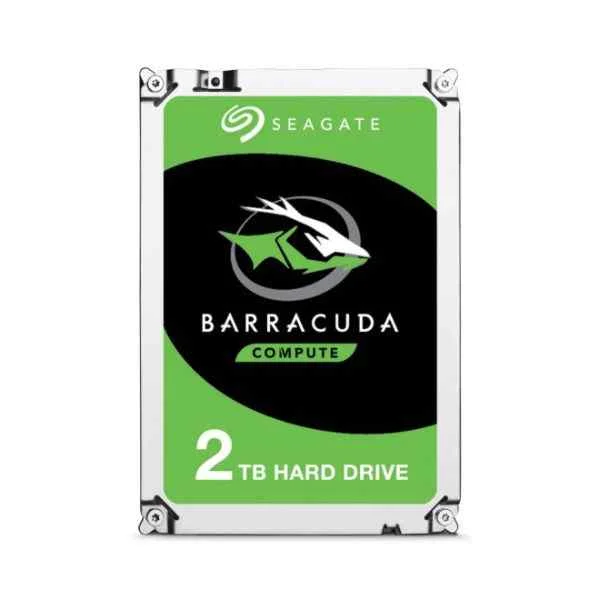
ST2000DM008 (2TB BARRACUDA SATA 7200 RPM 256MB 3.5IN)
4.6 (5)- Hard Drive
- Seagate
- HDD
- Desktop / Server / NAS / Surveillance / Enterprise Storage
- SATA III
- 3.5-inch
- 2 TB
Est Value $309.69
$131.25
57.6% offIn stockNewRefurbishedFirst-Time Buyer Discount – Get up to 2% additional off on your first order
ORM Rewards Earn $50 in Rewards + Free Expedited Delivery – Join Now!
Use eCoupon ORMSAVE10
eCoupon limited to 5 units
- BEST SELLING
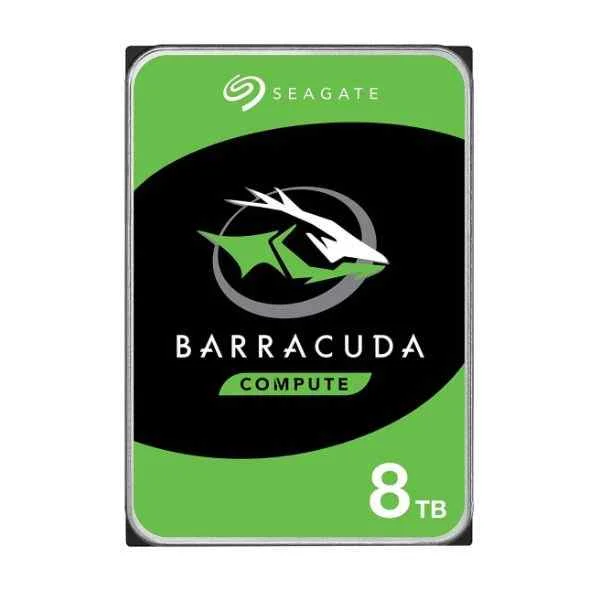
ST8000DM004 (8TB BARRACUDA SATA 5400 RPM 256MB 3.5IN)
4.8 (6)- Hard Drive
- Seagate
- HDD
- Desktop
- SATA III
- 3.5-inch
- 8 TB
Est Value $452.25$341.25
24.5% offIn stockNewRefurbishedFirst-Time Buyer Discount – Get up to 2% additional off on your first order
ORM Rewards Earn $50 in Rewards + Free Expedited Delivery – Join Now!
Use eCoupon ORMSAVE10
eCoupon limited to 5 units
- BEST SELLING
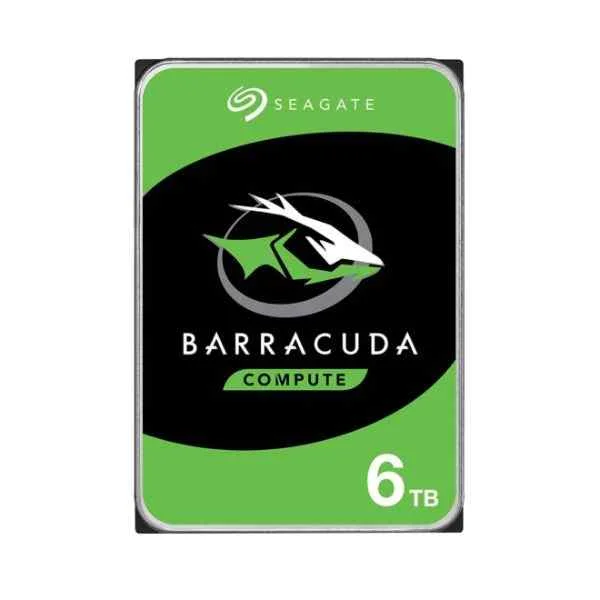
ST6000DM003 (6TB BARRACUDA SATA 5400 RPM 256MB 3.5IN)
4.7 (6)- Hard Drive
- Seagate
- HDD
- Desktop / Server / NAS / Surveillance / Enterprise Storage
- SATA III
- 3.5-inch
- 6 TB
Est Value $405.60$327.60
19.2% offIn stockRefurbishedFirst-Time Buyer Discount – Get up to 2% additional off on your first order
ORM Rewards Earn $50 in Rewards + Free Expedited Delivery – Join Now!
Use eCoupon ORMSAVE10
eCoupon limited to 5 units
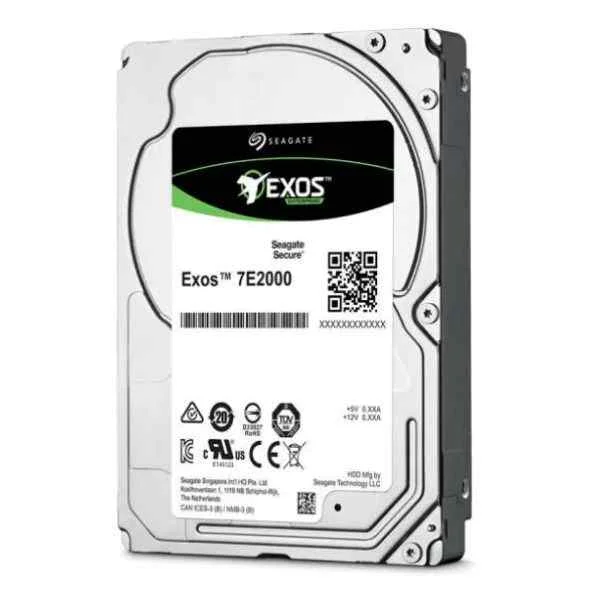
ST2000NX0403 (Enterprise ST2000NX0403 - 2.5" - 2000 GB - 7200 RPM)
4.5 (6)- Hard Drive
- Seagate
- HDD
- Desktop / Server / NAS / Surveillance / Enterprise Storage
- SAS 6Gb/s
- 3.5-inch
- 2 TB
Est Value $162.00$107.04
33.9% offIn stockRefurbishedFirst-Time Buyer Discount – Get up to 2% additional off on your first order
ORM Rewards Earn $50 in Rewards + Free Expedited Delivery – Join Now!
Use eCoupon ORMSAVE10
eCoupon limited to 5 units
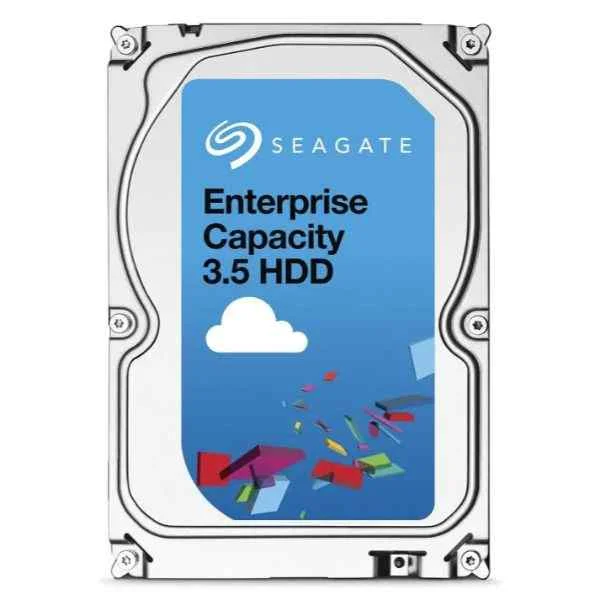
ST1000NM0008 (1TB EXOS 6G 7.2K 128MB 3.5IN ENTERPRISE DATA CENTER)
4.5 (6)- Hard Drive
- Seagate
- HDD
- Desktop / Server / NAS / Surveillance / Enterprise Storage
- SATA III
- 2.5-inch
- 1 TB
Est Value $242.56$121.28
50% offIn stockRefurbishedFirst-Time Buyer Discount – Get up to 2% additional off on your first order
ORM Rewards Earn $50 in Rewards + Free Expedited Delivery – Join Now!
Use eCoupon ORMSAVE10
eCoupon limited to 5 units
ST1000NM001A (Enterprise ST1000NM001A - 3.5" - 1000 GB - 7200 RPM)
4.8 (6)- Hard Drive
- Seagate
- HDD
- Desktop / Server / NAS / Surveillance / Enterprise Storage
- SATA III
- 3.5-inch
- 1 TB
Est Value $245.70$122.85
50% offIn stockRefurbishedFirst-Time Buyer Discount – Get up to 2% additional off on your first order
ORM Rewards Earn $50 in Rewards + Free Expedited Delivery – Join Now!
Use eCoupon ORMSAVE10
eCoupon limited to 5 units
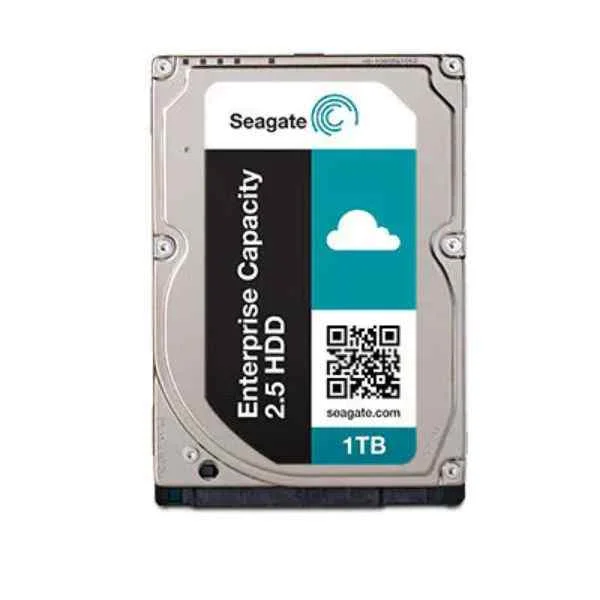
ST1000NX0333 (Constellation .2 1TB - 2.5" - 1024 GB - 7200 RPM)
4.5 (6)- Hard Drive
- Seagate
- HDD
- Desktop / Server / NAS / Surveillance / Enterprise Storage
- SAS 6Gb/s
- 3.5-inch
- 1 TB
Est Value $260.40$50.56
80.6% offIn stockNewRefurbishedFirst-Time Buyer Discount – Get up to 2% additional off on your first order
ORM Rewards Earn $50 in Rewards + Free Expedited Delivery – Join Now!
Use eCoupon ORMSAVE10
eCoupon limited to 5 units
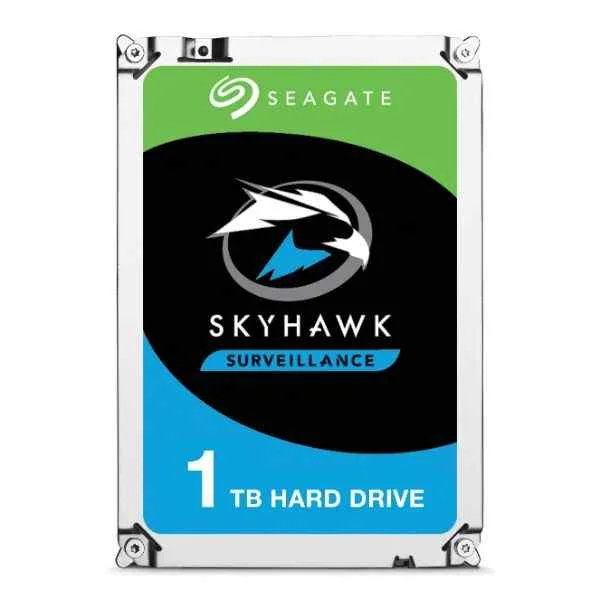
ST1000VX005 (SkyHawk ST1000VX005 - 3.5" - 1000 GB)
4.8 (6)- Hard Drive
- Seagate
- HDD
- Enterprise Storage
- SATA III
- 3.5-inch
- 1 TB
Est Value $149.85$137.77
8.1% offIn stockRefurbishedFirst-Time Buyer Discount – Get up to 2% additional off on your first order
ORM Rewards Earn $50 in Rewards + Free Expedited Delivery – Join Now!
Use eCoupon ORMSAVE10
eCoupon limited to 5 units
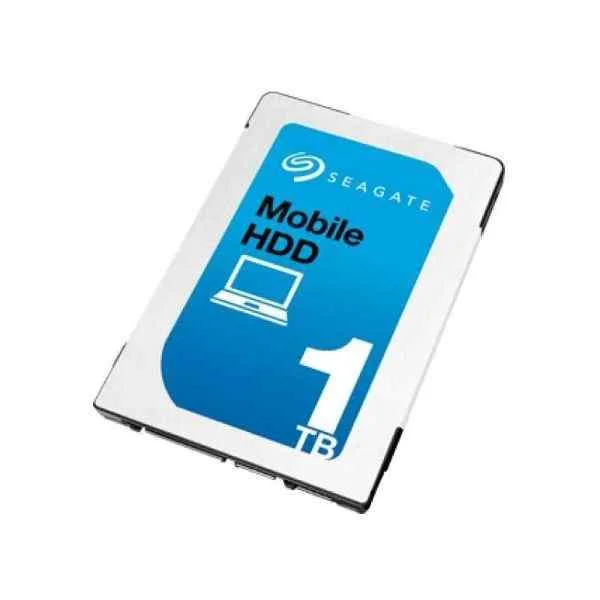
ST1000LM035 (Seagate Mobile HDD ST1000LM035 internal hard drive 1000 GB)
4.8 (6)- Hard Drive
- Seagate
- HDD
- Desktop / Server / NAS / Surveillance / Enterprise Storage
- SATA III
- 2.5-inch
- 1 TB
Est Value $276.68$105.00
62.1% offIn stockNewRefurbishedFirst-Time Buyer Discount – Get up to 2% additional off on your first order
ORM Rewards Earn $50 in Rewards + Free Expedited Delivery – Join Now!
Use eCoupon ORMSAVE10
eCoupon limited to 5 units
ZA480CV1A001 (BarraCuda Q1 - 480 GB - 2.5" - 550 MB/s - 6 Gbit/s)
4.9 (7)- Hard Drive
- Seagate
- HDD
- Server
- SATA III
- 3.5-inch
- 8 TB
Est Value $167.77$143.22
14.6% offIn stockRefurbishedFirst-Time Buyer Discount – Get up to 2% additional off on your first order
ORM Rewards Earn $50 in Rewards + Free Expedited Delivery – Join Now!
Use eCoupon ORMSAVE10
eCoupon limited to 5 units
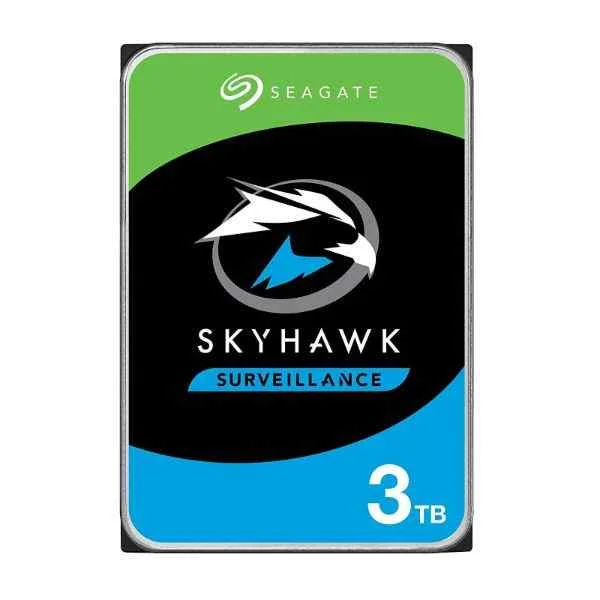
ST3000VX009 (ST3000VX009 - 3.5" - 3000 GB - 5900 RPM)
4.4 (5)- Hard Drive
- Seagate
- HDD
- Desktop / Server / NAS / Surveillance / Enterprise Storage
- SATA III
- 3.5-inch
- 3 TB
Est Value $189.64$153.17
19.2% offIn stockRefurbishedFirst-Time Buyer Discount – Get up to 2% additional off on your first order
ORM Rewards Earn $50 in Rewards + Free Expedited Delivery – Join Now!
Use eCoupon ORMSAVE10
eCoupon limited to 5 units
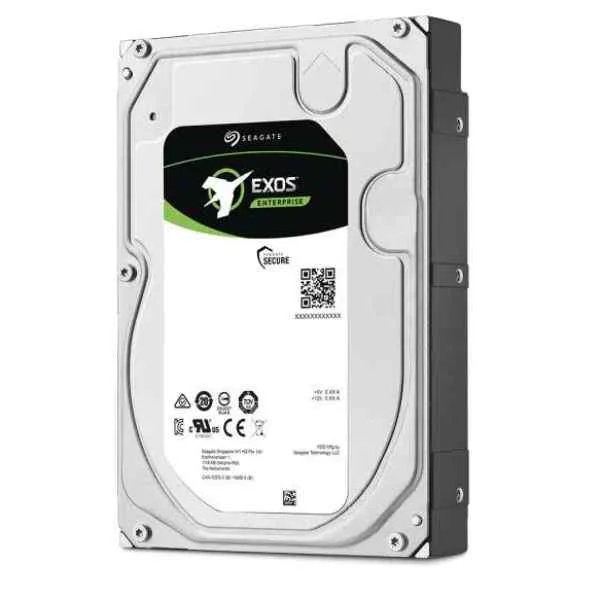
ST2000NM003A (Enterprise ST2000NM003A - 3.5" - 2000 GB - 7200 RPM)
4.8 (6)- Hard Drive
- Seagate
- HDD
- Desktop / Server / NAS / Surveillance / Enterprise Storage
- SAS 12Gb/s
- 3.5-inch
- 2 TB
Est Value $169.69$155.14
8.6% offIn stockRefurbishedFirst-Time Buyer Discount – Get up to 2% additional off on your first order
ORM Rewards Earn $50 in Rewards + Free Expedited Delivery – Join Now!
Use eCoupon ORMSAVE10
eCoupon limited to 5 units
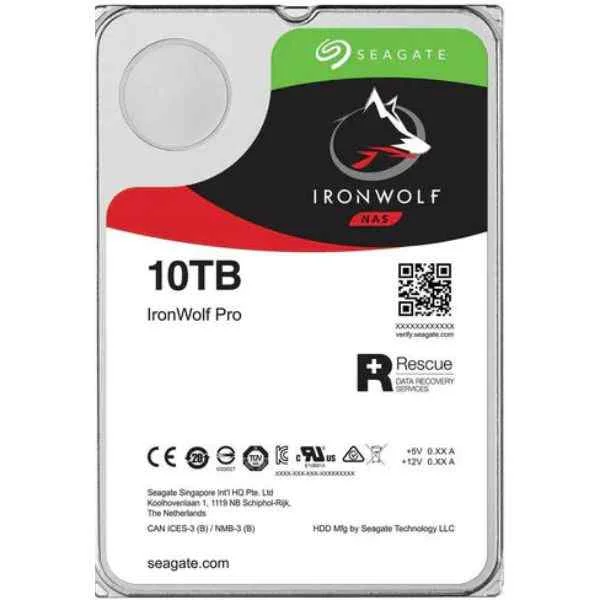
ST10000NE000 (Seagate IronWolf Pro ST10000NE000 - 3.5" - 10000 GB - 7200 RPM (ST10000NE000))
4.2 (6)- Hard Drive
- Seagate
- HDD
- Enterprise Storage
- SATA III
- 3.5-inch
- 10 TB
Est Value $336.00$168.00
50% offIn stockRefurbishedFirst-Time Buyer Discount – Get up to 2% additional off on your first order
ORM Rewards Earn $50 in Rewards + Free Expedited Delivery – Join Now!
Use eCoupon ORMSAVE10
eCoupon limited to 5 units
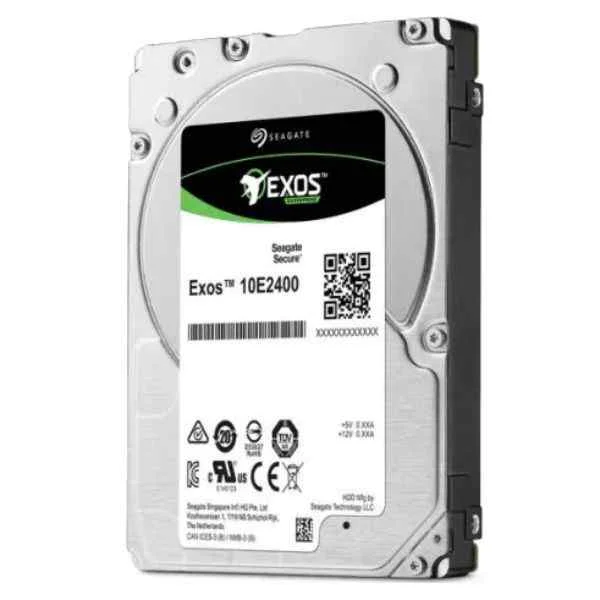
ST600MM0099 (600MB EXOS 10E2400 SAS 10000 RPM 256MB 2.5IN)
4.7 (6)- Hard Drive
- Seagate
- HDD
- Desktop / Server / NAS / Surveillance / Enterprise Storage
- SATA III
- 3.5-inch
- 600 GB
Est Value $338.00$169.00
50% offIn stockRefurbishedFirst-Time Buyer Discount – Get up to 2% additional off on your first order
ORM Rewards Earn $50 in Rewards + Free Expedited Delivery – Join Now!
Use eCoupon ORMSAVE10
eCoupon limited to 5 units
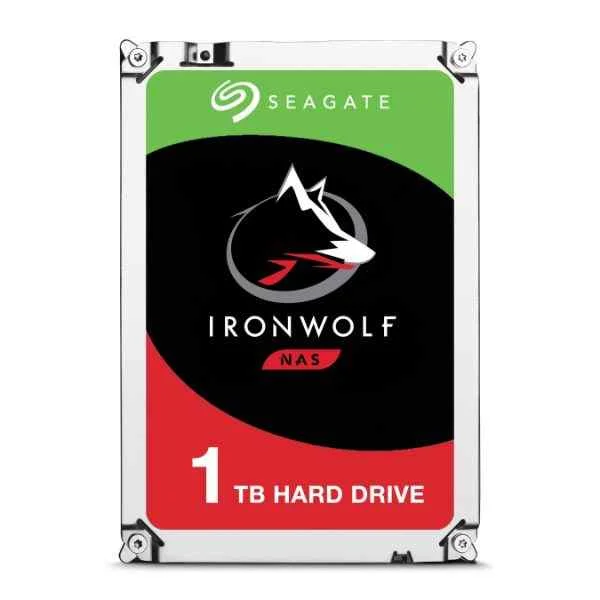
ST1000VN002 (IronWolf ST1000VN002 - 3.5" - 1000 GB - 5900 RPM)
4.7 (6)- Hard Drive
- Seagate
- HDD
- Desktop / Server / NAS / Surveillance / Enterprise Storage
- SATA III
- 3.5-inch
- 1 TB
Est Value $207.93$177.50
14.6% offIn stockRefurbishedFirst-Time Buyer Discount – Get up to 2% additional off on your first order
ORM Rewards Earn $50 in Rewards + Free Expedited Delivery – Join Now!
Use eCoupon ORMSAVE10
eCoupon limited to 5 units
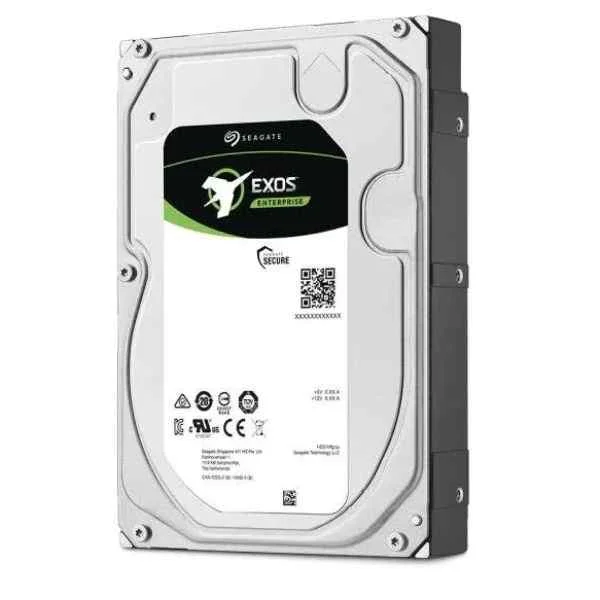
ST2000NM001A (Enterprise ST2000NM001A - 3.5" - 2000 GB - 7200 RPM)
4.5 (6)- Hard Drive
- Seagate
- HDD
- Enterprise Storage
- SATA III
- 3.5-inch
- 2 TB
Est Value $376.84$188.42
50% offIn stockRefurbishedFirst-Time Buyer Discount – Get up to 2% additional off on your first order
ORM Rewards Earn $50 in Rewards + Free Expedited Delivery – Join Now!
Use eCoupon ORMSAVE10
eCoupon limited to 5 units
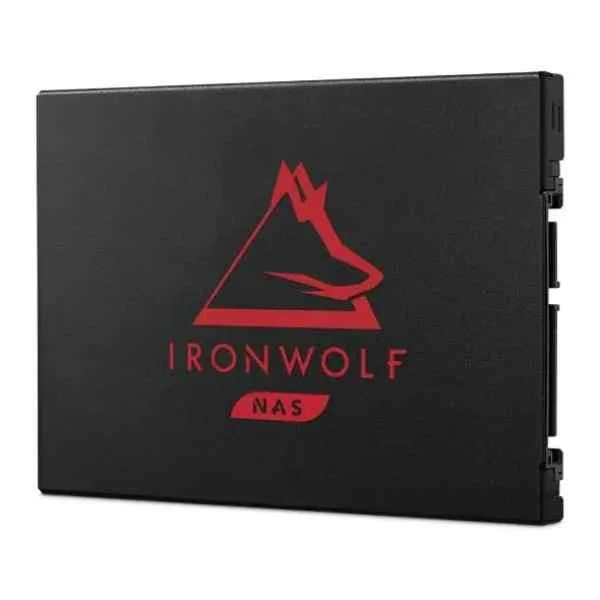
ZA1000NM1A002 (IronWolf 125 - 1000 GB - 2.5" - 560 MB/s - 6 Gbit/s)
4.8 (6)- Hard Drive
- Seagate
- HDD
- Desktop / Server / NAS / Surveillance / Enterprise Storage
- SATA III
- 3.5-inch
- 10 TB
Est Value $382.20$191.10
50% offIn stockRefurbishedFirst-Time Buyer Discount – Get up to 2% additional off on your first order
ORM Rewards Earn $50 in Rewards + Free Expedited Delivery – Join Now!
Use eCoupon ORMSAVE10
eCoupon limited to 5 units
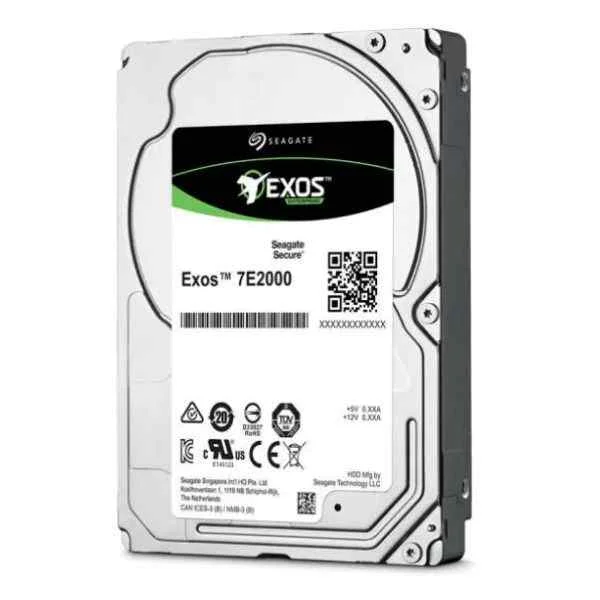
ST1000NX0423 (SEAGATE ST1000NX0423 1 TB 2.5 SEAGATE ST1000NX0423 1 TB 2.5)
4.8 (6)- Hard Drive
- Seagate
- HDD
- Enterprise Storage
- SAS 12Gb/s
- 3.5-inch
- 1 TB
Est Value $249.75$68.25
72.7% offIn stockNewRefurbishedFirst-Time Buyer Discount – Get up to 2% additional off on your first order
ORM Rewards Earn $50 in Rewards + Free Expedited Delivery – Join Now!
Use eCoupon ORMSAVE10
eCoupon limited to 5 units
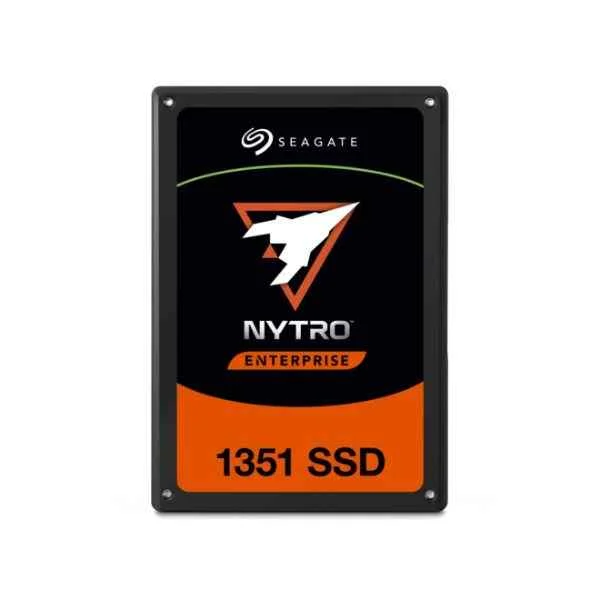
XA240LE10003 (Nytro 1351 - 240 GB - 2.5" - 560 MB/s - 6 Gbit/s)
4.4 (7)- Hard Drive
- Seagate
- HDD
- Desktop / Server / NAS / Surveillance / Enterprise Storage
- SATA III
- 3.5-inch
- 4 TB
Est Value $231.36$197.51
14.6% offIn stockRefurbishedFirst-Time Buyer Discount – Get up to 2% additional off on your first order
ORM Rewards Earn $50 in Rewards + Free Expedited Delivery – Join Now!
Use eCoupon ORMSAVE10
eCoupon limited to 5 units
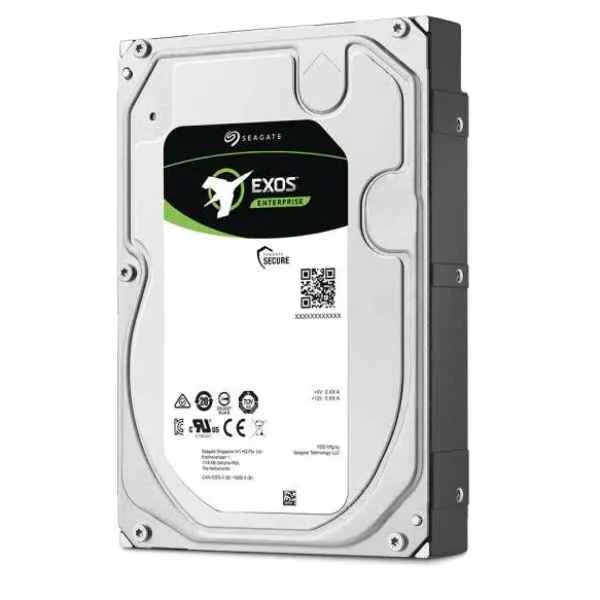
ST2000NM004A (Enterprise ST2000NM004A - 3.5" - 2000 GB - 7200 RPM)
4.7 (6)- Hard Drive
- Seagate
- HDD
- Desktop / Server / NAS / Surveillance / Enterprise Storage
- SATA III
- 3.5-inch
- 2 TB
Est Value $456.72$228.36
50% offIn stockRefurbishedFirst-Time Buyer Discount – Get up to 2% additional off on your first order
ORM Rewards Earn $50 in Rewards + Free Expedited Delivery – Join Now!
Use eCoupon ORMSAVE10
eCoupon limited to 5 units

ORM Sales Advisors
Buying for your business? Get a personalised quote in under 2 hours. Talk to an expert
LEARNFilters (123) 
Questions & Answers
What types of Seagate Storage Devices are available?
Seagate offers internal HDDs, SATA and NVMe SSDs, portable and desktop external drives, and NAS-optimized HDDs to suit diverse performance, capacity, and use-case requirements.
How do I choose the right Seagate drive for my needs?
Select a Seagate Storage Device based on required capacity, interface (SATA, NVMe, USB-C), performance (RPM for HDDs, read/write speeds for SSDs), and intended use (desktop, gaming, backup, NAS).
Are Seagate Storage Devices compatible with Windows and Mac?
Yes; most Seagate external drives ship preformatted in exFAT for plug-and-play on Windows and macOS, while internal drives can be reformatted in NTFS, APFS or HFS+ as needed.
What is Seagate Rescue Data Recovery Services?
Seagate Rescue provides professional data recovery for accidental deletion, corruption or hardware failure, often included free for the first year with select Seagate Storage Devices.
How do I install a Seagate internal SSD in my desktop or laptop?
Power down your system, connect the SSD to an available SATA or M.2 slot, secure it per manufacturer instructions, boot into BIOS to verify recognition, then initialize and format the drive in your OS.
Can I use Seagate external drives for Time Machine or Windows Backup?
Absolutely; simply format your Seagate external drive in HFS+ or APFS for Time Machine on macOS, or NTFS/exFAT for Windows Backup, then designate it as your backup volume.
What warranty coverage do Seagate Storage Devices include?
Seagate Storage Devices typically carry a 2- to 5-year limited warranty, varying by model, with registration often required to activate full coverage and Rescue Services.
How do I update firmware on my Seagate drive?
Download and run the SeaTools or Seagate Toolkit utility, select your drive, and follow on-screen prompts to install the latest firmware for optimal performance and stability.
What is the difference between Seagate Barracuda and IronWolf drives?
Barracuda HDDs target desktop and gaming applications with high speeds and capacities, while IronWolf HDDs are optimized for NAS environments, offering vibration tolerance and RAID support.
How can I troubleshoot a Seagate drive that isn’t recognized?
Check USB or SATA connections, try alternative ports and cables, verify power supply, update drivers via Device Manager, and run SeaTools diagnostics to identify hardware issues.
Are Seagate Storage Devices reliable for gaming and multimedia?
Yes; Seagate’s high-performance SSDs deliver low latency and fast load times, while high-capacity HDDs support extensive game and media libraries with proven endurance.
How do I encrypt my Seagate external drive?
Use Seagate Secure software on compatible models or your OS’s built-in encryption tools (BitLocker on Windows, FileVault on macOS) to enable password protection and data encryption.
What read/write speeds can I expect from Seagate SSDs?
Seagate SATA SSDs typically offer up to 560 MB/s sequential read and 540 MB/s write speeds, while NVMe SSDs can exceed 3,400 MB/s read and 3,000 MB/s write depending on the model.
How do I migrate data to a new Seagate Storage Device?
Use Seagate DiscWizard or third-party cloning software to clone existing drives sector-by-sector, then verify data integrity before booting from your new Seagate drive.
Do Seagate drives require special drivers to work?
No; Seagate Storage Devices are plug-and-play on modern Windows, macOS, and Linux systems, with native driver support for standard USB, SATA, and NVMe interfaces.