 United States
Seagate Hard Drives & SSDs
Experience unmatched reliability and speed with Seagate's hard drives and SSDs, engineered using innovative technology for secure data storage, enhanced performance, and complete peace of mind.
Talk to an expert
Seagate Storage Devices
(123)Seagate storage devices include SATA HDDs and SSDs for surveillance NVR bays, workstation archives, and tower server upgrades
123 Matching results
- BEST SELLING
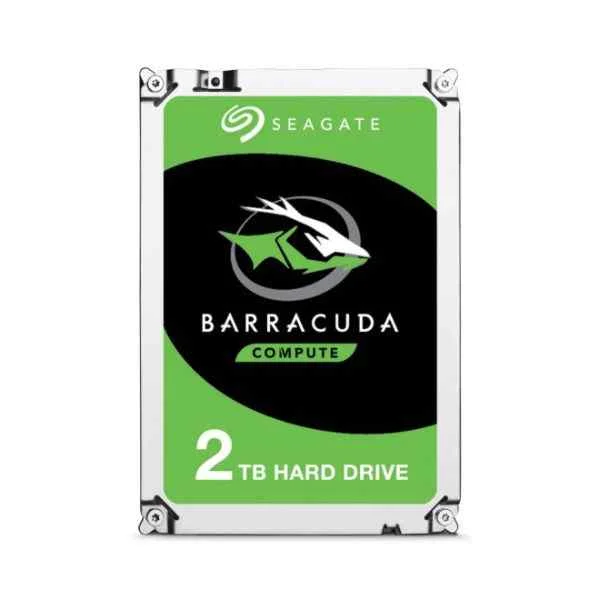
ST2000DM008 (2TB BARRACUDA SATA 7200 RPM 256MB 3.5IN)
4.6 (5)- Hard Drive
- Seagate
- HDD
- Desktop / Server / NAS / Surveillance / Enterprise Storage
- SATA III
- 3.5-inch
- 2 TB
Est Value $309.69
$131.25
57.6% offIn stockNewRefurbishedFirst-Time Buyer Discount – Get up to 2% additional off on your first order
ORM Rewards Earn $50 in Rewards + Free Expedited Delivery – Join Now!
Use eCoupon ORMSAVE10
eCoupon limited to 5 units
- BEST SELLING
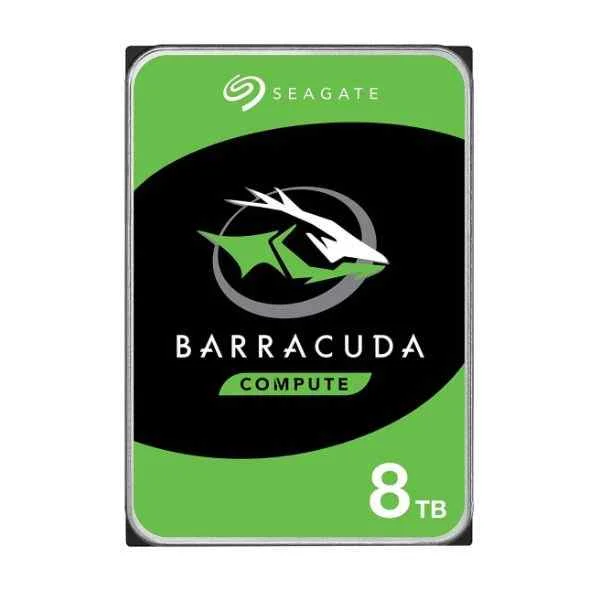
ST8000DM004 (8TB BARRACUDA SATA 5400 RPM 256MB 3.5IN)
4.8 (6)- Hard Drive
- Seagate
- HDD
- Desktop
- SATA III
- 3.5-inch
- 8 TB
Est Value $452.25$341.25
24.5% offIn stockNewRefurbishedFirst-Time Buyer Discount – Get up to 2% additional off on your first order
ORM Rewards Earn $50 in Rewards + Free Expedited Delivery – Join Now!
Use eCoupon ORMSAVE10
eCoupon limited to 5 units
- BEST SELLING
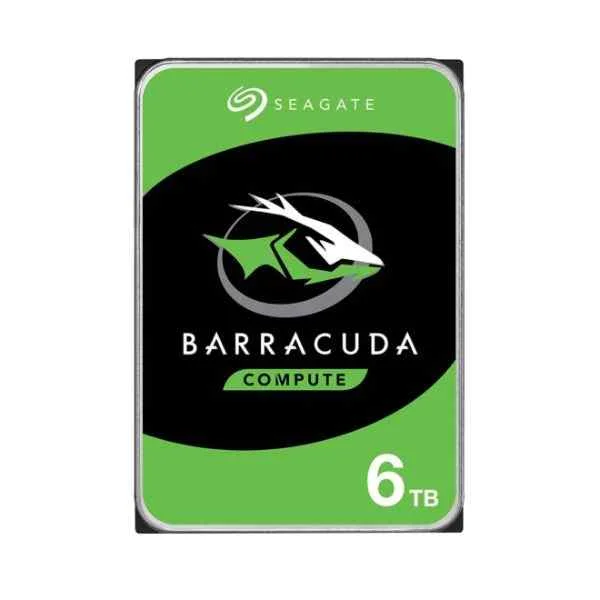
ST6000DM003 (6TB BARRACUDA SATA 5400 RPM 256MB 3.5IN)
4.7 (6)- Hard Drive
- Seagate
- HDD
- Desktop / Server / NAS / Surveillance / Enterprise Storage
- SATA III
- 3.5-inch
- 6 TB
Est Value $405.60$327.60
19.2% offIn stockRefurbishedFirst-Time Buyer Discount – Get up to 2% additional off on your first order
ORM Rewards Earn $50 in Rewards + Free Expedited Delivery – Join Now!
Use eCoupon ORMSAVE10
eCoupon limited to 5 units
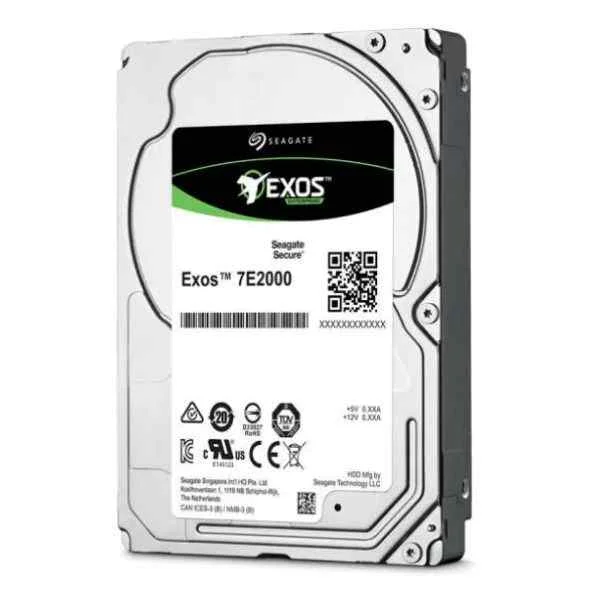
ST2000NX0403 (Enterprise ST2000NX0403 - 2.5" - 2000 GB - 7200 RPM)
4.5 (6)- Hard Drive
- Seagate
- HDD
- Desktop / Server / NAS / Surveillance / Enterprise Storage
- SAS 6Gb/s
- 3.5-inch
- 2 TB
Est Value $162.00$107.04
33.9% offIn stockRefurbishedFirst-Time Buyer Discount – Get up to 2% additional off on your first order
ORM Rewards Earn $50 in Rewards + Free Expedited Delivery – Join Now!
Use eCoupon ORMSAVE10
eCoupon limited to 5 units
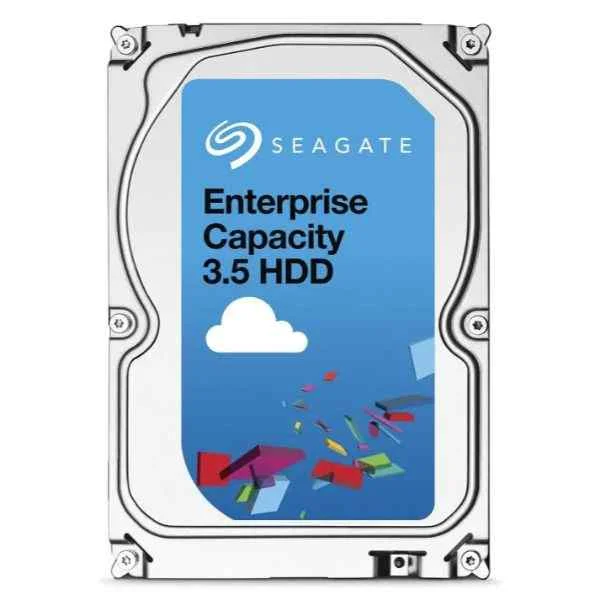
ST1000NM0008 (1TB EXOS 6G 7.2K 128MB 3.5IN ENTERPRISE DATA CENTER)
4.5 (6)- Hard Drive
- Seagate
- HDD
- Desktop / Server / NAS / Surveillance / Enterprise Storage
- SATA III
- 2.5-inch
- 1 TB
Est Value $242.56$121.28
50% offIn stockRefurbishedFirst-Time Buyer Discount – Get up to 2% additional off on your first order
ORM Rewards Earn $50 in Rewards + Free Expedited Delivery – Join Now!
Use eCoupon ORMSAVE10
eCoupon limited to 5 units
ST1000NM001A (Enterprise ST1000NM001A - 3.5" - 1000 GB - 7200 RPM)
4.8 (6)- Hard Drive
- Seagate
- HDD
- Desktop / Server / NAS / Surveillance / Enterprise Storage
- SATA III
- 3.5-inch
- 1 TB
Est Value $245.70$122.85
50% offIn stockRefurbishedFirst-Time Buyer Discount – Get up to 2% additional off on your first order
ORM Rewards Earn $50 in Rewards + Free Expedited Delivery – Join Now!
Use eCoupon ORMSAVE10
eCoupon limited to 5 units
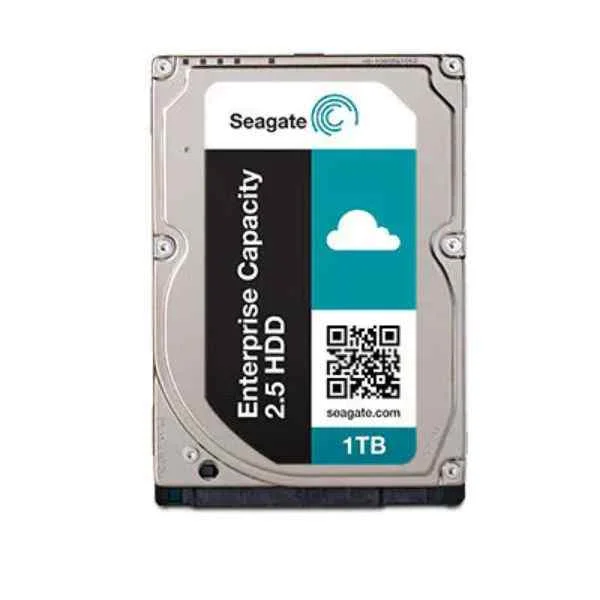
ST1000NX0333 (Constellation .2 1TB - 2.5" - 1024 GB - 7200 RPM)
4.5 (6)- Hard Drive
- Seagate
- HDD
- Desktop / Server / NAS / Surveillance / Enterprise Storage
- SAS 6Gb/s
- 3.5-inch
- 1 TB
Est Value $260.40$50.56
80.6% offIn stockNewRefurbishedFirst-Time Buyer Discount – Get up to 2% additional off on your first order
ORM Rewards Earn $50 in Rewards + Free Expedited Delivery – Join Now!
Use eCoupon ORMSAVE10
eCoupon limited to 5 units
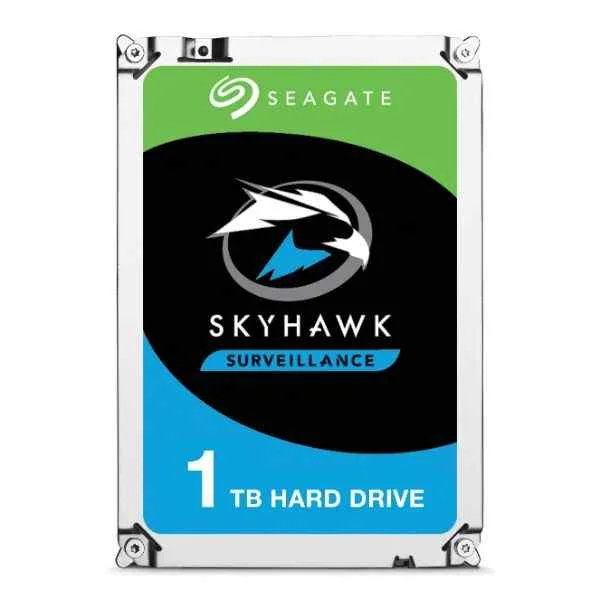
ST1000VX005 (SkyHawk ST1000VX005 - 3.5" - 1000 GB)
4.8 (6)- Hard Drive
- Seagate
- HDD
- Enterprise Storage
- SATA III
- 3.5-inch
- 1 TB
Est Value $149.85$137.77
8.1% offIn stockRefurbishedFirst-Time Buyer Discount – Get up to 2% additional off on your first order
ORM Rewards Earn $50 in Rewards + Free Expedited Delivery – Join Now!
Use eCoupon ORMSAVE10
eCoupon limited to 5 units
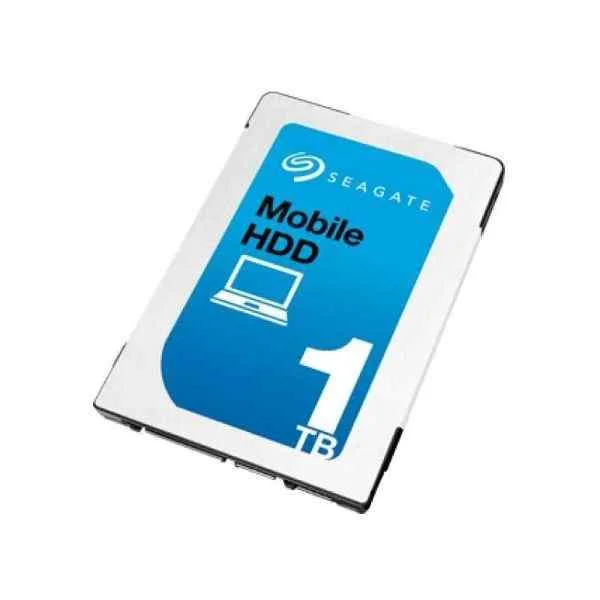
ST1000LM035 (Seagate Mobile HDD ST1000LM035 internal hard drive 1000 GB)
4.8 (6)- Hard Drive
- Seagate
- HDD
- Desktop / Server / NAS / Surveillance / Enterprise Storage
- SATA III
- 2.5-inch
- 1 TB
Est Value $276.68$105.00
62.1% offIn stockNewRefurbishedFirst-Time Buyer Discount – Get up to 2% additional off on your first order
ORM Rewards Earn $50 in Rewards + Free Expedited Delivery – Join Now!
Use eCoupon ORMSAVE10
eCoupon limited to 5 units
ZA480CV1A001 (BarraCuda Q1 - 480 GB - 2.5" - 550 MB/s - 6 Gbit/s)
4.9 (7)- Hard Drive
- Seagate
- HDD
- Server
- SATA III
- 3.5-inch
- 8 TB
Est Value $167.77$143.22
14.6% offIn stockRefurbishedFirst-Time Buyer Discount – Get up to 2% additional off on your first order
ORM Rewards Earn $50 in Rewards + Free Expedited Delivery – Join Now!
Use eCoupon ORMSAVE10
eCoupon limited to 5 units
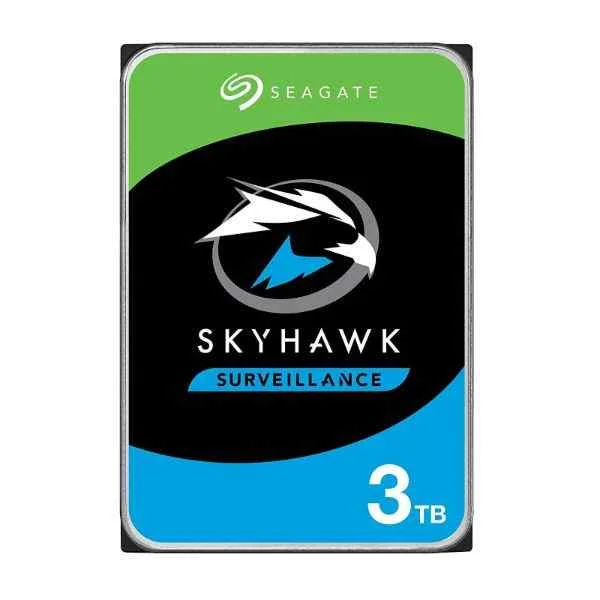
ST3000VX009 (ST3000VX009 - 3.5" - 3000 GB - 5900 RPM)
4.4 (5)- Hard Drive
- Seagate
- HDD
- Desktop / Server / NAS / Surveillance / Enterprise Storage
- SATA III
- 3.5-inch
- 3 TB
Est Value $189.64$153.17
19.2% offIn stockRefurbishedFirst-Time Buyer Discount – Get up to 2% additional off on your first order
ORM Rewards Earn $50 in Rewards + Free Expedited Delivery – Join Now!
Use eCoupon ORMSAVE10
eCoupon limited to 5 units
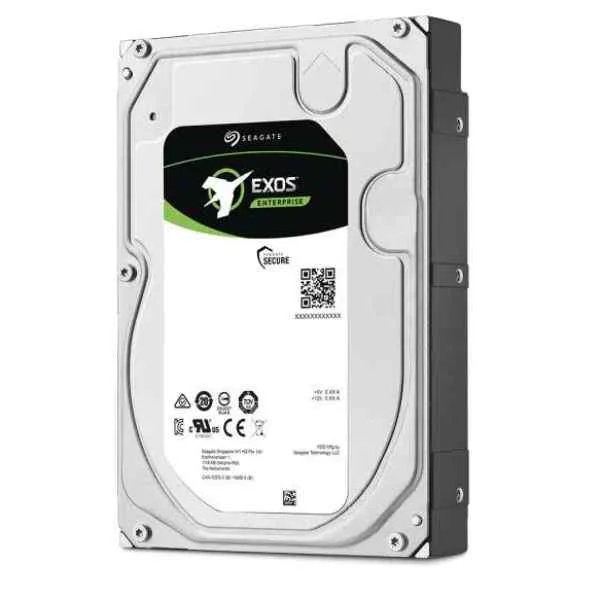
ST2000NM003A (Enterprise ST2000NM003A - 3.5" - 2000 GB - 7200 RPM)
4.8 (6)- Hard Drive
- Seagate
- HDD
- Desktop / Server / NAS / Surveillance / Enterprise Storage
- SAS 12Gb/s
- 3.5-inch
- 2 TB
Est Value $169.69$155.14
8.6% offIn stockRefurbishedFirst-Time Buyer Discount – Get up to 2% additional off on your first order
ORM Rewards Earn $50 in Rewards + Free Expedited Delivery – Join Now!
Use eCoupon ORMSAVE10
eCoupon limited to 5 units
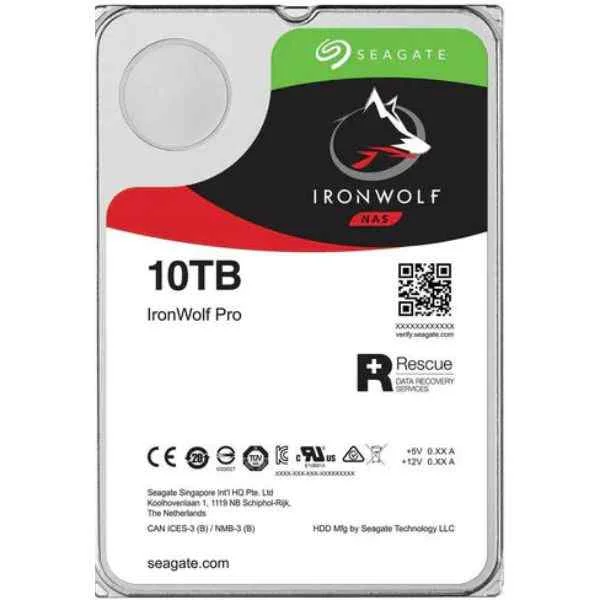
ST10000NE000 (Seagate IronWolf Pro ST10000NE000 - 3.5" - 10000 GB - 7200 RPM (ST10000NE000))
4.2 (6)- Hard Drive
- Seagate
- HDD
- Enterprise Storage
- SATA III
- 3.5-inch
- 10 TB
Est Value $336.00$168.00
50% offIn stockRefurbishedFirst-Time Buyer Discount – Get up to 2% additional off on your first order
ORM Rewards Earn $50 in Rewards + Free Expedited Delivery – Join Now!
Use eCoupon ORMSAVE10
eCoupon limited to 5 units
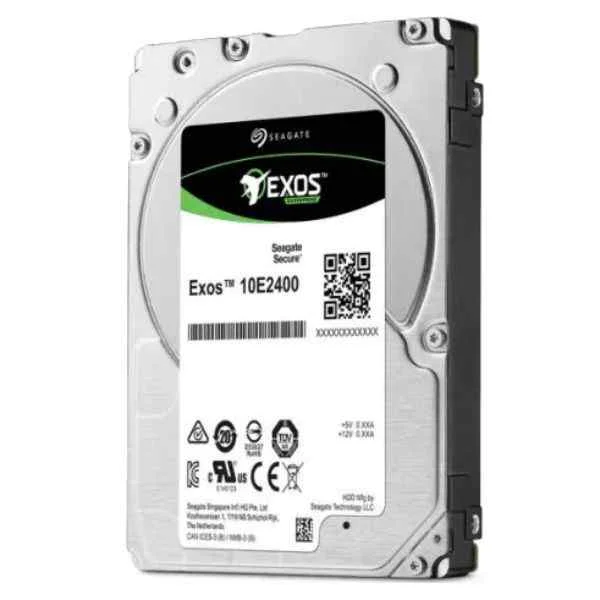
ST600MM0099 (600MB EXOS 10E2400 SAS 10000 RPM 256MB 2.5IN)
4.7 (6)- Hard Drive
- Seagate
- HDD
- Desktop / Server / NAS / Surveillance / Enterprise Storage
- SATA III
- 3.5-inch
- 600 GB
Est Value $338.00$169.00
50% offIn stockRefurbishedFirst-Time Buyer Discount – Get up to 2% additional off on your first order
ORM Rewards Earn $50 in Rewards + Free Expedited Delivery – Join Now!
Use eCoupon ORMSAVE10
eCoupon limited to 5 units
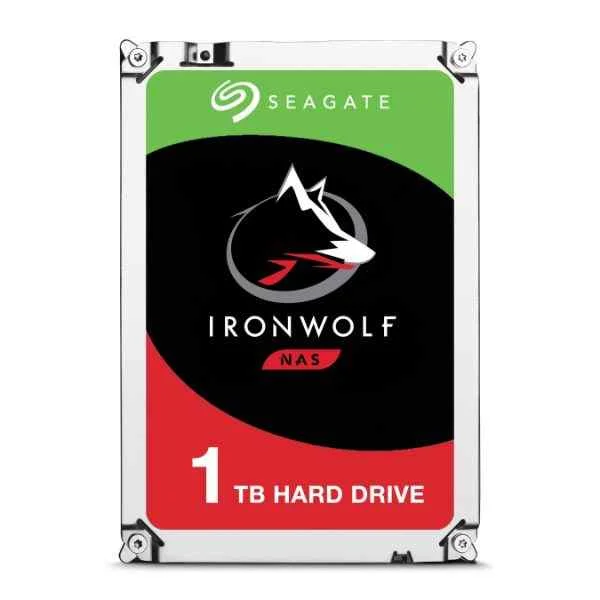
ST1000VN002 (IronWolf ST1000VN002 - 3.5" - 1000 GB - 5900 RPM)
4.7 (6)- Hard Drive
- Seagate
- HDD
- Desktop / Server / NAS / Surveillance / Enterprise Storage
- SATA III
- 3.5-inch
- 1 TB
Est Value $207.93$177.50
14.6% offIn stockRefurbishedFirst-Time Buyer Discount – Get up to 2% additional off on your first order
ORM Rewards Earn $50 in Rewards + Free Expedited Delivery – Join Now!
Use eCoupon ORMSAVE10
eCoupon limited to 5 units
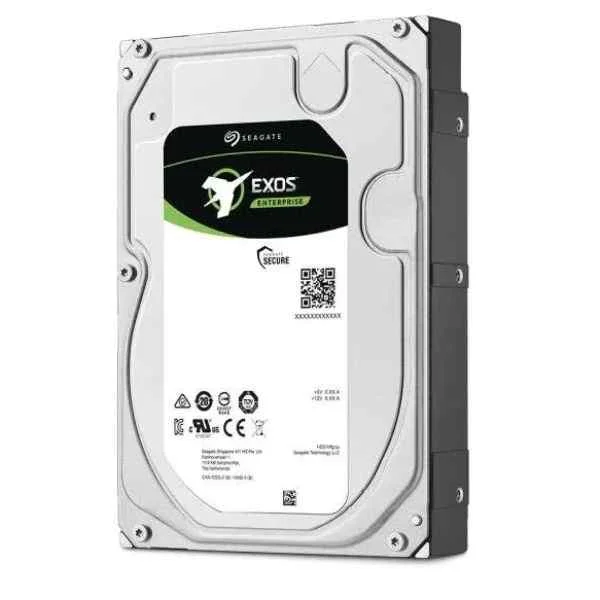
ST2000NM001A (Enterprise ST2000NM001A - 3.5" - 2000 GB - 7200 RPM)
4.5 (6)- Hard Drive
- Seagate
- HDD
- Enterprise Storage
- SATA III
- 3.5-inch
- 2 TB
Est Value $376.84$188.42
50% offIn stockRefurbishedFirst-Time Buyer Discount – Get up to 2% additional off on your first order
ORM Rewards Earn $50 in Rewards + Free Expedited Delivery – Join Now!
Use eCoupon ORMSAVE10
eCoupon limited to 5 units
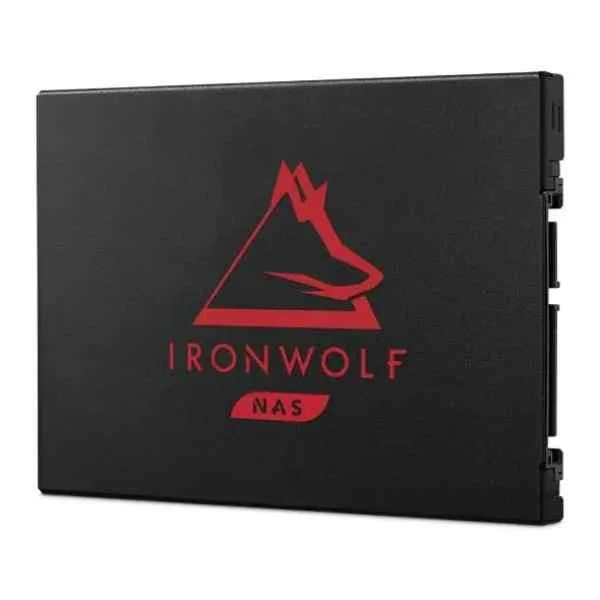
ZA1000NM1A002 (IronWolf 125 - 1000 GB - 2.5" - 560 MB/s - 6 Gbit/s)
4.8 (6)- Hard Drive
- Seagate
- HDD
- Desktop / Server / NAS / Surveillance / Enterprise Storage
- SATA III
- 3.5-inch
- 10 TB
Est Value $382.20$191.10
50% offIn stockRefurbishedFirst-Time Buyer Discount – Get up to 2% additional off on your first order
ORM Rewards Earn $50 in Rewards + Free Expedited Delivery – Join Now!
Use eCoupon ORMSAVE10
eCoupon limited to 5 units
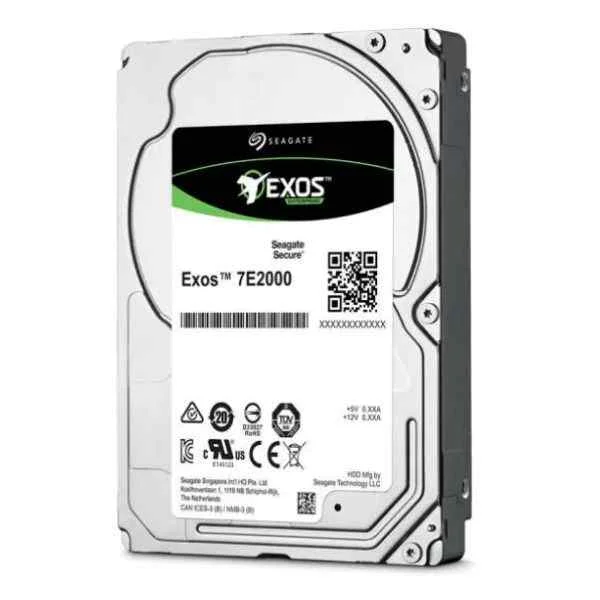
ST1000NX0423 (SEAGATE ST1000NX0423 1 TB 2.5 SEAGATE ST1000NX0423 1 TB 2.5)
4.8 (6)- Hard Drive
- Seagate
- HDD
- Enterprise Storage
- SAS 12Gb/s
- 3.5-inch
- 1 TB
Est Value $249.75$68.25
72.7% offIn stockNewRefurbishedFirst-Time Buyer Discount – Get up to 2% additional off on your first order
ORM Rewards Earn $50 in Rewards + Free Expedited Delivery – Join Now!
Use eCoupon ORMSAVE10
eCoupon limited to 5 units
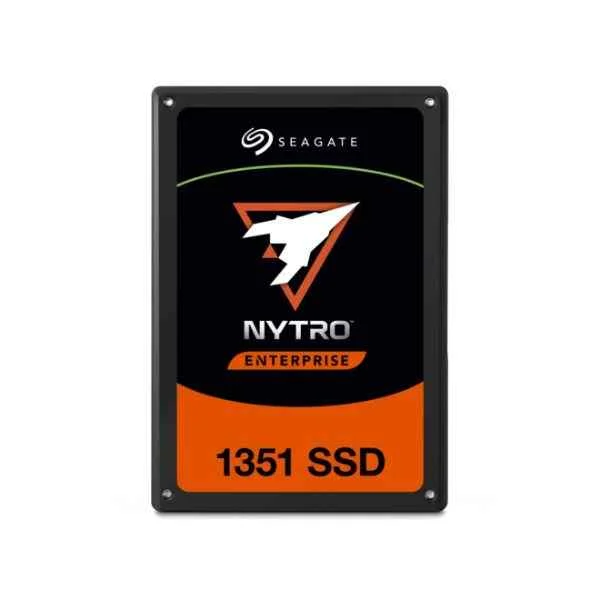
XA240LE10003 (Nytro 1351 - 240 GB - 2.5" - 560 MB/s - 6 Gbit/s)
4.4 (7)- Hard Drive
- Seagate
- HDD
- Desktop / Server / NAS / Surveillance / Enterprise Storage
- SATA III
- 3.5-inch
- 4 TB
Est Value $231.36$197.51
14.6% offIn stockRefurbishedFirst-Time Buyer Discount – Get up to 2% additional off on your first order
ORM Rewards Earn $50 in Rewards + Free Expedited Delivery – Join Now!
Use eCoupon ORMSAVE10
eCoupon limited to 5 units
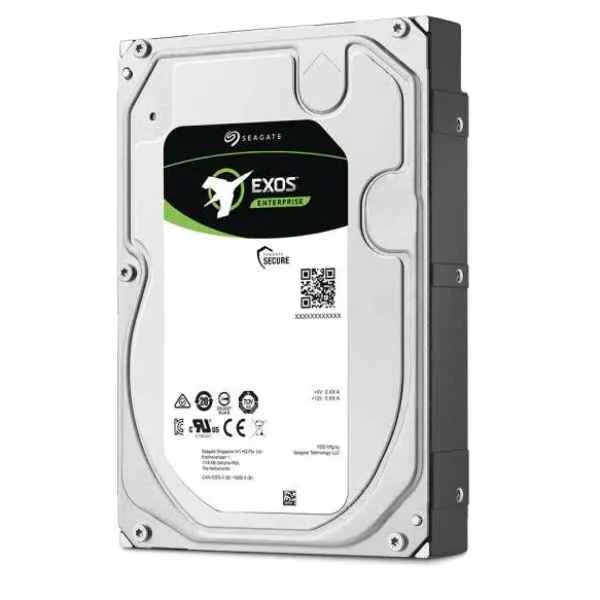
ST2000NM004A (Enterprise ST2000NM004A - 3.5" - 2000 GB - 7200 RPM)
4.7 (6)- Hard Drive
- Seagate
- HDD
- Desktop / Server / NAS / Surveillance / Enterprise Storage
- SATA III
- 3.5-inch
- 2 TB
Est Value $456.72$228.36
50% offIn stockRefurbishedFirst-Time Buyer Discount – Get up to 2% additional off on your first order
ORM Rewards Earn $50 in Rewards + Free Expedited Delivery – Join Now!
Use eCoupon ORMSAVE10
eCoupon limited to 5 units

ORM Sales Advisors
Buying for your business? Get a personalised quote in under 2 hours. Talk to an expert
LEARNFilters (123) 
Questions & Answers
What types of Seagate hard drives and SSDs are available?
Seagate offers desktop HDDs (Barracuda), NAS-optimized HDDs (IronWolf), performance HDDs (FireCuda), internal SSDs (IronWolf 510, FireCuda 510), and external SSDs (Fast SSD, One Touch SSD).
How do I choose between a Seagate HDD and SSD?
Choose an HDD for high-capacity, cost-effective storage and an SSD for faster boot times, lower latency, and improved durability under heavy workloads.
What are the key features of Seagate Barracuda hard drives?
Barracuda drives deliver up to 8 TB capacity, 5400–7200 RPM speeds, multi-tier caching technology, and a 2-year warranty for everyday desktop applications.
What makes Seagate FireCuda SSDs ideal for gaming?
FireCuda SSDs offer NVMe speeds up to 3,450 MB/s read, 2,000 MB/s write, low latency, dynamic caching, and a 5-year limited warranty tailored to gaming performance.
Which interfaces do Seagate drives support?
Seagate HDDs support SATA III (6 Gb/s) and USB 3.0/3.2, while SSDs support SATA III, PCIe Gen3 x4 NVMe, and USB-C for external models.
How do I install a Seagate internal hard drive or SSD?
Power down your system, mount the drive in a 2.5″ or 3.5″ bay, connect the SATA data and power cables (or M.2 slot for NVMe), then format in BIOS or OS.
Are Seagate drives compatible with Windows and macOS?
Yes. Seagate drives support Windows 10/11 and macOS 10.12+; just format them in NTFS for Windows or HFS+/APFS for Mac using Disk Management or Disk Utility.
What warranty coverage does Seagate provide?
Most Seagate HDDs include a 2-year limited warranty, and SSDs include 5 years; IronWolf and FireCuda Pro models often offer 3- to 5-year warranties plus Rescue Data Recovery Services.
How reliable are Seagate hard drives and SSDs?
Seagate employs rigorous endurance testing, multi-tier caching, and advanced error correction to achieve an annual failure rate below 0.5% for HDDs and an MTBF of up to 1.8 million hours for SSDs.
How can I optimize performance on my Seagate drive?
Enable AHCI in BIOS for SATA drives, install the latest firmware via SeaTools, use TRIM for SSDs, and defragment HDDs periodically for sustained performance.
Does Seagate offer data recovery services?
Yes, Seagate’s Rescue Data Recovery Services can recover data from physical, mechanical, or accidental damage on eligible drives within the warranty period.
How do I secure my data on a Seagate drive?
Use Seagate Secure self-encryption, enable hardware-based AES 256-bit encryption, and set a strong access password via BIOS or Seagate Toolkit.
What storage capacities are available for Seagate drives?
Seagate HDDs range from 500 GB to 20 TB, while SSDs range from 250 GB to 4 TB, covering consumer, prosumer, and enterprise needs.
How do I update the firmware on my Seagate drive?
Download and install SeaTools for Windows or bootable DOS to detect your drive and apply firmware updates following the on-screen instructions carefully.
Can I use Seagate external SSDs with gaming consoles?
Yes, Seagate Fast SSD and One Touch SSD models work with PlayStation and Xbox consoles via USB-C/USB-A, offering plug-and-play storage expansion at high transfer speeds.
What should I do if my Seagate drive is not detected?
Check cable connections, verify BIOS/UEFI detection, format the drive in Disk Management or Disk Utility, and run SeaTools diagnostics to identify hardware issues.