 United States
Sip Phone 3900 Series
Engineered for enterprise communication, the Sip Phone 3900 Series delivers unmatched voice clarity, advanced security, and scalable functionality to ensure seamless, reliable, and efficient IP communications.
Talk to an expert
1 Matching results
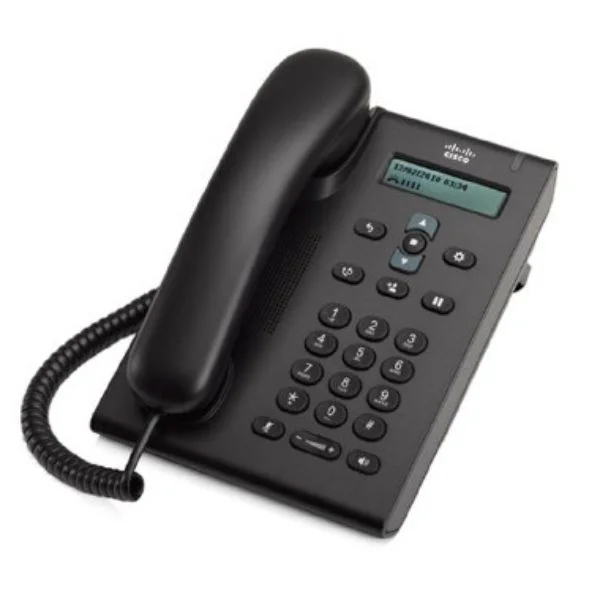
CP-3905 (3905 UNIFIED SIP PHONE CHARCOAL STANDARD HANDSET)
4.4 (5)Est Value $157.59
$59.85
62% offIn stockNewRefurbishedFirst-Time Buyer Discount – Get up to 2% additional off on your first order
ORM Rewards Earn $50 in Rewards + Free Expedited Delivery – Join Now!
Use eCoupon ORMSAVE10
eCoupon limited to 5 units

ORM Sales Advisors
Buying for your business? Get a personalised quote in under 2 hours. Talk to an expert
LEARNFilters (1) 
Questions & Answers
What are the key features of the Sip Phone 3900 Series?
The Sip Phone 3900 Series offers HD audio, a 4.3-inch color display, six programmable DSS keys, PoE support, dual Gigabit Ethernet ports, and broad SIP interoperability for reliable VoIP communications.
How do I perform the initial setup of my Sip Phone 3900 Series?
Connect the phone to your network via PoE or power adapter, enter the web GUI IP address in a browser, log in with default credentials, and follow the Quick Setup wizard to configure SIP account details.
Which SIP servers and platforms are compatible with the Sip Phone 3900 Series?
The Sip Phone 3900 Series is compatible with major SIP-based platforms including Asterisk, FreePBX, 3CX, BroadSoft, Cisco CUCM, and hosted VoIP services.
How do I register the Sip Phone 3900 Series with my VoIP service provider?
Access the web GUI, navigate to Account → SIP Settings, enter your provider’s SIP server address, username, password, and click “Save.” The phone will register automatically.
Does the Sip Phone 3900 Series support Power over Ethernet (PoE)?
Yes, the Sip Phone 3900 Series supports IEEE 802.3af PoE, enabling both data and power over a single Ethernet cable for simplified deployment.
What audio codecs does the Sip Phone 3900 Series support?
The Sip Phone 3900 Series supports G.711a/µ, G.722, G.729, G.726, BV16, Opus and AMR codecs to ensure clear, bandwidth-efficient voice quality.
How can I update the firmware on my Sip Phone 3900 Series?
Download the latest firmware from the vendor portal, access the phone’s web GUI under Maintenance → Upgrade, upload the firmware file, and reboot to complete the update.
How do I perform a factory reset on the Sip Phone 3900 Series?
Press and hold the “OK” and “Cancel” keys simultaneously while rebooting. Release when the screen prompts, then confirm “Restore to Factory Settings.”
What power options are available for the Sip Phone 3900 Series?
The phone supports IEEE 802.3af PoE and a 5V/2A DC adapter, giving you flexibility for environments without PoE infrastructure.
How many SIP lines and call appearances does the Sip Phone 3900 Series support?
The Sip Phone 3900 Series supports up to 4 SIP accounts and 8 concurrent call appearances to handle multiple extensions and calls.
Does the Sip Phone 3900 Series support VLAN tagging for voice traffic?
Yes, the device supports 802.1Q VLAN tagging and QoS settings to prioritize voice packets and ensure consistent call quality.
What warranty and support options are available for the Sip Phone 3900 Series?
The Sip Phone 3900 Series includes a one-year hardware warranty and access to online technical support, with extended support plans available.
How can I troubleshoot network connectivity issues on the Sip Phone 3900 Series?
Verify cable and PoE connections, check IP assignment via the Status menu, ping the gateway, and review log files under Maintenance → System Log for errors.
Can I integrate the Sip Phone 3900 Series with Microsoft Teams or Zoom?
The Sip Phone 3900 Series supports SIP trunking for third-party VoIP services but is not natively certified for direct Microsoft Teams or Zoom integration.
What display and user interface features does the Sip Phone 3900 Series offer?
It features a 4.3-inch backlit color LCD, intuitive menu navigation, context-sensitive soft keys, and visual call status indicators for enhanced usability.
How do I enable HD audio on the Sip Phone 3900 Series?
In the web GUI, go to Account → Audio Settings, select G.722 or Opus as the preferred codec, click “Save,” and reboot the phone to activate HD audio.