 United States
Router Flash Memory Series
Our 1900, 2900, and 3900 Series deliver high-performance, reliable, and secure flash memory engineered for advanced router applications, enhancing connectivity and efficiency in mission-critical networks.
Talk to an expert
9 Matching results
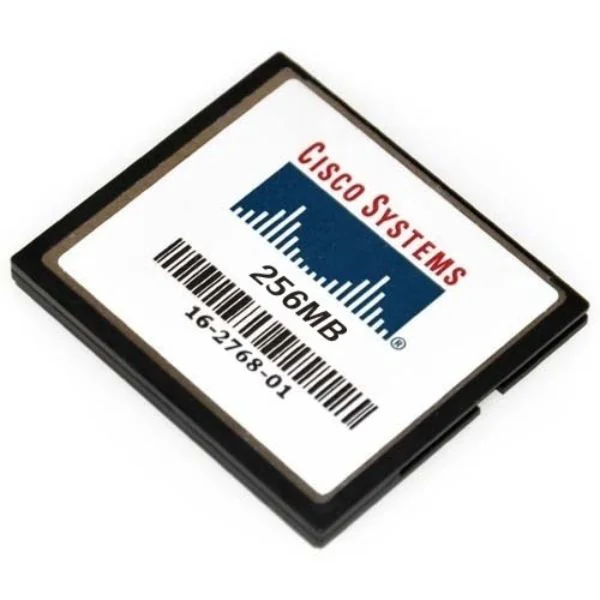
MEM-CF-256MB (Cisco Memory MEM-CF-256MB)
4.2 (5)- Computer Memory
- Cisco
- DDR4
- 256 GB
- Desktop / Laptop / Server
- Workstation
- UDIMM
Est Value $312.00
$46.91
85% offIn stockNewRefurbishedFirst-Time Buyer Discount – Get up to 2% additional off on your first order
ORM Rewards Earn $50 in Rewards + Free Expedited Delivery – Join Now!
Use eCoupon ORMSAVE10
eCoupon limited to 5 units
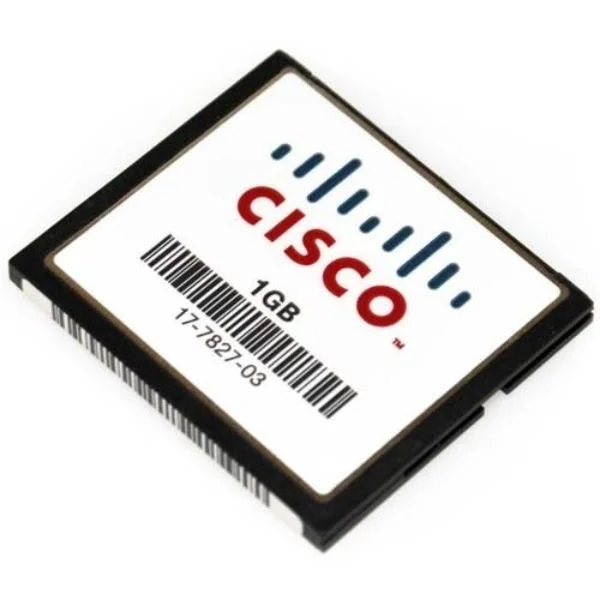
MEM-CF-256U1GB (Cisco Memory MEM-CF-256U1GB)
5 (5)- Computer Memory
- Cisco
- DDR4
- 256 GB
- Desktop / Laptop / Server
- Workstation
- UDIMM
Est Value $500.00$142.85
71.4% offIn stockNewRefurbishedFirst-Time Buyer Discount – Get up to 2% additional off on your first order
ORM Rewards Earn $50 in Rewards + Free Expedited Delivery – Join Now!
Use eCoupon ORMSAVE10
eCoupon limited to 5 units
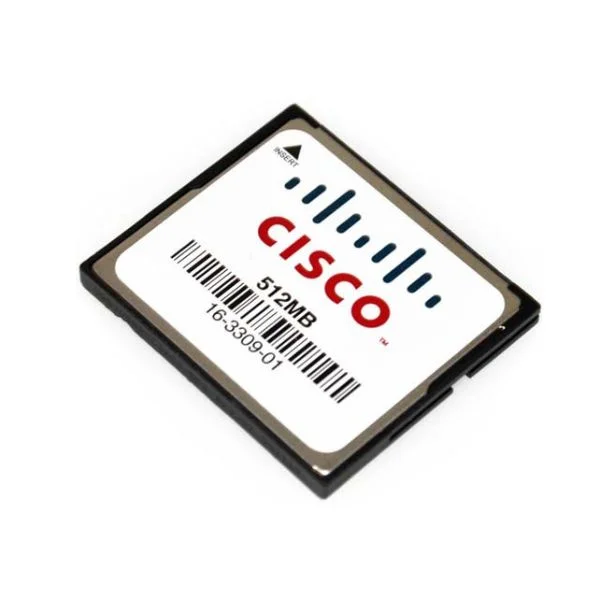
MEM-CF-512MB (Cisco Memory MEM-CF-512MB)
4.8 (5)- Computer Memory
- Cisco
- DDR4
- 512 GB
- Desktop / Laptop / Server
- Workstation
- UDIMM
Est Value $606.99$106.51
82.5% offIn stockNewRefurbishedFirst-Time Buyer Discount – Get up to 2% additional off on your first order
ORM Rewards Earn $50 in Rewards + Free Expedited Delivery – Join Now!
Use eCoupon ORMSAVE10
eCoupon limited to 5 units
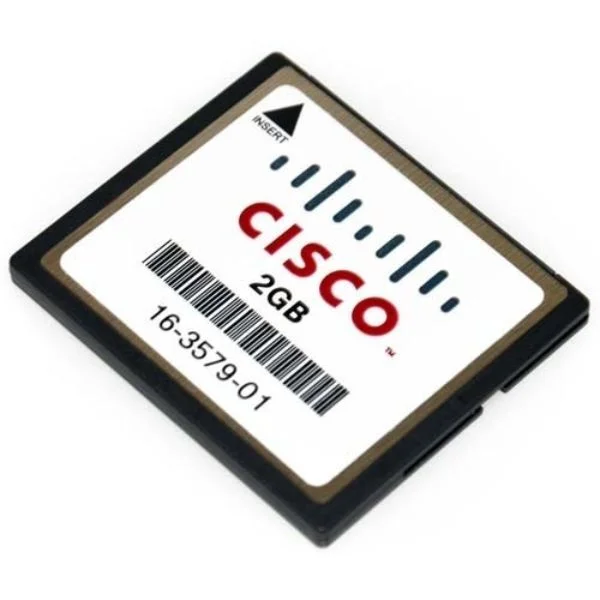
MEM-CF-256U2GB (Cisco Memory MEM-CF-256U2GB)
4.6 (5)- Computer Memory
- Cisco
- DDR4
- 256 GB
- Desktop
- Workstation
- UDIMM
Est Value $1,183.00$403.20
65.9% offIn stockNewFirst-Time Buyer Discount – Get up to 2% additional off on your first order
ORM Rewards Earn $50 in Rewards + Free Expedited Delivery – Join Now!
Use eCoupon ORMSAVE10
eCoupon limited to 5 units
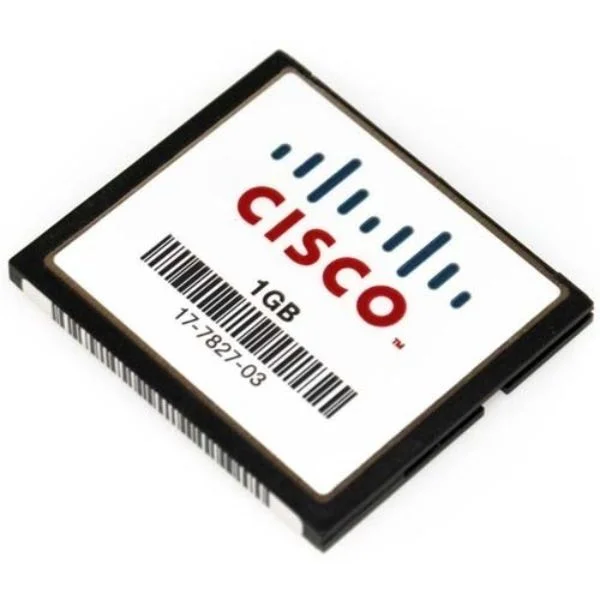
MEM-CF-1GB (Cisco Memory MEM-CF-1GB)
4.4 (5)- Computer Memory
- Cisco
- DDR4
- 1 GB
- Desktop / Laptop / Server
- Tower Server
- UDIMM
Est Value $854.00$128.25
85% offIn stockNewRefurbishedFirst-Time Buyer Discount – Get up to 2% additional off on your first order
ORM Rewards Earn $50 in Rewards + Free Expedited Delivery – Join Now!
Use eCoupon ORMSAVE10
eCoupon limited to 5 units
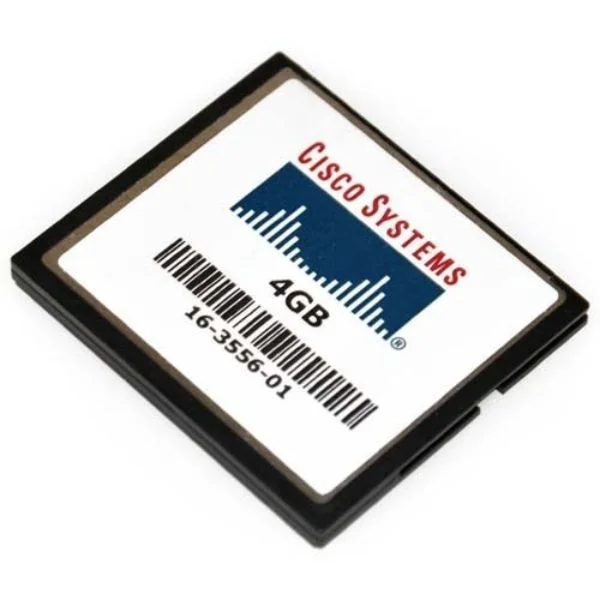
MEM-CF-256U4GB (256MB to 4GB Compact Flash Upgrade for Cisco 1900,2900,3900)
4.6 (5)- Computer Memory
- Cisco
- DDR4
- 256 GB
- Desktop / Server
- Workstation
- UDIMM
Est Value $1,655.00$248.35
85% offIn stockNewRefurbishedFirst-Time Buyer Discount – Get up to 2% additional off on your first order
ORM Rewards Earn $50 in Rewards + Free Expedited Delivery – Join Now!
Use eCoupon ORMSAVE10
eCoupon limited to 5 units
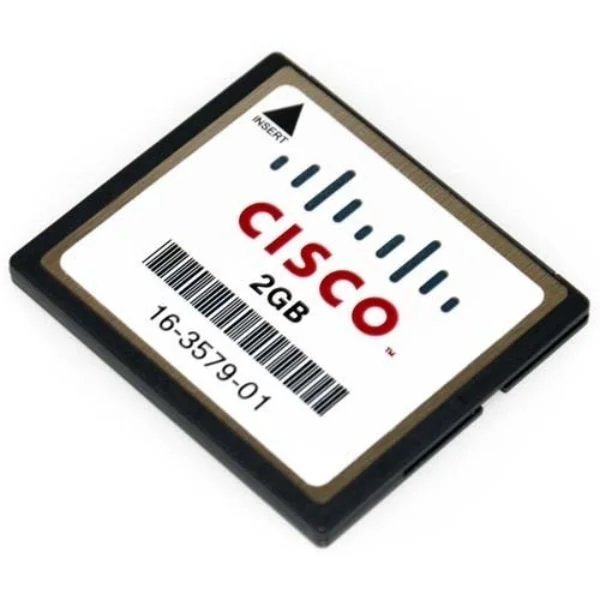
MEM-CF-2GB (Cisco Memory MEM-CF-2GB)
4.8 (5)- Computer Memory
- Cisco
- DDR4
- 2 GB
- Desktop
- Tower Server
- UDIMM
Est Value $1,380.00$297.40
78.4% offIn stockNewRefurbishedFirst-Time Buyer Discount – Get up to 2% additional off on your first order
ORM Rewards Earn $50 in Rewards + Free Expedited Delivery – Join Now!
Use eCoupon ORMSAVE10
eCoupon limited to 5 units
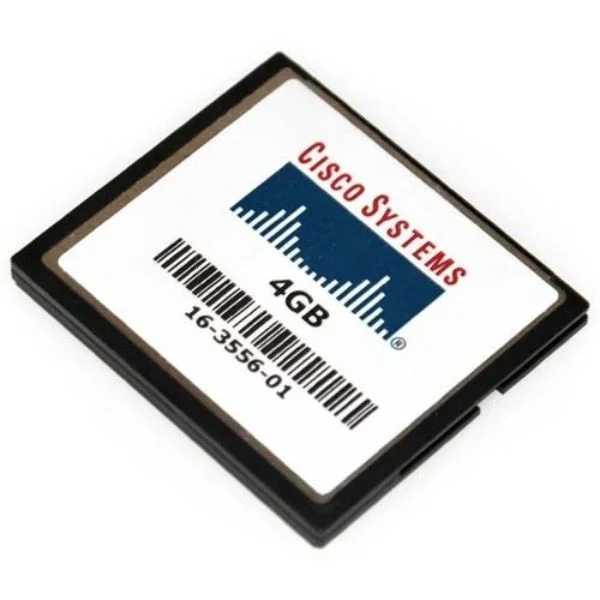
MEM-CF-4GB (Cisco Memory MEM-CF-4GB)
4.2 (5)- Computer Memory
- Cisco
- DDR4
- 4 GB
- Desktop / Laptop / Server
- Workstation
- UDIMM
Est Value $1,840.00$282.62
84.6% offIn stockNewRefurbishedFirst-Time Buyer Discount – Get up to 2% additional off on your first order
ORM Rewards Earn $50 in Rewards + Free Expedited Delivery – Join Now!
Use eCoupon ORMSAVE10
eCoupon limited to 5 units
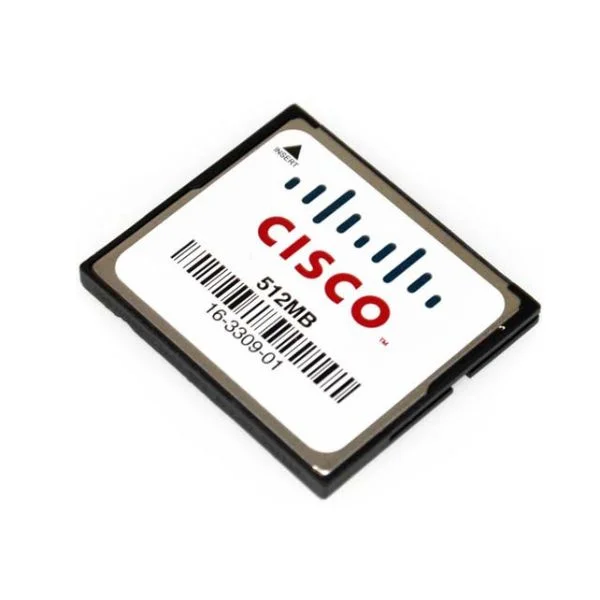
MEM-CF-256U512MB (Cisco Memory MEM-CF-256U512MB)
4.4 (5)- Computer Memory
- Cisco
- DDR4
- 512 GB
- Desktop / Laptop / Server
- Tower Server
- UDIMM
Est Value $300.00$86.60
71.1% offIn stockNewRefurbishedFirst-Time Buyer Discount – Get up to 2% additional off on your first order
ORM Rewards Earn $50 in Rewards + Free Expedited Delivery – Join Now!
Use eCoupon ORMSAVE10
eCoupon limited to 5 units

ORM Sales Advisors
Buying for your business? Get a personalised quote in under 2 hours. Talk to an expert
LEARNFilters (9) 
Questions & Answers
What flash memory options are available for Cisco 1900, 2900, and 3900 Series routers?
Cisco 1900, 2900, and 3900 Series routers support CompactFlash (CF) cards up to 8 GB and removable USB flash modules up to 16 GB, depending on firmware version and hardware revision.
How do I upgrade flash memory on Cisco 1900, 2900, and 3900 Series routers?
To upgrade flash memory, power off the router, insert a compatible CF or USB flash module, power on, then verify capacity with the show flash: command in privileged EXEC mode.
What is the maximum flash capacity supported by Cisco 1900, 2900, and 3900 Series routers?
Maximum supported flash capacity is 8 GB for CompactFlash and 16 GB for USB flash on Cisco 1900, 2900, and 3900 Series routers, subject to IOS image and hardware revision.
How can I check available flash memory on Cisco 1900, 2900, and 3900 Series routers?
Use the show flash: command in privileged EXEC mode to display total and available flash memory on Cisco 1900, 2900, and 3900 Series routers.
Which flash memory types are compatible with Cisco 1900, 2900, and 3900 Series routers?
Cisco 1900, 2900, and 3900 Series routers are compatible with industrial-grade CompactFlash (Type I/II) and FAT32-formatted USB flash drives.
Can I use third-party flash modules in Cisco 1900, 2900, and 3900 Series routers?
Yes. Third-party CompactFlash and USB drives that meet Cisco’s industrial specifications and FAT32 formatting requirements are supported for these router series.
How do I back up router flash memory on Cisco 1900, 2900, and 3900 Series routers?
Use the copy flash: tftp: command to back up flash images to a TFTP server, specifying source filename and server address in privileged EXEC mode.
How do I recover corrupted flash memory on Cisco 1900, 2900, and 3900 Series routers?
Power cycle the router, enter ROMmon mode, format flash with the format flash: command, then reload a valid IOS image from TFTP or USB.
What is the flash write speed on Cisco 1900, 2900, and 3900 Series routers?
Write speeds vary by media type: up to 4 MB/s for CompactFlash and 8 MB/s for USB 2.0 drives under typical network operating conditions.
How do I format flash memory on Cisco 1900, 2900, and 3900 Series routers?
In privileged EXEC mode, issue format flash: or format usb0: then confirm. The router will erase and reinitialize the selected flash partition.
Where is the flash memory located on Cisco 1900, 2900, and 3900 Series routers?
On the Cisco 1900, 2900, and 3900 Series, the CompactFlash slot is located behind a panel on the front-right side; USB ports are on the rear I/O panel.
How do I partition flash memory on Cisco 1900, 2900, and 3900 Series routers?
Cisco IOS automatically manages flash partitions. Manual partitioning is not supported; use file system commands (dir, delete) to organize files.
What file systems do Cisco 1900, 2900, and 3900 Series router flash support?
They support FAT16 and FAT32 file systems for CompactFlash and USB flash modules. FAT32 is required for files larger than 4 GB.
How do I troubleshoot flash memory errors on Cisco 1900, 2900, and 3900 Series routers?
Check error logs with show logging, verify media integrity using verify flash: or verify usb0:, reseat or replace the module if errors persist.
Can I upgrade IOS directly from flash memory on Cisco 1900, 2900, and 3900 Series routers?
Yes. Copy the new IOS image to flash via TFTP or USB, then change the boot variable and reload the router to complete the upgrade.
What are best practices for maintaining flash memory on Cisco 1900, 2900, and 3900 Series routers?
Regularly back up images, use industrial-grade media, avoid full utilization (keep >20% free), and monitor modules with show flash: to ensure longevity.