 United States
Storage Drives Essential Data Solutions
Discover cutting-edge storage drives engineered for optimum performance and reliability. Benefit from advanced technology, enhanced data security, and outstanding efficiency that drive superior digital storage results.
Talk to an expert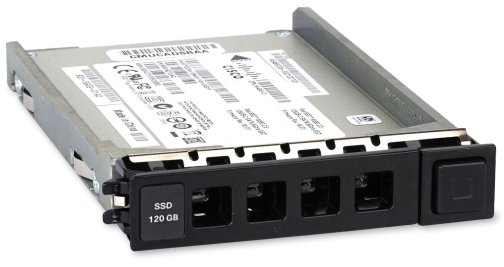
19 Matching results
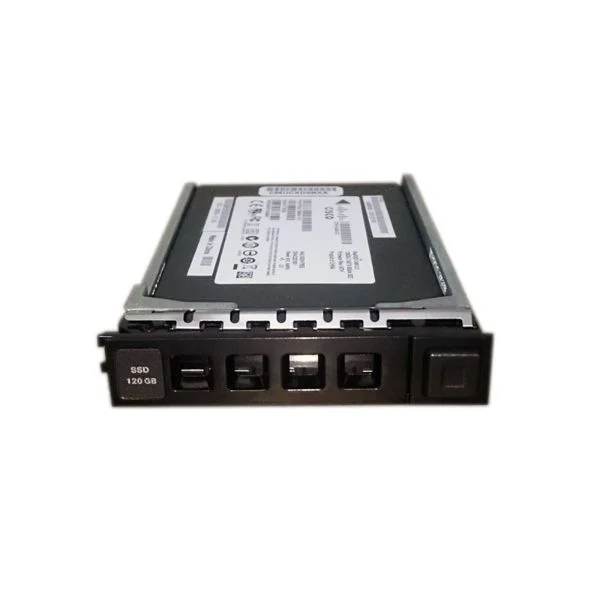
ASA5500X-SSD120INC (ASA 5512-X THROUGH 5555-X 120GB MLC SED SSD INCL)
4.6 (5)- Computer Memory
- Cisco
- DDR4
- 16 GB
- Desktop / Laptop / Server
- Workstation
- UDIMM
Est Value $547.03
$466.98
14.6% offIn stockRefurbishedFirst-Time Buyer Discount – Get up to 2% additional off on your first order
ORM Rewards Earn $50 in Rewards + Free Expedited Delivery – Join Now!
Use eCoupon ORMSAVE10
eCoupon limited to 5 units
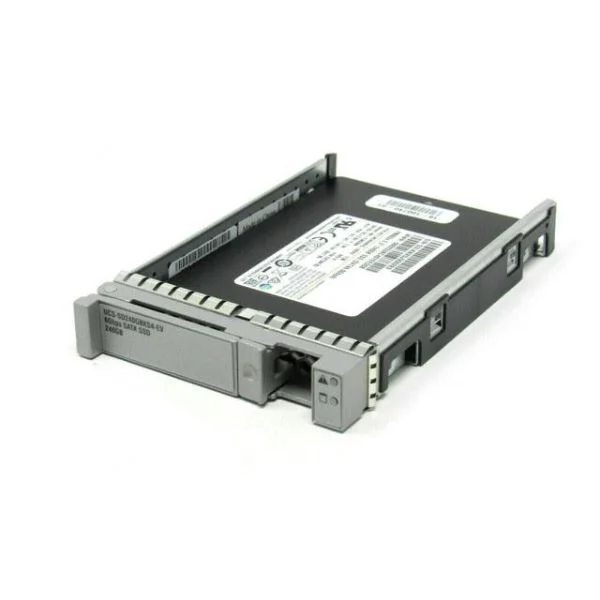
AIR-SD240GBKS4-EV (ELA 240GB SSD SATA 6GB/S 2.5IN ENTERPRISE VALUE)
5 (5)- Computer Memory
- Cisco
- DDR4
- 32 GB
- Desktop / Laptop / Server
- Workstation
- SODIMM
Est Value $647.59$504.00
22.2% offIn stockRefurbishedFirst-Time Buyer Discount – Get up to 2% additional off on your first order
ORM Rewards Earn $50 in Rewards + Free Expedited Delivery – Join Now!
Use eCoupon ORMSAVE10
eCoupon limited to 5 units
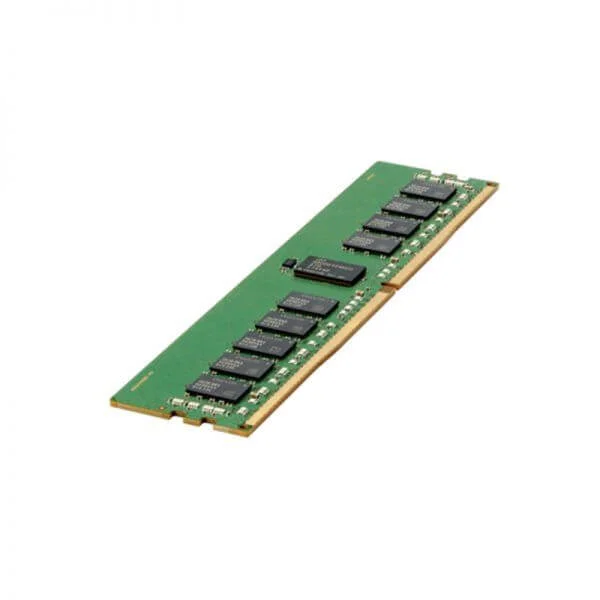
MEM-C8300-32GB (Cisco Catalyst 8300 Edge 32GB memory)
4.8 (6)- Computer Memory
- Cisco
- DDR4
- 32 GB
- Desktop
- Workstation
- UDIMM
Est Value $3,775.00$759.28
79.9% offIn stockNewRefurbishedFirst-Time Buyer Discount – Get up to 2% additional off on your first order
ORM Rewards Earn $50 in Rewards + Free Expedited Delivery – Join Now!
Use eCoupon ORMSAVE10
eCoupon limited to 5 units
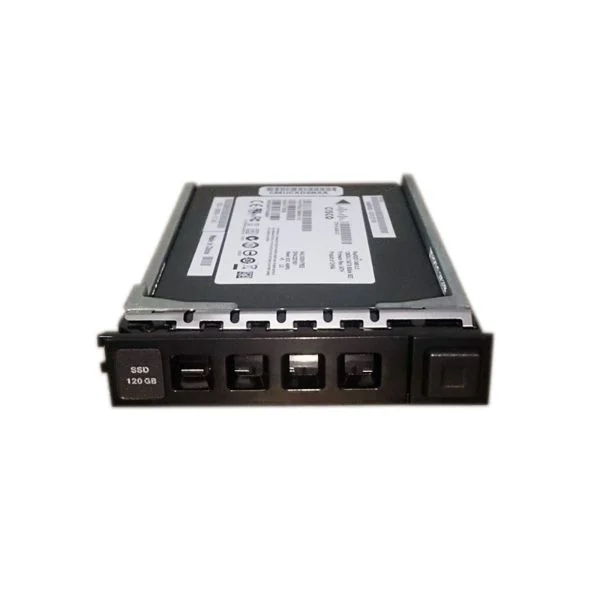
ASA5500X-SSD120 (120GB ASA5512-X THROUGH ASA5555-X MLC SED SPARE)
4.6 (5)- Computer Memory
- Cisco
- DDR4
- 8 GB
- Desktop / Laptop
- SODIMM
Est Value $897.33$204.75
77.2% offIn stockNewRefurbishedFirst-Time Buyer Discount – Get up to 2% additional off on your first order
ORM Rewards Earn $50 in Rewards + Free Expedited Delivery – Join Now!
Use eCoupon ORMSAVE10
eCoupon limited to 5 units
N77-USB-2GB (2GB USB FLASH MEMORY FOR NEXUS 7700)
4.4 (5)- Computer Memory
- Cisco
- DDR4
- 2 GB
- Desktop / Laptop
- SODIMM
Est Value $1,481.00$487.99
67% offIn stockNewRefurbishedFirst-Time Buyer Discount – Get up to 2% additional off on your first order
ORM Rewards Earn $50 in Rewards + Free Expedited Delivery – Join Now!
Use eCoupon ORMSAVE10
eCoupon limited to 5 units
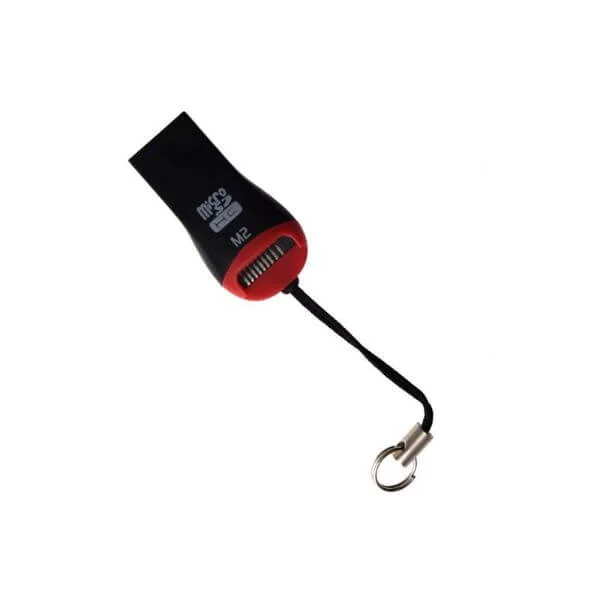
M2USB-16G (Cisco Catalyst 8000 Edge M.2 USB 16GB)
4.8 (6)- Computer Memory
- Cisco
- DDR4
- 16 GB
- Desktop / Laptop / Server
- UDIMM
Est Value $1,419.00$827.39
41.7% offIn stockNewRefurbishedFirst-Time Buyer Discount – Get up to 2% additional off on your first order
ORM Rewards Earn $50 in Rewards + Free Expedited Delivery – Join Now!
Use eCoupon ORMSAVE10
eCoupon limited to 5 units
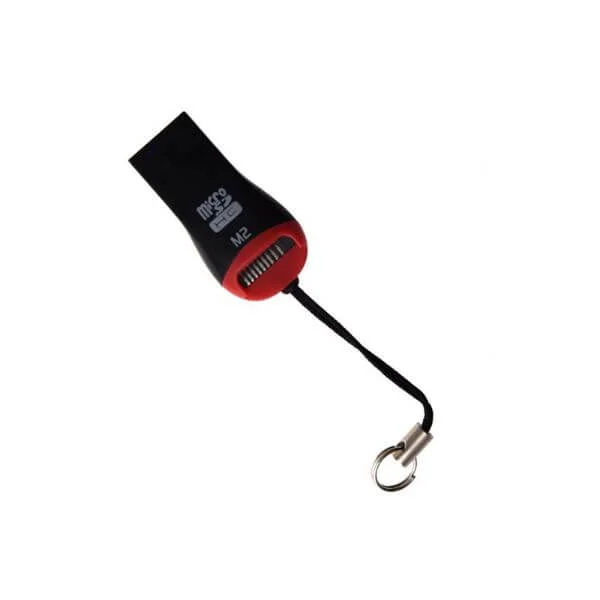
M2USB-32G (Cisco Catalyst 8000 Edge M.2 USB 32GB)
4.7 (6)- Computer Memory
- Cisco
- DDR4
- 32 GB
- Desktop / Laptop / Server
- Workstation
- UDIMM
Est Value $2,124.00$1,174.95
44.7% offIn stockNewFirst-Time Buyer Discount – Get up to 2% additional off on your first order
ORM Rewards Earn $50 in Rewards + Free Expedited Delivery – Join Now!
Use eCoupon ORMSAVE10
eCoupon limited to 5 units
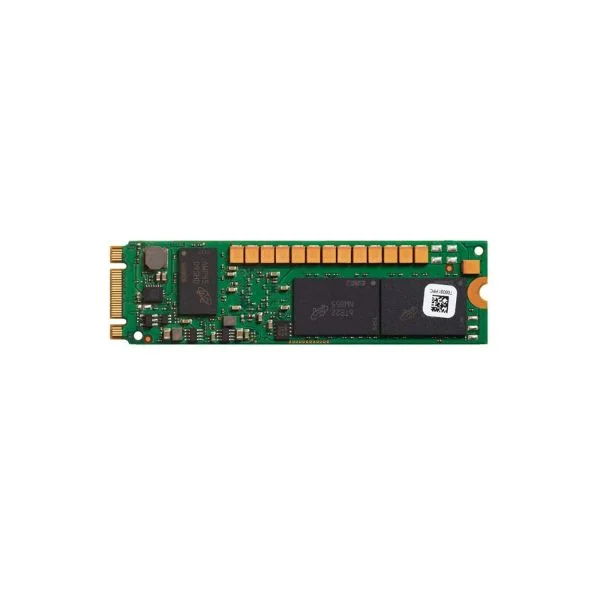
C9400-SSD-240GB (CATALYST 9400 SERIES 240GB M2 SATA MEMORY SUPERVISOR)
4.4 (5)- Computer Memory
- Cisco
- DDR4
- 240 GB
- Desktop / Laptop / Server
- UDIMM
Est Value $2,407.00$2,046.00
15% offIn stockNewRefurbishedFirst-Time Buyer Discount – Get up to 2% additional off on your first order
ORM Rewards Earn $50 in Rewards + Free Expedited Delivery – Join Now!
Use eCoupon ORMSAVE10
eCoupon limited to 5 units
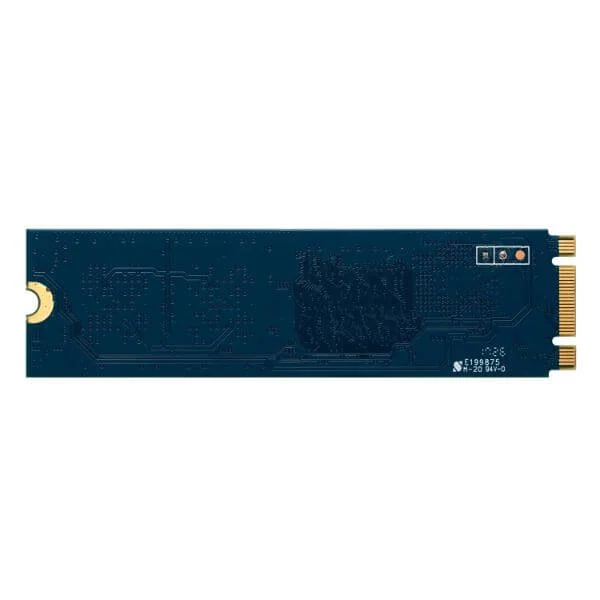
SSD-M2NVME-600G (Cisco Catalyst 8000 Edge SSD M.2 NVMe 600GB)
4.8 (6)- Solid State Drive
- Cisco
- 600 GB
- Desktop / Laptop / Server
Est Value $4,129.00$3,510.29
15% offIn stockNewRefurbishedFirst-Time Buyer Discount – Get up to 2% additional off on your first order
ORM Rewards Earn $50 in Rewards + Free Expedited Delivery – Join Now!
Use eCoupon ORMSAVE10
eCoupon limited to 5 units
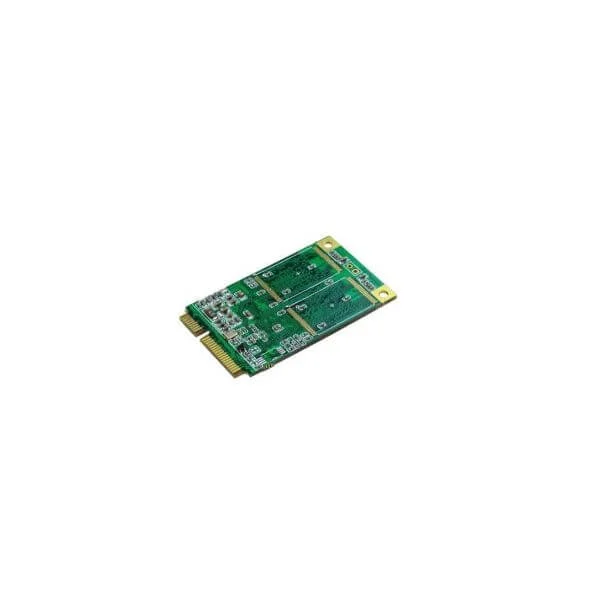
C9K-F2-SSD-480GB (Cisco Catalyst 9600 Series 480GB SSD Storage)
4.8 (5)- Solid State Drive
- Cisco
- 480GB
- Desktop / Laptop / Server
- Rack Server / Tower Server / Blade Server / Workstation
Est Value $4,837.00$4,112.05
15% offIn stockNewRefurbishedFirst-Time Buyer Discount – Get up to 2% additional off on your first order
ORM Rewards Earn $50 in Rewards + Free Expedited Delivery – Join Now!
Use eCoupon ORMSAVE10
eCoupon limited to 5 units
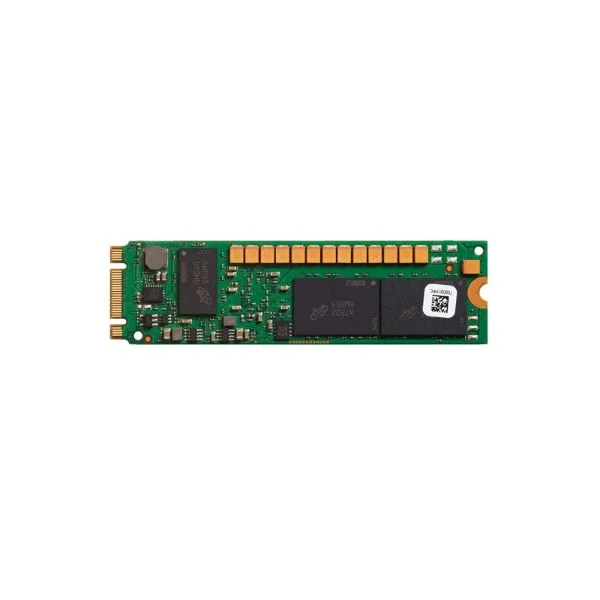
C9400-SSD-480GB (Cisco Catalyst 9400 Series 480GB M2 SATA memory (Supervisor))
4.6 (5)- Computer Memory
- Cisco
- DDR4
- 512 GB
- Desktop / Laptop / Server
- Workstation
- UDIMM
Est Value $4,212.00$3,580.49
15% offIn stockNewRefurbishedFirst-Time Buyer Discount – Get up to 2% additional off on your first order
ORM Rewards Earn $50 in Rewards + Free Expedited Delivery – Join Now!
Use eCoupon ORMSAVE10
eCoupon limited to 5 units
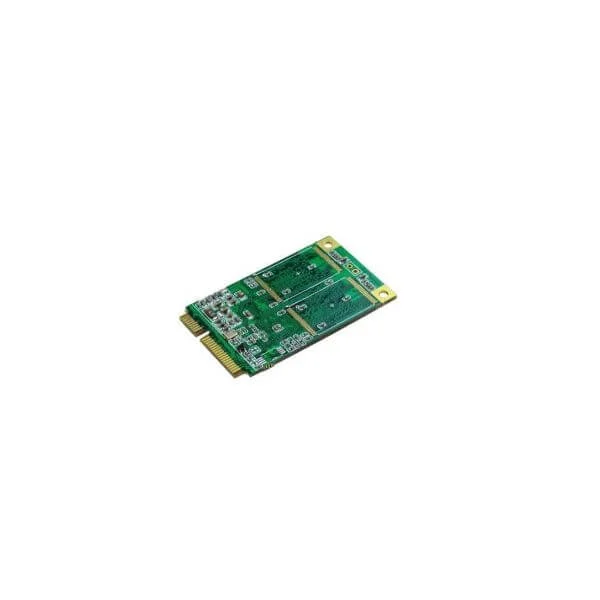
C9K-F2-SSD-240GB (CATALYST 9600 SERIES 240GB SSD STORAGE)
4.8 (5)- Computer Memory
- Cisco
- DDR4
- 240GB
- Desktop / Laptop / Server
- Workstation
- UDIMM
Est Value $3,539.00$3,008.82
15% offIn stockNewRefurbishedFirst-Time Buyer Discount – Get up to 2% additional off on your first order
ORM Rewards Earn $50 in Rewards + Free Expedited Delivery – Join Now!
Use eCoupon ORMSAVE10
eCoupon limited to 5 units
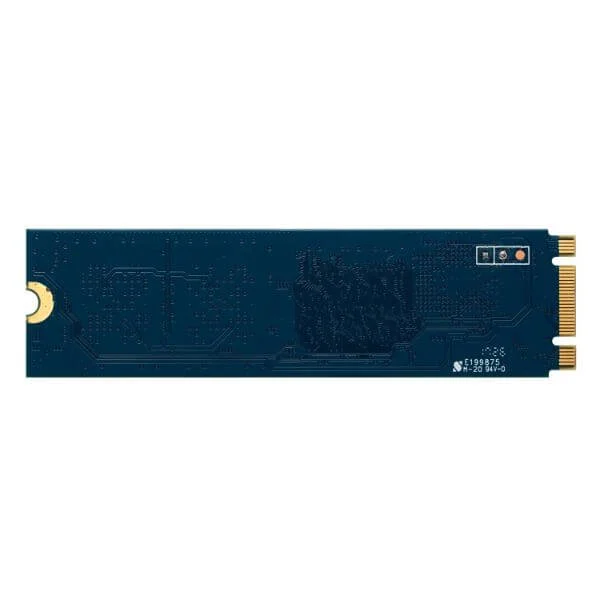
SSD-M2SATA-480G (C8500 480 GB, M2 SATA SSD, Spare)
4.7 (6)- Computer Memory
- Cisco
- 480 GB
- Desktop / Laptop / Server
- Workstation
Est Value $3,209.00$481.45
85% offIn stockNewRefurbishedFirst-Time Buyer Discount – Get up to 2% additional off on your first order
ORM Rewards Earn $50 in Rewards + Free Expedited Delivery – Join Now!
Use eCoupon ORMSAVE10
eCoupon limited to 5 units
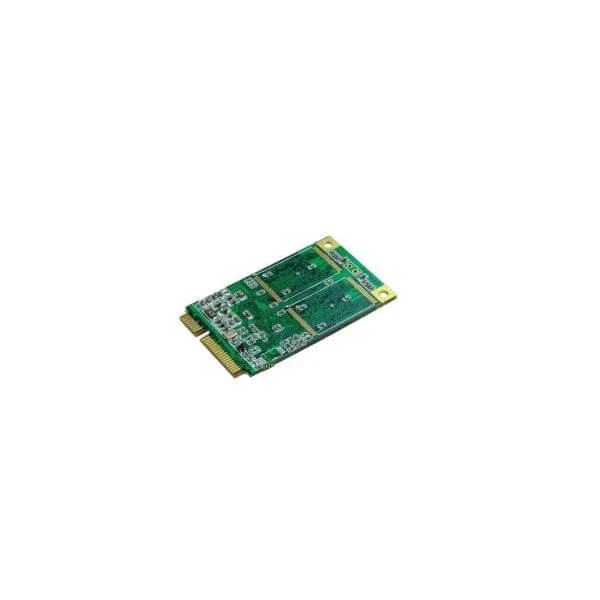
C9K-F2-SSD-960GB (Cisco Catalyst 9600 Series 960GB SSD Storage)
4.6 (5)- Computer Memory
- Cisco
- DDR4
- 960GB
- Desktop / Server
- Workstation
- UDIMM
Est Value $8,849.00$7,522.03
15% offIn stockNewRefurbishedFirst-Time Buyer Discount – Get up to 2% additional off on your first order
ORM Rewards Earn $50 in Rewards + Free Expedited Delivery – Join Now!
Use eCoupon ORMSAVE10
eCoupon limited to 5 units
MEM-C8500-16GB (Cisco C8500 16GB DRAM, Spare)
4.3 (6)- Computer Memory
- Cisco
- DDR4
- 16 GB
- Desktop
- Workstation
- UDIMM
Est Value $14,925.00$8,266.65
44.6% offIn stockNewFirst-Time Buyer Discount – Get up to 2% additional off on your first order
ORM Rewards Earn $50 in Rewards + Free Expedited Delivery – Join Now!
Use eCoupon ORMSAVE10
eCoupon limited to 5 units
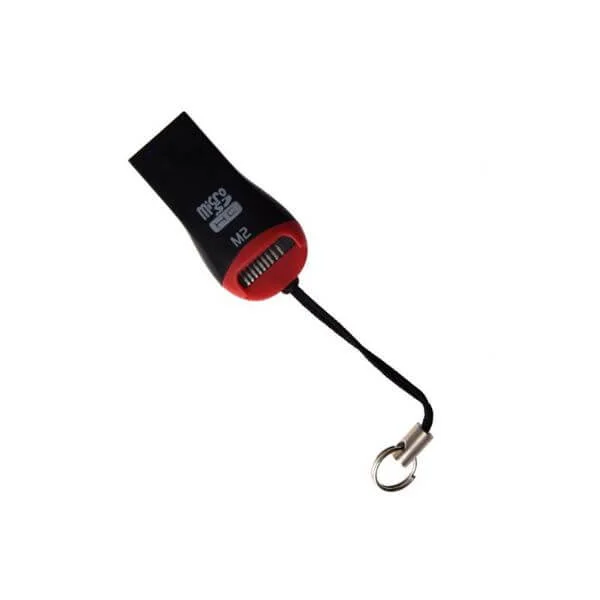
MEM-C8500-64GB (CISCO C8500 64GB DRAM SPARE)
4.5 (6)- Computer Memory
- Cisco
- DDR4
- 64 GB
- Desktop / Laptop / Server
- Workstation
- UDIMM
Est Value $32,563.00$18,039.00
44.6% offIn stockNewFirst-Time Buyer Discount – Get up to 2% additional off on your first order
ORM Rewards Earn $50 in Rewards + Free Expedited Delivery – Join Now!
Use eCoupon ORMSAVE10
eCoupon limited to 5 units
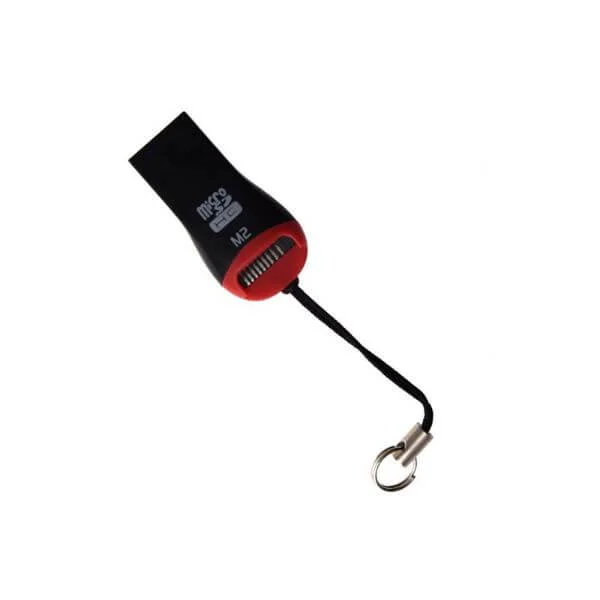
MEM-C8500-32GB (Cisco C8500 32GB DRAM, Spare)
4.8 (6)- Computer Memory
- Cisco
- DDR4
- 32 GB
- Desktop
- Workstation
- UDIMM
Est Value $164,158.72$82,079.36
50% offIn stockNewFirst-Time Buyer Discount – Get up to 2% additional off on your first order
ORM Rewards Earn $50 in Rewards + Free Expedited Delivery – Join Now!
Use eCoupon ORMSAVE10
eCoupon limited to 5 units
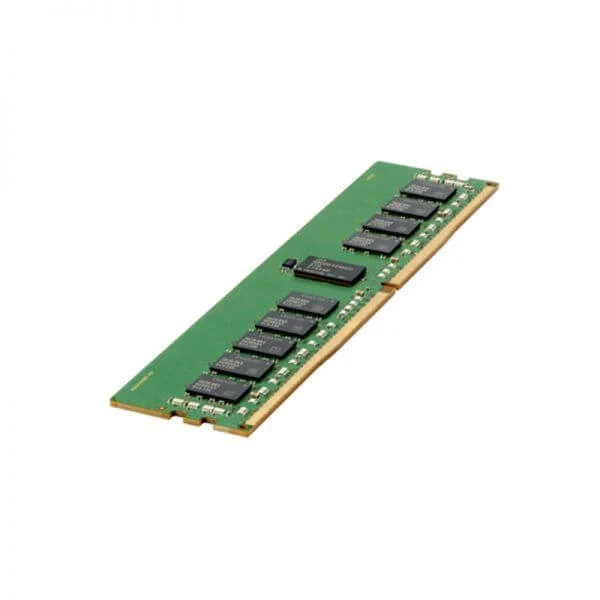
MEM-C8300-16GB (Cisco Catalyst 8300 Edge 16GB memory)
4.8 (6)- Computer Memory
- Cisco
- DDR4
- 16 GB
- Desktop
- Workstation
- UDIMM
Est Value $2,360.00$558.48
76.3% offIn stockNewRefurbishedFirst-Time Buyer Discount – Get up to 2% additional off on your first order
ORM Rewards Earn $50 in Rewards + Free Expedited Delivery – Join Now!
Use eCoupon ORMSAVE10
eCoupon limited to 5 units
ASA5508-SSD++ (ASA 5508-X SSD)
5 (5)- Computer Memory
- Cisco
- DDR4
- 16 GB
- Desktop / Server
- Workstation
- UDIMM
Est Value In stockFirst-Time Buyer Discount – Get up to 2% additional off on your first order
ORM Rewards Earn $50 in Rewards + Free Expedited Delivery – Join Now!
Use eCoupon ORMSAVE10
eCoupon limited to 5 units

ORM Sales Advisors
Buying for your business? Get a personalised quote in under 2 hours. Talk to an expert
LEARNFilters (19) 
Questions & Answers
What is the difference between an SSD and an HDD?
An SSD (Solid-State Drive) uses flash memory for faster access, lower power draw, and greater durability. An HDD (Hard Disk Drive) uses spinning platters for higher capacity at lower cost but slower speeds and more mechanical wear.
What is an NVMe SSD and how does it differ from a SATA SSD?
An NVMe SSD connects via PCIe lanes for ultra-low latency and up to 6× higher throughput than SATA SSDs. SATA drives max out around 600 MB/s, while NVMe drives can exceed 3,000 MB/s for high-performance tasks.
How do I choose the right storage drive for my needs?
Match drive type to use case: SSDs for OS boot-up, gaming, and professional workloads; HDDs for mass storage on a budget. Consider capacity, speed, budget, and interface compatibility when selecting a drive.
What does storage drive capacity mean, and how much do I need?
Drive capacity is the total available space for data. For general use, 250–500 GB SSDs suffice; gamers and professionals often need 1 TB or more. HDDs start at 1 TB for bulk storage and backups.
How does drive speed impact performance?
Drive speed determines data read/write rates and access times. Higher speeds reduce load times, accelerate file transfers, and improve system responsiveness. SSDs outperform HDDs, and NVMe SSDs outperform SATA SSDs for demanding applications.
What form factors and interfaces are available for storage drives?
Common form factors: 2.5″ SATA, M.2, and U.2. Interfaces include SATA III (6 Gb/s), PCIe/NVMe, and USB 3.x for externals. Choose based on motherboard slots, performance needs, and enclosure compatibility.
Can I install an internal storage drive myself?
Yes. Power down, open the chassis, mount the drive in the correct bay or M.2 slot, connect power and data cables or secure the M.2 module, then close and boot. Follow manufacturer instructions for best results.
How do I maintain and optimize my storage drive’s performance?
Keep firmware updated, enable TRIM on SSDs, defragment HDDs periodically, avoid running near full capacity, and monitor drive health using SMART tools. Regular backups also protect against unexpected failure.
What is drive endurance, and why is it important for SSDs?
Endurance measures total terabytes written (TBW) before performance decline. Higher TBW ratings mean longer life under heavy write workloads. Choose drives with adequate endurance for database, virtualization, or media editing uses.
How long do storage drives typically last?
HDDs last 3–5 years on average, while SSDs can exceed 5–7 years depending on write volume and workload. Environmental factors, usage patterns, and drive quality influence actual lifespan.
How do I migrate data to a new storage drive?
Use disk-cloning software or built-in OS tools to copy partitions and boot records. Connect both drives, select source and target in the utility, clone, then set the new drive as the boot device in BIOS or UEFI.
What is RAID, and should I use it?
RAID (Redundant Array of Independent Disks) combines multiple drives for redundancy (RAID 1), performance (RAID 0), or both (RAID 5/10). Use RAID for critical data protection or high throughput but maintain separate backups.
Can I recover data from a failed storage drive?
Data recovery depends on failure type. Logical errors can be addressed with recovery software; physical damage often requires professional services. Regular backups are the most reliable safeguard against permanent data loss.
What security features should I look for in a storage drive?
Look for AES-256 hardware encryption, TCG Opal compliance, password protection, and secure erase capabilities. These features safeguard data at rest and ensure secure decommissioning of end-of-life drives.
What is an SSHD (Solid-State Hybrid Drive)?
An SSHD combines a small SSD cache with a larger HDD. Frequently accessed data resides on the NAND flash for SSD-like performance, while bulk storage remains on the HDD for cost-effective capacity.
How do I know if my system supports an NVMe SSD?
Check your motherboard or laptop specifications for an M.2 slot labeled PCIe Gen3/Gen4 NVMe. Consult the user manual or manufacturer website to confirm NVMe compatibility before purchasing and installing.