 United States
Smart Routers D-Link Intelligent Performance
Experience the unmatched reliability and advanced features of D-Link Smart Routers, engineered for secure, high-speed connectivity and optimized network performance in modern demanding environments.
Talk to an expert
1 Matching results
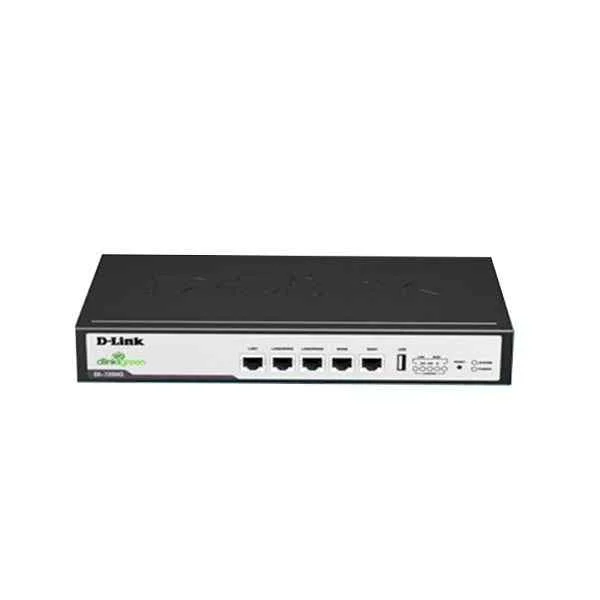
DI-7200G (D-Link 9-inch desktop enterprise router, providing 5 Gigabit ports, supporting security protection, intelligent flow control, VPN, recommended standby capacity of 120 units, recommended external network bandwidth 100Mbps)
4.8 (5)- Enterprise Router
- D-Link
- IPSec / SSL VPN
- AC Power Supply / Redundant
- OSPF / BGP / Static Routing
- Fiber Optic / DSL
- Modular
Est Value In stock
First-Time Buyer Discount – Get up to 2% additional off on your first order
ORM Rewards Earn $50 in Rewards + Free Expedited Delivery – Join Now!
Use eCoupon ORMSAVE10
eCoupon limited to 5 units

ORM Sales Advisors
Buying for your business? Get a personalised quote in under 2 hours. Talk to an expert
LEARNFilters (1) 
Questions & Answers
What is a D-Link Smart Router?
A D-Link Smart Router is an advanced dual- or tri-band wireless router with built-in management, security, and performance-optimization features for home and small office networks.
How do I set up my D-Link Smart Router?
To set up your D-Link Smart Router, connect it to your modem, power it on, then follow the on-screen instructions in the D-Link Wi-Fi app or web-based setup wizard at 192.168.0.1.
How can I update the firmware on my D-Link Smart Router?
To update firmware, log in to the router’s web interface, navigate to Administration > Firmware Upgrade, upload the latest file from dlink.com, and reboot the device.
How do I secure my D-Link Smart Router network?
Enable WPA3 or WPA2-PSK encryption, change the default admin password, and activate the built-in firewall and intrusion prevention in the router’s security settings.
Can I create a guest Wi-Fi network on my D-Link Smart Router?
Yes, you can enable a separate guest network in the Wireless Settings section, assign it its own SSID and password, and isolate it from your main LAN.
What is Quality of Service (QoS) on D-Link Smart Routers?
Quality of Service (QoS) lets you prioritize bandwidth for specific applications or devices to ensure smooth streaming, gaming, and video calls under Network Settings > QoS.
How many devices can my D-Link Smart Router support?
Depending on the model, a D-Link Smart Router can handle over 250 connected devices simultaneously with stable throughput and efficient traffic management.
Does my D-Link Smart Router support mesh networking?
Many D-Link Smart Routers support mesh networking via Wi-Fi Mesh technology, allowing you to add compatible D-Link range extenders for seamless whole-home coverage.
How do I enable parental controls on my D-Link Smart Router?
In the router’s web interface, go to Parental Controls, schedule access times, block specific sites or categories, and assign controls to individual devices by MAC address.
What is dual-band and tri-band on D-Link Smart Routers?
Dual-band routers broadcast on 2.4 GHz and 5 GHz, while tri-band models add a second 5 GHz band for better load balancing and higher concurrent throughput.
How do I reset my D-Link Smart Router to factory defaults?
Press and hold the reset button on the back of the router for 10 seconds until the LEDs blink, then reconfigure your settings through the setup wizard.
How can I optimize wireless performance on my D-Link Smart Router?
Place the router centrally, avoid obstructions, update to the latest firmware, choose the least congested channel, and enable MU-MIMO and beamforming features.
Is my D-Link Smart Router compatible with voice assistants?
Yes, most D-Link Smart Routers work with Amazon Alexa and Google Assistant for voice-activated network commands and smart home integrations.
How do I troubleshoot connectivity issues on my D-Link Smart Router?
Restart the router and modem, check cable connections, update firmware, verify Wi-Fi settings, and consult the D-Link support site for advanced diagnostics.
What warranty and support options are available for D-Link Smart Routers?
D-Link Smart Routers typically include a one-year limited hardware warranty and free online technical support, with extended options available through registration.
How do I change the SSID and password on my D-Link Smart Router?
Log in to the web interface, go to Wireless Settings, edit the SSID and passphrase fields, save changes, and reconnect your devices to the new network name.