 United States
Synology Routers Enterprise-Grade Connectivity
Experience advanced security, enterprise-managed features, and lightning-fast connectivity with Synology routers engineered for robust network performance. Ideal for demanding professionals and evolving digital landscapes.
Talk to an expert
2 Matching results
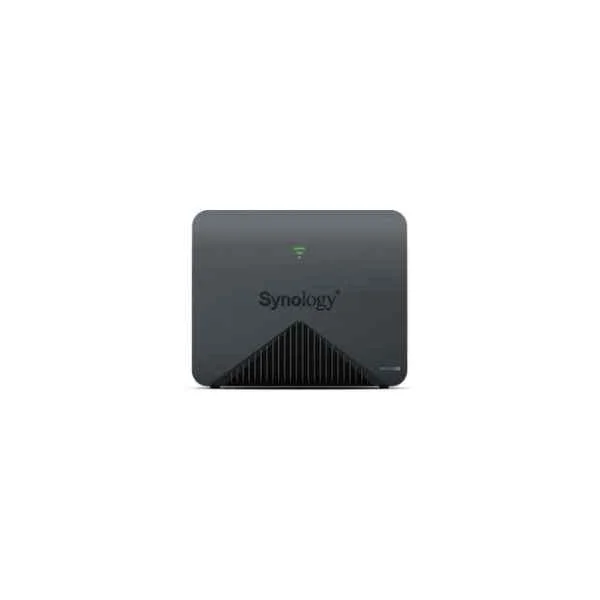
MR2200AC (MESH WI-FI ROUTER MR2200AC)
4.6 (5)- Enterprise Router
- Synology
- IPSec / SSL VPN
- AC Power Supply
- OSPF / BGP / Static Routing
- Fixed
Est Value $303.35
$258.96
14.6% offIn stockNewRefurbishedFirst-Time Buyer Discount – Get up to 2% additional off on your first order
ORM Rewards Earn $50 in Rewards + Free Expedited Delivery – Join Now!
Use eCoupon ORMSAVE10
eCoupon limited to 5 units
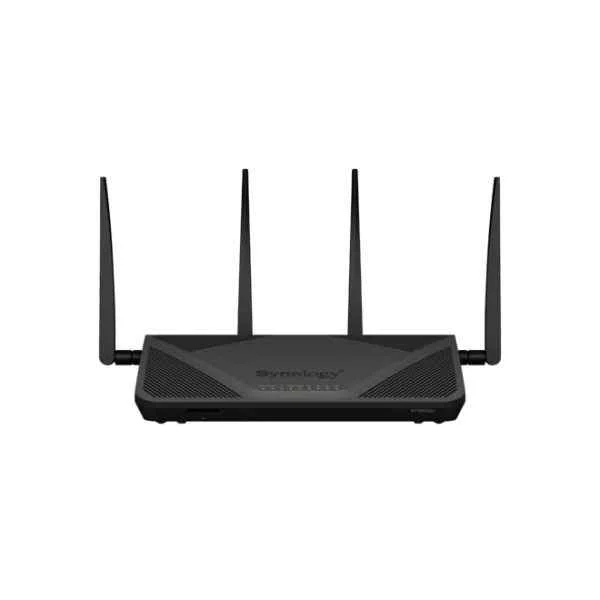
RT2600AC (RT2600AC 11AC 2.4GHZ/5GHZ WI-FI AC 2600 GIGABIT ROUTER WEP WPA/WPA2)
4.6 (5)- Router
- Synology
- IPSec / SSL VPN
- AC Power Supply
- Static Routing
- Cable / DSL
- Fixed
Est Value $396.43$338.42
14.6% offIn stockRefurbishedFirst-Time Buyer Discount – Get up to 2% additional off on your first order
ORM Rewards Earn $50 in Rewards + Free Expedited Delivery – Join Now!
Use eCoupon ORMSAVE10
eCoupon limited to 5 units

ORM Sales Advisors
Buying for your business? Get a personalised quote in under 2 hours. Talk to an expert
LEARNFilters (2) 
Questions & Answers
How do I perform the initial setup of my Synology Router?
Connect your Synology Router to power and modem, open a browser to http://router.synology.com, follow the SRM Web Assistant prompts to configure your admin account, Wi-Fi settings, and Internet connection.
What is Synology Router Manager (SRM) and why is it important?
SRM is Synology’s web-based operating system that centralizes network management, offering firewall, QoS, VPN server, and parental controls for secure, optimized performance.
How can I create a guest Wi-Fi network on my Synology Router?
In SRM Control Panel, go to Wireless > Guest Network, enable the guest SSID, set encryption and bandwidth limits, then apply to isolate guest traffic from your main network.
Can I use multiple Synology Routers to extend coverage?
Yes, enable Synology Router Mesh in SRM under Wi-Fi > Mesh, add secondary routers via Web Assistant or Synology Router app, and enjoy seamless roaming and expanded coverage.
What security features does a Synology Router offer?
Synology Routers provide WPA3 encryption, intrusion prevention, automatic security updates, DOS protection, malicious site blocking, and comprehensive firewall controls in SRM.
How do I enable VPN on my Synology Router?
Install the VPN Server package in SRM Package Center, configure OpenVPN or L2TP/IPSec profiles, enable port forwarding if needed, and distribute client configuration files securely.
How can I set up parental controls on my Synology Router?
In SRM, navigate to Safe Access, create profiles for each user or device, define content filters, time schedules, and usage quotas, then assign devices for automated enforcement.
How do I update firmware on my Synology Router?
Open SRM Control Panel > Update & Restore, enable Auto Firmware Update for hands-free upgrades or manually upload the latest firmware file downloaded from the Synology Download Center.
What is Quality of Service (QoS) and how do I configure it?
QoS prioritizes network traffic: go to SRM Control Panel > Traffic Control, create custom rules or use Application Optimization, assign priority levels to ensure bandwidth for critical applications.
How do I monitor network activity on a Synology Router?
Use SRM’s Network Center dashboard to view real-time traffic statistics, device usage, threat logs, and application monitors for full visibility into bandwidth consumption.
Can I integrate Synology Router with QuickConnect?
Yes, register a QuickConnect ID in SRM Control Panel > QuickConnect to access your router remotely, secure your sessions, and manage network settings from anywhere.
How do I configure port forwarding on a Synology Router?
In SRM Control Panel > External Access > Port Forwarding, add a rule specifying source port, destination IP and port, protocol, and apply to enable incoming service access.
What mobile app options are available for Synology Routers?
Use the Synology Router app (iOS/Android) for on-the-go setup, network monitoring, Wi-Fi management, mesh configuration, and parental control adjustments from your smartphone.
How do I block unwanted devices on my Synology Router?
In SRM’s Network Center > Device List, select the device, click Block, or create MAC-based Access Control rules under Control Panel > Security to restrict unauthorized connections.
What are the benefits of using WPA3 on a Synology Router?
WPA3 provides stronger encryption, individualized data protection, improved password-based authentication, and enhanced security against brute-force attacks compared to WPA2.