 United States
D-Link Add Points Switches
D-Link Add Points Switches deliver reliable, high-performance network scalability essential for modern enterprises. Optimized for connectivity, these robust solutions enhance system reliability with unmatched security and efficiency.
Talk to an expert
1 Matching results
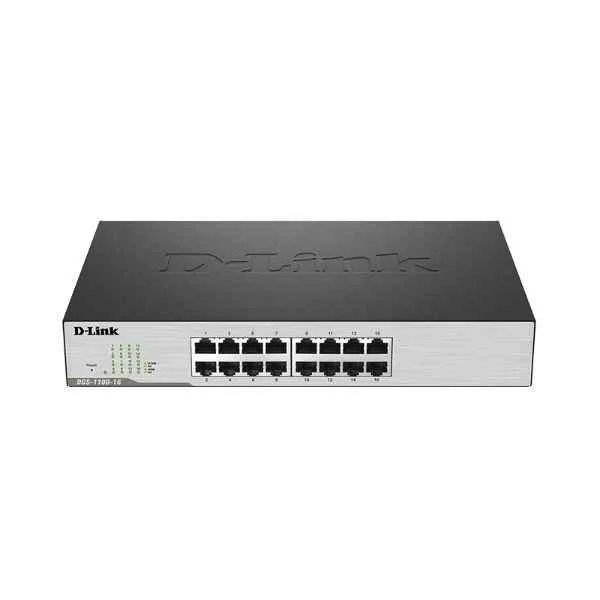
DGS-1100-16 (D-Link 16 Gigabit electrical ports, switching capacity: 68G, packet forwarding rate: 24M, Smart switch, desktop type can be installed on the rack, support Web management)
4.2 (5)- Switch
- D-Link
- AC Power Supply
- Layer 2
- Desktop / Rack-mount
- ≤7W
- 12–24 Ports
Est Value $302.54
$151.27
50% offIn stockRefurbishedFirst-Time Buyer Discount – Get up to 2% additional off on your first order
ORM Rewards Earn $50 in Rewards + Free Expedited Delivery – Join Now!
Use eCoupon ORMSAVE10
eCoupon limited to 5 units

ORM Sales Advisors
Buying for your business? Get a personalised quote in under 2 hours. Talk to an expert
LEARNFilters (1) 
Questions & Answers
What is a D-Link Add Points Switch?
The D-Link Add Points Switch is a cost-effective, high-performance network switch designed to expand wired connectivity. It offers multiple Gigabit Ethernet ports, optional PoE support, web-based management, VLAN segmentation, and Layer 2 features to optimize enterprise and SMB networks.
How do I install a D-Link Add Points Switch?
To install a D-Link Add Points Switch, mount it on a rack or desktop, connect the AC power adapter, link your router or modem to the UPLINK port with an Ethernet cable, and power on the switch. Verify LED indicators to confirm successful startup.
What features do D-Link Add Points Switches offer?
D-Link Add Points Switches offer Gigabit Ethernet ports, IEEE 802.3af/at PoE support, VLAN, QoS, Link Aggregation Control Protocol (LACP), SNMP monitoring, RMON, port mirroring, and web/CLI management for robust network performance and security.
Does the D-Link Add Points Switch support Power over Ethernet (PoE)?
Yes. Select D-Link Add Points Switch models support IEEE 802.3af/at Power over Ethernet with a total PoE budget up to 370 W, allowing you to power IP cameras, phones, and access points directly through Ethernet cabling.
How can I configure VLAN on a D-Link Add Points Switch?
Configure VLAN by accessing the switch’s web interface, navigating to the VLAN menu, creating a new VLAN ID, assigning ports to that VLAN, and saving the configuration. This isolates traffic and enhances network segmentation.
Does the D-Link Add Points Switch support Quality of Service (QoS)?
Yes. D-Link Add Points Switches support priority-based QoS with 802.1p tagging and DiffServ (DSCP) to ensure critical applications receive the necessary bandwidth and low latency for optimal performance.
What management options are available for D-Link Add Points Switches?
Management options include an intuitive web-based GUI, CLI via Telnet/SSH, SNMP v1/2c/v3, and D-Link Network Assistant for centralized discovery and configuration of multiple switches.
What is the throughput performance of a D-Link Add Points Switch?
Throughput performance varies by model. The switches feature non-blocking switching fabric with capacities up to 20 Gbps and forwarding rates up to 14.9 Mpps, ensuring low latency and wire-speed performance on all ports.
How do I update the firmware on a D-Link Add Points Switch?
Update firmware by downloading the latest image from the D-Link support site, accessing the switch’s web interface under Maintenance > Firmware Upgrade, uploading the file, and restarting the unit to apply improvements and security patches.
Which networking devices are compatible with D-Link Add Points Switches?
D-Link Add Points Switches are compatible with all standard Ethernet devices, including routers, wireless access points, IP cameras, VoIP phones, servers, and network-attached storage (NAS) for seamless integration.
What security features do D-Link Add Points Switches provide?
Security features include 802.1X port authentication, Access Control Lists (ACLs), DHCP snooping, Dynamic ARP Inspection (DAI), IP-MAC binding, and MAC address filtering to protect against unauthorized access and attacks.
How can I monitor network traffic on a D-Link Add Points Switch?
Monitor traffic using built-in SNMP support, RMON statistics, port mirroring, and the D-Link Network Assistant. These tools provide real-time insights and historical data for bandwidth analysis and troubleshooting.
What warranty and support options are available for D-Link Add Points Switches?
D-Link Add Points Switches come with a limited lifetime warranty and 24/7 online technical support. Additional warranty and support packages, including advanced replacement, are available based on your region.
What LED indicators are on the D-Link Add Points Switch?
LED indicators include Power (green), Link/Activity (per port), Speed (10/100/1000 Mbps), PoE status (amber/green), and System/Alert, providing real-time operational status at a glance.
How do I reset a D-Link Add Points Switch to factory defaults?
Reset the switch by pressing and holding the reset button for 10 seconds until the LEDs blink. This restores factory default settings, including IP address, credentials, and configuration.
What is the maximum cable length for optimal performance with a D-Link Add Points Switch?
For optimal performance, use Cat5e or Cat6 cables and keep cable runs under 100 meters between the switch and connected devices, adhering to IEEE Ethernet standards for reliable connectivity.