 United States
Wireless Excellence by ASUS
Experience unparalleled connectivity with ASUS Wireless devices engineered for superior performance, robust security, and innovative design. Enhance your network infrastructure with cutting-edge technology that drives productivity and efficiency.
Talk to an expert
Asus Access Points
(3)ASUS access points fit creative studio wireless LANs with Wi-Fi 6, mesh support, 2.5GbE wired uplinks, and creator teams
3 Matching results
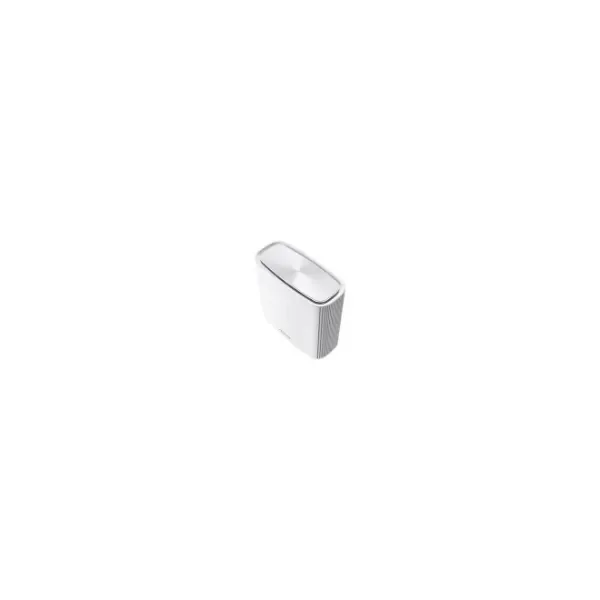
90IG0590-MO3G70 (ZenWiFi AX (XT8) - Wi-Fi 6 (802.11ax) - Tri-band (2.4 GHz / 5 GHz / 60 GHz) - Ethernet LAN - White - Tabletop router)
4.8 (6)- Wireless Product
- Asus
- Access Point
- Wi-Fi 6
- 2.4GHz / 5GHz
- 2.5Gbps
- 100 meters
Est Value In stock
First-Time Buyer Discount – Get up to 2% additional off on your first order
ORM Rewards Earn $50 in Rewards + Free Expedited Delivery – Join Now!
Use eCoupon ORMSAVE10
eCoupon limited to 5 units
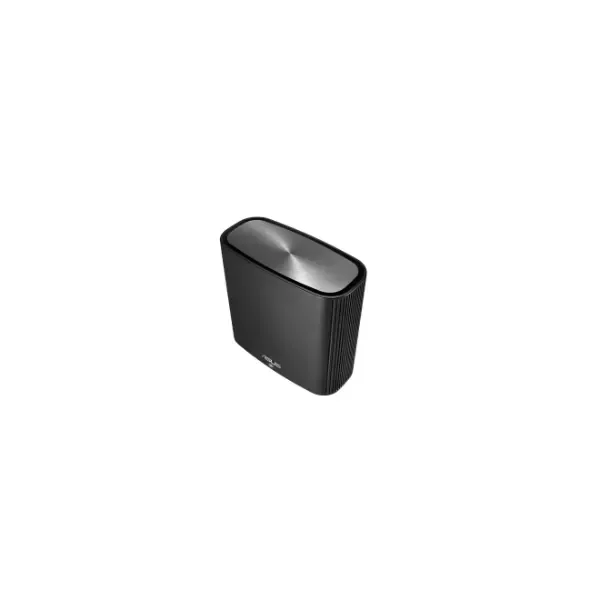
90IG04T0-MO3R50 (ZenWiFi AC (CT8) - Wi-Fi 5 (802.11ac) - Tri-band (2.4 GHz / 5 GHz / 5 GHz) - Ethernet LAN - Black - Tabletop router)
4.8 (6)- Wireless Product
- Asus
- Access Point
- Wi-Fi 6
- 2.4GHz / 5GHz
- 2.5Gbps
- 150 meters
Est Value In stockFirst-Time Buyer Discount – Get up to 2% additional off on your first order
ORM Rewards Earn $50 in Rewards + Free Expedited Delivery – Join Now!
Use eCoupon ORMSAVE10
eCoupon limited to 5 units
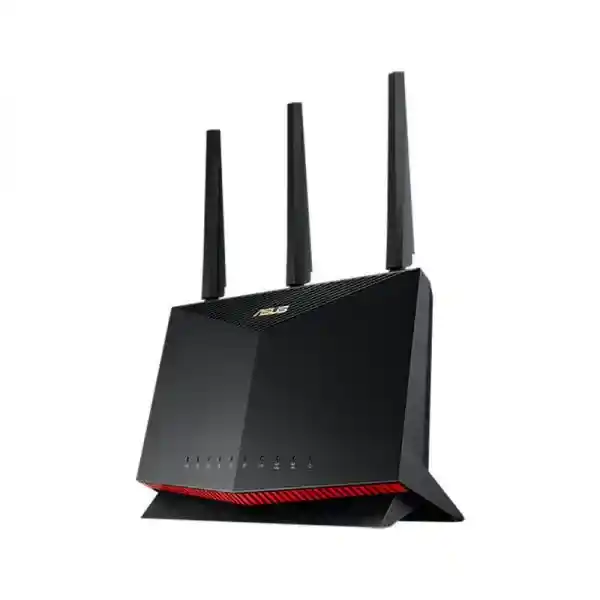
ASUS RT-AX86U (ASUS RT-AX86U, AX5700 Dual Band WiFi 6 Gaming Router, PS5 compatible, Mobile Game Mode, Lifetime Free Internet Security)
4.8 (8)- Wireless Router
- Asus
- Wi-Fi 6
- 2.4GHz, 5GHz
- 5700Mbps
Est Value In stockFirst-Time Buyer Discount – Get up to 2% additional off on your first order
ORM Rewards Earn $50 in Rewards + Free Expedited Delivery – Join Now!
Use eCoupon ORMSAVE10
eCoupon limited to 5 units

ORM Sales Advisors
Buying for your business? Get a personalised quote in under 2 hours. Talk to an expert
LEARNFilters (3) 
Questions & Answers
What is Asus Wireless?
Asus Wireless refers to Asus-branded networking devices that provide Wi-Fi connectivity, including routers, extenders, and access points, designed for high speed, reliability, and advanced features.
How do I set up my Asus Wireless router?
Connect your router to a modem, power it on, access the web interface at router.asus.com, log in with default credentials, and follow the Setup Wizard to configure your SSID and password.
How do I update firmware on an Asus Wireless router?
Log in to the router’s web interface, navigate to Administration > Firmware Upgrade, upload the latest firmware file from Asus support, and click Update to apply the new version securely.
What is AiMesh by Asus Wireless?
AiMesh is Asus’s mesh networking technology that links multiple compatible routers to create a unified Wi-Fi network with seamless roaming and optimal coverage throughout your home or office.
How do I enable guest Wi-Fi on my Asus Wireless router?
Access the web interface, go to Guest Network, enable the 2.4 GHz or 5 GHz guest SSID, set a unique name and password, and click Apply to isolate guest traffic from your main network.
How can I improve Asus Wireless signal strength?
Position your router centrally, elevate it away from obstructions, update to the latest firmware, switch channels to avoid interference, and consider adding AiMesh extenders for broader coverage.
What security features does Asus Wireless offer?
Asus Wireless devices include WPA3 encryption, AiProtection Pro for network security, DoS protection, SPI firewall, and automatic firmware vulnerability patches to safeguard your home network.
How do I reset my Asus Wireless router to factory settings?
Press and hold the Reset button on the back of the router for 5–10 seconds until the LEDs blink, then release to restore default settings and reboot automatically.
How do I change the Wi-Fi password on my Asus Wireless router?
Log in to the router interface, select Wireless > General, enter a new password in the WPA2/WPA3-PSK field, and click Apply to secure your network immediately.
What is Asus Wireless QoS and how do I use it?
Asus QoS prioritizes bandwidth for critical applications, accessed via Traffic Manager > QoS, where you can enable Adaptive QoS and assign priority levels to devices or services.
How do I configure parental controls on Asus Wireless?
Open the router dashboard, navigate to AiProtection > Parental Controls, create user profiles, set access schedules or block categories, and apply rules to specific devices.
Does Asus Wireless support MU-MIMO?
Yes, many Asus Wireless routers support MU-MIMO technology, enabling simultaneous data streams to multiple devices for improved performance in multi-user environments.
How do I set up a VPN on my Asus Wireless router?
Go to VPN > VPN Client/Server, choose OpenVPN or PPTP, upload your provider’s configuration files or enter credentials, and click Activate to secure all network traffic.
Which Asus Wireless routers support Wi-Fi 6?
Asus Wi-Fi 6 models include RT-AX58U, RT-AX88U, ROG Rapture GT-AX11000, and ZenWiFi AX series, offering enhanced speed, capacity, and reduced latency.
How do I troubleshoot Asus Wireless connection issues?
Reboot your router and modem, check cable connections, update firmware, change Wi-Fi channels to avoid interference, and perform a network reset if problems persist.
How can I monitor network traffic on Asus Wireless?
Use the Traffic Analyzer in the web interface under Traffic Manager to view real-time and historical bandwidth usage by device, application, and protocol.
What devices are compatible with Asus Wireless routers?
Asus Wireless routers work with any Wi-Fi-enabled devices, including smartphones, tablets, laptops, smart TVs, and IoT gadgets supporting 802.11a/b/g/n/ac/ax standards.