 United States
Lenovo Hard Drives & SSDs
Engineered for optimal performance, Lenovo Hard Drives & SSDs deliver superior storage capacity and robust data security. Enhance system efficiency and protect vital data with enterprise-grade storage solutions.
Talk to an expert
421 Matching results
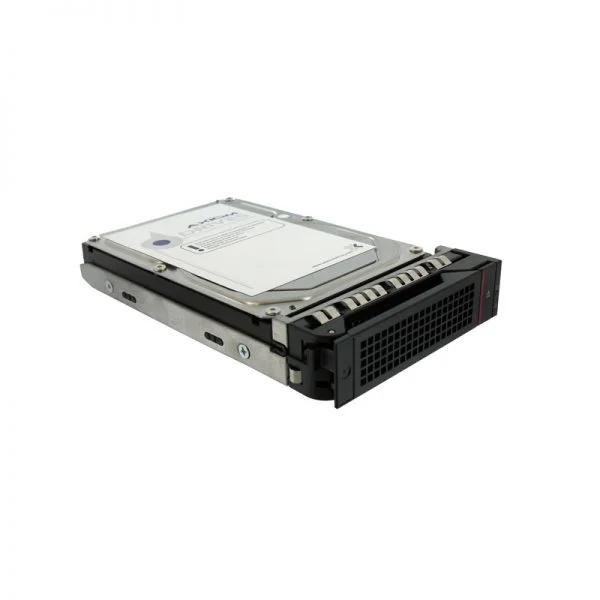
4XB0G88782 (LTS Gen 5 2.5in 800GB Entry SATA 6Gbps Hot Swap SSD)
4.4 (5)- Hard Drive
- Lenovo
- HDD
- Desktop / Server / NAS / Surveillance / Enterprise Storage
- SATA III
- 3.5-inch
- 4 TB
Est Value $246.64
$123.32
50% offIn stockRefurbishedFirst-Time Buyer Discount – Get up to 2% additional off on your first order
ORM Rewards Earn $50 in Rewards + Free Expedited Delivery – Join Now!
Use eCoupon ORMSAVE10
eCoupon limited to 5 units
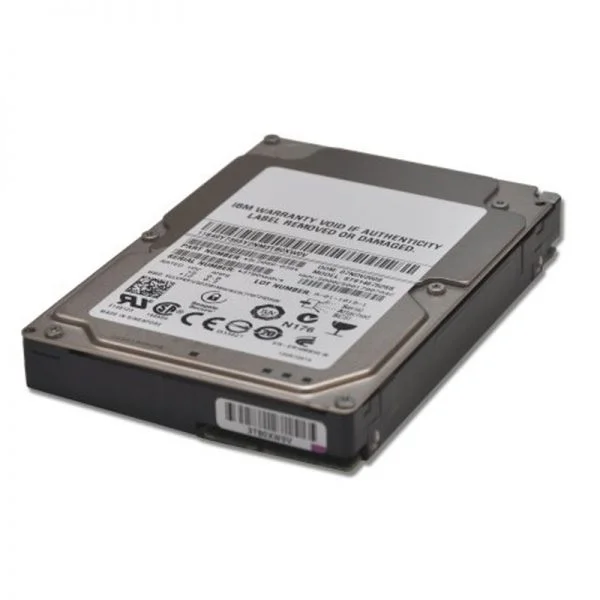
00AJ355 (120GB SATA 2.5in MLC HS Enterprise Value SSD)
4.8 (5)- Hard Drive
- Lenovo
- HDD
- Desktop / Server / NAS / Surveillance / Enterprise Storage
- SATA III
- 3.5-inch
- 8 TB
Est Value $147.58$125.98
14.6% offIn stockRefurbishedFirst-Time Buyer Discount – Get up to 2% additional off on your first order
ORM Rewards Earn $50 in Rewards + Free Expedited Delivery – Join Now!
Use eCoupon ORMSAVE10
eCoupon limited to 5 units
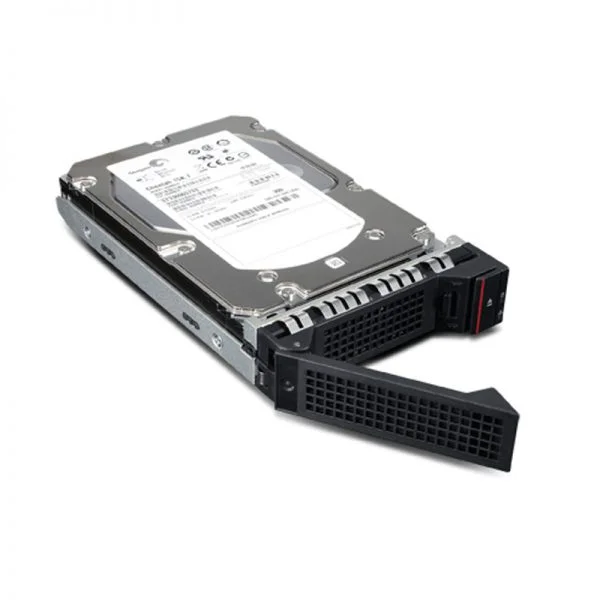
00YC385 (120GB Enterprise Entry SATA G3HS 2.5in SSD)
4.2 (5)- Hard Drive
- Lenovo
- HDD
- Desktop / Server / NAS / Surveillance / Enterprise Storage
- SATA III
- 3.5-inch
- 4 TB
Est Value $209.57$181.65
13.3% offIn stockRefurbishedFirst-Time Buyer Discount – Get up to 2% additional off on your first order
ORM Rewards Earn $50 in Rewards + Free Expedited Delivery – Join Now!
Use eCoupon ORMSAVE10
eCoupon limited to 5 units
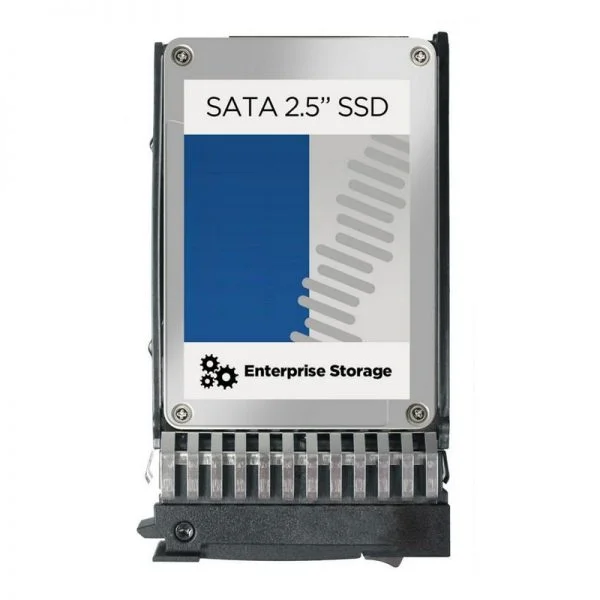
00AJ400 (240GB SATA 2.5in MLC G3HS Enterprise Value SSD)
4.6 (5)- Hard Drive
- Lenovo
- HDD
- Desktop / Server / NAS / Surveillance
- SATA III
- 3.5-inch
- 10 TB
Est Value $232.47$198.45
14.6% offIn stockRefurbishedFirst-Time Buyer Discount – Get up to 2% additional off on your first order
ORM Rewards Earn $50 in Rewards + Free Expedited Delivery – Join Now!
Use eCoupon ORMSAVE10
eCoupon limited to 5 units
4XB0F28656 (Lenovo ThinkServer M.2 120GB Value Read-Optimized SATA 6Gbps Solid State Drives)
4.8 (5)- Hard Drive
- Lenovo
- HDD
- Enterprise Storage
- SATA III
- 3.5-inch
- 4 TB
Est Value $270.78$211.72
21.8% offIn stockRefurbishedFirst-Time Buyer Discount – Get up to 2% additional off on your first order
ORM Rewards Earn $50 in Rewards + Free Expedited Delivery – Join Now!
Use eCoupon ORMSAVE10
eCoupon limited to 5 units
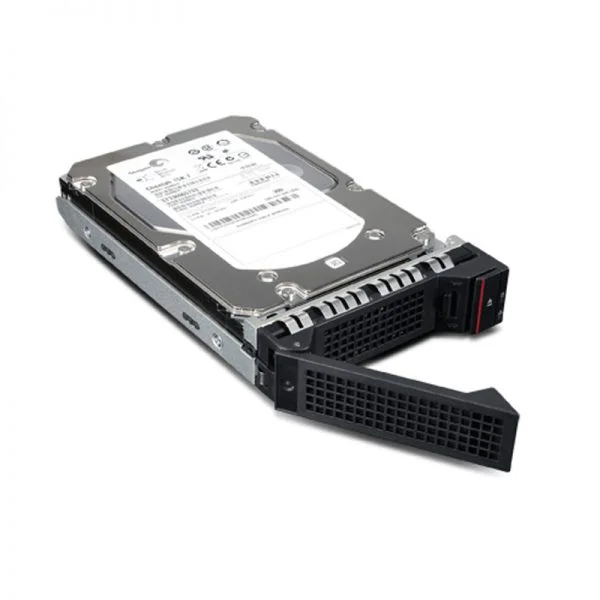
00YC365 (120GB Enterprise Entry SATA HS 2.5in SSD)
4.8 (5)- Hard Drive
- Lenovo
- HDD
- Desktop / Server / NAS / Surveillance / Enterprise Storage
- SATA III
- 3.5-inch
- 8 TB
Est Value $252.42$215.48
14.6% offIn stockRefurbishedFirst-Time Buyer Discount – Get up to 2% additional off on your first order
ORM Rewards Earn $50 in Rewards + Free Expedited Delivery – Join Now!
Use eCoupon ORMSAVE10
eCoupon limited to 5 units
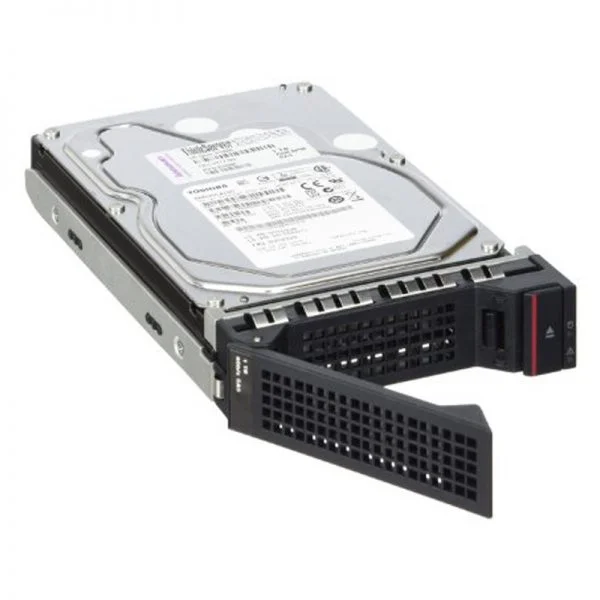
4XB0G88778 (LTS Gen 5 2.5in 240GB Entry SATA 6Gbps Hot Swap SSD)
4.2 (5)- Hard Drive
- Lenovo
- HDD
- Enterprise Storage
- SATA III
- 3.5-inch
- 8 TB
Est Value $467.46$233.73
50% offIn stockRefurbishedFirst-Time Buyer Discount – Get up to 2% additional off on your first order
ORM Rewards Earn $50 in Rewards + Free Expedited Delivery – Join Now!
Use eCoupon ORMSAVE10
eCoupon limited to 5 units
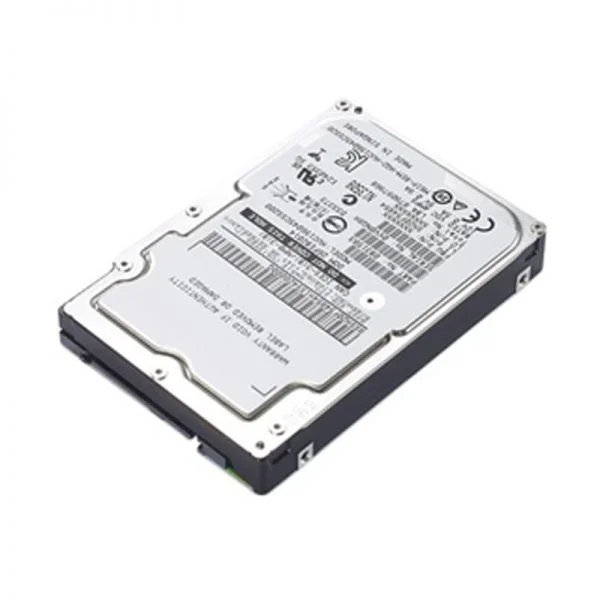
00WG770 (Intel S3510 120GB Enterprise Entry SATA HS 3.5in SSD)
4.8 (5)- Hard Drive
- Lenovo
- HDD
- Enterprise Storage
- SATA III
- 3.5-inch
- 12 TB
Est Value $482.08$241.04
50% offIn stockRefurbishedFirst-Time Buyer Discount – Get up to 2% additional off on your first order
ORM Rewards Earn $50 in Rewards + Free Expedited Delivery – Join Now!
Use eCoupon ORMSAVE10
eCoupon limited to 5 units
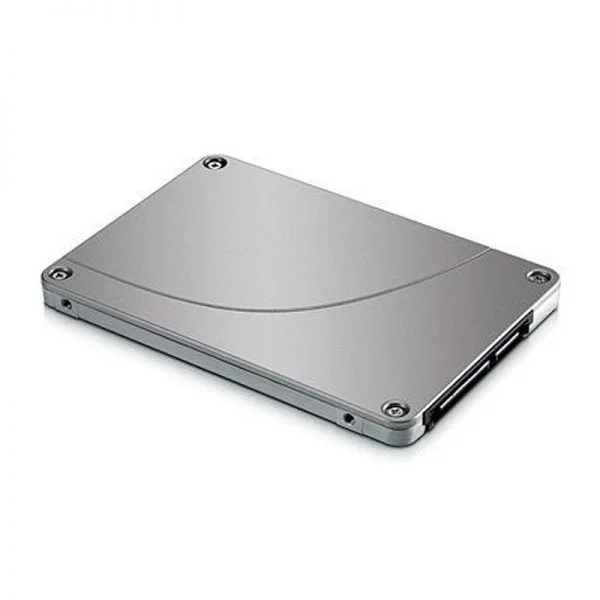
00FN020 (120GB SATA 2.5in MLC Enterprise Value SSD for NeXtScale System)
4.6 (5)- Hard Drive
- Lenovo
- HDD
- Desktop / Server / NAS / Surveillance
- SATA III
- 3.5-inch
- 2 TB
Est Value $283.39$241.92
14.6% offIn stockRefurbishedFirst-Time Buyer Discount – Get up to 2% additional off on your first order
ORM Rewards Earn $50 in Rewards + Free Expedited Delivery – Join Now!
Use eCoupon ORMSAVE10
eCoupon limited to 5 units
00WG620 (Intel S3510 120GB Enterprise Entry SATA G3HS 2.5in SSD)
4.6 (5)- Hard Drive
- Lenovo
- HDD
- Desktop / Server / NAS / Surveillance / Enterprise Storage
- SAS 12Gb/s
- 3.5-inch
- 10 TB
Est Value $285.15$243.42
14.6% offIn stockRefurbishedFirst-Time Buyer Discount – Get up to 2% additional off on your first order
ORM Rewards Earn $50 in Rewards + Free Expedited Delivery – Join Now!
Use eCoupon ORMSAVE10
eCoupon limited to 5 units
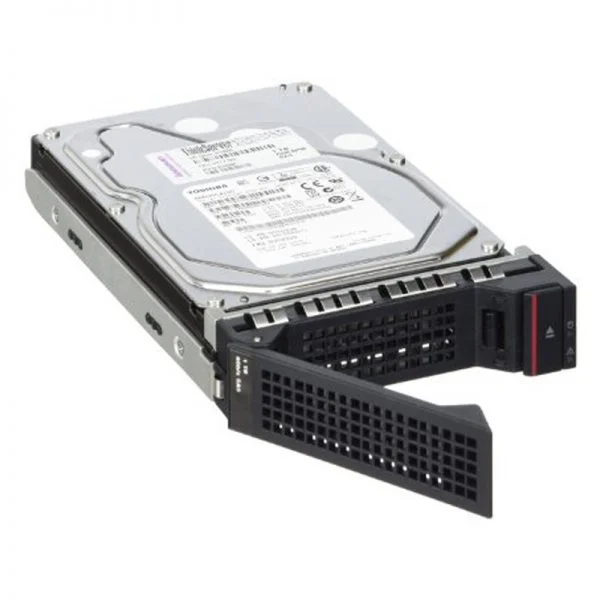
4XB0G88776 (LTS Gen 5 2.5in 120GB Entry SATA 6Gbps Hot Swap SSD)
4.8 (5)- Hard Drive
- Lenovo
- HDD
- Desktop / Server / NAS / Surveillance / Enterprise Storage
- SATA III / SAS 12Gb/s
- 2.5-inch / 3.5-inch
- 4 TB
Est Value $300.43$256.46
14.6% offIn stockRefurbishedFirst-Time Buyer Discount – Get up to 2% additional off on your first order
ORM Rewards Earn $50 in Rewards + Free Expedited Delivery – Join Now!
Use eCoupon ORMSAVE10
eCoupon limited to 5 units
4XB0G88741 (Lenovo ThinkServer M.2 80GB Value Read-Optimized SATA 6Gbps Solid State Drives)
4.4 (5)- Hard Drive
- Lenovo
- HDD
- Desktop / Server / NAS / Surveillance / Enterprise Storage
- SATA III
- 3.5-inch
- 8 TB
Est Value $604.80$302.40
50% offIn stockNewRefurbishedFirst-Time Buyer Discount – Get up to 2% additional off on your first order
ORM Rewards Earn $50 in Rewards + Free Expedited Delivery – Join Now!
Use eCoupon ORMSAVE10
eCoupon limited to 5 units
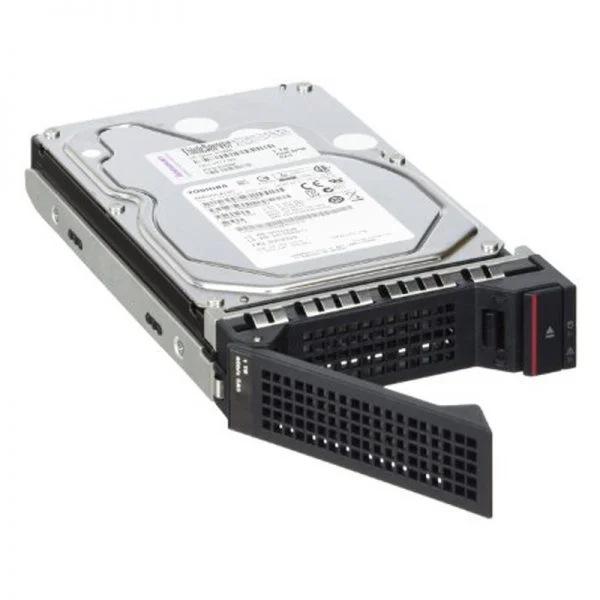
00NC658 (400 GB 12 Gb SAS 2.5 Inch Flash Drives)
4.6 (5)- Hard Drive
- Lenovo
- HDD
- Server
- SATA III
- 3.5-inch
- 4 TB
Est Value $267.96$262.96
1.9% offIn stockRefurbishedFirst-Time Buyer Discount – Get up to 2% additional off on your first order
ORM Rewards Earn $50 in Rewards + Free Expedited Delivery – Join Now!
Use eCoupon ORMSAVE10
eCoupon limited to 5 units
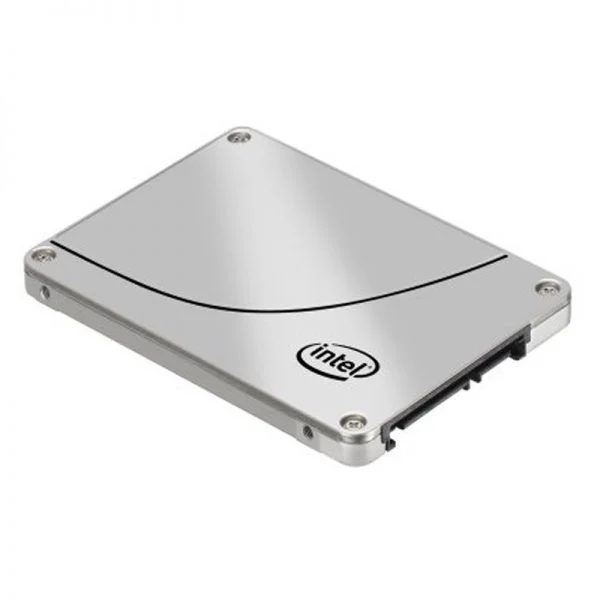
00AJ000 (S3500 120GB SATA 2.5in MLC HS Enterprise Value SSD)
4.8 (5)- Hard Drive
- Lenovo
- HDD
- Desktop / Server / NAS / Surveillance / Enterprise Storage
- SATA III
- 3.5-inch
- 10 TB
Est Value $545.06$272.53
50% offIn stockRefurbishedFirst-Time Buyer Discount – Get up to 2% additional off on your first order
ORM Rewards Earn $50 in Rewards + Free Expedited Delivery – Join Now!
Use eCoupon ORMSAVE10
eCoupon limited to 5 units
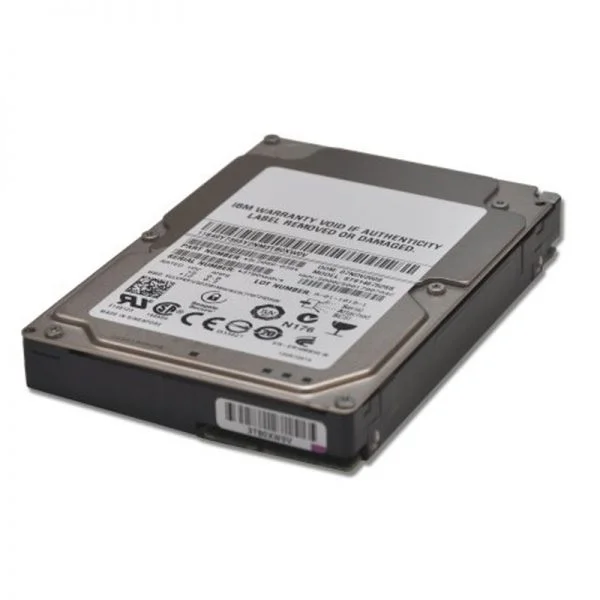
00AJ435 (120GB SATA 3.5in MLC HS Enterprise Value SSD)
5 (5)- Hard Drive
- Lenovo
- HDD
- Desktop / NAS
- SATA III
- 3.5-inch
- 4 TB
Est Value $555.14$277.57
50% offIn stockRefurbishedFirst-Time Buyer Discount – Get up to 2% additional off on your first order
ORM Rewards Earn $50 in Rewards + Free Expedited Delivery – Join Now!
Use eCoupon ORMSAVE10
eCoupon limited to 5 units
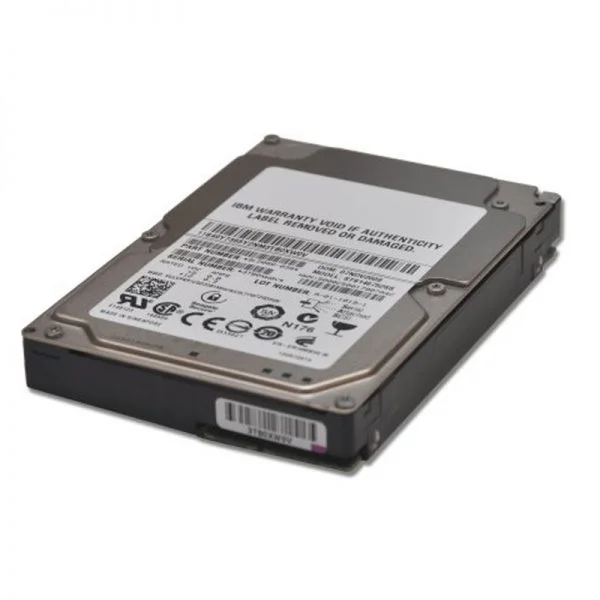
00FN379 (200GB SAS 12G 2.5IN MLC G3HS ENTERPRISE SSD)
5 (5)- Hard Drive
- Lenovo
- HDD
- Enterprise Storage
- SATA III
- 3.5-inch
- 12 TB
Est Value $561.60$280.80
50% offIn stockRefurbishedFirst-Time Buyer Discount – Get up to 2% additional off on your first order
ORM Rewards Earn $50 in Rewards + Free Expedited Delivery – Join Now!
Use eCoupon ORMSAVE10
eCoupon limited to 5 units
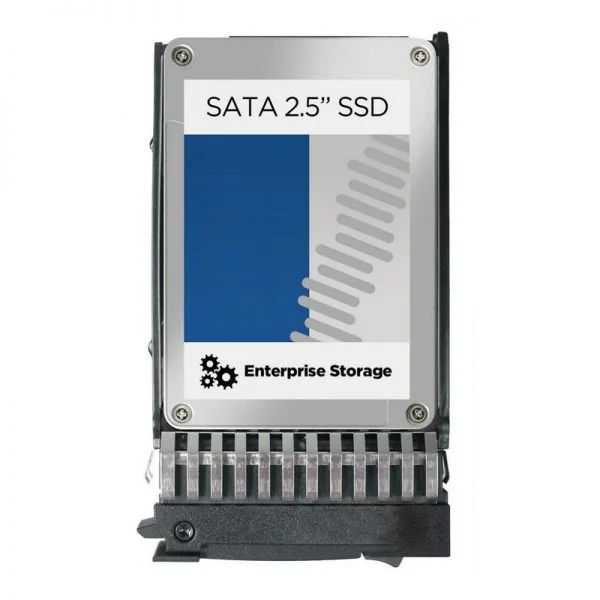
00AJ405 (480GB SATA 2.5in MLC G3HS Enterprise Value SSD)
4.6 (5)- Hard Drive
- Lenovo
- HDD
- Desktop / Server / NAS / Surveillance / Enterprise Storage
- SATA III
- 3.5-inch
- 4 TB
Est Value $380.76$296.10
22.2% offIn stockRefurbishedFirst-Time Buyer Discount – Get up to 2% additional off on your first order
ORM Rewards Earn $50 in Rewards + Free Expedited Delivery – Join Now!
Use eCoupon ORMSAVE10
eCoupon limited to 5 units
4XB0K12265 (Lenovo ThinkServer 2.5in 240GB PM863 Enterprise Entry SATA 6Gbps HS SSD)
4.8 (5)- Hard Drive
- Lenovo
- HDD
- Desktop / Server / NAS / Surveillance / Enterprise Storage
- SAS 12Gb/s
- 3.5-inch
- 8 TB
Est Value $347.16$296.35
14.6% offIn stockRefurbishedFirst-Time Buyer Discount – Get up to 2% additional off on your first order
ORM Rewards Earn $50 in Rewards + Free Expedited Delivery – Join Now!
Use eCoupon ORMSAVE10
eCoupon limited to 5 units
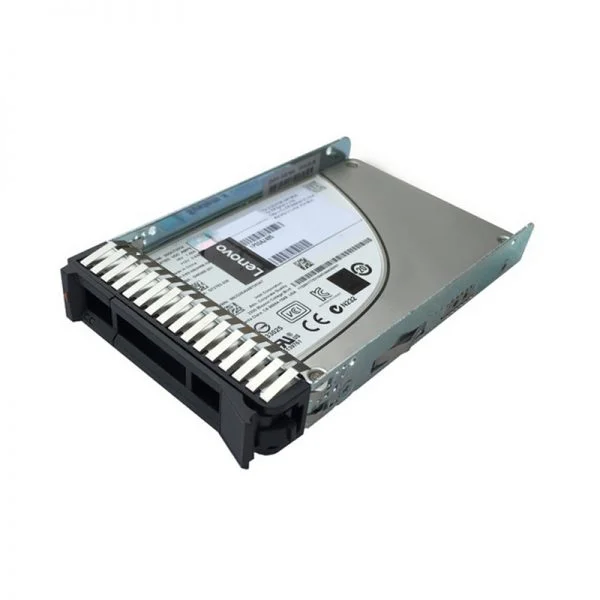
00YC325 (Intel S3710 400GB Enterprise Performance SATA G3HS 2.5in SSD)
4.4 (5)- Hard Drive
- Lenovo
- HDD
- Desktop / Server / NAS / Surveillance / Enterprise Storage
- SATA III
- 3.5-inch
- 8 TB
Est Value $389.82$302.40
22.4% offIn stockRefurbishedFirst-Time Buyer Discount – Get up to 2% additional off on your first order
ORM Rewards Earn $50 in Rewards + Free Expedited Delivery – Join Now!
Use eCoupon ORMSAVE10
eCoupon limited to 5 units
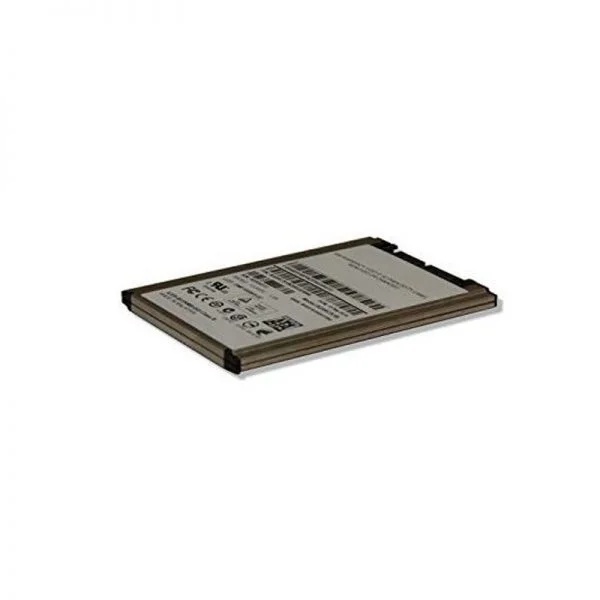
00YC350 (Intel S3710 200GB Enterprise Perf SATA 2.5in SSD for NeXtScale)
4.2 (5)- Hard Drive
- Lenovo
- HDD
- Desktop / Server / NAS / Surveillance / Enterprise Storage
- SATA III
- 3.5-inch
- 10 TB
Est Value $356.58$304.40
14.6% offIn stockRefurbishedFirst-Time Buyer Discount – Get up to 2% additional off on your first order
ORM Rewards Earn $50 in Rewards + Free Expedited Delivery – Join Now!
Use eCoupon ORMSAVE10
eCoupon limited to 5 units

ORM Sales Advisors
Buying for your business? Get a personalised quote in under 2 hours. Talk to an expert
LEARNFilters (421) 
Questions & Answers
What form factors are available for Lenovo SSDs and Hard Drives?
Lenovo SSDs and Hard Drives are offered in 2.5-inch, M.2 2280, M.2 2242 and 3.5-inch form factors to ensure compatibility with desktops, laptops and workstations.
How do I upgrade my Lenovo laptop with an SSD?
Power off the laptop, remove the battery if possible, open the drive bay, replace the existing drive with the compatible Lenovo SSD, secure it and reinstall the battery before powering on.
What performance benefits do Lenovo SSDs offer over traditional HDDs?
Lenovo SSDs deliver faster boot times, lower latency, higher IOPS and improved energy efficiency compared to mechanical HDDs, significantly enhancing system responsiveness.
Are Lenovo SSDs compatible with non-Lenovo PCs?
Yes. Lenovo SSDs using standard SATA or NVMe PCIe interfaces are fully compatible with any desktop or laptop that supports those specifications.
What warranty coverage comes with Lenovo Hard Drives and SSDs?
Lenovo Hard Drives and SSDs include a limited three-year warranty, covering manufacturing defects and drive failures under normal use.
What is the typical lifespan of a Lenovo SSD?
Lenovo SSDs are rated for up to 600 TBW (terabytes written) or more, equating to 5–7 years of typical consumer use under normal workloads.
Can I use Lenovo Hard Drives in external USB enclosures?
Yes. Any Lenovo 2.5-inch or 3.5-inch SATA Hard Drive can be installed in a compatible USB 3.0/3.1 external enclosure for portable storage.
Which interface types are supported by Lenovo SSDs?
Lenovo SSDs support SATA III (6 Gbps) and NVMe PCIe Gen3/Gen4 interfaces, providing broad compatibility and high throughput.
How do I enable TRIM on my Lenovo SSD?
Ensure your operating system supports TRIM (Windows 10/11, Linux kernel 4.x+), then verify with “fsutil behavior query DisableDeleteNotify” in Windows or “fstrim” in Linux.
Do Lenovo SSDs feature hardware-based encryption?
Many Lenovo SSD models include AES 256-bit hardware encryption and TCG Opal 2.0 compliance to secure data at rest without performance impact.
What’s the best way to clone my existing drive to a new Lenovo SSD?
Use Lenovo’s migration software or third-party cloning tools to image your source drive, then restore the image to the new Lenovo SSD and verify boot functionality.
What maintenance is required for Lenovo Hard Drives?
Regularly defragment mechanical Hard Drives, monitor S.M.A.R.T. health status, and back up critical data to prevent data loss.
How can I check the health status of my Lenovo SSD?
Use Lenovo Vantage or third-party S.M.A.R.T. tools like CrystalDiskInfo to monitor SSD health, remaining lifespan and error logs in real time.
Are Lenovo Hard Drives and SSDs suitable for gaming systems?
Yes. Lenovo SSDs deliver fast load times and high frame-rate consistency, while high-capacity Hard Drives provide cost-effective mass storage for game libraries.
What capacity options are available for Lenovo SSDs?
Lenovo SSDs range from 128 GB and 256 GB in entry-level models up to 2 TB and 4 TB in high-performance variants to meet diverse storage needs.
How do I troubleshoot a Lenovo SSD that isn’t detected by my system?
Verify BIOS/UEFI settings, ensure the SSD is correctly seated, update storage drivers and firmware, and test the SSD in another compatible slot or system.