 United States
Networking TP-Link Range Extender
The TP-Link Range Extender delivers robust connectivity while extending wireless coverage and optimizing network performance. Engineered for reliability, it enhances WiFi signals for residential and commercial environments.
Talk to an expert
8 Matching results
- BEST SELLING
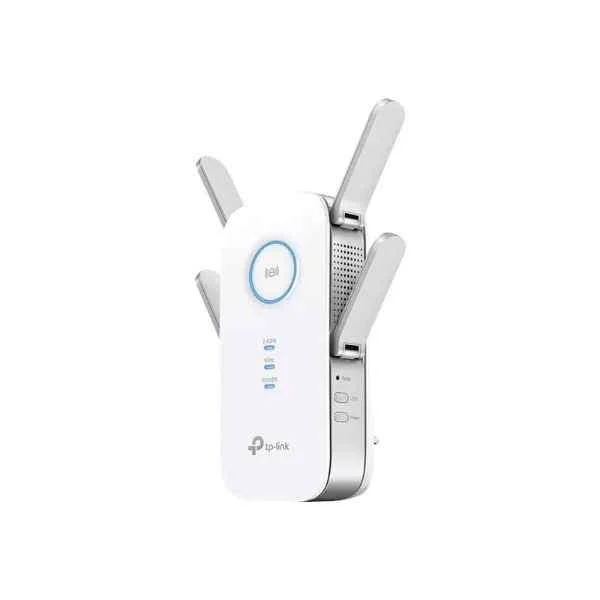
RE650 (TP-LINK RE650 - Network transmitter - 1733 Mbit/s - 10,100,1000 Mbit/s (RE650))
4.2 (5)- Wireless Access Point
- Tp-Link
- Access Point
- Wi-Fi 6
- 2.4GHz / 5GHz
- 2.5Gbps
- 100 meters
Est Value $146.49
$102.67
29.9% offIn stockRefurbishedFirst-Time Buyer Discount – Get up to 2% additional off on your first order
ORM Rewards Earn $50 in Rewards + Free Expedited Delivery – Join Now!
Use eCoupon ORMSAVE10
eCoupon limited to 5 units
- BEST SELLING
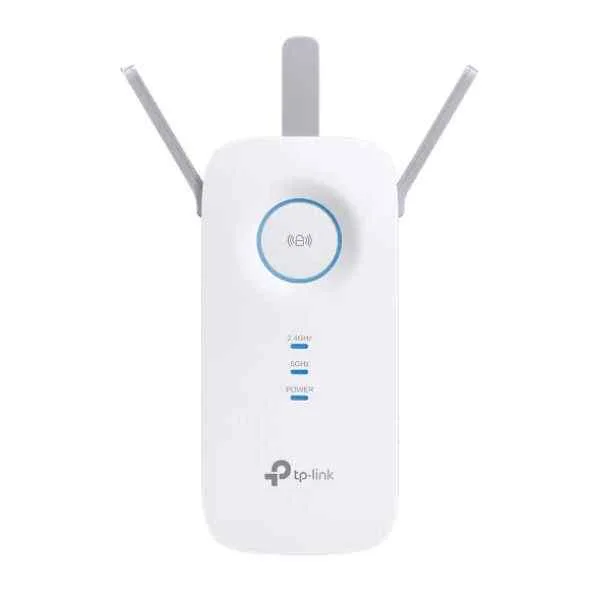
RE550 (TP-LINK AC1900 Wi-Fi Range Extender - Network transmitter - 1900 Mbit/s - 10,100,1000 Mbit/s - External - 23 dBm - 10/100/1000Base-T(X) (RE550))
4.8 (6)- Wireless Product
- Tp-Link
- Access Point
- Wi‑Fi 6
- 2.4GHz, 5GHz
- 2.5Gbps
- 100 meters
Est Value $128.78$109.94
14.6% offIn stockRefurbishedFirst-Time Buyer Discount – Get up to 2% additional off on your first order
ORM Rewards Earn $50 in Rewards + Free Expedited Delivery – Join Now!
Use eCoupon ORMSAVE10
eCoupon limited to 5 units
- BEST SELLING
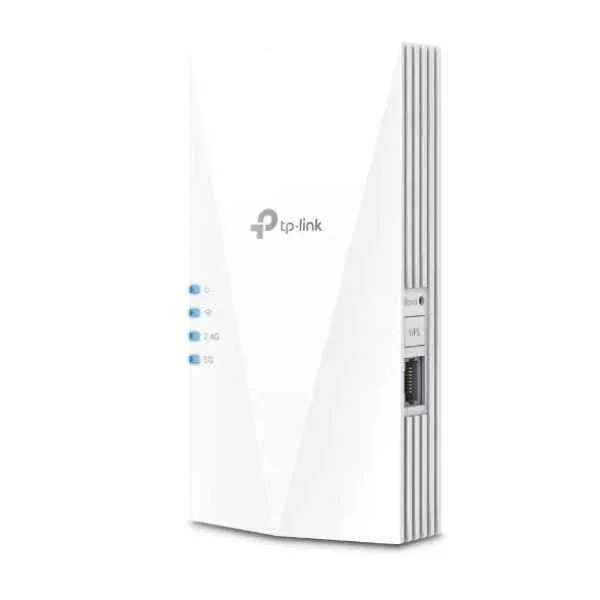
RE600X (RE600X AX1800 Wi-Fi 6 WLAN Repeater)
4.4 (5)- Wireless Access Point
- Tp-Link
- Access Point
- Wi-Fi 6
- 2.4GHz / 5GHz
- 2.5Gbps
- 100 meters
Est Value $162.98$139.13
14.6% offIn stockNewRefurbishedFirst-Time Buyer Discount – Get up to 2% additional off on your first order
ORM Rewards Earn $50 in Rewards + Free Expedited Delivery – Join Now!
Use eCoupon ORMSAVE10
eCoupon limited to 5 units
- BEST SELLING
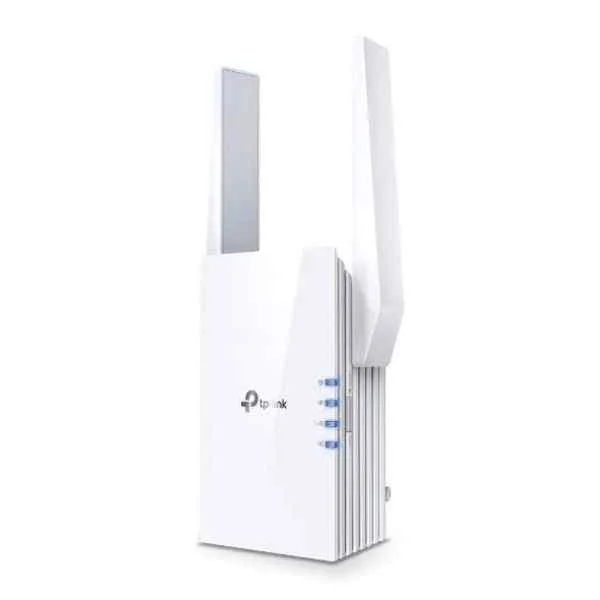
RE705X (AX3000 Wi-Fi 6 Range Extender)
5 (5)- Wireless Product
- Tp-Link
- Access Point
- Wi-Fi 6
- 2.4GHz / 5GHz
- 2.5Gbps
- 100 meters
Est Value $313.98$156.99
50% offIn stockRefurbishedFirst-Time Buyer Discount – Get up to 2% additional off on your first order
ORM Rewards Earn $50 in Rewards + Free Expedited Delivery – Join Now!
Use eCoupon ORMSAVE10
eCoupon limited to 5 units
- FEARURED
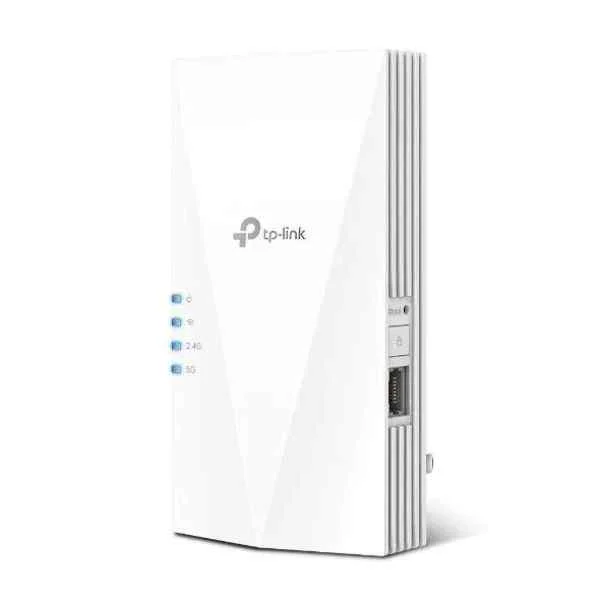
RE700X (TP-LINK AX3000 WI-FI 6 RANGE EXTENDER (RE700X))
4.8 (6)- Wireless Product
- Tp-Link
- Access Point
- Wi-Fi 6
- 2.4GHz / 5GHz
- 2.5Gbps
- 100 meters
Est Value $250.31$213.68
14.6% offIn stockRefurbishedFirst-Time Buyer Discount – Get up to 2% additional off on your first order
ORM Rewards Earn $50 in Rewards + Free Expedited Delivery – Join Now!
Use eCoupon ORMSAVE10
eCoupon limited to 5 units
- BEST SELLING
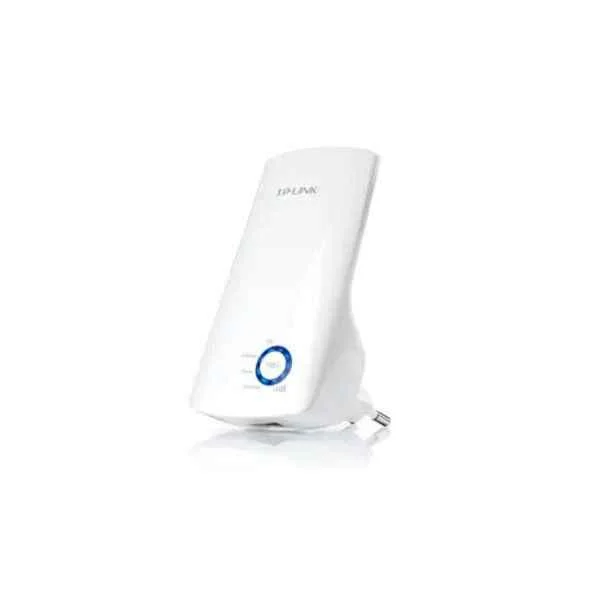
TL-WA850RE (TP-LINK Wireless 300 Range Extender TL-WA850RE - Repeater - WLAN (TL-WA850RE))
4.5 (6)- Wireless Range Extender
- Tp-Link
- 802.11b/g/n
- 2.4GHz
- 300Mbps
Est Value $56.56$53.55
5.3% offIn stockRefurbishedFirst-Time Buyer Discount – Get up to 2% additional off on your first order
ORM Rewards Earn $50 in Rewards + Free Expedited Delivery – Join Now!
Use eCoupon ORMSAVE10
eCoupon limited to 5 units
- FEARURED
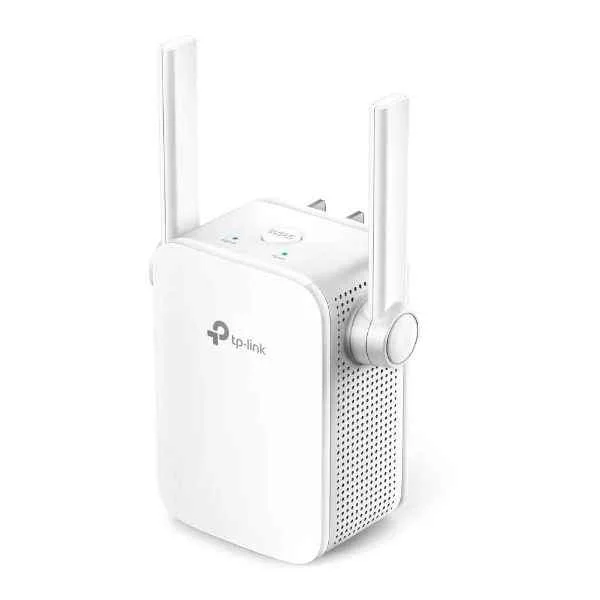
TL-WA855RE (TP-LINK TL-WA855RE 300Mbps Mini Wireless n Range Extender - Network Accessory - WLAN (TL-WA855RE))
4.8 (5)- Wireless Range Extender
- Tp-Link
- Range Extender
- 802.11b/g/n
- 2.4GHz
- 300Mbps
Est Value In stockFirst-Time Buyer Discount – Get up to 2% additional off on your first order
ORM Rewards Earn $50 in Rewards + Free Expedited Delivery – Join Now!
Use eCoupon ORMSAVE10
eCoupon limited to 5 units
- FEARURED
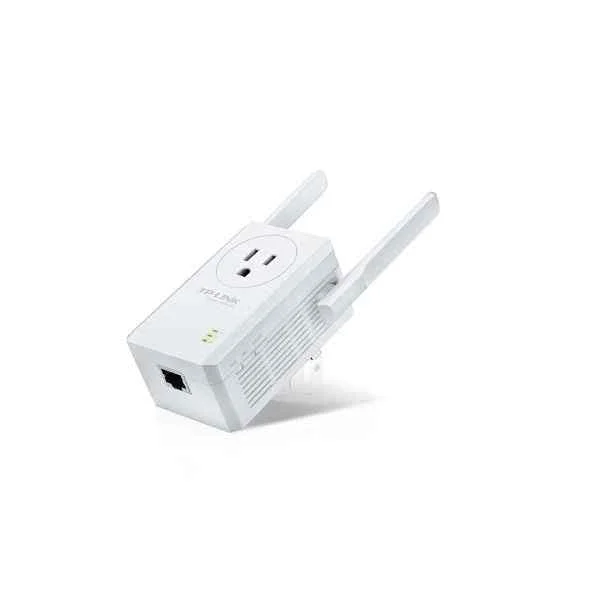
TL-WA860RE (TP-LINK TL-WA860RE - Wi-Fi-Range-Extender (TL-WA860RE))
4.8 (6)- Wireless Repeater
- Tp-Link
- Repeater
- 802.11n
- 2.4GHz
- 300Mbps
Est Value In stockFirst-Time Buyer Discount – Get up to 2% additional off on your first order
ORM Rewards Earn $50 in Rewards + Free Expedited Delivery – Join Now!
Use eCoupon ORMSAVE10
eCoupon limited to 5 units

ORM Sales Advisors
Buying for your business? Get a personalised quote in under 2 hours. Talk to an expert
LEARNFilters (8) 
Questions & Answers
What is a TP-Link Range Extender?
A TP-Link Range Extender is a network device that amplifies your existing Wi-Fi signal to eliminate dead zones and extend coverage throughout your home or office.
How do I set up my TP-Link Range Extender?
Plug the extender into a power outlet, connect to its default SSID, open http://tplinkrepeater.net in your browser, and follow the Quick Setup wizard to link it with your main router.
Where should I place the TP-Link Range Extender for optimal performance?
Position the extender midway between your router and the Wi-Fi dead zone in an open area free of large metal objects or appliances for the best signal boost.
Can any router work with my TP-Link Range Extender?
Yes, TP-Link Range Extenders are universally compatible with any standard router or gateway that broadcasts a 2.4 GHz or 5 GHz Wi-Fi network.
How many devices can connect to the TP-Link Range Extender?
Most TP-Link extenders support up to 20 simultaneous wireless clients, though performance may vary based on bandwidth usage and network conditions.
What is the WPS button and how do I use it?
WPS (Wi-Fi Protected Setup) allows one-touch secure pairing: press the extender’s WPS button, then press WPS on your router within two minutes to automatically connect.
How do I update the firmware on my TP-Link Range Extender?
Download the latest firmware from TP-Link’s official site, log in to the extender’s web interface, navigate to System Tools > Firmware Upgrade, and upload the file.
How can I secure my extended network?
Enable WPA2-PSK encryption and set a strong alphanumeric password in the Wireless Security settings of the extender’s web management page.
Does the TP-Link Range Extender support dual-band operation?
Yes, most TP-Link extenders offer simultaneous 2.4 GHz and 5 GHz bands to optimize device compatibility and throughput.
How do I reset my TP-Link Range Extender to factory defaults?
Press and hold the Reset button for 10 seconds until the LEDs blink, then reconfigure using the Quick Setup wizard as if it were new.
What does each LED status on the extender indicate?
Power LED solid means ready, signal LEDs show link strength (green for good, amber for fair, red for poor), and WPS LED flashing indicates pairing mode.
How do I switch between Access Point and Range Extender modes?
Log in to the web interface, go to Operation Mode, select Access Point or Range Extender, save, and reboot the device to apply changes.
Can I use the TP-Link Tether app to manage my extender?
Yes, TP-Link Tether lets you install, configure, and monitor your extender from an iOS or Android smartphone with an intuitive interface.
Why is my TP-Link Range Extender not connecting to the router?
Verify the SSID and password match your main network, ensure WPS is enabled on the router, and place the extender within optimal range of the router.
How can I improve Wi-Fi speed with my TP-Link Range Extender?
Place the extender closer to the router, use the 5 GHz band for high-speed devices, and update to the latest firmware for performance enhancements.
Does the TP-Link Range Extender support MU-MIMO technology?
Select TP-Link models include MU-MIMO, which enables simultaneous data streams to multiple devices for smoother performance under heavy load.