 United States
Lenovo Memory & RAM Performance
Engineered for exceptional multitasking, Lenovo Memory & RAM delivers high-speed performance and reliability. Upgrade your system with optimized specifications and dynamic efficiency for truly transformative computing experiences.
Talk to an expert
38 Matching results
- BEST SELLING
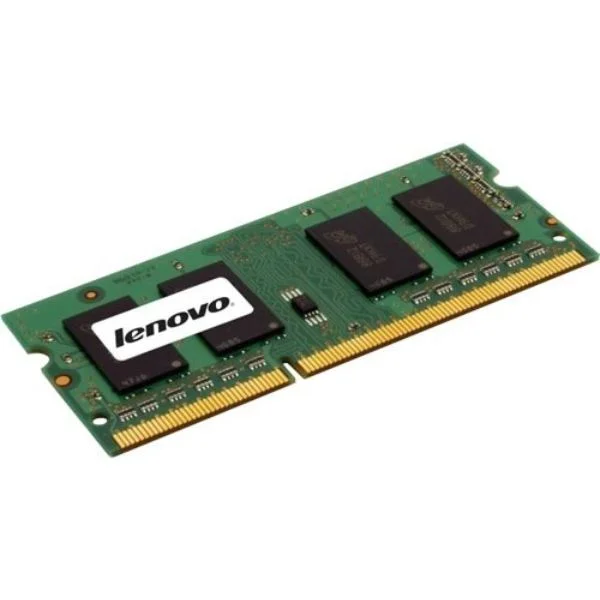
4X70G00095 (ThinkStation 8GB 2Rx8 PC3-14900R 1.5V 4Gbit DDR3-1866 RDIMM)
4.7 (7)- Computer Memory
- Lenovo
- DDR4
- 32 GB
- Desktop
- Workstation
- UDIMM
Est Value $207.67
$177.28
14.6% offIn stockRefurbishedFirst-Time Buyer Discount – Get up to 2% additional off on your first order
ORM Rewards Earn $50 in Rewards + Free Expedited Delivery – Join Now!
Use eCoupon ORMSAVE10
eCoupon limited to 5 units
- BEST SELLING
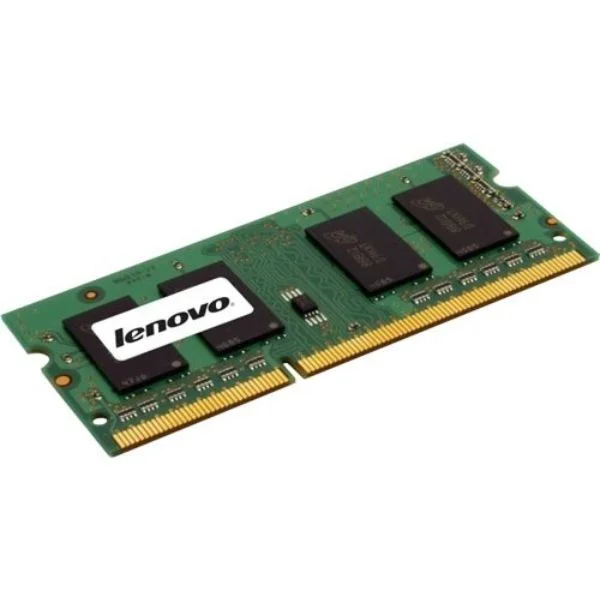
4X70G00093 (ThinkStation 8GB 2Rx8 PC3-14900E 1.5V 4Gbit DDR3-1866 ECC-UDIMM)
4.7 (7)- Computer Memory
- Lenovo
- DDR4
- 16 GB
- Desktop
- Workstation
- UDIMM
Est Value $207.67$177.28
14.6% offIn stockRefurbishedFirst-Time Buyer Discount – Get up to 2% additional off on your first order
ORM Rewards Earn $50 in Rewards + Free Expedited Delivery – Join Now!
Use eCoupon ORMSAVE10
eCoupon limited to 5 units
- BEST SELLING
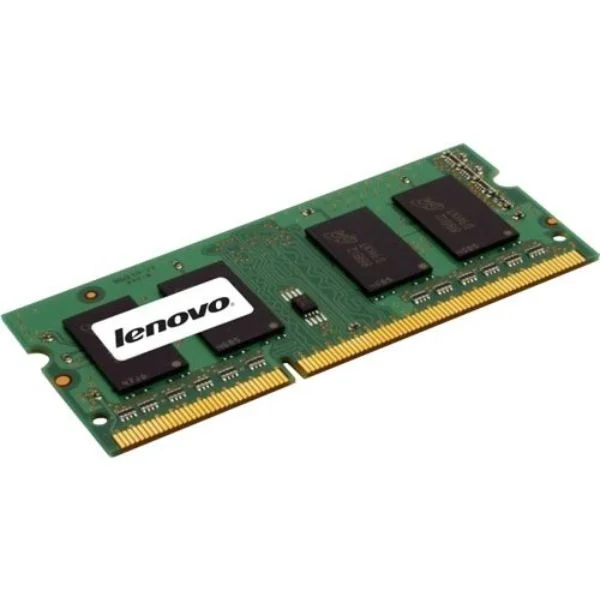
4X70G00094 (ThinkStation 4GB 1Rx8 PC3-14900R 1.5V 4Gbit DDR3-1866 RDIMM)
4.6 (7)- Computer Memory
- Lenovo
- DDR4
- 64 GB
- Desktop
- UDIMM
Est Value $314.80$268.73
14.6% offIn stockRefurbishedFirst-Time Buyer Discount – Get up to 2% additional off on your first order
ORM Rewards Earn $50 in Rewards + Free Expedited Delivery – Join Now!
Use eCoupon ORMSAVE10
eCoupon limited to 5 units
- BEST SELLING
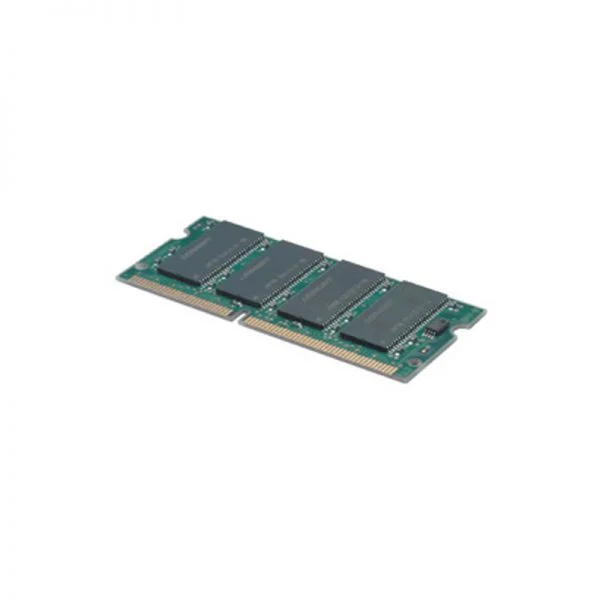
4X70G00092 (ThinkStation 4GB 1Rx8 PC3-14900E 1.5V 4Gbit DDR3-1866 ECC-UDIMM)
4.7 (7)- Computer Memory
- Lenovo
- DDR4
- 32 GB
- Desktop / Server
- Workstation
- UDIMM
Est Value $314.80$268.73
14.6% offIn stockRefurbishedFirst-Time Buyer Discount – Get up to 2% additional off on your first order
ORM Rewards Earn $50 in Rewards + Free Expedited Delivery – Join Now!
Use eCoupon ORMSAVE10
eCoupon limited to 5 units
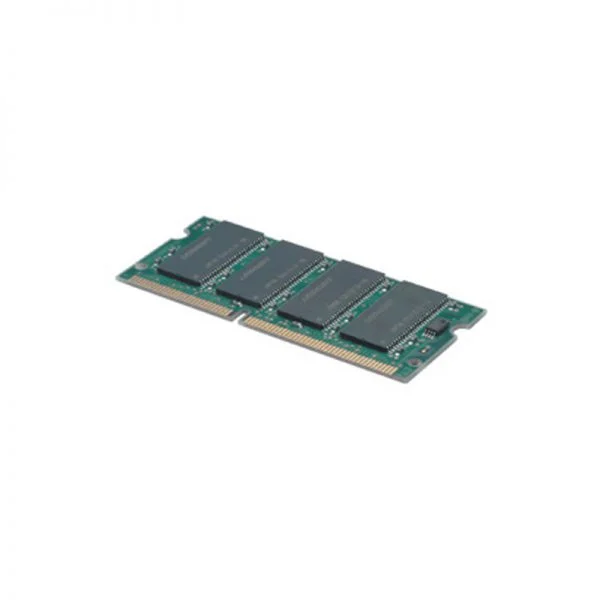
43R2033 (2GB PC3-10600 1333MHz DDR3 ECC UDIMM Memory)
4.7 (7)- Computer Memory
- Lenovo
- DDR4
- 8 GB
- Desktop
- UDIMM
Est Value $198.16$169.16
14.6% offIn stockRefurbishedFirst-Time Buyer Discount – Get up to 2% additional off on your first order
ORM Rewards Earn $50 in Rewards + Free Expedited Delivery – Join Now!
Use eCoupon ORMSAVE10
eCoupon limited to 5 units
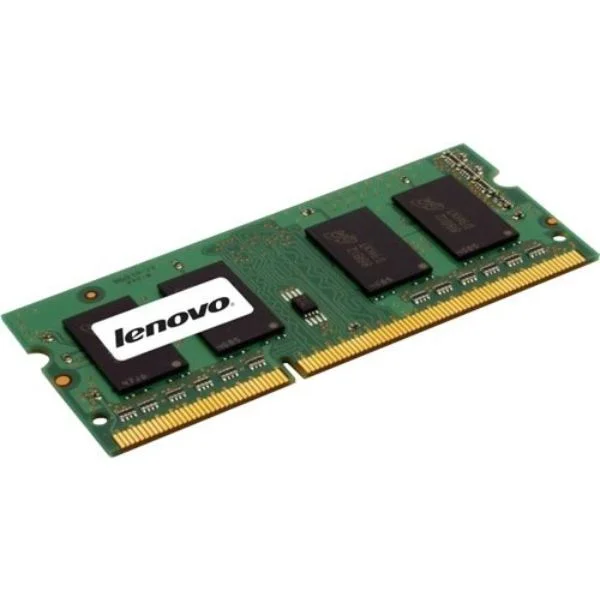
0A65722 (2GBPC3-12800DDR3-1600SoDIMM)
4.7 (7)- Computer Memory
- Lenovo
- DDR4
- 16 GB
- Desktop
- Workstation
- UDIMM
Est Value $198.75$169.66
14.6% offIn stockRefurbishedFirst-Time Buyer Discount – Get up to 2% additional off on your first order
ORM Rewards Earn $50 in Rewards + Free Expedited Delivery – Join Now!
Use eCoupon ORMSAVE10
eCoupon limited to 5 units
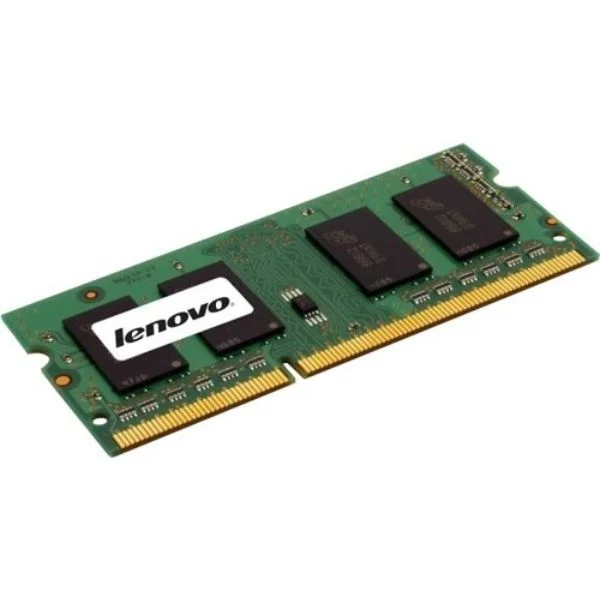
57Y4425 (2GB PC3-10600 DDR3-1333 DDR3 RDIMM Workstation Memory)
4.7 (7)- Computer Memory
- Lenovo
- DDR4
- 16 GB
- Desktop
- Workstation
- UDIMM
Est Value $204.23$174.34
14.6% offIn stockRefurbishedFirst-Time Buyer Discount – Get up to 2% additional off on your first order
ORM Rewards Earn $50 in Rewards + Free Expedited Delivery – Join Now!
Use eCoupon ORMSAVE10
eCoupon limited to 5 units
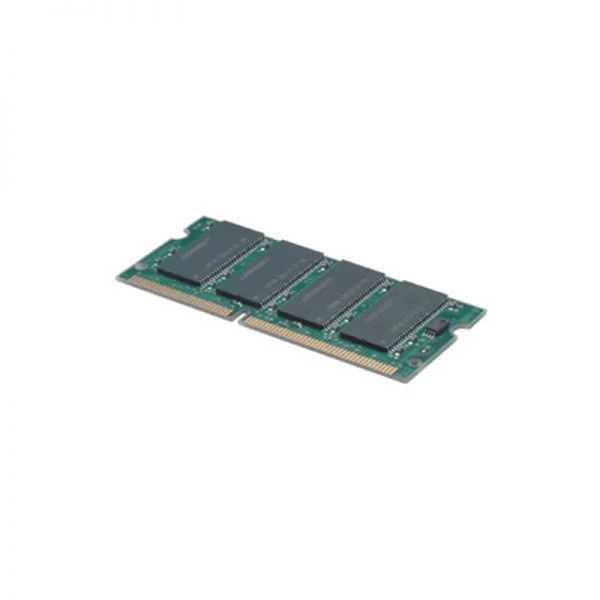
57Y4390 (2GB PC3-10600 DDR3-1333 Low-Halogen UDIMM Memory)
4.6 (7)- Computer Memory
- Lenovo
- DDR4
- 16 GB
- Desktop
- UDIMM
Est Value $206.93$176.65
14.6% offIn stockRefurbishedFirst-Time Buyer Discount – Get up to 2% additional off on your first order
ORM Rewards Earn $50 in Rewards + Free Expedited Delivery – Join Now!
Use eCoupon ORMSAVE10
eCoupon limited to 5 units
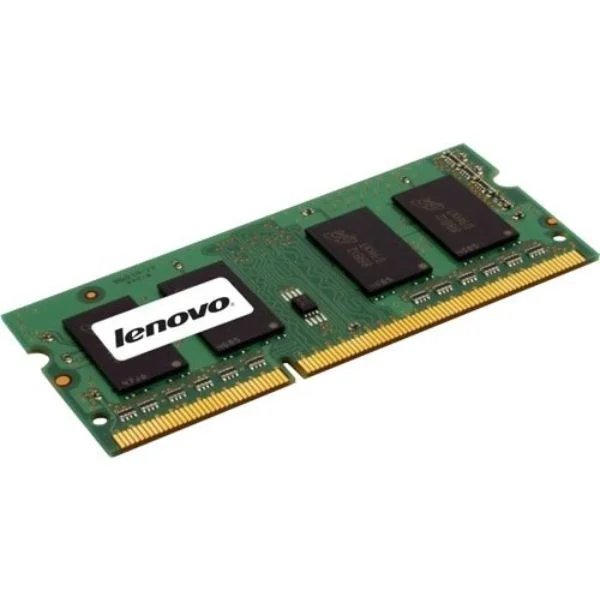
0A65732 (4GBPC3-12800DDR3-1600RDIMMTS)
4.9 (7)- Computer Memory
- Lenovo
- DDR4
- 16 GB
- Desktop
- Workstation
- UDIMM
Est Value $210.03$179.30
14.6% offIn stockRefurbishedFirst-Time Buyer Discount – Get up to 2% additional off on your first order
ORM Rewards Earn $50 in Rewards + Free Expedited Delivery – Join Now!
Use eCoupon ORMSAVE10
eCoupon limited to 5 units
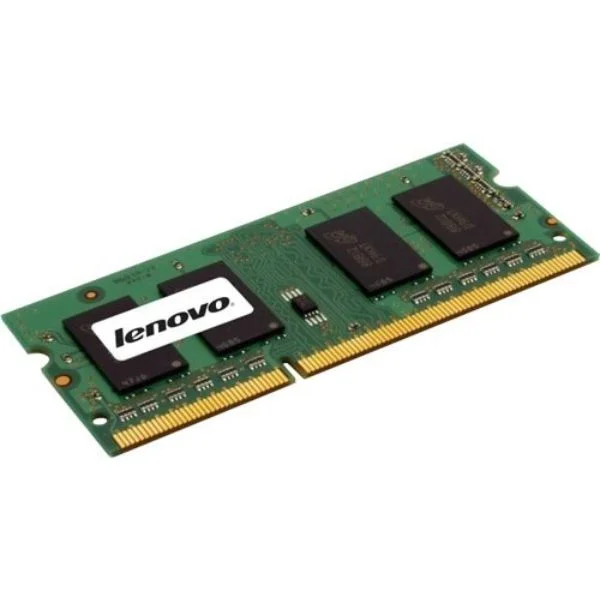
55Y3711 (Lenovo 4GB PC3-10600 DDR3-1333 Low-Halogen SODIMM Memory)
4.6 (7)- Computer Memory
- Lenovo
- DDR4
- 16 GB
- Desktop
- UDIMM
Est Value $227.08$193.85
14.6% offIn stockRefurbishedFirst-Time Buyer Discount – Get up to 2% additional off on your first order
ORM Rewards Earn $50 in Rewards + Free Expedited Delivery – Join Now!
Use eCoupon ORMSAVE10
eCoupon limited to 5 units
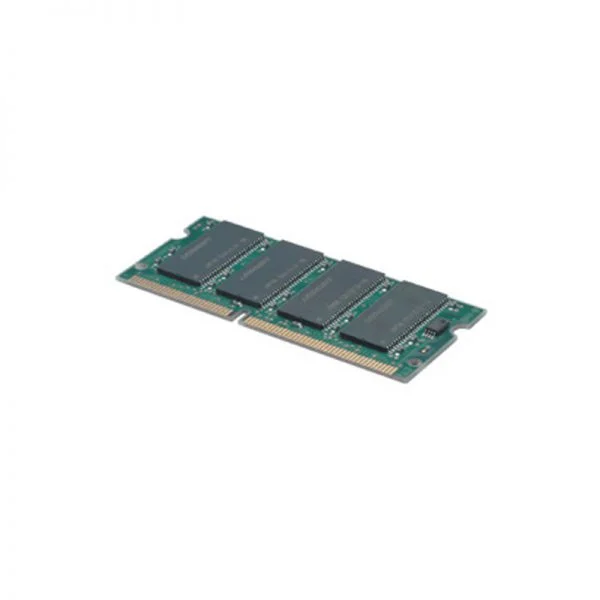
0A65723 (4GBPC3-12800DDR3-1600SoDIMM)
4.9 (7)- Computer Memory
- Lenovo
- DDR4
- 16 GB
- Desktop / Laptop / Server
- Workstation
- UDIMM
Est Value $232.19$198.21
14.6% offIn stockRefurbishedFirst-Time Buyer Discount – Get up to 2% additional off on your first order
ORM Rewards Earn $50 in Rewards + Free Expedited Delivery – Join Now!
Use eCoupon ORMSAVE10
eCoupon limited to 5 units
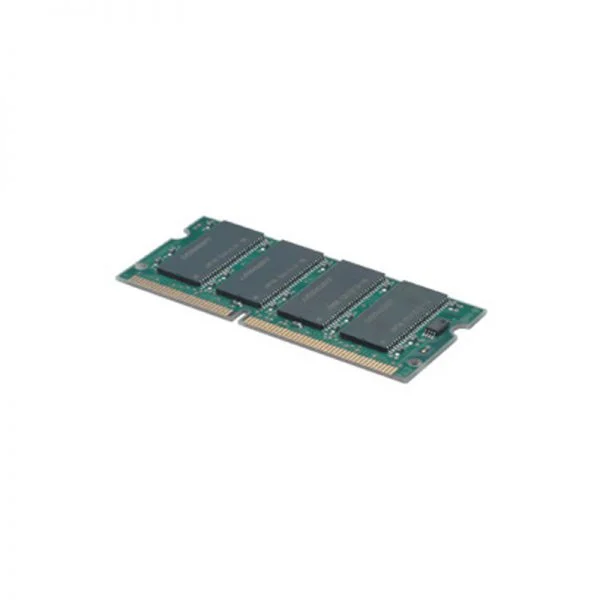
0B47377 (4GB2RX8PC3-12800E,DDR3-1600M)
4.7 (7)- Computer Memory
- Lenovo
- DDR4
- 16 GB
- Desktop
- Workstation
- UDIMM
Est Value $224.50$198.54
11.6% offIn stockRefurbishedFirst-Time Buyer Discount – Get up to 2% additional off on your first order
ORM Rewards Earn $50 in Rewards + Free Expedited Delivery – Join Now!
Use eCoupon ORMSAVE10
eCoupon limited to 5 units
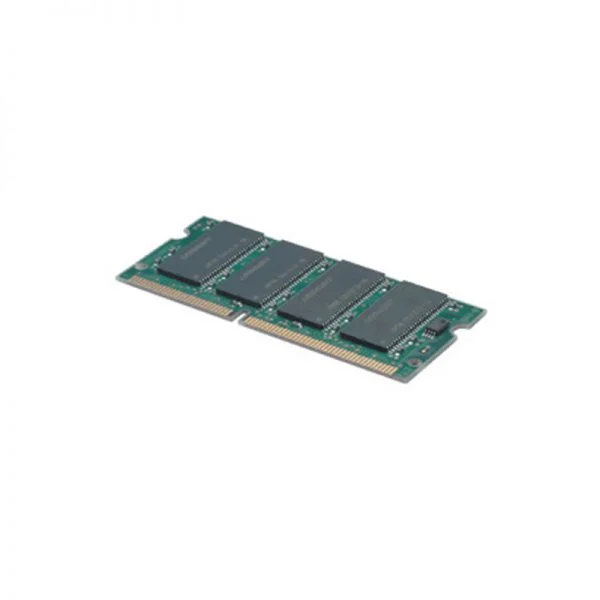
0B47381 (Lenovo 8GB PC3-12800 DDR3L-1600MHz SODIMM Memory)
4.9 (7)- Computer Memory
- Lenovo
- DDR4
- 16 GB
- Desktop
- UDIMM
Est Value $246.29$210.25
14.6% offIn stockRefurbishedFirst-Time Buyer Discount – Get up to 2% additional off on your first order
ORM Rewards Earn $50 in Rewards + Free Expedited Delivery – Join Now!
Use eCoupon ORMSAVE10
eCoupon limited to 5 units
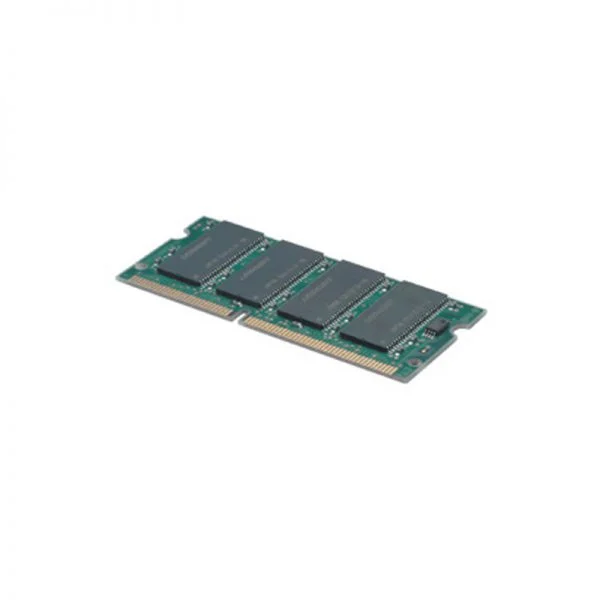
0B47376 (2GB1RX8PC3-12800E,DDR3-1600M)
4.7 (7)- Computer Memory
- Lenovo
- DDR4
- 16 GB
- Desktop
- UDIMM
Est Value $262.13$223.78
14.6% offIn stockRefurbishedFirst-Time Buyer Discount – Get up to 2% additional off on your first order
ORM Rewards Earn $50 in Rewards + Free Expedited Delivery – Join Now!
Use eCoupon ORMSAVE10
eCoupon limited to 5 units
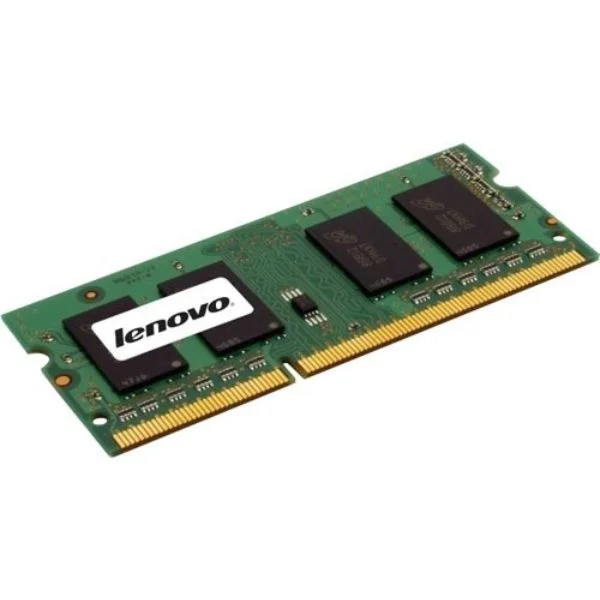
0A36527 (4GB PC3-10600 DDR3-1333 UDIMM)
4.7 (7)- Computer Memory
- Lenovo
- DDR4
- 16 GB
- Desktop / Laptop / Server
- Workstation
- UDIMM
Est Value $269.60$230.15
14.6% offIn stockRefurbishedFirst-Time Buyer Discount – Get up to 2% additional off on your first order
ORM Rewards Earn $50 in Rewards + Free Expedited Delivery – Join Now!
Use eCoupon ORMSAVE10
eCoupon limited to 5 units
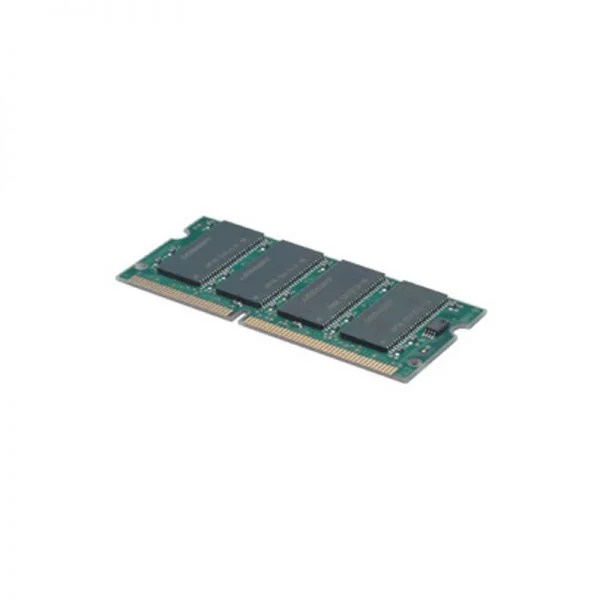
0B47379 (Lenovo 2GB PC3-12800 DDR3L-1600MHz SODIMM Memory)
4.4 (7)- Computer Memory
- Lenovo
- DDR4
- 16 GB
- Desktop
- Workstation
- UDIMM
Est Value $296.07$252.75
14.6% offIn stockRefurbishedFirst-Time Buyer Discount – Get up to 2% additional off on your first order
ORM Rewards Earn $50 in Rewards + Free Expedited Delivery – Join Now!
Use eCoupon ORMSAVE10
eCoupon limited to 5 units
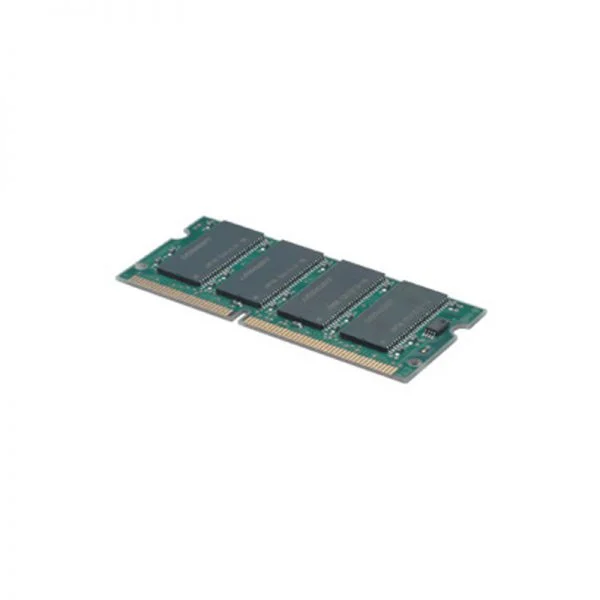
0A65728 (2GBPC3-12800DDR3-1600non-ECC)
4.9 (7)- Computer Memory
- Lenovo
- DDR4
- 16 GB
- Desktop
- Workstation
- UDIMM
Est Value $298.58$254.89
14.6% offIn stockRefurbishedFirst-Time Buyer Discount – Get up to 2% additional off on your first order
ORM Rewards Earn $50 in Rewards + Free Expedited Delivery – Join Now!
Use eCoupon ORMSAVE10
eCoupon limited to 5 units
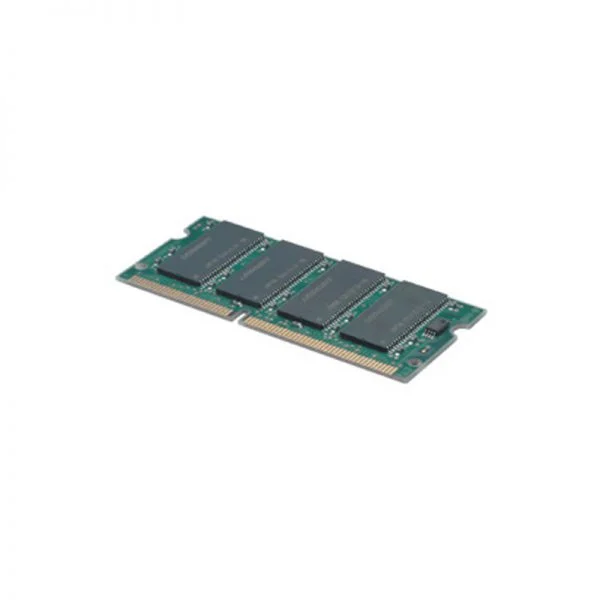
55Y3710 (2GB PC3-10600 DDR3-1333 Low-Halogen SODIMM Memory)
4.6 (7)- Computer Memory
- Lenovo
- DDR4
- 16 GB
- Desktop
- UDIMM
Est Value $327.07$279.21
14.6% offIn stockRefurbishedFirst-Time Buyer Discount – Get up to 2% additional off on your first order
ORM Rewards Earn $50 in Rewards + Free Expedited Delivery – Join Now!
Use eCoupon ORMSAVE10
eCoupon limited to 5 units
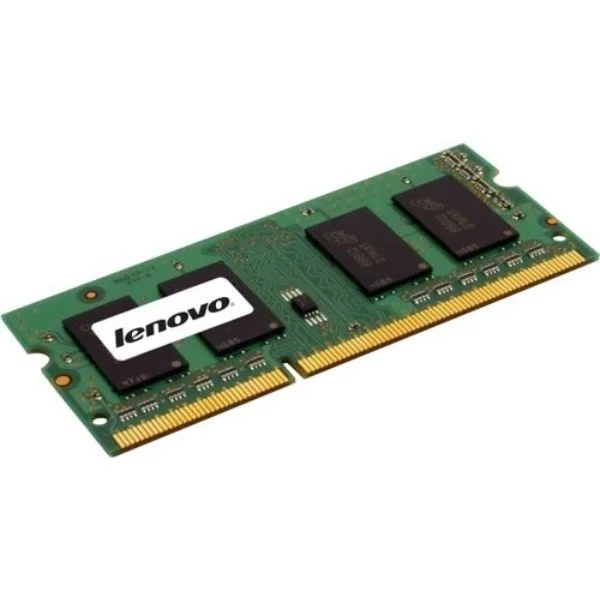
0A65718 (8GPC3-10600DDR3-1333ECC-UDIM)
4.9 (7)- Computer Memory
- Lenovo
- DDR4
- 16 GB
- Desktop / Laptop / Server
- Workstation
- UDIMM
Est Value $1,004.27$302.40
69.9% offIn stockRefurbishedFirst-Time Buyer Discount – Get up to 2% additional off on your first order
ORM Rewards Earn $50 in Rewards + Free Expedited Delivery – Join Now!
Use eCoupon ORMSAVE10
eCoupon limited to 5 units
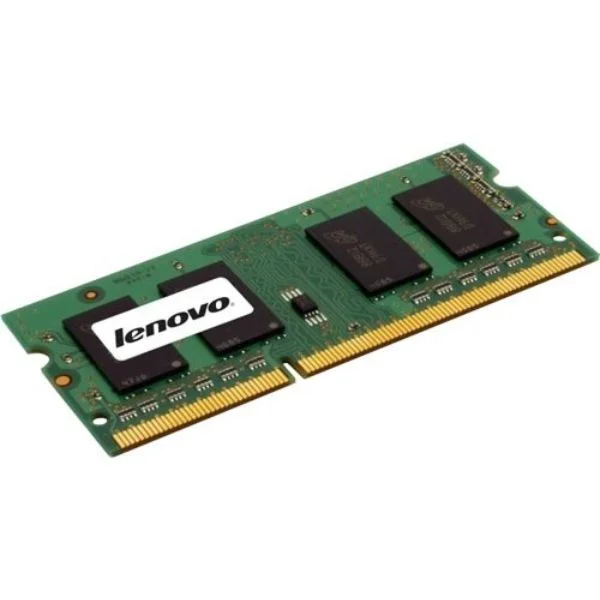
0A65724 (8GBPC3-12800DDR3-1600SoDIMM)
4.9 (7)- Computer Memory
- Lenovo
- DDR4
- 16 GB
- Desktop
- Workstation
- UDIMM
Est Value $356.86$304.64
14.6% offIn stockRefurbishedFirst-Time Buyer Discount – Get up to 2% additional off on your first order
ORM Rewards Earn $50 in Rewards + Free Expedited Delivery – Join Now!
Use eCoupon ORMSAVE10
eCoupon limited to 5 units

ORM Sales Advisors
Buying for your business? Get a personalised quote in under 2 hours. Talk to an expert
LEARNFilters (38) 
Questions & Answers
What types of memory modules are compatible with Lenovo systems?
Lenovo systems support DDR4 and DDR5 SO-DIMM and UDIMM memory modules, depending on model and generation. Always verify compatibility using the Lenovo Parts Lookup tool or official product documentation.
How can I determine the maximum RAM capacity for my Lenovo laptop or desktop?
Visit Lenovo’s official support page and enter your device serial number to view maximum memory capacity and configuration slots. Refer to the Hardware Maintenance Manual for detailed upgrade limits.
Can I upgrade the RAM on my Lenovo ThinkPad or IdeaPad?
Most Lenovo ThinkPad and IdeaPad models feature user-accessible memory slots for easy upgrades. Confirm slot availability and maximum capacity in your device’s Hardware Maintenance Manual before purchasing modules.
What is the difference between DDR4 and DDR5 memory in Lenovo products?
DDR5 memory delivers higher bandwidth and improved power efficiency compared to DDR4, resulting in faster performance under heavy workloads. Ensure your Lenovo motherboard or laptop manufacturer’s specifications support DDR5 before upgrading.
How do I install Lenovo RAM modules safely?
Power off the system, disconnect all cables, and ground yourself to prevent static discharge. Open the memory compartment, align the module notch with the slot key, press firmly until it clicks, then replace the cover and reconnect power.
Does Lenovo memory support XMP or overclocking profiles?
Select Lenovo memory modules labeled as XMP-certified to enable Intel Extreme Memory Profiles in BIOS for optimized timings and frequencies. Check your Lenovo system BIOS settings to activate and manage XMP profiles.
How do I check if my Lenovo system recognizes newly installed RAM?
Restart your system and enter BIOS/UEFI setup to view total installed memory and per-slot allocation. Alternatively, verify recognized RAM capacity in Windows Task Manager under the Performance > Memory tab.
Can I mix different RAM sizes and speeds in my Lenovo system?
Mixing RAM sizes is possible but may force all modules to operate at the lowest common speed and timing. For optimal performance, install identical Lenovo memory modules matched by capacity, speed, and latency.
What is ECC memory and does Lenovo support it?
Error-Correcting Code (ECC) memory automatically detects and corrects single-bit data corruption, enhancing system reliability. Lenovo ThinkStation and server platforms offer ECC support—verify compatibility in your system’s specifications.
How do I test Lenovo RAM for errors or faults?
Run Lenovo Diagnostics or a third-party memory test utility like MemTest86 to perform comprehensive RAM testing. Review the test report for error counts and replace any faulty modules promptly.
What warranty coverage does Lenovo provide for memory upgrades?
Lenovo memory modules typically carry a one-year limited warranty that covers defects in materials and workmanship. Extended warranty options may be available through Lenovo Premier Support or authorized resellers.
Where can I purchase genuine Lenovo memory and RAM modules?
Buy directly from Lenovo’s official online store or authorized Lenovo resellers to ensure authentic memory and full warranty coverage. Avoid third-party marketplaces that cannot guarantee genuine Lenovo components.
How much does a typical Lenovo memory upgrade cost?
Lenovo memory upgrade prices vary by module type, capacity, and speed but generally range from $50 to $250 per module. Check Lenovo’s website or contact an authorized reseller for current pricing and promotions.
How can I optimize Lenovo RAM performance after installation?
Enable dual-channel mode by installing matched memory modules in designated slots and activate XMP profiles in BIOS for peak performance. Keep your system BIOS and chipset drivers up to date to ensure optimal memory handling.
Why should I choose Lenovo memory modules over third-party brands?
Lenovo memory modules are factory-qualified and tested for full compatibility, reliability, and warranty support on Lenovo systems. Using genuine Lenovo RAM minimizes compatibility issues and ensures system stability.
What should I do if my Lenovo system fails to boot after a RAM upgrade?
Reseat the memory modules, ensuring they lock completely into their slots, and verify compatibility with your system model. If the issue persists, run Lenovo Diagnostics to isolate faulty modules and contact Lenovo Support for further assistance.
How quickly can I see performance improvements after upgrading Lenovo RAM?
Performance boosts in multitasking, application loading, and virtualization tasks are often noticeable immediately after a successful upgrade. Benchmark or monitor system memory usage to quantify gains in real-world scenarios.
Is it necessary to update BIOS when installing new Lenovo memory?
Updating to the latest BIOS version can improve memory compatibility and stability for new module types or higher capacities. Always review Lenovo release notes and follow the recommended BIOS update procedure before upgrading RAM.