 United States
Routers Cisco RV 200
Experience enterprise-grade connectivity and robust security with the Cisco Router RV 200, engineered for reliable performance and optimized network management for modern business needs.
Talk to an expert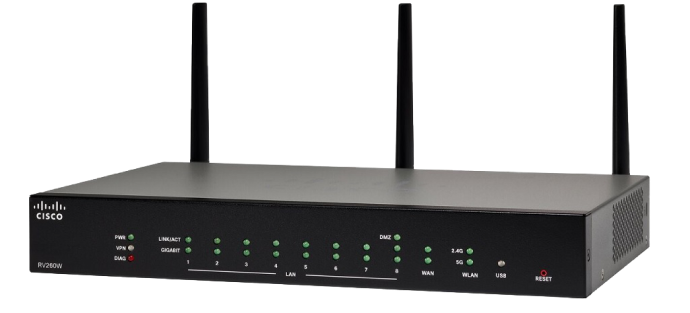
2 Matching results
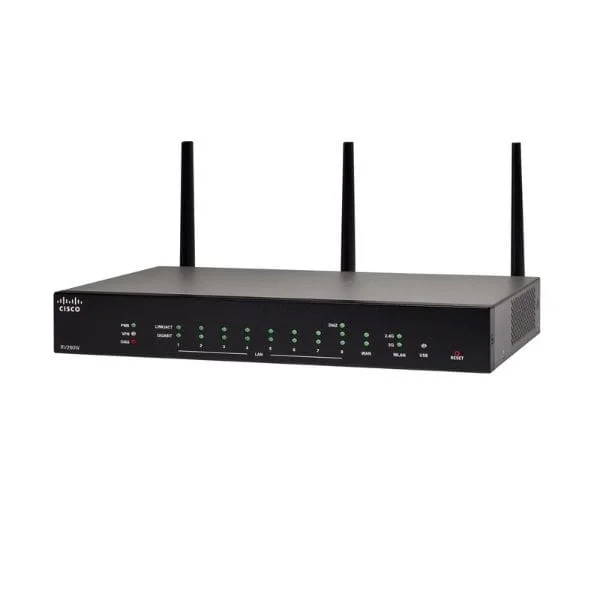
RV260W-A-K9-NA (Cisco RV260W Wireless-AC Gigabit VPN Router)
5 (5)- Small Business Router
- Cisco
- IPSec / SSL VPN
- AC Power Supply
- Static Routing
- Fixed
Est Value In stock
First-Time Buyer Discount – Get up to 2% additional off on your first order
ORM Rewards Earn $50 in Rewards + Free Expedited Delivery – Join Now!
Use eCoupon ORMSAVE10
eCoupon limited to 5 units
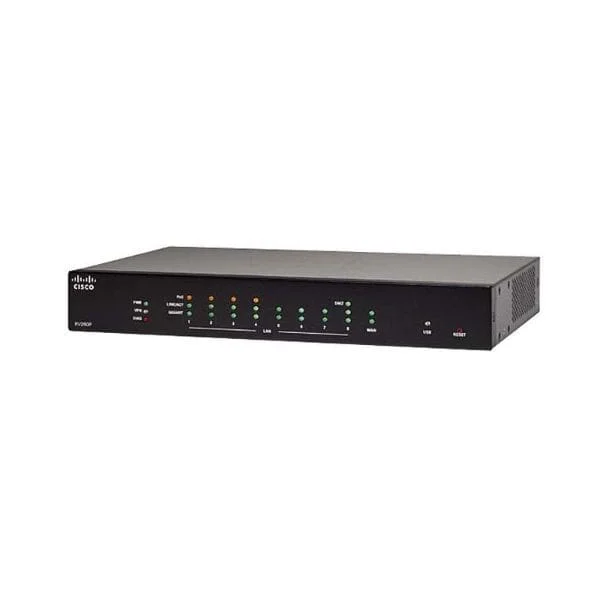
RV260P-K8-RU (Cisco RV260P 9-Port Gigabit VPN Router with PoE)
4.6 (5)- Enterprise Router
- Cisco
- IPSec / SSL VPN
- AC Power Supply
- OSPF / BGP / RIP / Static Routing
- Fixed
Est Value In stockFirst-Time Buyer Discount – Get up to 2% additional off on your first order
ORM Rewards Earn $50 in Rewards + Free Expedited Delivery – Join Now!
Use eCoupon ORMSAVE10
eCoupon limited to 5 units

ORM Sales Advisors
Buying for your business? Get a personalised quote in under 2 hours. Talk to an expert
LEARNFilters (2) 
Questions & Answers
What is the Cisco RV200 Series router?
The Cisco RV200 Series router is a compact, dual-WAN gateway that delivers enterprise-class security, VPN connectivity, and load-balancing features optimized for small businesses.
How do I perform the initial setup of a Cisco RV200 router?
Connect the power adapter, attach your WAN and LAN cables, open a browser to http://192.168.1.1, log in with default credentials (cisco/cisco), and follow the setup wizard to configure your network.
How can I update the firmware on my Cisco RV200 router?
Download the latest firmware from Cisco’s support site, go to Administration > Firmware Management in the web interface, upload the file, and reboot the router to apply the update.
What VPN types are supported by the Cisco RV200 Series router?
The Cisco RV200 supports up to 25 site-to-site IPsec VPN tunnels and 10 client-to-site IPsec or SSL VPN connections for secure remote access.
How do I configure an IPsec site-to-site VPN on the Cisco RV200?
In the web interface, navigate to VPN > IPsec VPN, click Create New, enter peer IP, pre-shared key, and encryption settings, then save and apply to establish the tunnel.
How do I reset my Cisco RV200 to factory default settings?
Press and hold the Reset button on the rear panel for 10 seconds until the STATUS LED blinks, then release to restore factory default settings.
What are the default login credentials for the Cisco RV200 router?
The default username is “cisco” and the default password is “cisco.” It’s recommended to change these credentials immediately after first login.
How many WAN and LAN ports does the Cisco RV200 have?
The Cisco RV200 features two Gigabit Ethernet WAN ports and four Gigabit Ethernet LAN ports to support multiple Internet connections and local devices.
Does the Cisco RV200 support VLANs?
Yes, the Cisco RV200 supports up to 32 VLANs, enabling network segmentation for improved security and traffic management.
How do I set up port forwarding on the Cisco RV200?
Go to Firewall > Port Forwarding, create a new rule with the external port, internal IP address, and protocol, then save and apply to forward incoming traffic.
What security features are included in the Cisco RV200 router?
The Cisco RV200 provides a stateful packet-inspection firewall, DoS prevention, content filtering, and intrusion prevention system (IPS) to protect your network.
Is the Cisco RV200 suitable for small business environments?
Yes, the Cisco RV200 is designed for small to medium-sized businesses, offering reliable VPN, dual-WAN load balancing, and advanced security at an affordable price.
How do I enable IPv6 support on the Cisco RV200 router?
In the web interface, navigate to Setup > Network > IPv6, enable IPv6, select the appropriate connection type (e.g., DHCPv6), configure parameters, and save your settings.
How can I view real-time traffic statistics on my Cisco RV200?
Access Status > Traffic Statistics in the web interface to monitor real-time bandwidth usage by interface, protocol, and IP address.
How do I troubleshoot connectivity issues on the Cisco RV200?
Verify physical connections, check WAN link status, review system logs under Administration > Logs, ping your gateway and remote hosts, and ensure firmware is up to date.
How do I configure Quality of Service (QoS) on the Cisco RV200 Series router?
Navigate to Firewall > QoS, enable service-based or port-based QoS, define bandwidth limits or priorities, and apply the settings to control traffic flow.
Where can I find official documentation and support for the Cisco RV200 router?
Visit Cisco’s official support site, search for RV200 Series, and download data sheets, user guides, firmware updates, or open a support case through the Cisco Support Portal.