 United States
Huawei Routers Elevated Network Performance
This Huawei Router series delivers cutting-edge performance with robust security, seamless connectivity, and intelligent management features. Designed for enterprise reliability and optimized for high-speed data transmission.
Talk to an expert
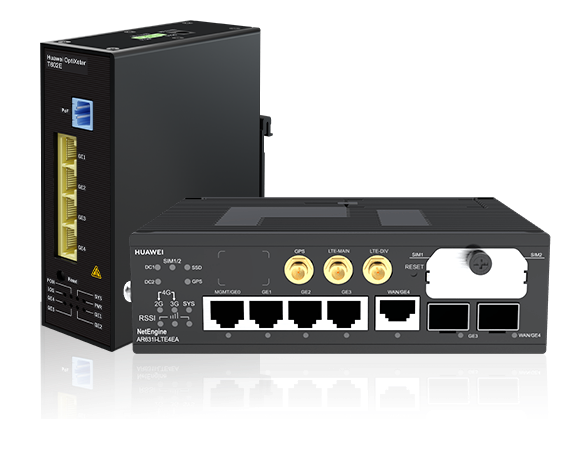
Industrial Routers
(4)Huawei industrial routers serve power-grid substations and transportation cabinets, with LTE, serial interfaces, Modbus, VPN, and hardened Ethernet
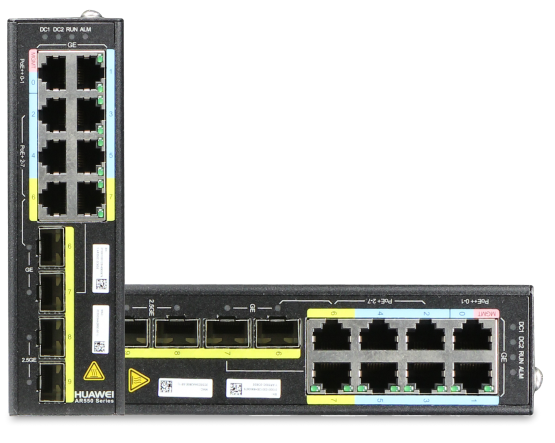
Huawei Ar550 Series Agile Gateways
(3)Huawei AR550 agile gateways fit rail and utility field networks, with LTE, GPS, serial ports, VPN, and VRP routing
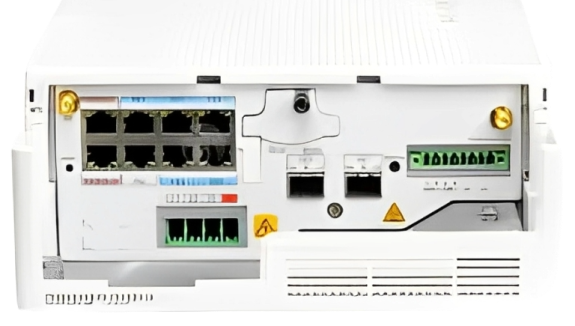
Ar530 Series Agile Gateways
(6)Huawei AR530 agile gateways serve kiosk and ATM access sites, with Ethernet WAN, 3G/4G options, IPsec VPN, and OSPF
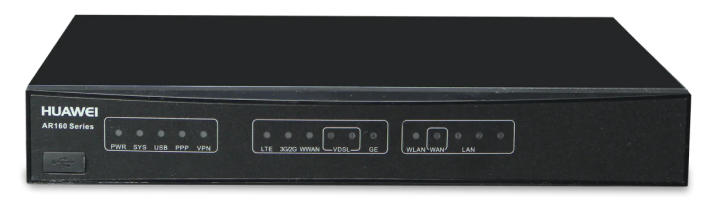
Ar100 Series Enterprise Routers
(6)Huawei AR100 routers fit sub-25-user branch edges, with Fast Ethernet, Wi-Fi options, NAT, DHCP, and IPsec VPN tunnels
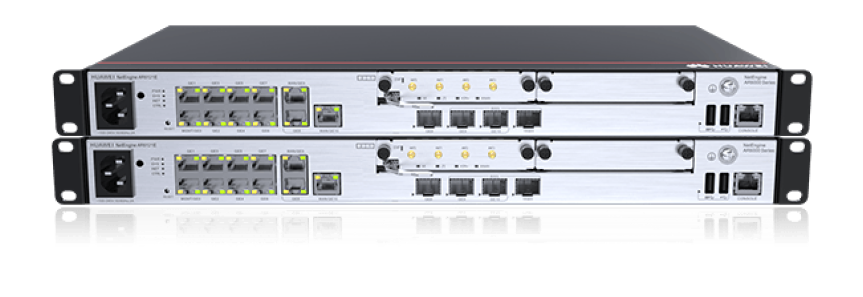
Ar6000 Series Enterprise Routers
(7)Huawei AR6000 routers serve headquarters WAN aggregation, with 10G Ethernet, SR-MPLS, BGP, IPsec, virtualized service cards, and hot-swap slots
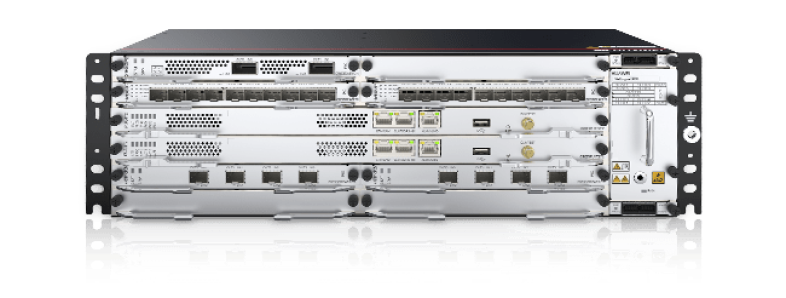
Huawei Netengine Series Routers
(159)Huawei NetEngine routers target carrier metro and backbone sites, with 100G/400G interfaces, SRv6, MPLS, and BGP routing protocols
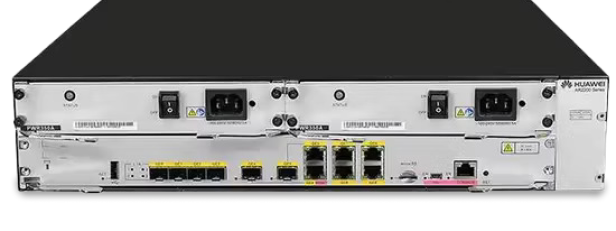
Ar2200 Series Enterprise Routers
(26)Huawei AR2200 routers serve large branch WAN edges, with modular SIC cards, Gigabit Ethernet, OSPF, and IPsec VPN
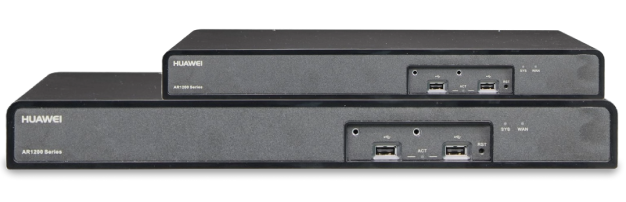
Ar1200 Series Enterprise Routers
(18)Huawei AR1200 routers fit district office internet edges, with GE ports, LTE cards, NAT, DHCP, and IPsec VPN
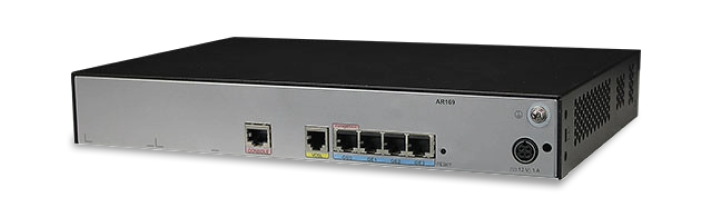
Ar160 Series Enterprise Routers
(23)Huawei AR160 routers support small retail branches, with Fast Ethernet, Wi-Fi, 3G backup, VLANs, and IPsec VPN access
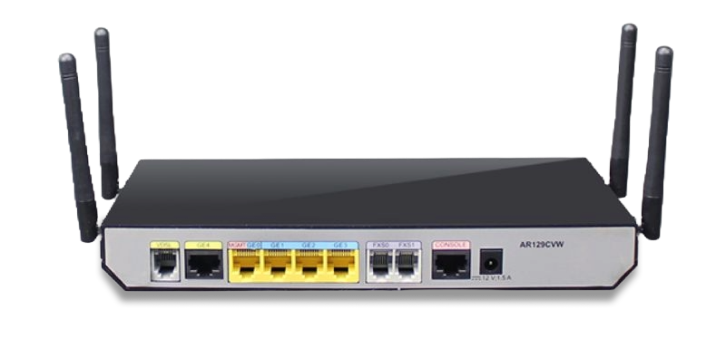
Ar120 Series Enterprise Routers
(6)Huawei AR120 routers fit microbranch broadband edges, with Ethernet WAN, NAT, DHCP, 802.1Q VLANs, and IPsec VPN tunnels
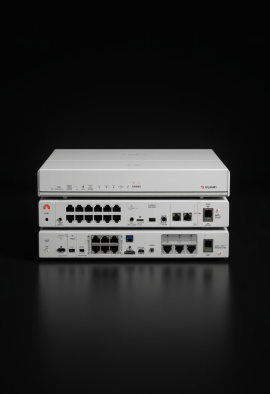
Ar3200 Series Enterprise Routers
(13)Huawei AR3200 routers serve campus WAN aggregation rooms, with SRUs, 10G uplinks, MPLS VPN, BGP, and QoS policies
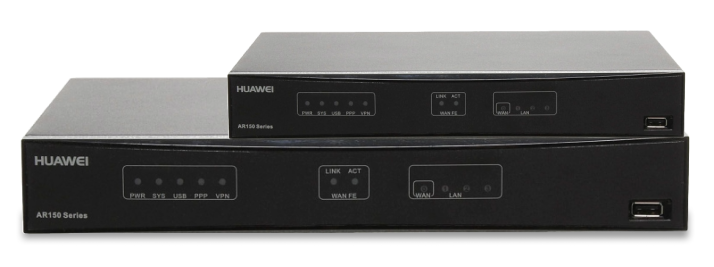
Ar150 Series Enterprise Routers
(14)Huawei AR150 routers fit pharmacy and kiosk WAN edges, with Fast Ethernet, Wi-Fi options, firewall zones, and IPsec VPN
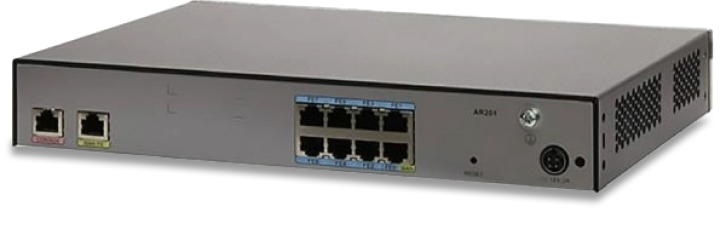
Ar200 Series Enterprise Routers
(7)Huawei AR200 routers serve school branch networks, with FE/GE ports, LTE backup, OSPF, NAT, and IPsec VPN termination
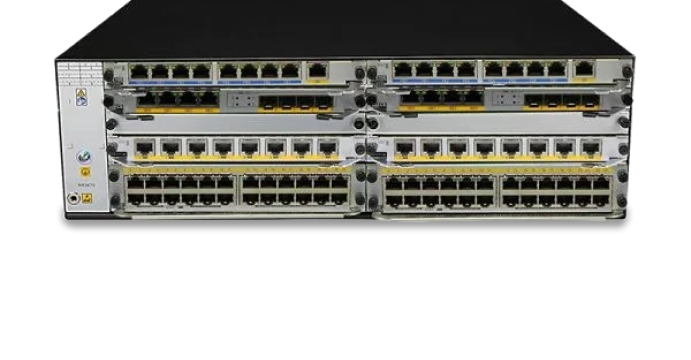
Huawei Multi-Service Control Gateways
(29)Huawei multi-service control gateways target broadband BRAS sites, with PPPoE, RADIUS, MPLS, IPv6, and 100G uplinks for subscriber aggregation
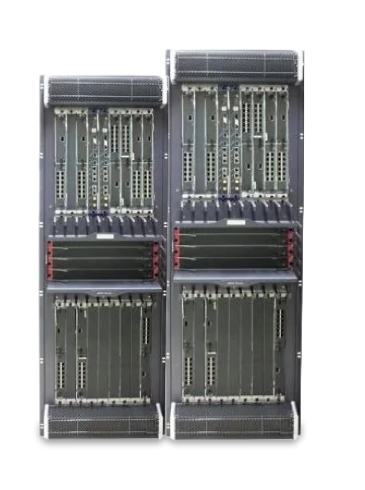
Ar3600 Series Enterprise Routers
(2)Huawei AR3600 routers fit headquarters service edge racks, with dual SRUs, 10G Ethernet, MPLS, voice, and IPsec VPN
323 Matching results
- BEST SELLING
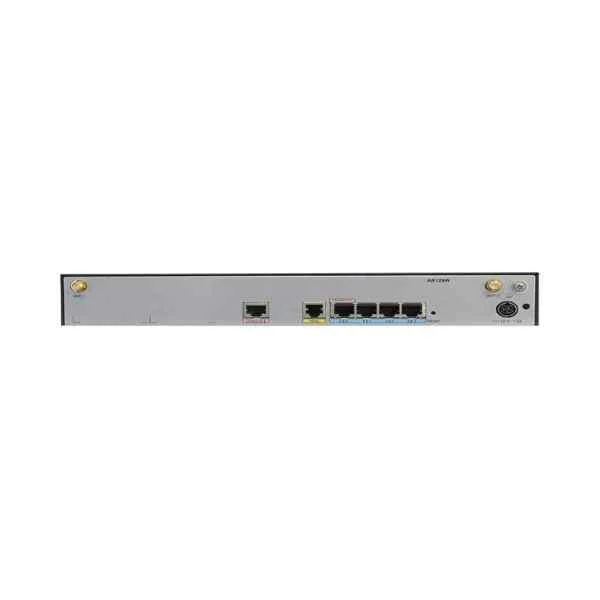
AR129W (Huawei AR129W,1VDSL WAN,4FE LAN,WIFI 2.4G)
4.8 (6)- Enterprise Router
- Huawei
- IPSec / SSL VPN / GRE / DMVPN / FlexVPN
- AC Power Supply / Redundant
- OSPF / BGP / EIGRP / Static Routing
- Fiber Optic / DSL / LTE
- Modular
Est Value $737.00
$148.24
79.9% offIn stockRefurbishedFirst-Time Buyer Discount – Get up to 2% additional off on your first order
ORM Rewards Earn $50 in Rewards + Free Expedited Delivery – Join Now!
Use eCoupon ORMSAVE10
eCoupon limited to 5 units
- BEST SELLING
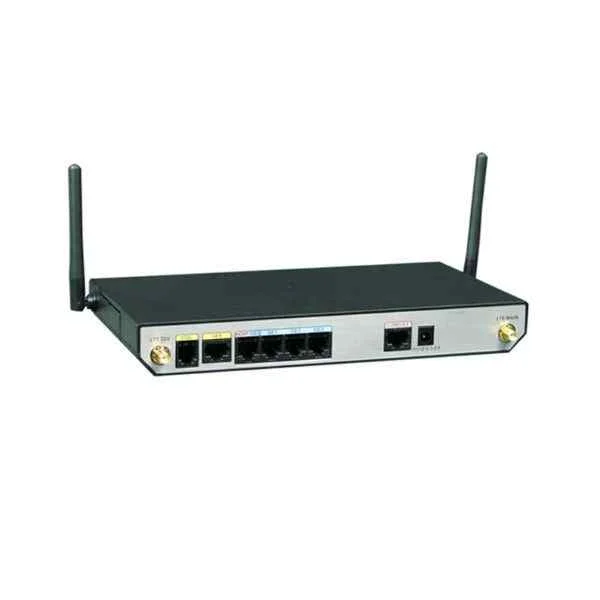
AR109W (AR109W,1 GE WAN,1 VDSL WAN,4 GE LAN,WIFI 2.4G,1 USB2.0)
4.8 (6)- Enterprise Router
- Huawei
- IPSec / SSL VPN / DMVPN
- AC Power Supply / DC Power Supply / Redundant
- OSPF / BGP / Static Routing
- DSL / Fiber Optic
- Modular
Est Value $379.00$266.70
29.6% offIn stockNewFirst-Time Buyer Discount – Get up to 2% additional off on your first order
ORM Rewards Earn $50 in Rewards + Free Expedited Delivery – Join Now!
Use eCoupon ORMSAVE10
eCoupon limited to 5 units
- BEST SELLING
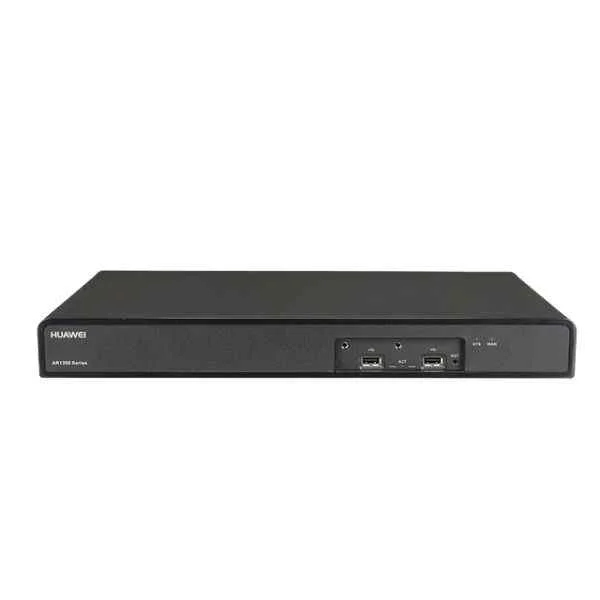
AR1220EV (AR1220EV,2GE COMBO,8GE LAN,2 USB,2 SIC,build-in 32-channel DSP,PoE Power Adapter)
4.7 (6)- Enterprise Router
- Huawei
- IPSec / SSL VPN / N/A
- AC Power Supply / Redundant
- OSPF / BGP / EIGRP / RIP / Static Routing
- Modular
Est Value $311.00$235.53
24.3% offIn stockNewRefurbishedFirst-Time Buyer Discount – Get up to 2% additional off on your first order
ORM Rewards Earn $50 in Rewards + Free Expedited Delivery – Join Now!
Use eCoupon ORMSAVE10
eCoupon limited to 5 units
- BEST SELLING
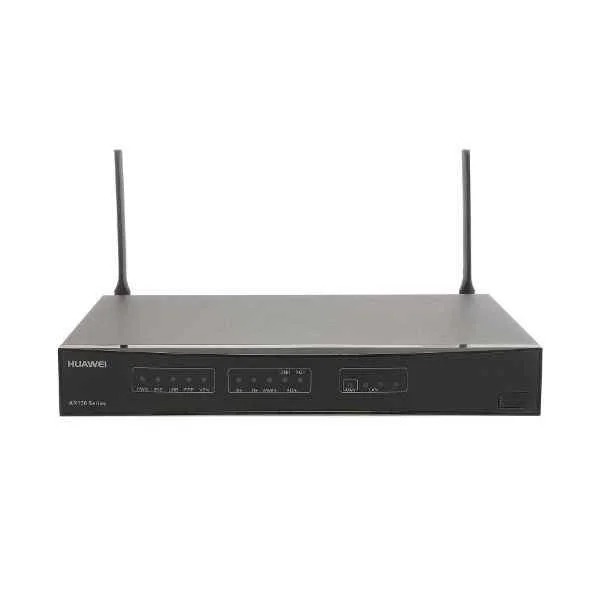
AR151W-P-S (2FastEthernet WAN,4FastEthernet LAN(PoE),802.11b/g/n AP,1 USB)
4.8 (6)- Enterprise Router
- Huawei
- IPSec / SSL VPN
- AC Power Supply / Redundant
- OSPF / BGP / EIGRP / Static Routing
- Modular
Est Value $570.54$285.27
50% offIn stockRefurbishedFirst-Time Buyer Discount – Get up to 2% additional off on your first order
ORM Rewards Earn $50 in Rewards + Free Expedited Delivery – Join Now!
Use eCoupon ORMSAVE10
eCoupon limited to 5 units
- BEST SELLING
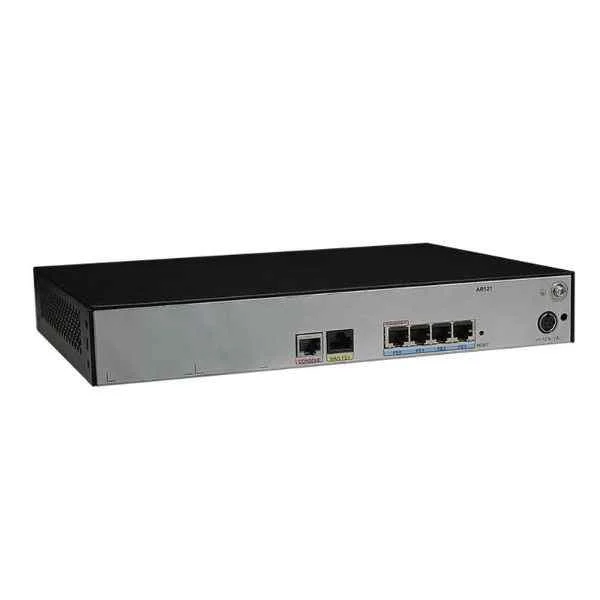
AR121W (Huawei AR121W,1FE WAN,4FE LAN,WIFI 2.4G)
4.8 (6)- Enterprise Router
- Huawei
- IPSec / SSL VPN / GRE / DMVPN / FlexVPN
- AC Power Supply / DC Power Supply / Redundant
- OSPF / BGP / EIGRP / MPLS / IS-IS / RIP / Static Routing
- Fiber Optic
- Modular
Est Value $691.66$370.38
46.5% offIn stockNewFirst-Time Buyer Discount – Get up to 2% additional off on your first order
ORM Rewards Earn $50 in Rewards + Free Expedited Delivery – Join Now!
Use eCoupon ORMSAVE10
eCoupon limited to 5 units
- BEST SELLING
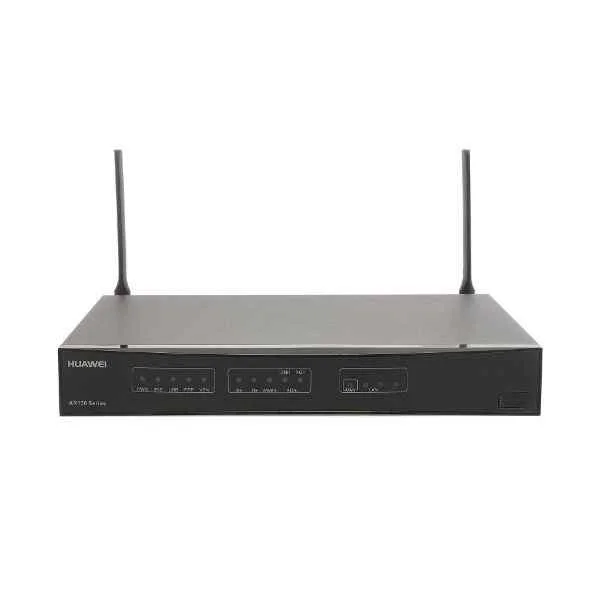
AR151W-P (AR151W-P,1FastEthernet WAN,4FastEthernet LAN(PoE),802.11b/g/n AP,1 USB, AR0M1515BA00)
4.8 (6)- Enterprise Router
- Huawei
- IPSec / SSL VPN
- AC Power Supply / Redundant
- OSPF / BGP / RIP / Static Routing
- Modular
Est Value $784.00$392.00
50% offIn stockRefurbishedFirst-Time Buyer Discount – Get up to 2% additional off on your first order
ORM Rewards Earn $50 in Rewards + Free Expedited Delivery – Join Now!
Use eCoupon ORMSAVE10
eCoupon limited to 5 units
- BEST SELLING
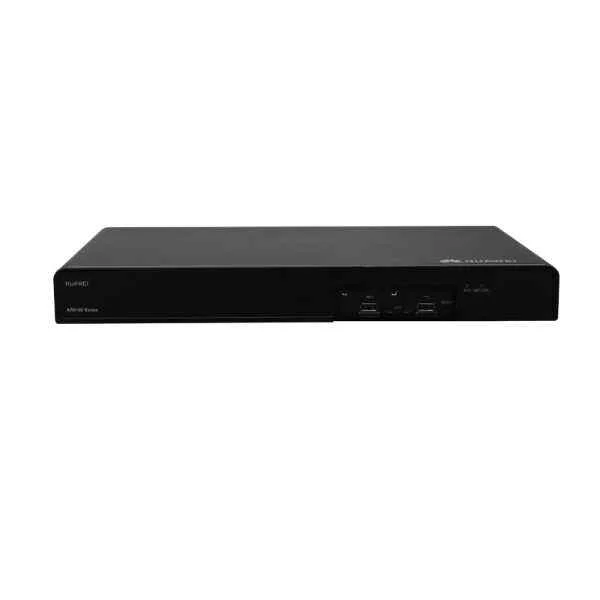
AR6120 (AR6120,1*GE WAN,1*GE combo WAN,1*10GE SFP+,8*GE LAN,2*USB,2*SIC)
4.5 (6)- Enterprise Router
- Huawei
- IPSec / SSL VPN / DMVPN
- AC Power Supply / DC Power Supply / Redundant
- OSPF / BGP / EIGRP / MPLS / RIP / Static Routing
- Fiber Optic
- Modular
Est Value $1,679.33$476.08
71.7% offIn stockNewFirst-Time Buyer Discount – Get up to 2% additional off on your first order
ORM Rewards Earn $50 in Rewards + Free Expedited Delivery – Join Now!
Use eCoupon ORMSAVE10
eCoupon limited to 5 units
- BEST SELLING
AR550C-2C6GE (AR550C-2C6GE.2 SFP WAN 2.5GE .2 GE LAN(POE++).4 GE LAN(POE+).2 GE COMBO WAN(POE+).1 DO.1 DI.1 RS485.1 USB2.0.2 POWER 9.6-60V)
4.8 (6)- Enterprise Router
- Huawei
- IPSec / SSL VPN
- AC Power Supply with Redundancy
- OSPF / BGP / RIP / Static Routing
- Modular
Est Value $1,906.96$1,649.46
13.5% offIn stockNewRefurbishedFirst-Time Buyer Discount – Get up to 2% additional off on your first order
ORM Rewards Earn $50 in Rewards + Free Expedited Delivery – Join Now!
Use eCoupon ORMSAVE10
eCoupon limited to 5 units
- BEST SELLING
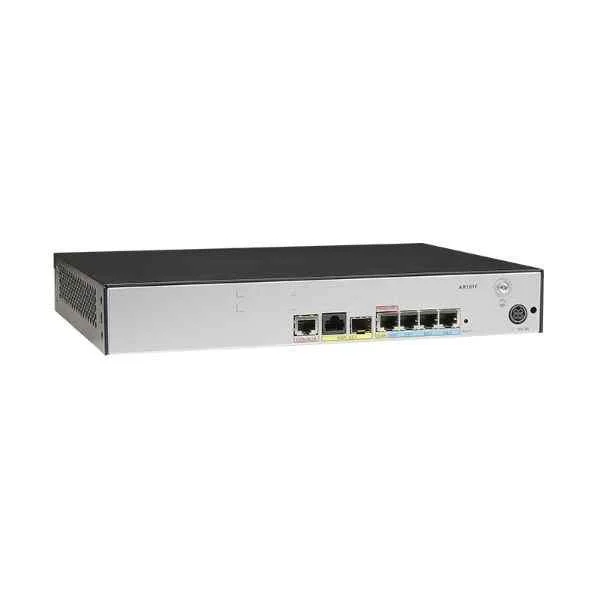
AR161F (AR161F,1GigabitEthernet COMB WAN,4GigabitEthernet LAN,1 USB)
4.8 (6)- Enterprise Router
- Huawei
- IPSec / SSL VPN / DMVPN / FlexVPN
- AC Power Supply with Redundancy
- OSPF / BGP / EIGRP / Static Routing
- Fiber Optic / LTE
- Modular
Est Value $789.08$563.41
28.6% offIn stockNewFirst-Time Buyer Discount – Get up to 2% additional off on your first order
ORM Rewards Earn $50 in Rewards + Free Expedited Delivery – Join Now!
Use eCoupon ORMSAVE10
eCoupon limited to 5 units
- BEST SELLING
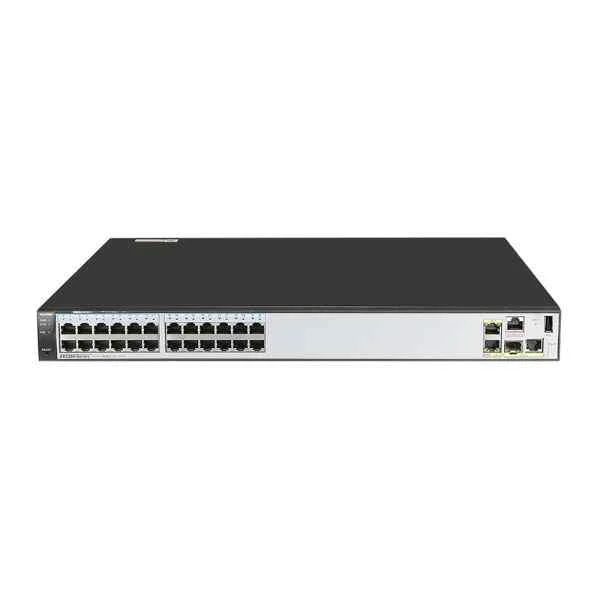
AR2204-27GE-P (Huawei AR2204-27GE-P,3GE WAN(1GE Combo),24 GE(8 POE),1 USB,4 SIC,60W AC POWER(1+1))
4.7 (6)- Enterprise Router
- Huawei
- IPSec / SSL VPN
- Redundant AC/DC Power Supply
- OSPF / BGP / EIGRP / Static Routing
- Modular
Est Value $3,541.00$654.15
81.5% offIn stockNewFirst-Time Buyer Discount – Get up to 2% additional off on your first order
ORM Rewards Earn $50 in Rewards + Free Expedited Delivery – Join Now!
Use eCoupon ORMSAVE10
eCoupon limited to 5 units
- BEST SELLING
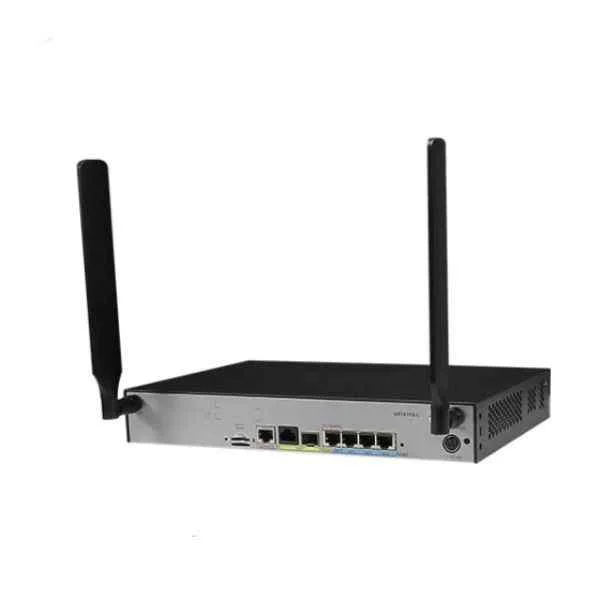
AR161FW (AR161FW,1GigabitEthernet COMBO WAN,4GigabitEthernet LAN,1 USB,1 WLAN)
4.7 (6)- Enterprise Router
- Huawei
- IPSec / SSL VPN
- AC Power Supply / Redundant
- OSPF / BGP / EIGRP / Static Routing
- Fiber Optic / DSL
- Modular
Est Value $1,213.98$764.80
37% offIn stockNewFirst-Time Buyer Discount – Get up to 2% additional off on your first order
ORM Rewards Earn $50 in Rewards + Free Expedited Delivery – Join Now!
Use eCoupon ORMSAVE10
eCoupon limited to 5 units
- BEST SELLING
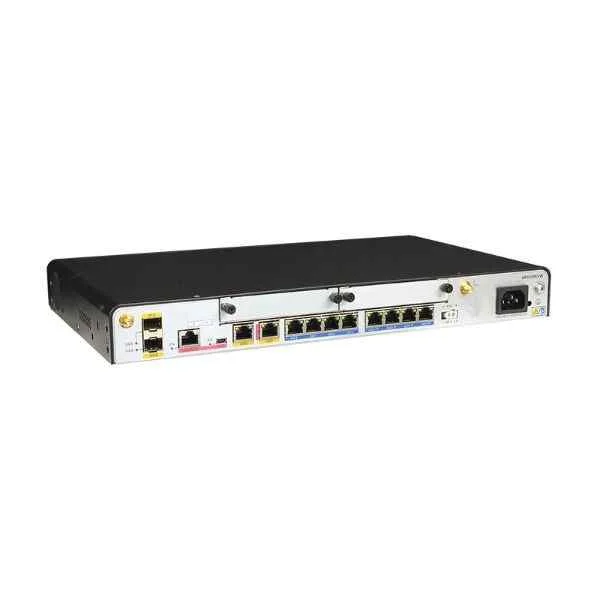
AR1220EVW (Huawei AR1220EVW,2GE COMBO,8GE LAN,802.11b/g/n AP,2 USB,2 SIC,build-in 32-channel DSP,PoE Power Adapter)
4.5 (6)- Enterprise Router
- Huawei
- IPSec / SSL VPN / GRE
- AC Power Supply / DC Power Supply / Redundant
- OSPF / BGP / EIGRP / Static Routing
- Fiber Optic
- Modular
Est Value $2,377.00$770.70
67.6% offIn stockNewFirst-Time Buyer Discount – Get up to 2% additional off on your first order
ORM Rewards Earn $50 in Rewards + Free Expedited Delivery – Join Now!
Use eCoupon ORMSAVE10
eCoupon limited to 5 units
- BEST SELLING
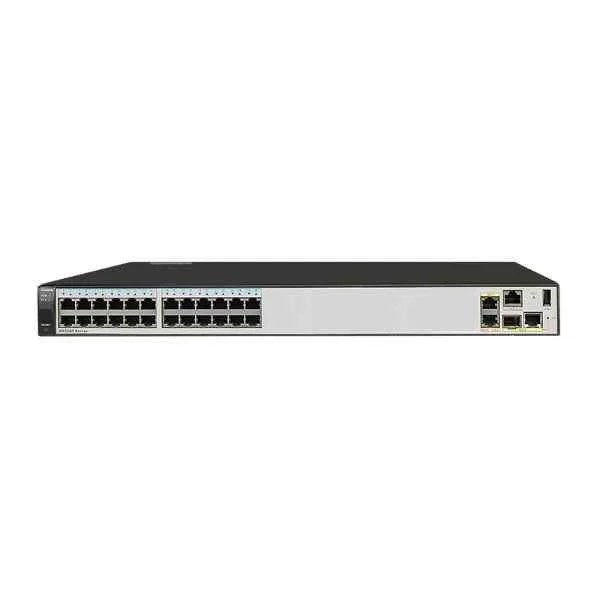
AR2204-27GE (Huawei AR2204-27GE,3GE WAN(1GE Combo),24 GE,1 USB,4 SIC,60W AC POWER)
4.3 (6)- Enterprise Router
- Huawei
- IPSec / SSL VPN
- AC Power Supply with Redundancy
- OSPF / BGP / EIGRP / Static Routing
- Fiber Optic / DSL
- Modular
Est Value $2,934.00$790.65
73.1% offIn stockNewFirst-Time Buyer Discount – Get up to 2% additional off on your first order
ORM Rewards Earn $50 in Rewards + Free Expedited Delivery – Join Now!
Use eCoupon ORMSAVE10
eCoupon limited to 5 units
- BEST SELLING
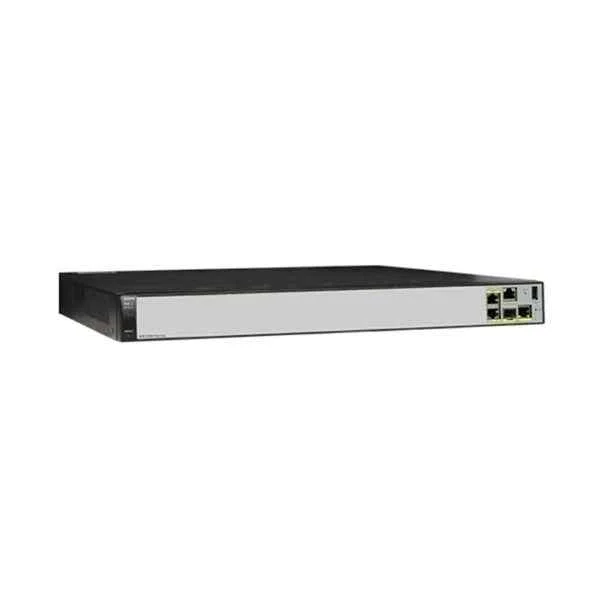
AR2204E (AR2204E,3GE WAN(1GE Combo),1 USB,4 SIC,60W AC POWER(1+1))
4.8 (6)- Enterprise Router
- Huawei
- IPSec / SSL VPN / GRE / DMVPN / FlexVPN
- AC Power Supply / DC Power Supply / Redundant
- OSPF / BGP / EIGRP / RIP / Static Routing
- Fiber Optic / DSL / LTE
- Modular
Est Value $2,018.00$1,008.00
50% offIn stockNewFirst-Time Buyer Discount – Get up to 2% additional off on your first order
ORM Rewards Earn $50 in Rewards + Free Expedited Delivery – Join Now!
Use eCoupon ORMSAVE10
eCoupon limited to 5 units
- BEST SELLING
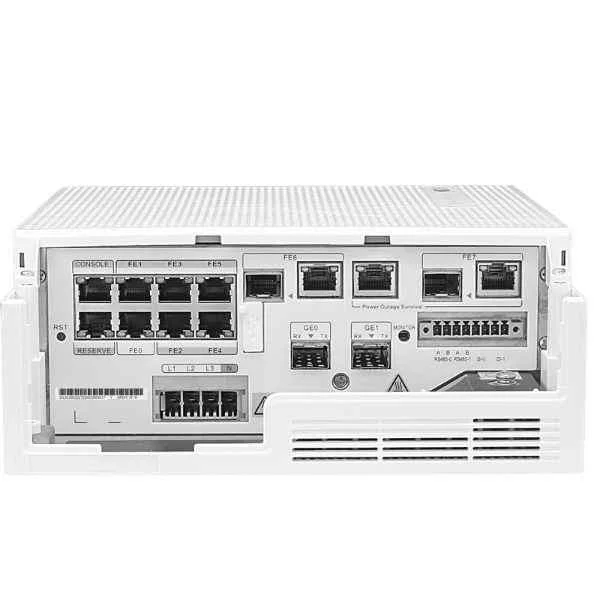
AR531-F2C-H (AR531-F2C-H,AC,6 FE SFP,2 GE, 2 FE combo,2 RS485,2 DI)
4.5 (6)- Enterprise Router
- Huawei
- IPSec / SSL VPN
- AC Power Supply, Redundant
- OSPF / BGP / Static Routing
- Modular
Est Value $2,565.06$1,077.32
58% offIn stockNewFirst-Time Buyer Discount – Get up to 2% additional off on your first order
ORM Rewards Earn $50 in Rewards + Free Expedited Delivery – Join Now!
Use eCoupon ORMSAVE10
eCoupon limited to 5 units
- BEST SELLING
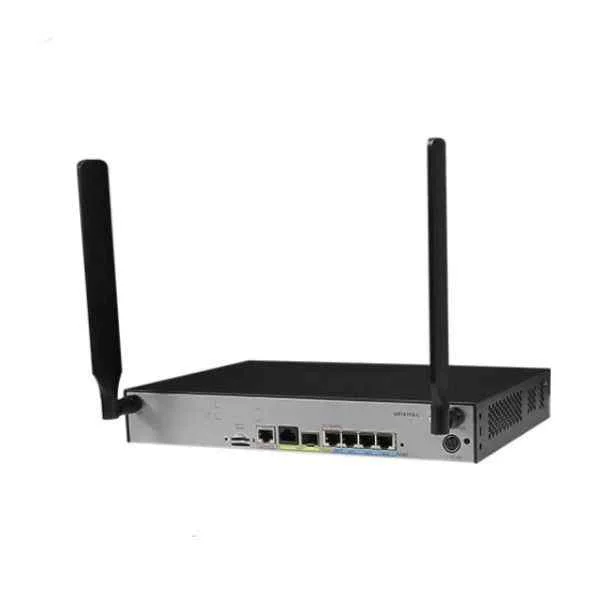
AR161FG-L (AR161FG-L,1GigabitEthernet COMBO WAN,4GigabitEthernet LAN,1 USB,1 FDD LTE)
4.5 (6)- Enterprise Router
- Huawei
- IPSec / SSL VPN
- Redundant
- OSPF / BGP / Static Routing
- Fiber Optic
- Fixed
Est Value $1,962.39$1,092.06
44.4% offIn stockNewFirst-Time Buyer Discount – Get up to 2% additional off on your first order
ORM Rewards Earn $50 in Rewards + Free Expedited Delivery – Join Now!
Use eCoupon ORMSAVE10
eCoupon limited to 5 units
- BEST SELLING
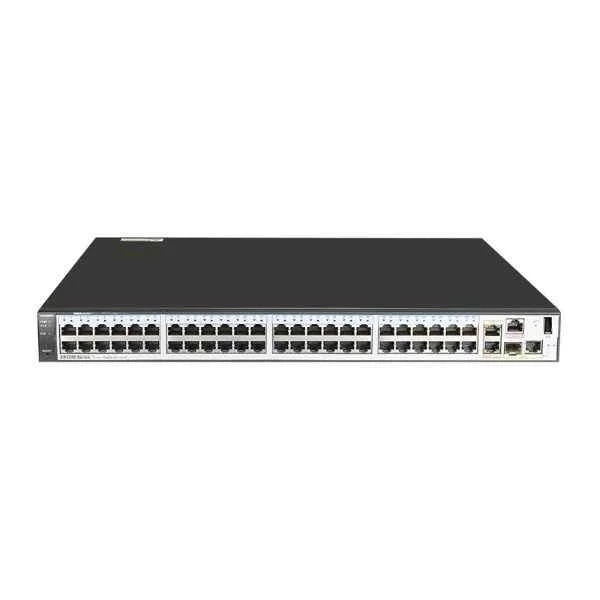
AR2204-51GE-P (Huawei AR2204-51GE-P,3GE WAN(1GE Combo),48 GE(8 POE),1 USB,4 SIC,60W AC POWER(1+1))
4.7 (6)- Enterprise Router
- Huawei
- IPSec / SSL VPN
- Redundant AC Power Supply
- OSPF / BGP / EIGRP / Static Routing
- Modular
Est Value $4,856.00$1,176.00
75.8% offIn stockNewFirst-Time Buyer Discount – Get up to 2% additional off on your first order
ORM Rewards Earn $50 in Rewards + Free Expedited Delivery – Join Now!
Use eCoupon ORMSAVE10
eCoupon limited to 5 units
- BEST SELLING
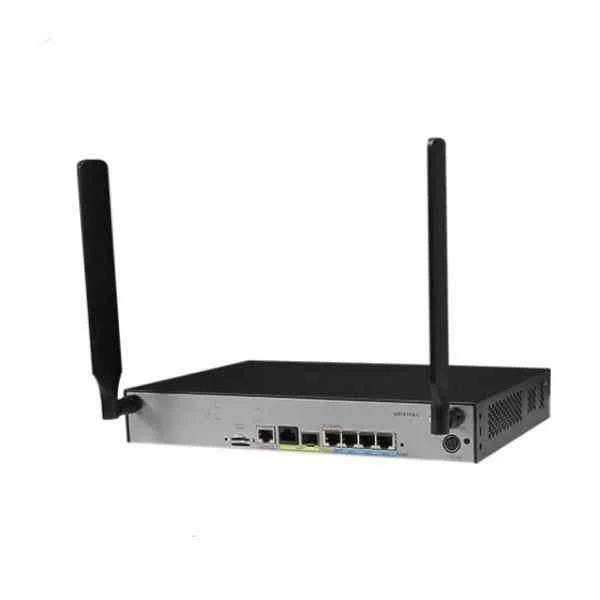
AR161FGW-L (AR161FGW-L,1GigabitEthernet COMBO WAN,4GigabitEthernet LAN,1 USB,1 FDD LTE,1 WLAN)
4.8 (6)- Enterprise Router
- Huawei
- IPSec / SSL VPN
- AC Power Supply / Redundant
- OSPF / BGP / EIGRP / Static Routing
- Fiber Optic / DSL
- Modular
Est Value $2,284.10$1,199.15
47.5% offIn stockNewFirst-Time Buyer Discount – Get up to 2% additional off on your first order
ORM Rewards Earn $50 in Rewards + Free Expedited Delivery – Join Now!
Use eCoupon ORMSAVE10
eCoupon limited to 5 units
- BEST SELLING
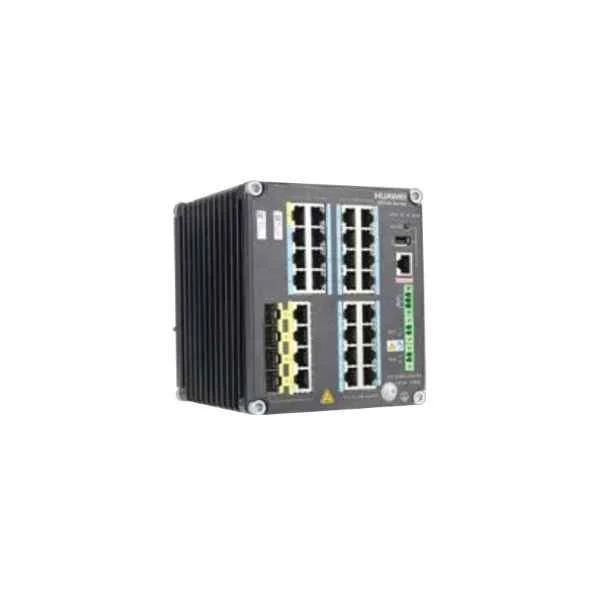
AR550-24FE-D-H (AR550-24FE-D-H.4GE COMBO WAN.24 FE LAN.1 USB2.0.1 DO.1 SAUX.2 9.6-60V POWER)
4.3 (6)- Enterprise Router
- Huawei
- IPSec / SSL VPN
- AC Power Supply / Redundant
- OSPF / BGP / RIP / Static Routing
- Fixed
Est Value $4,041.54$1,230.64
69.6% offIn stockNewFirst-Time Buyer Discount – Get up to 2% additional off on your first order
ORM Rewards Earn $50 in Rewards + Free Expedited Delivery – Join Now!
Use eCoupon ORMSAVE10
eCoupon limited to 5 units
- BEST SELLING
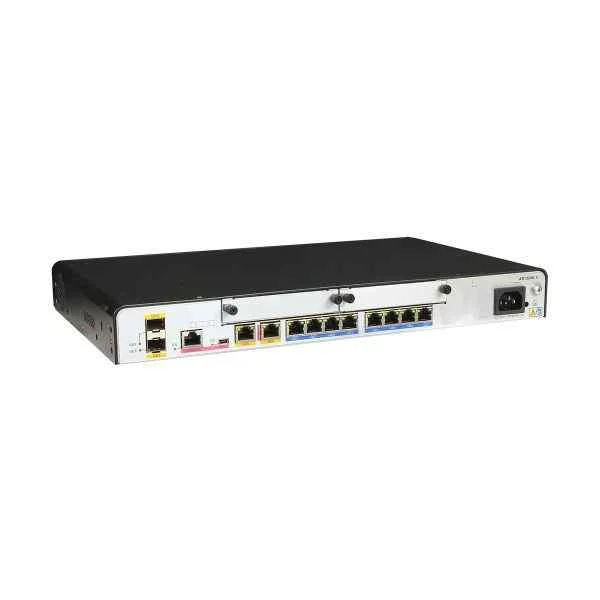
AR1220E (AR1220E,2GE COMBO,8GE LAN,2 USB,2 SIC)
4.8 (6)- Enterprise Router
- Huawei
- IPSec / SSL VPN / DMVPN
- AC Power Supply / Redundant
- OSPF / BGP / EIGRP / RIP / Static Routing
- Modular
Est Value $1,623.10$383.32
76.4% offIn stockNewRefurbishedFirst-Time Buyer Discount – Get up to 2% additional off on your first order
ORM Rewards Earn $50 in Rewards + Free Expedited Delivery – Join Now!
Use eCoupon ORMSAVE10
eCoupon limited to 5 units

ORM Sales Advisors
Buying for your business? Get a personalised quote in under 2 hours. Talk to an expert
LEARNFilters (323) 
Questions & Answers
What are the main features of Huawei routers?
Huawei routers offer dual-band Wi-Fi, advanced QoS, parental controls, WPA3 encryption, beamforming and Gigabit LAN ports for stable, high-speed connectivity.
How do I set up my Huawei router for the first time?
Connect your Huawei router to the modem via Ethernet, power it on, access the web interface at 192.168.3.1, and follow the Quick Setup wizard to configure your SSID and password.
How can I update firmware on my Huawei router?
Log into the router interface, go to System > Firmware Upgrade, upload the official firmware file from Huawei Support, and click Update to apply the latest security patches.
What is the maximum Wi-Fi speed supported by Huawei routers?
High-end Huawei models support up to 3000 Mbps (AX3000) across dual-band 2.4 GHz and 5 GHz, ensuring smooth 4K streaming and low-latency gaming.
How do I secure my Huawei router with a strong password?
In the router settings, enable WPA3 encryption, set a unique SSID, and create a complex password with at least 12 characters combining letters, numbers, and symbols.
Do Huawei routers support dual-band Wi-Fi?
Yes, Huawei routers support dual-band Wi-Fi on both 2.4 GHz and 5 GHz bands, allowing you to optimize performance and connection stability for different devices.
How do I reset my Huawei router to factory settings?
Press and hold the Reset button on the back of the router for 10 seconds until the LED indicators blink, then release to restore factory defaults and clear all custom settings.
How can I configure port forwarding on my Huawei router?
Log into the router web interface, navigate to Security > Port Mapping, add a new rule with the service port, internal IP address and protocol, and save to enable external access.
What should I do if my Huawei router has no internet connection?
Check all cable connections, restart the router and modem, verify WAN settings in the admin panel, and contact your ISP if the issue persists.
How do I set up parental controls on my Huawei router?
Access the router’s Control Center, select Parental Controls, create profiles for each device, and set time limits and content filters to manage online usage.
How many devices can I connect to a Huawei router simultaneously?
Depending on the model, Huawei routers support up to 128 simultaneous connections, delivering stable performance for smart home devices, laptops and smartphones.
How do I enable guest Wi-Fi on my Huawei router?
Log into the router dashboard, go to Wireless Settings > Guest Network, enable the feature, set a separate SSID and password, and save to isolate guest traffic.
Do Huawei routers support IPv6?
Yes, Huawei routers fully support IPv6 address allocation, DHCPv6 and IPv6 firewall settings to ensure compatibility with modern internet infrastructure.
Where should I place my Huawei router for optimal Wi-Fi coverage?
Position your Huawei router centrally, away from walls and interference sources, elevated around 1.5 meters above the floor to maximize signal distribution.
How can I improve Wi-Fi signal strength on my Huawei router?
Update the router firmware, select the least congested Wi-Fi channel, enable beamforming, and consider adding a mesh extender to boost signal coverage.
Are Huawei routers compatible with VoIP and IPTV services?
Yes, Huawei routers support VoIP and IPTV protocols with VLAN tagging and QoS settings to prioritize voice and video streaming for seamless multimedia experience.
How can I monitor network usage on my Huawei router?
Use the Traffic Statistics section in the router’s web interface to view real-time data consumption per device, set alerts and generate usage reports.