 United States
Routers by TP-Link Unmatched Performance
Experience superior speed, robust security, and seamless connectivity with TP-Link routers engineered for reliable performance in demanding network environments, ensuring optimal coverage and enhanced digital safety.
Talk to an expert
27 Matching results
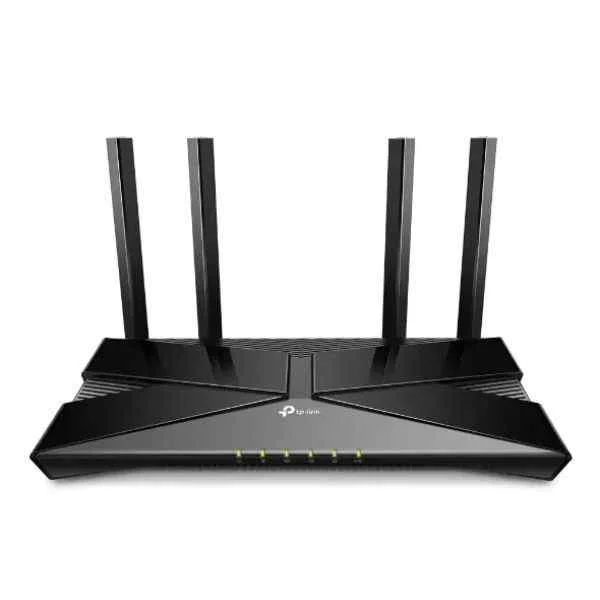
ARCHER AX20 (AX1800 Dual-Band Wi-Fi 6 Router - Wi-Fi 6 (802.11ax) - Dual-band (2.4 GHz / 5 GHz) - Ethernet LAN - Black - Tabletop router)
4.5 (6)- Router
- Tp-Link
- AC Power Supply
- Static Routing
- Fixed
Est Value $233.34
$116.67
50% offIn stockRefurbishedFirst-Time Buyer Discount – Get up to 2% additional off on your first order
ORM Rewards Earn $50 in Rewards + Free Expedited Delivery – Join Now!
Use eCoupon ORMSAVE10
eCoupon limited to 5 units
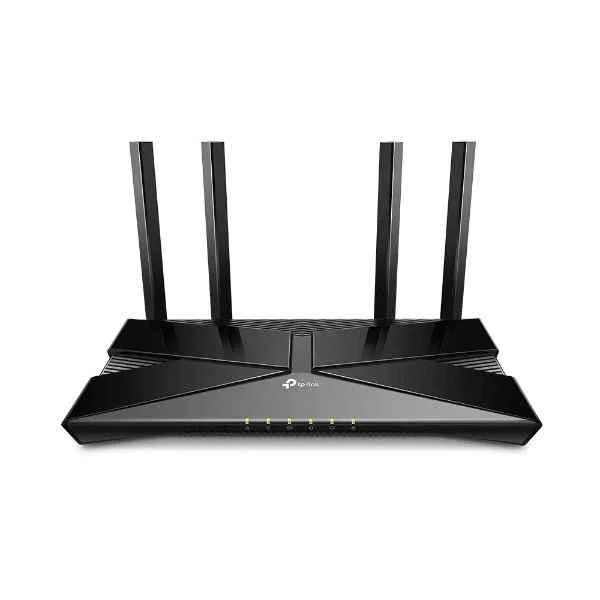
ARCHER AX10 (AX1500 WI-FI ROUTER SOHO)
4.8 (6)- Wireless Router
- Tp-Link
- AC Power Supply
- Static Routing
- Fixed
Est Value $239.16$119.58
50% offIn stockRefurbishedFirst-Time Buyer Discount – Get up to 2% additional off on your first order
ORM Rewards Earn $50 in Rewards + Free Expedited Delivery – Join Now!
Use eCoupon ORMSAVE10
eCoupon limited to 5 units
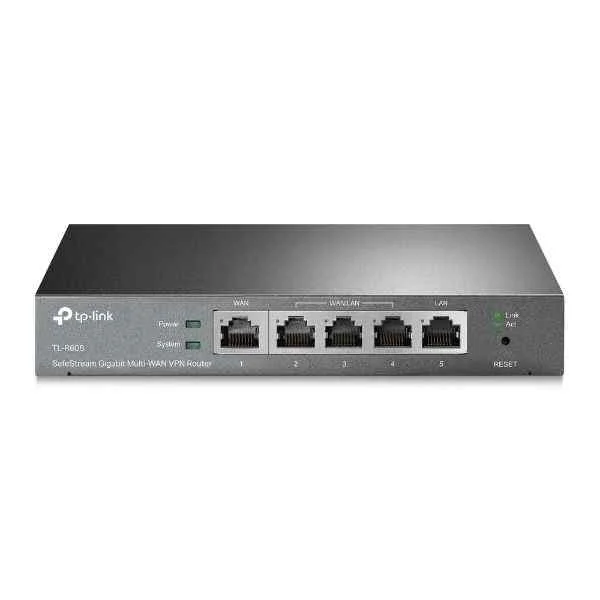
TL-R605 (SafeStream Gigabit Multi-WAN VPN Router - Ethernet WAN - 10 Gigabit Ethernet - 100 Gigabit Ethernet - DSL WAN - Black)
4.7 (6)- Enterprise Router
- Tp-Link
- IPSec / PPTP / L2TP
- DC Power Supply
- Static Routing
- Fixed
Est Value $297.44$148.72
50% offIn stockRefurbishedFirst-Time Buyer Discount – Get up to 2% additional off on your first order
ORM Rewards Earn $50 in Rewards + Free Expedited Delivery – Join Now!
Use eCoupon ORMSAVE10
eCoupon limited to 5 units
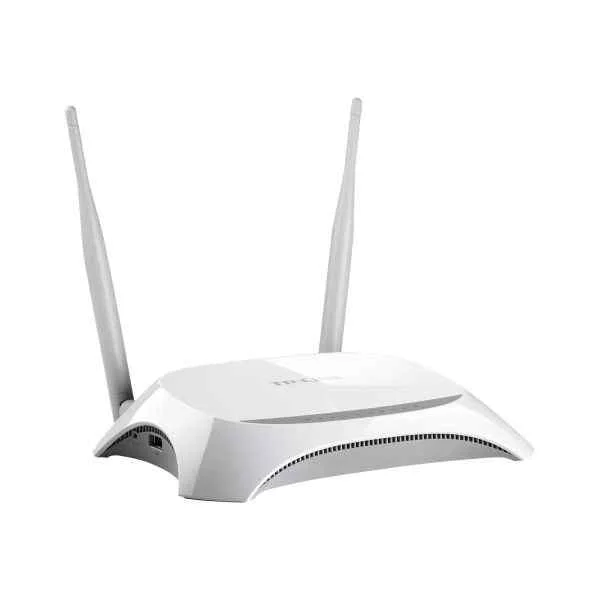
TL-MR3420 (TP-LINK TL-MR3420 wireless router Fast Ethernet Black, White (TL-MR3420))
4.8 (6)- Router
- Tp-Link
- IPSec
- DC Power Supply
- Static Routing
- 4G
- Fixed
Est Value $179.25$153.02
14.6% offIn stockRefurbishedFirst-Time Buyer Discount – Get up to 2% additional off on your first order
ORM Rewards Earn $50 in Rewards + Free Expedited Delivery – Join Now!
Use eCoupon ORMSAVE10
eCoupon limited to 5 units
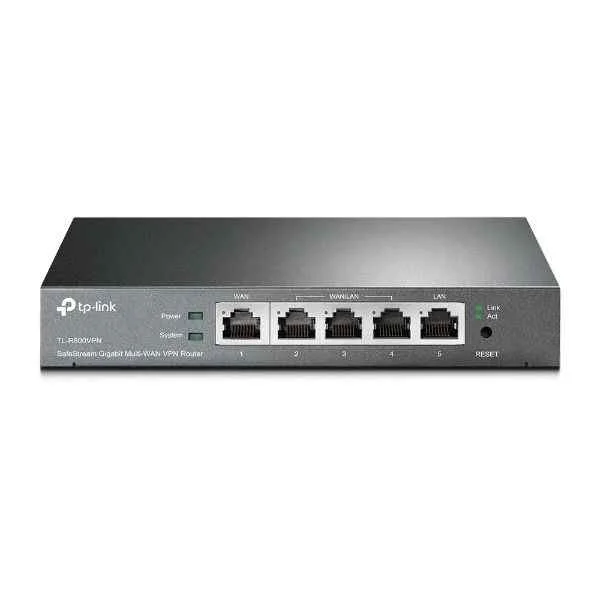
TL-R600VPN (TL-R600VPN - Ethernet WAN - Gigabit Ethernet - SIM card slot - Black)
4.7 (6)- VPN Router
- Tp-Link
- IPSec / PPTP / L2TP
- AC Power Supply
- Static Routing
- Fixed
Est Value $181.15$154.63
14.6% offIn stockRefurbishedFirst-Time Buyer Discount – Get up to 2% additional off on your first order
ORM Rewards Earn $50 in Rewards + Free Expedited Delivery – Join Now!
Use eCoupon ORMSAVE10
eCoupon limited to 5 units
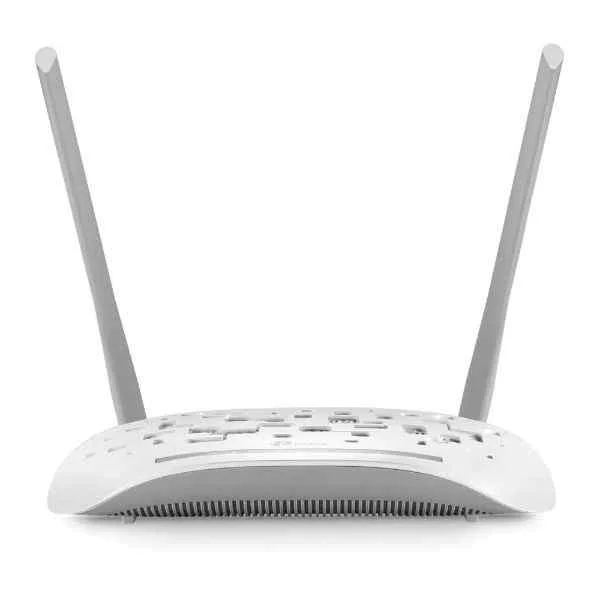
TD-W8961N (TD-W8961N - Wi-Fi 4 (802.11n) - Single-band (2.4 GHz) - Ethernet LAN - ADSL2+ - White)
4.7 (6)- Gateway
- Tp-Link
- AC Power Supply
- Static Routing
- DSL
- Fixed
Est Value $313.98$156.99
50% offIn stockRefurbishedFirst-Time Buyer Discount – Get up to 2% additional off on your first order
ORM Rewards Earn $50 in Rewards + Free Expedited Delivery – Join Now!
Use eCoupon ORMSAVE10
eCoupon limited to 5 units
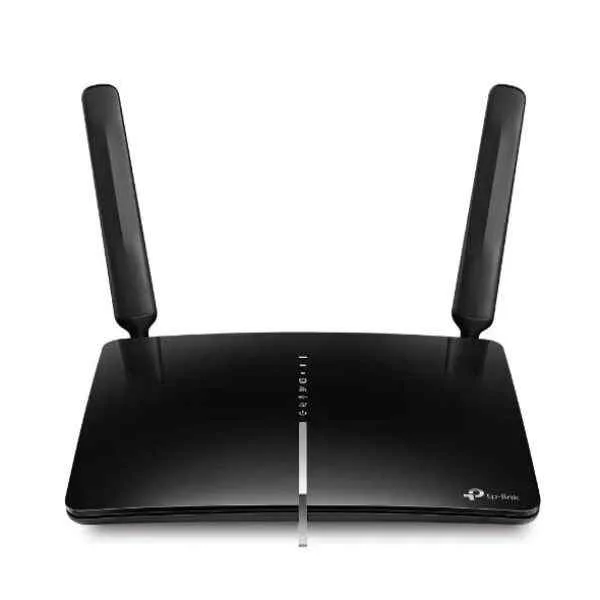
ARCHER MR600 (TP-LINK Archer MR600 4G+ Cat6 AC1200 Wireless Dual Band Gigabit Router - Wi-Fi 5 (802.11ac) - Dual-band (2.4 GHz / 5 GHz) - Ethernet LAN - 3G - Black - Tabletop router (ARCHER MR600))
4.8 (6)- Router
- Tp-Link
- IPSec / SSL VPN / N/A
- AC Power Supply
- Static Routing / N/A
- 4G / LTE
- Fixed
Est Value $214.54$183.14
14.6% offIn stockRefurbishedFirst-Time Buyer Discount – Get up to 2% additional off on your first order
ORM Rewards Earn $50 in Rewards + Free Expedited Delivery – Join Now!
Use eCoupon ORMSAVE10
eCoupon limited to 5 units
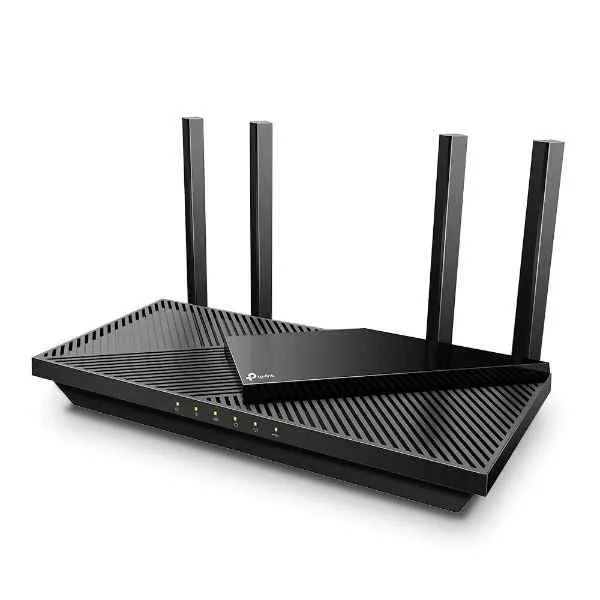
ARCHER AX55 (AX3000 GIGABIT WI-FI 6 ROUTER)
4.8 (6)- Wireless Router
- Tp-Link
- IPSec / SSL VPN
- AC Power Supply
- Static Routing
- Fixed
Est Value $396.90$198.45
50% offIn stockNewRefurbishedFirst-Time Buyer Discount – Get up to 2% additional off on your first order
ORM Rewards Earn $50 in Rewards + Free Expedited Delivery – Join Now!
Use eCoupon ORMSAVE10
eCoupon limited to 5 units
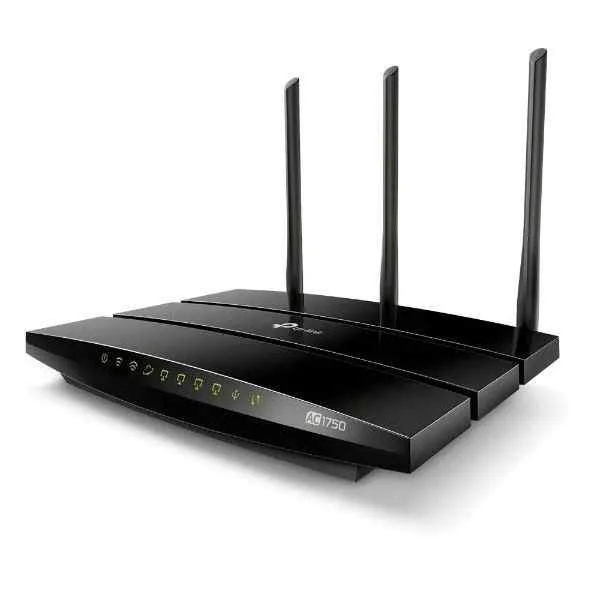
ARCHER C7 (Archer C7 - Wi-Fi 5 (802.11ac) - Dual-band (2.4 GHz / 5 GHz) - Ethernet LAN - Black - Tabletop router)
4.3 (6)- Wireless Router
- Tp-Link
- AC Power Supply
- Static Routing
- Fixed
Est Value $235.43$200.98
14.6% offIn stockRefurbishedFirst-Time Buyer Discount – Get up to 2% additional off on your first order
ORM Rewards Earn $50 in Rewards + Free Expedited Delivery – Join Now!
Use eCoupon ORMSAVE10
eCoupon limited to 5 units
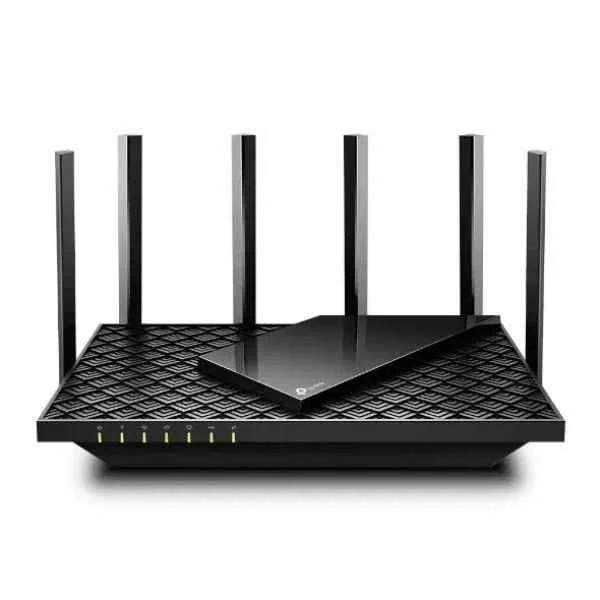
ARCHER AX73 (AX5400 Dual-Band Gigabit Wi-Fi 6 Router - Wi-Fi 6 (802.11ax) - Dual-band (2.4 GHz / 5 GHz) - Ethernet LAN - Black - Portable router)
4.7 (6)- Router
- Tp-Link
- VPN Pass-Through
- AC Power Supply
- Static Routing
- Fixed
Est Value $482.08$241.04
50% offIn stockRefurbishedFirst-Time Buyer Discount – Get up to 2% additional off on your first order
ORM Rewards Earn $50 in Rewards + Free Expedited Delivery – Join Now!
Use eCoupon ORMSAVE10
eCoupon limited to 5 units
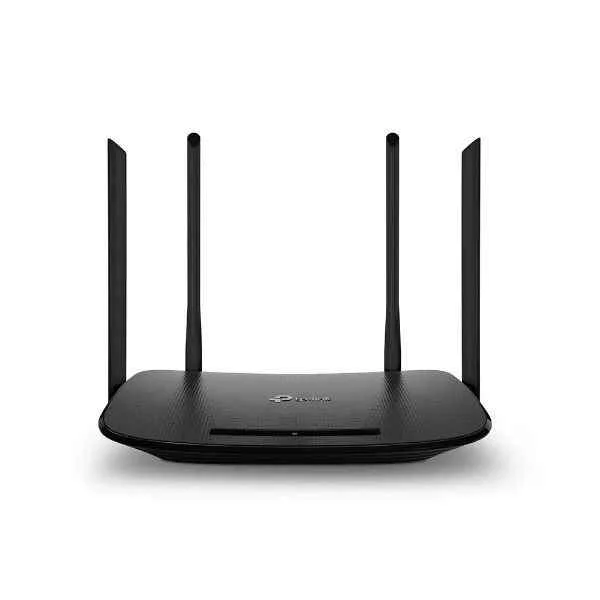
ARCHER VR300 (TP-LINK Archer VR300 AC1200 - Wi-Fi 5 (802.11ac) - Dual-band (2.4 GHz / 5 GHz) - Ethernet LAN - VDSL2 - Black - Tabletop router (ARCHER VR300))
4.3 (6)- Modem / Gateway / Router
- Tp-Link
- AC Power Supply
- Static Routing
- DSL
- Fixed
Est Value $482.08$241.04
50% offIn stockRefurbishedFirst-Time Buyer Discount – Get up to 2% additional off on your first order
ORM Rewards Earn $50 in Rewards + Free Expedited Delivery – Join Now!
Use eCoupon ORMSAVE10
eCoupon limited to 5 units
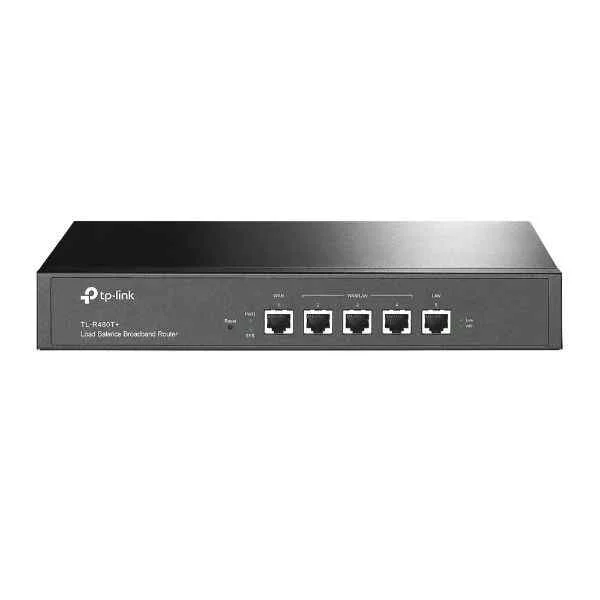
TL-R480T+ (TL R480T Load Balance Broadband Router - Router - WLAN)
4.8 (6)- Load Balancing Router
- Tp-Link
- IPSec / PPTP
- AC Power Supply
- Static Routing
- Fixed
Est Value $296.33$252.97
14.6% offIn stockRefurbishedFirst-Time Buyer Discount – Get up to 2% additional off on your first order
ORM Rewards Earn $50 in Rewards + Free Expedited Delivery – Join Now!
Use eCoupon ORMSAVE10
eCoupon limited to 5 units
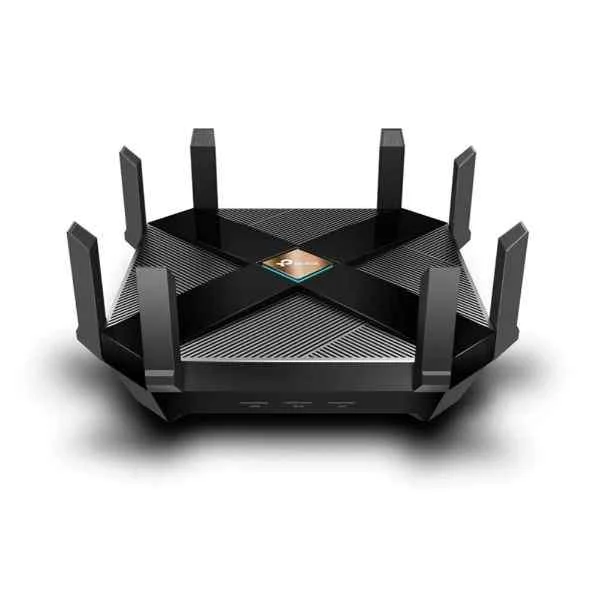
ARCHER AX6000 (AX6000 - Wi-Fi 6 (802.11ax) - Dual-band (2.4 GHz / 5 GHz) - Ethernet LAN - Black - Tabletop router)
4.7 (6)- Wireless Router
- Tp-Link
- IPSec
- AC Power Supply
- Static Routing / N/A
- Fiber Optic
- Fixed
Est Value $540.54$270.27
50% offIn stockRefurbishedFirst-Time Buyer Discount – Get up to 2% additional off on your first order
ORM Rewards Earn $50 in Rewards + Free Expedited Delivery – Join Now!
Use eCoupon ORMSAVE10
eCoupon limited to 5 units

ARCHER AX11000 (TP-LINK AX11000 - Wi-Fi 6 (802.11ax) - Tri-band (2.4 GHz / 5 GHz / 5 GHz) - Ethernet LAN - Black - Tabletop router (ARCHER AX11000))
4.7 (6)- Gaming Router
- Tp-Link
- IPSec / PPTP / L2TP
- External AC Power Supply
- Static Routing / NAT
- Ethernet
- Fixed
Est Value $561.60$280.80
50% offIn stockRefurbishedFirst-Time Buyer Discount – Get up to 2% additional off on your first order
ORM Rewards Earn $50 in Rewards + Free Expedited Delivery – Join Now!
Use eCoupon ORMSAVE10
eCoupon limited to 5 units
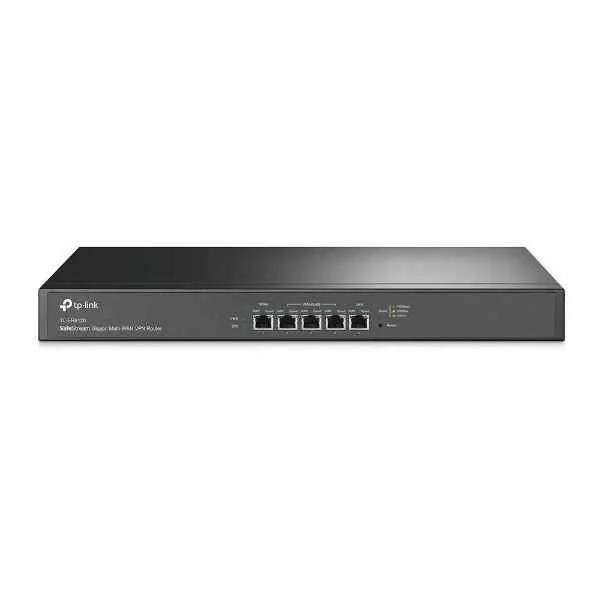
TL-ER6120 (TL-ER6120 - Ethernet WAN - Gigabit Ethernet - Black)
4.5 (6)- Enterprise Router
- Tp-Link
- IPSec / SSL VPN / GRE
- AC Power Supply / Redundant
- OSPF / BGP / RIP / Static Routing
- Modular
Est Value $370.05$315.89
14.6% offIn stockRefurbishedFirst-Time Buyer Discount – Get up to 2% additional off on your first order
ORM Rewards Earn $50 in Rewards + Free Expedited Delivery – Join Now!
Use eCoupon ORMSAVE10
eCoupon limited to 5 units
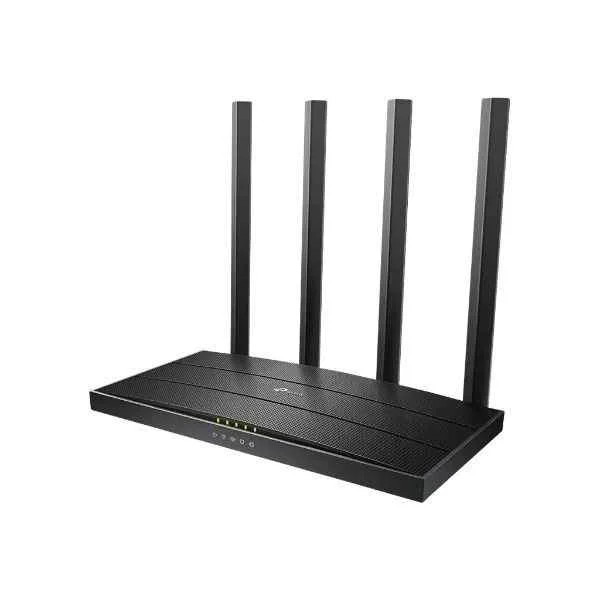
ARCHER C80 (TP-LINK ARCHER C80 AC1900 Wireless MU-MIMO Wi-Fi Router (ARCHER C80))
4.7 (6)- Enterprise Router
- Tp-Link
- AC Power Supply
- Static Routing
- Fixed
Est Value $273.36$136.68
50% offIn stockNewRefurbishedFirst-Time Buyer Discount – Get up to 2% additional off on your first order
ORM Rewards Earn $50 in Rewards + Free Expedited Delivery – Join Now!
Use eCoupon ORMSAVE10
eCoupon limited to 5 units
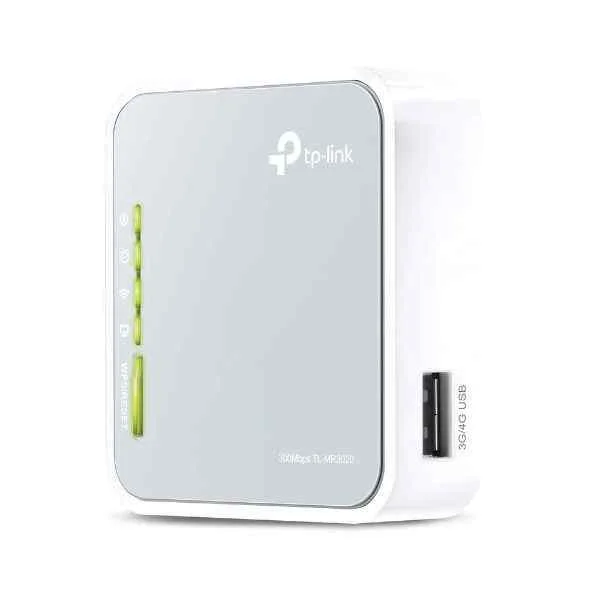
TL-MR3020 (TP-LINK TL-MR3020 - Cellular network router - Grey - White - Fast Ethernet - 10,100 Mbit/s - IEEE 802.11b,IEEE 802.11g,IEEE 802.11n - 802.11b,802.11g,Wi-Fi 4 (802.11n) (TL-MR3020))
4.6 (5)- Wireless Router
- Tp-Link
- Wi-Fi / 3G/4G Router
- 300Mbps
- RJ-45
- TCP/IP
Est Value $90.84$80.64
11.2% offIn stockRefurbishedFirst-Time Buyer Discount – Get up to 2% additional off on your first order
ORM Rewards Earn $50 in Rewards + Free Expedited Delivery – Join Now!
Use eCoupon ORMSAVE10
eCoupon limited to 5 units
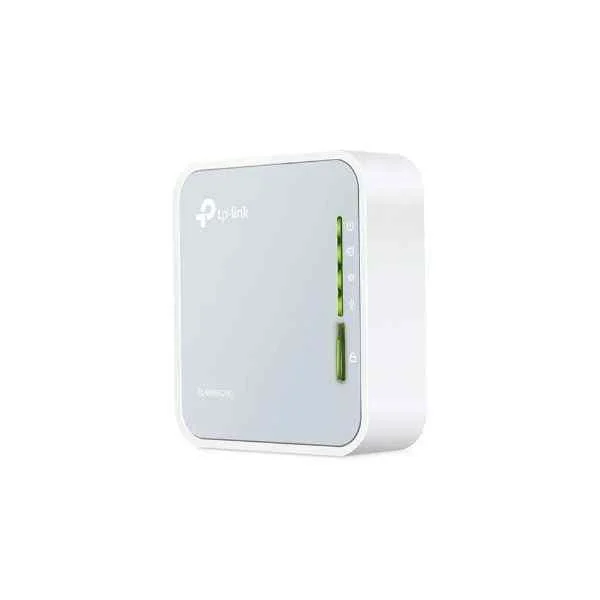
TL-WR902AC (TL-WR902AC 11AC/N/A 11B/G/N 2.4/5G SPI FW DOS WEP WPA2-PSK)
4.5 (6)- Travel Router
- Tp-Link
- DC Power Supply (via Micro USB)
- Static Routing
- Fixed
Est Value $140.34$119.81
14.6% offIn stockNewRefurbishedFirst-Time Buyer Discount – Get up to 2% additional off on your first order
ORM Rewards Earn $50 in Rewards + Free Expedited Delivery – Join Now!
Use eCoupon ORMSAVE10
eCoupon limited to 5 units
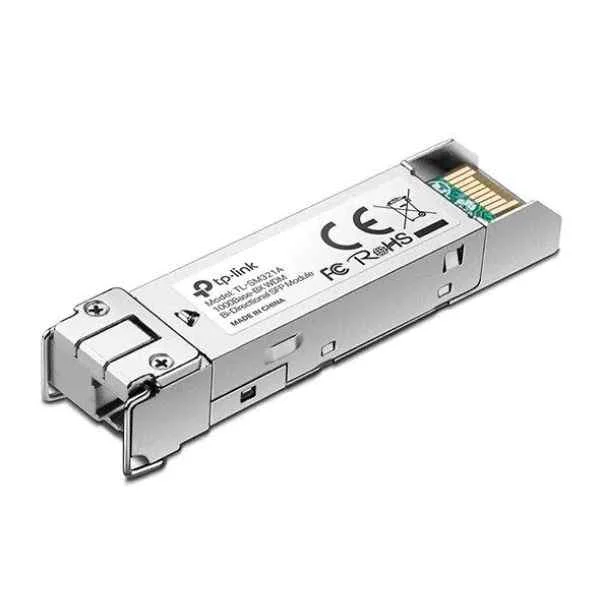
TL-SM321A-2 (1000BASE-BX WDM BI-DIRECTIONAL SFP MODULE)
4.6 (5)- Enterprise Router
- Tp-Link
- IPSec / SSL VPN
- AC Power Supply with Redundant Option
- OSPF / BGP / Static Routing
- Modular
Est Value In stockFirst-Time Buyer Discount – Get up to 2% additional off on your first order
ORM Rewards Earn $50 in Rewards + Free Expedited Delivery – Join Now!
Use eCoupon ORMSAVE10
eCoupon limited to 5 units
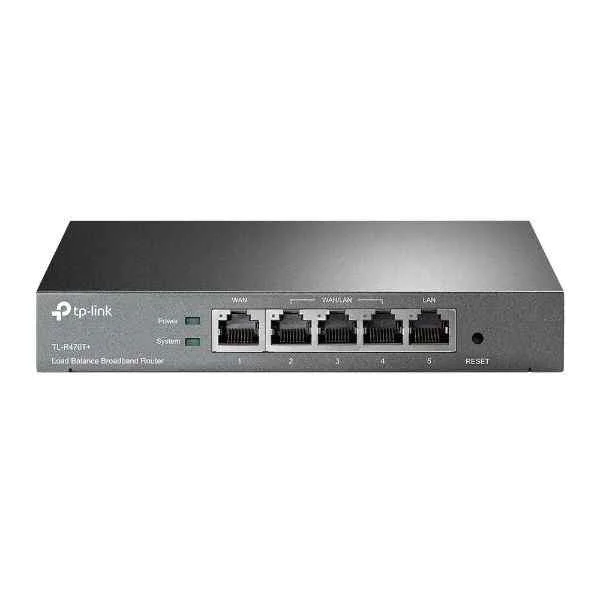
TL-R470T+ (TL-R470T+ - Ethernet WAN - Fast Ethernet - Black)
4.5 (6)- Wireless Router
- Tp-Link
- Access Point
- 802.11b/g/n
- 2.4GHz
- 300Mbps
Est Value In stockFirst-Time Buyer Discount – Get up to 2% additional off on your first order
ORM Rewards Earn $50 in Rewards + Free Expedited Delivery – Join Now!
Use eCoupon ORMSAVE10
eCoupon limited to 5 units

ORM Sales Advisors
Buying for your business? Get a personalised quote in under 2 hours. Talk to an expert
LEARNFilters (27) 
Questions & Answers
How do I set up my TP-Link router for the first time?
Power on your TP-Link router, connect it to your modem via Ethernet, log in to http://tplinkwifi.net using the default credentials, follow the Quick Setup wizard to configure your SSID, password and WAN settings.
How do I reset my TP-Link router to factory settings?
Press and hold the Reset button on the back of your TP-Link router for 10 seconds until the LEDs blink. Your router will reboot and restore default admin credentials and wireless settings.
How do I update the firmware on my TP-Link router?
Log in to the web interface, navigate to System Tools > Firmware Upgrade, upload the downloaded firmware file from the TP-Link support site, and click Upgrade. Wait for the router to reboot to apply the update.
How can I improve the Wi-Fi signal strength on my TP-Link router?
Place the router in a central, elevated location, avoid physical obstructions, switch to a less congested channel in Wireless > Wireless Settings, and update firmware to optimize performance.
How do I enable a guest Wi-Fi network on my TP-Link router?
Log in to the router’s web interface, go to Wireless > Guest Network, enable Guest Network, set a unique SSID and password, and apply settings to isolate guest devices from your main network.
How do I configure parental controls on my TP-Link router?
Navigate to Parental Controls > Add, select the target device, set allowed time slots and content filters, then save. Your router will enforce usage limits and block restricted sites.
How do I change my TP-Link router’s Wi-Fi password?
Access the web interface, go to Wireless > Wireless Security, enter a new WPA2-PSK password, click Save, and reconnect your devices using the updated credentials.
What is MU-MIMO and does my TP-Link router support it?
MU-MIMO (Multi-User, Multiple Input, Multiple Output) allows simultaneous streaming to multiple devices. Check your router’s datasheet or Wireless > Advanced Settings—models labeled AC or AX typically support MU-MIMO.
How can I use my TP-Link router as a range extender?
Set your router to Range Extender or Repeater mode under Operation Mode, scan for your primary network, enter its password, and apply. The device will boost your existing Wi-Fi coverage.
How do I set up a VPN on my TP-Link router?
Go to VPN > PPTP/L2TP, enable the desired service, enter your VPN server, username and password, then apply. Connected devices will be routed through the VPN tunnel.
How can I monitor connected devices on my TP-Link router?
Log in to the router interface and navigate to DHCP > DHCP Clients List or Status > Wireless. You can view each device’s name, IP address and MAC address in real time.
Why is my TP-Link router’s Wi-Fi slow and how do I fix it?
Slow Wi-Fi can result from interference, outdated firmware, incorrect channel selection or distance. Update firmware, change to a clear channel, reposition the router, and enable QoS to prioritize traffic.
How do I set up the TP-Link Tether app with my router?
Download TP-Link Tether from the App Store or Google Play, connect your phone to the router’s Wi-Fi, open Tether, log in with your admin credentials, and follow the on-screen setup instructions.
What should I do if I forgot my TP-Link router’s admin password?
Perform a factory reset by holding the Reset button for 10 seconds, then log in with the default credentials (admin/admin). Reconfigure your network settings and create a new strong password.
How do I configure QoS on my TP-Link router?
Go to Bandwidth Control > QoS Settings, enable QoS, set uplink/downlink speeds, add rules by device or service priority, and save. The router will allocate bandwidth based on your rules.
How do I upgrade to a TP-Link mesh Wi-Fi system?
Purchase compatible Deco units, download the Deco app, follow the app’s pairing wizard to add satellites, name your mesh network, and set a secure password for seamless whole-home coverage.
Is my ISP compatible with TP-Link routers?
TP-Link routers support standard WAN types (DHCP, PPPoE, Static IP). Most ISPs—from cable and DSL to fiber—are compatible. Verify your ISP’s connection details and enter them in Network > WAN.